Thursday, 23 June 2022

How to Learn HTML… Fast

Anyone Can Learn HTML

Without HTML experience, you’ll have to rely on easy-to-use tools to design your website. Although drag-and-drop page builders can be simple and user-friendly, they offer limited customization and functionality. While you could hire a developer, this can be rather expensive.

Fortunately, anyone can learn HTML. From YouTube videos to online courses, there are plenty of free resources that can help you build your coding skills. You can even test your knowledge with a code editor or local environment. 

In this post, we’ll explain what HTML is and why you might want to learn it. Then, we’ll show you how to start learning HTML. Let’s get started!

Get Content Delivered Straight to Your Inbox

Subscribe to our blog and receive great content just like this delivered straight to your inbox.

An Introduction to HTML

HTML, or HyperText Markup Language, is the programming language that defines the structure of a web page. Most websites contain HTML documents that allow browsers to read and render content.

Put simply, HTML specifies how your online content is displayed. This language is made up of elements that structure the file into logical sections. These are the basic building blocks of HTML files.

There are three main parts in an element:

  • Opening tag. This marks the beginning of an element and is wrapped with angle brackets. For instance, <h1> creates a header.
  • Content. This tells the web browser how to display the element.
  • Closing tag. This marks the end of an element, similar to an opening tag. The only difference is that it has a forward slash. For example, </h1> ends a header.

Here’s an example of HTML code:
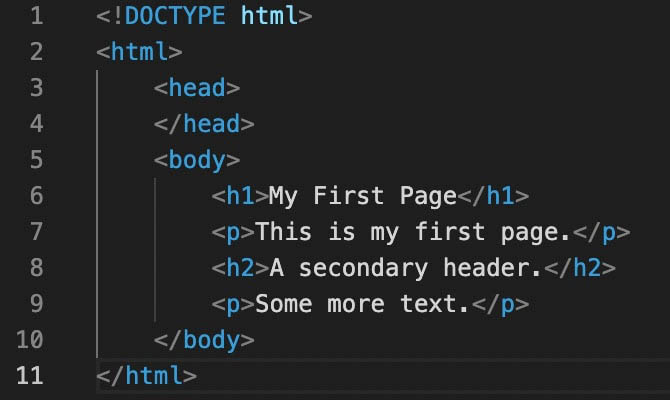
Example HTML coding

As you become familiar with HTML, you can start arranging different tags together. This will help you structure your online content in a unique way.

Here are some of the most popular tags you can use:

  • <p> : formats text as a paragraph
  • <h1> : displays text as a main heading
  • <h2> : formats text as a subheading
  • <i> : italicizes text
  • <b> : bolds text
  • <div> : divides HTML into sections

While this might seem confusing at first, using these tags can become second nature with time. After studying the basics of HTML, you can start to write code quickly and efficiently.

Why You Should Consider Learning HTML

Since HTML is the foundation for online content, it can be a valuable skill to learn. Although you can fully design a website without code, knowing HTML can help you customize web pages from scratch. You can use it to organize every element of your website, including images, text, tables, and more.

If you’re familiar with HTML, you don’t have to hire a professional developer to code your website. You can add new features, rearrange them, and fix errors all by yourself. Plus, understanding HTML can make it easier to learn other coding languages like CSS and JavaScript.

Knowing HTML can also open many doors to higher-paying jobs. Here are some positions that may require a basic understanding of HTML:

  • Email marketing manager: You can create emails with visually engaging HTML elements.
  • Social media manager: You’ll use HTML to embed social media posts.
  • Business intelligence manager: You may need to analyze customer data with HTML modules.

With a thorough knowledge of HTML, you can even pursue employment in web development or web design. There are three main types of jobs in this industry:

  • Front-end developer: designs the part of a website that visitors interact with.
  • Back-end developer: maintains the technology that powers a website, including the server and database.
  • Full-stack developer: responsible for both the front and back end. 

After learning HTML, you’ll need some projects to add to your portfolio. Then, you can apply for freelance work on a site like Toptal:

Toptal website

Like any new skill, learning HTML can take a lot of time and practice. You can develop a basic understanding in just a few days, but becoming an expert may take years. It’s important to be patient and practice consistently.

How to Learn HTML (3 Methods)

You can easily learn how to code through guided practice. This can involve signing up for in-person lectures or taking an online course with modules. These modules typically contain a combination of videos, lectures, and practice exercises.

Since there are many different ways to learn HTML, we’ve compiled a list of some free resources. This way, you can choose the best learning experience for you.

1. Watch YouTube Tutorials

An easy first step to learning HTML is watching a YouTube tutorial. As a beginner, you can watch a crash course video on all things HTML. 

Programming with Mosh is a channel that provides many useful coding tutorials, like the HTML Tutorial for Beginners video:
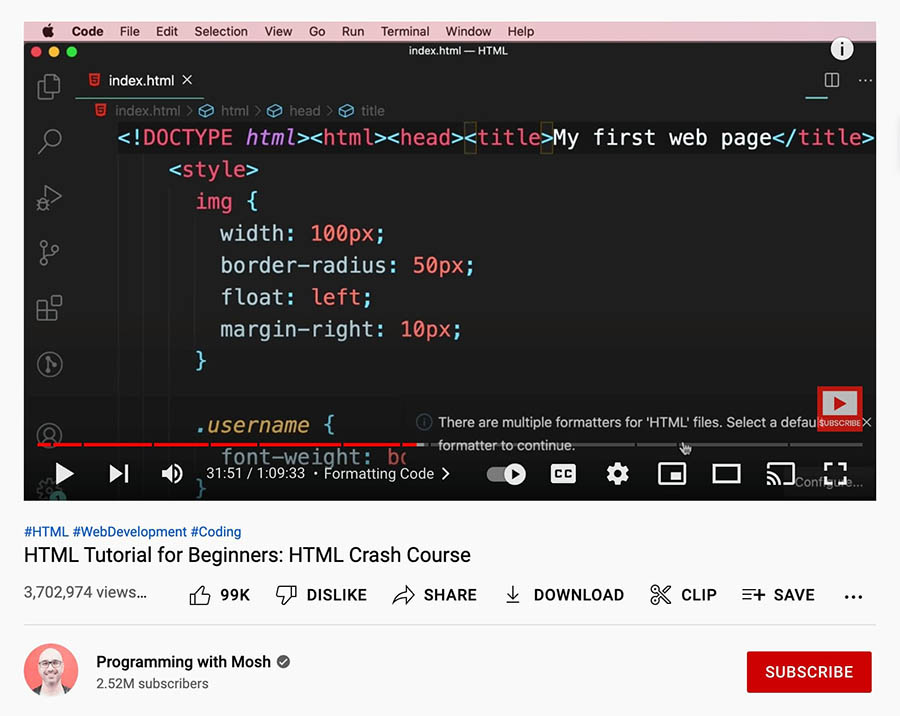
YouTube HTML tutorial for beginners

In just an hour, this video gives you a complete overview of HTML. It starts by explaining basic information about how the web works, then shows you how to format code. 

If you need a more in-depth explanation of tags and elements, you can watch the HTML Crash Course For Absolute Beginners by Traversy Media. This will show you how to create headings, paragraphs, lists, buttons, and more:
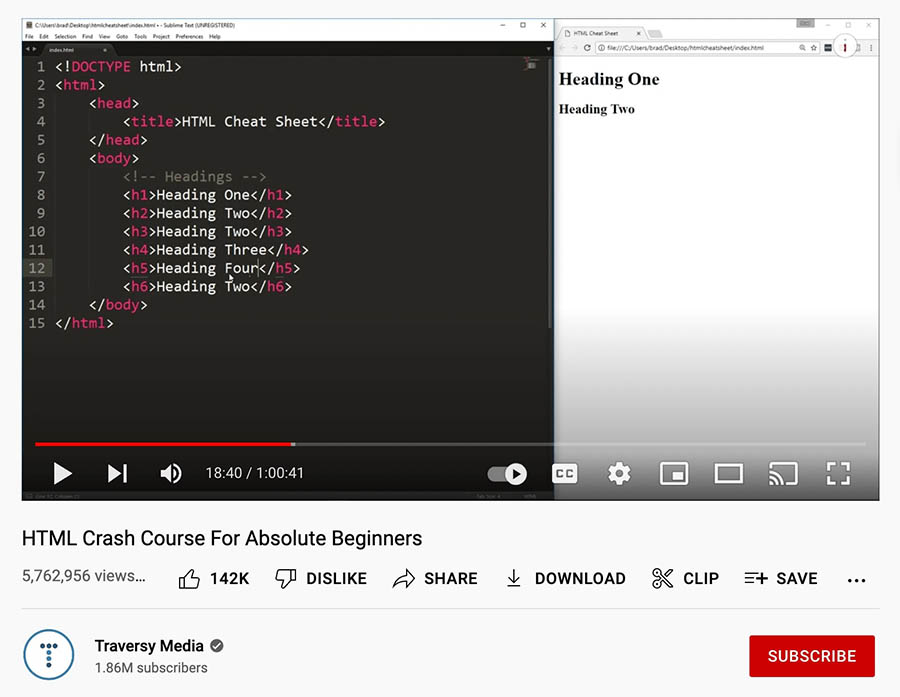
YouTube HTML crash course

YouTube is a valuable resource for new coders because you can search for any topic you want. You can easily find free educational videos from experts who will break down HTML coding into easy-to-follow instructions.

2. Take Online HTML Courses

Although YouTube can be a great starting point for beginners, it might not cover enough information. Therefore, you might want to consider taking an HTML course.

Fortunately, there are plenty of free online courses that you can take. For example, Codecademy has a Learn HTML course that covers elements and structure, tables, forms, and semantic HTML:
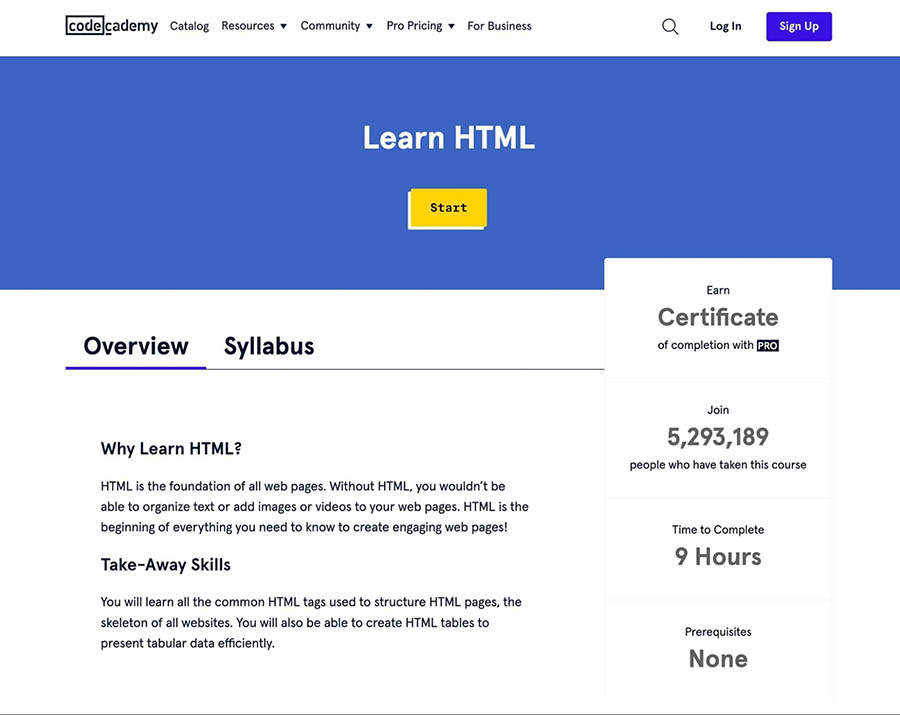
Codecademy HTML course

Once you sign up, you can complete different interactive modules. This includes written explanations, as well as hands-on exercises to practice what you’ve learned:
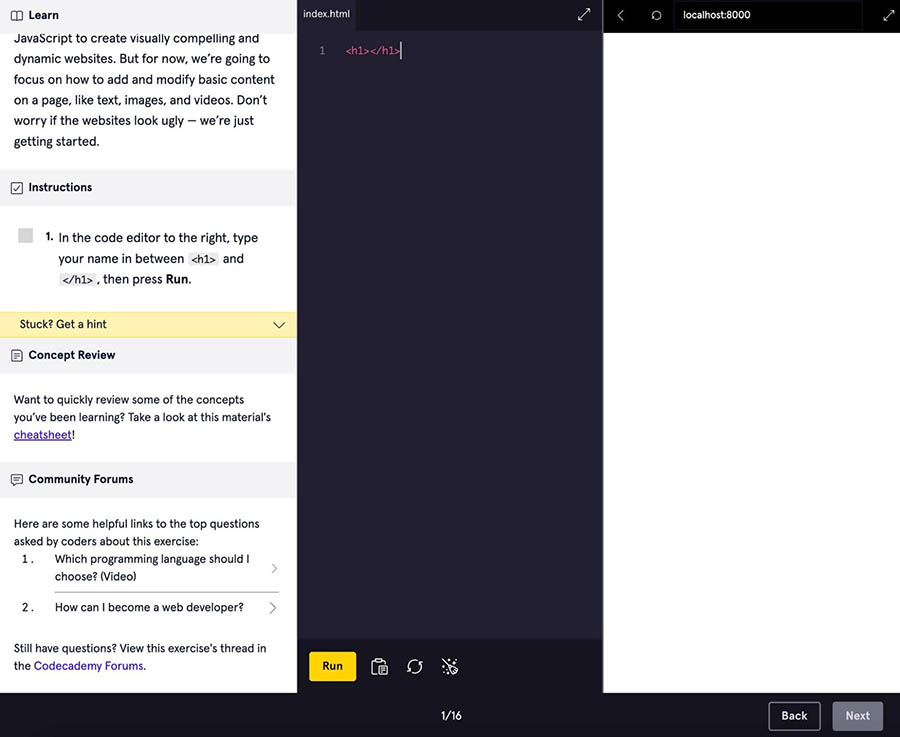
Codecademy course module

As another option, learn-html.org provides many HTML tutorials. You can start with basic elements, selectors, and classes. You can also learn how to format links, lists, and images in HTML:
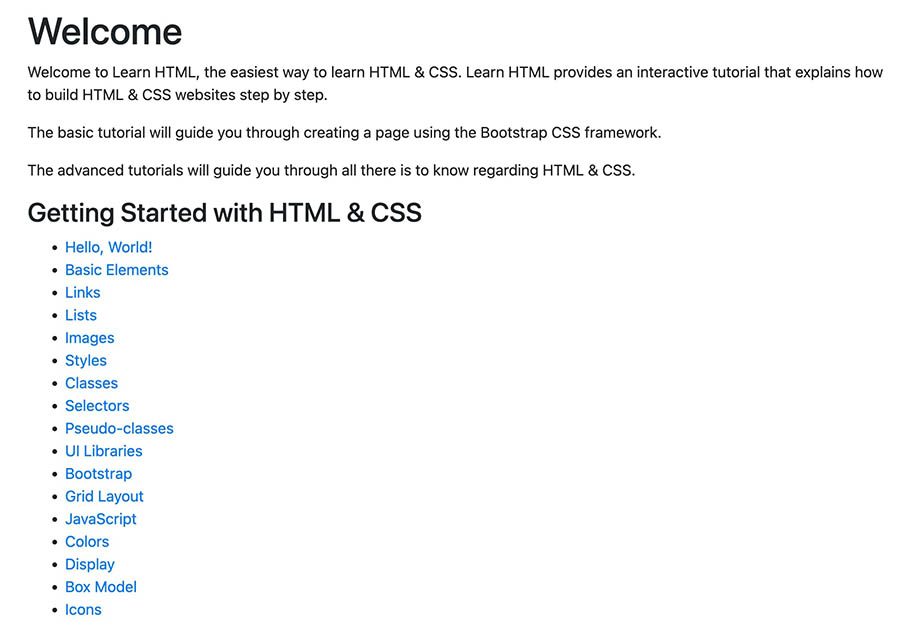
Learn.html HTML course

After selecting a lesson, you can read through its comprehensive explanations. You can also see examples of properly formatted code:
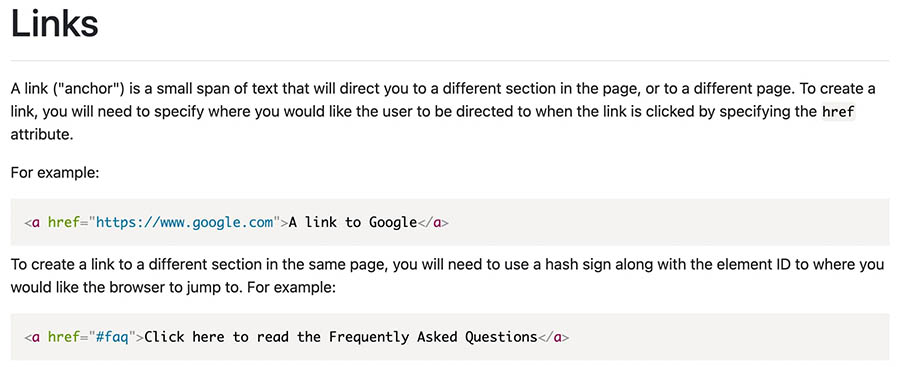
Learn.html module

At the bottom of each lesson, there is an exercise to practice what you’ve learned. Using a code editor, you can input HTML to achieve a specific result:
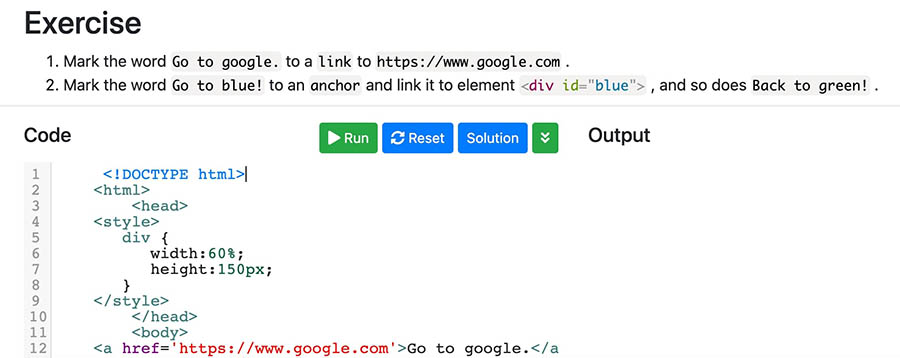
Learn.html exercise

Taking these online courses can be more helpful than basic YouTube tutorials. Plus, it enables you to learn and practice HTML all in one place. 

3. Practice, Practice, Practice

Some people prefer to learn by doing. Once you’re familiar with the basic concepts of HTML, you can start practicing them in a safe environment.

CodePen is one of the best platforms for testing your new coding skills. This is a development environment where you can implement HTML, CSS, or JavaScript coding:
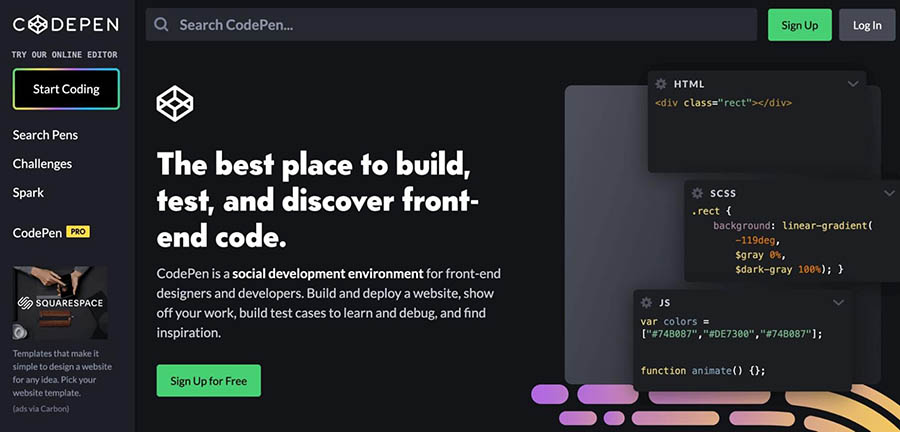
CodePen website

Using the editor, you can start writing code in the HTML section. If you want CodePen to format your coding properly, you can click on Format HTML. To check for errors, select Analyze HTML:
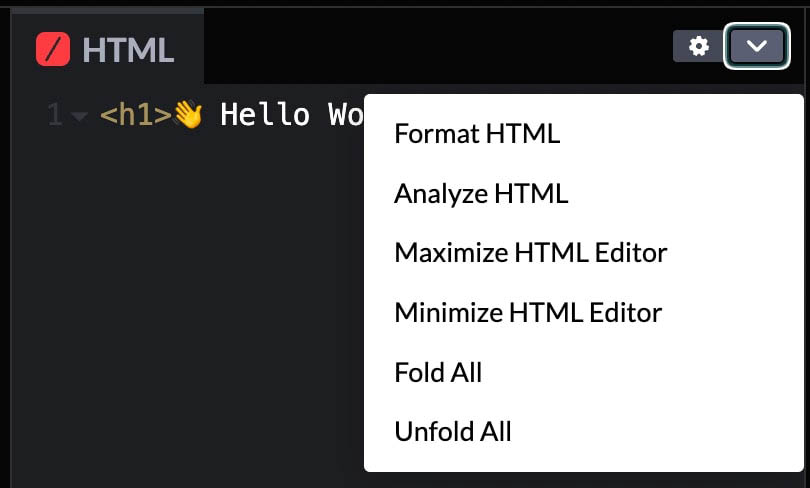
CodePen HTML editor

CodePen enables you to experiment with HTML and view front-end changes without breaking a live website. Once you write HTML code, you can immediately see a preview of what it looks like:
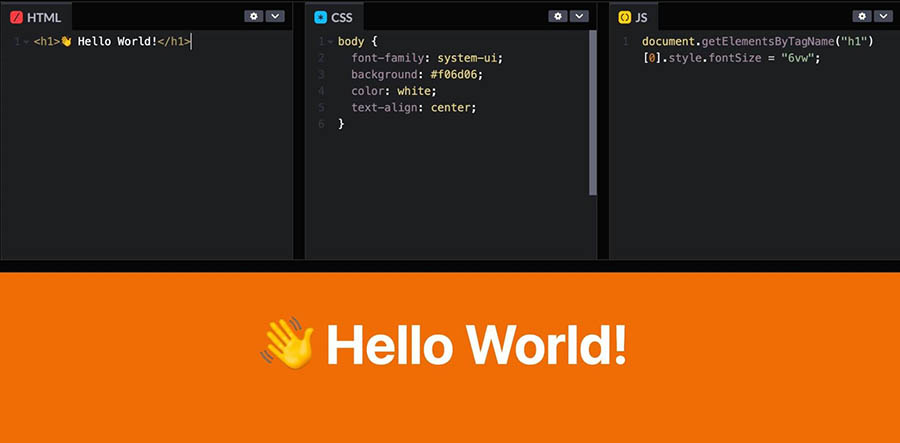
CodePen code editor

Alternatively, you could build a local environment to experiment with HTML. After installing WordPress on your local computer, you can modify any code without having to back up important website files. This can bring you one step closer to becoming a web developer!

Become an HTML Expert

Anyone can build a website without coding experience. However, learning HTML is a valuable skill that can help you customize different elements of your website. Plus, it can open doors to many forms of employment.

To review, here are three easy ways you can start learning HTML:

  1. Watch a YouTube tutorial from creators like Programming with Mosh
  2. Take an HTML course on Codecademy or Learn.html.org.
  3. Practice HTML coding on a platform like CodePen

If you’re just starting to design a website, you don’t want poor hosting to slow you down. With DreamHost shared hosting, you can use a fast, secure platform to experiment with your new coding skills!

Power Your Website with DreamHost

We make sure your website is fast, secure and always up so your visitors trust you. Plans start at $1.99/mo.
shared hosting

The post How to Learn HTML… Fast appeared first on Website Guides, Tips & Knowledge.


source https://www.dreamhost.com/blog/how-to-learn-html-fast/

Wednesday, 22 June 2022

WordPress 6.1: What to Expect

WordPress 6.1 Expected Fall 2022

Recent releases of WordPress have been preludes to updates designed to fine-tune the content management system’s user experience, stability, and efficiency. As of early June 2022, Matías Ventura from the WordPress core development team has released an early WordPress 6.1 roadmap covering the main areas of work anticipated for 6.1’s official release, which is expected sometime around the fall season of this year.

“The tune of the release will be to refine the experiences introduced in 5.9 and 6.0, weave the various flows into more coherent and fulfilling experiences for users, maintainers, and extenders, and close some gaps in functionality as we start to look towards Phase 3 of the Gutenberg roadmap,” Ventura said.

Development Focus Areas for WordPress 6.1

Although there’s no timeline of development-stage dates for WordPress 6.1 yet, Ventura’s concise roadmap highlights five key areas that are expected to be developed.

  • Template Editor. Thanks to modifications to the template editor, users have been able to browse, visualize, and edit the structure of their sites with low to no knowledge of underlying code. The planned revisions to the editor will also provide more clarity between global elements like templates, template parts, and styles, the goal of which will be unifying the template editor and post editor user experience.
  • Building With Patterns. The development team is also keen to fully unlock the potential of block patterns that it highlighted in “Building with Patterns,” which came along a bit late in the WordPress 6.0 development cycle. This element of the WordPress 6.1 update will allow patterns to be central to the creative experience for day-to-day users. Patterns will be able to be tailored for custom post types, and block types. Work on improving the block locking experience, and managing saved patterns is also expected.
  • Global Styles. The WordPress core development team’s ongoing global styles roadmap includes updates to the styles engine, main interface and user experience, styles variations panel, webfont and typography customization, cross-block elements, per-block styles and supports, and block style variations.
  • Blocks and Design Tools. Progress will continue on the global styles interface while improving support for restrictions, privileges, and curated presets. The 6.1 release will hopefully allow users to manage webfonts, implement responsive typography, and expand the blocks toolset — all to improve consistency, reliability, and user satisfaction.
  • Themes and Wider Adoption. The team will address issues concerning the ability to adopt features like template parts gradually on existing legacy themes. It will also look towards whether it will be possible to get broader access to theme.json editing, and will look towards theme switching flows and how to best make use of new style and template possibilities.

Building Upon WordPress 5.9 and 6.0

Because the WordPress core team is continually discussing and developing new features and bug fixes, and testing them in beta releases, it is able to put out new major versions of WordPress quite quickly. WordPress 5.9, which introduced the hotly-anticipated Full Site Editing, was released on January 25, 2022. And WordPress 6.0, dubbed “Arturo,” went live on May 24, 2022.

Version 6.0 was a massive release that was a huge leap forward in what it offered to users in terms of features, functionality, and fixes. It included:

    • Accessibility. The WordPress open-source software itself has received upgrades so that it’s easier to use overall.
    • Block editor
      • Bundle multiple style variations for block themes.
      • Create page content patterns that you can choose from to create your pages.
      • New ancestor property in block.json. This will allow you to restrict where blocks may be placed.
      • A new user interface will allow you to set a lock attribute for every block in the editor.
      • Registration of blocks from within themes
      • Unrecognized content in the content can now be preserved thanks to upgraded support.
      • The block theme export feature in the Site Editor has been given a very robust upgrade as well.
      • Block markup updates for image, quote, list, and group blocks
      • A new set of Post Comments blocks, No Results block, and more
    • Bootstrap/load. Skip unneeded queries by applying a do_parse_request filter.
    • Cache API improvements. wp_cache_*_multiple is now full CRUD.
    • Media. New filters and user interface additions.
  • More dynamic hooks for custom post types
    • Taxonomy improvements. Query caching, taxonomy query limits, navigation menu items, terminology changes, and more.
    • Themes. Streamlined patterns functionality for theme authors, support for multiple theme.json files, better export themes with Site Editor, and more.
    • Users. Sites with particularly high traffic will now be able to query and count users.
  • Updates for developers

Stay Tuned for More Updates

With discussions already underway among the WordPress core team for WordPress 6.1, and with Ventura’s early roadmap providing a teaser of what’s to come, count on DreamHost to keep you up-to-date on new information as it becomes available.

Get Content Delivered Straight to Your Inbox

Subscribe to our blog and receive great content just like this delivered straight to your inbox.

The post WordPress 6.1: What to Expect appeared first on Website Guides, Tips & Knowledge.


source https://www.dreamhost.com/blog/wordpress-6-1/
Tuesday, 21 June 2022

How to Design an Accessible Website (A Complete Guide)

Whether you run an e-commerce site or a web development business, you want to attract as many visitors as possible to your web pages. However, this can be difficult if you don’t prioritize accessible web design.

Website accessibility involves making sure that your site is usable by everyone, including those with disabilities and impairments. Fortunately, there are a variety of resources, tools, and tips you can leverage to make creating an inclusive website a lot easier.

In this post, we’ll explain why website accessibility is so important. Then, we’ll show you how you can check the accessibility of your site. Finally, we’ll provide you with a complete guide for designing highly-accessible web pages. Let’s get started!

Why Website Accessibility Should Be a Priority

Website accessibility refers to the extent to which a site can be used by individuals with disabilities. This can include people who are blind or have low vision, those who are deaf or hard of hearing, have mobility impairments or cognitive disabilities, and more.

As a website owner, it’s important to ensure that you’re not excluding those who fall under this category. In fact, the Americans with Disabilities Act (ADA) is a civil rights law that prohibits businesses and organizations from discriminating based on disability.  However, legal compliance isn’t the only reason website accessibility should be a top priority.

Making your website accessible is a good way to demonstrate inclusive company values. Plus, designing an accessible website can make it more successful overall. It may even improve the user experience for all of your site’s visitors.

There are a number of ways to make your website more accessible. Some of these include adding alt text to images, providing transcripts for audio or video content, and using clear and concise language.

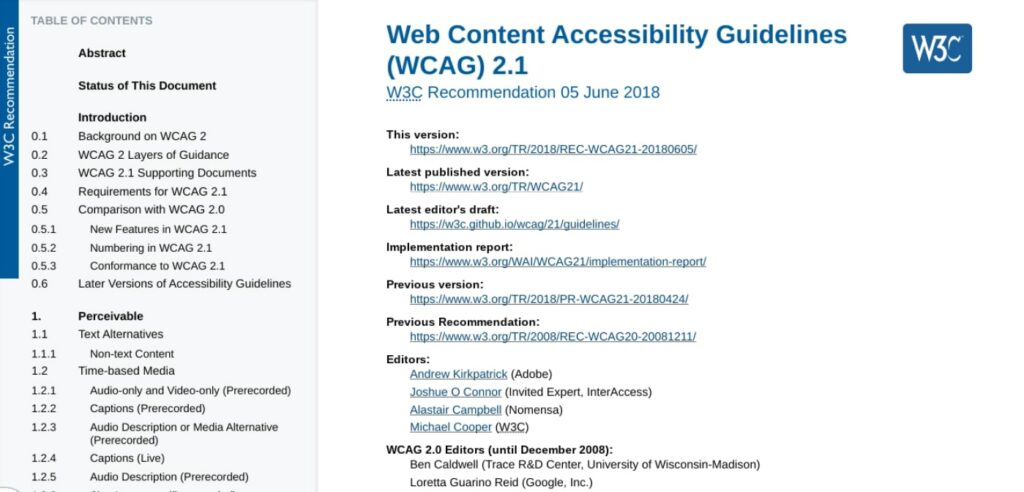
To make achieving web accessibility easier, the World Wide Web Consortium (W3C) developed the Web Content Accessibility Guidelines (WCAG):

Web Content Accessibility Guidelines (WCAG) 2.1

This includes a set of standards that developers, designers, and website owners can use when creating and maintaining websites and online content.

Creating an accessible website doesn’t have to be difficult or time-consuming. By taking some simple steps, you can significantly improve the accessibility of your site. This way, you can broaden your audience while also contributing to online accessibility efforts. You may even inspire others to do the same!

Get Content Delivered Straight to Your Inbox

Subscribe to our blog and receive great content just like this delivered straight to your inbox.

How to Check Your Site’s Web Accessibility

Before we get into tips and steps you can take to design an accessible website, it’s important to first understand how to check the current status of your pages. There are a few ways you can check. Let’s take a look at some of the easiest and most popular options.

Use an Online Accessibility Checker

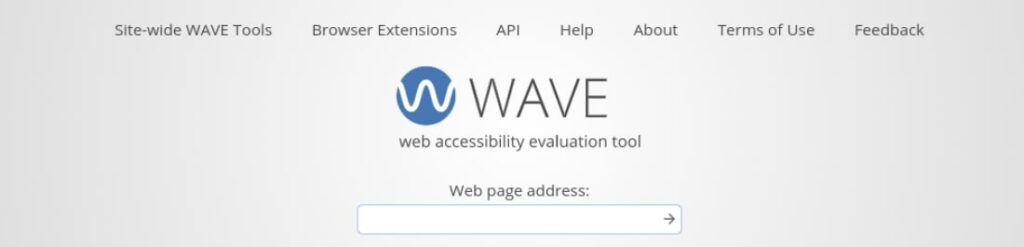
One of the quickest ways to check your site’s accessibility is by using an online accessibility checker such as the WAVE Web Accessibility Evaluation Tool:

WAVE - Website Accessibility Evaluation Tool

This software can be used to evaluate the accessibility of your web pages. One way it can do this is by checking for compliance with accessibility standards, such as the WCAG.

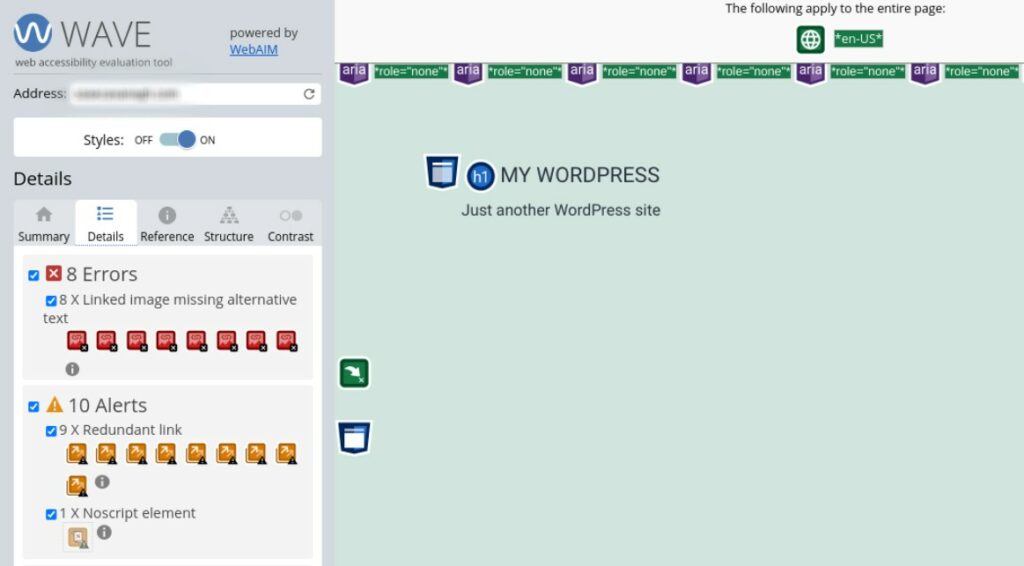
To use the WAVE tool, simply enter the URL of the web page you want to evaluate in the Web page address field and click on the arrow button. WAVE will then generate a report that shows you any errors or potential problems with the accessibility on that page:

Page evaluation for WAVE website accessibility checker tool

In addition to a general assessment, WAVE provides feedback on how you can improve your pages to enhance accessibility. For example, in the above screenshot, the tool points out that a handful of images are missing alternative text. It might also draw your attention to any confusing structural elements.

Install a Browser Extension for Accessibility

Another option you have for checking website accessibility is to download and install a web browser plugin that will automatically check for issues. A popular tool for Google Chrome is the Accessible Rich Internet Applications (ARIA) extension:

adding Aria Dev Tools plugin to Google Chrome browser

The ARIA DevTools extension for Chrome is a free and open source accessibility resource that allows users to customize the way they interact with web content. ARIA is designed to improve the usability of web pages for people with disabilities, and to make them more accessible to assistive technologies such as screen readers.

ARIA does this by providing a set of attributes that you can use to improve the accessibility of HTML elements. For example, the ‘aria-label’ attribute can serve as a marker for an element that is not otherwise accessible, while the ‘aria-describedby’ attribute can be used to provide an explanation.

In order to use the ARIA extension, you must first install it from the Chrome Web Store. You can visit the extension page and then select Add to Chrome followed by Add extension.

Once installed, you can enable the extension by going to the chrome://extensions page and clicking on the Enable toggle button for ARIA DevTools:

Clicking toggle to enable Aria Dev Tools Extension in Chrome

Once ARIA is enabled, you can start using the various attributes that it provides.

Manually Check for Common Accessibility Issues

Another option for checking for accessibility issues is to use a manual approach. Of course, this can be more time-consuming than using online tools and extensions.

However, if you use a checklist, it can be a thorough technique. Plus, this method is free and therefore available to all website owners. Alternatively, a manual run-through could be just one of several approaches to your accessibility assessment.

If you go with this option, you might want to use a checklist to get started. For example, the WCAG 2.0 checklist asks the following questions:

  • Is all content accessible to everyone, including those with disabilities?
  • Are all images properly tagged with alternative text?
  • Is the website navigable using only a keyboard?
  • Are there any audio or video files on the site that include transcripts or captions?
  • Is the website free of any color contrasts that could make it difficult to read for some users?

Making sure your website’s User Experience (UX) is accessible to everyone is important not only for compliance purposes but also because it’s the right thing to do. When you take the time to manually check your site for common accessibility issues, you can help ensure that your site is usable by everyone, without spending a dime.

Hire a Web Accessibility Expert to Audit Your Site

If you are willing and able to use your resources for the greater good, a fourth option you have for checking website accessibility is to hire an expert to audit your website. This is an excellent choice for any website, but especially for those who want to make accessibility a core value of their online business.

At DreamHost, we offer Pro Services that can help with everything from web design to website management. This can include identifying and fixing any accessibility issues on your site:

DreamHost web development professional services

Our team of experts will carefully evaluate your web pages and provide you with solutions for improving web accessibility. Contact us today to learn more about our professional website services.


How to Design an Accessible Website (A Complete Guide)

It’s important to design websites that are accessible to everyone, including people with disabilities. By following some simple guidelines, you can make sure that your site can be used by as many people as possible. Below is a checklist of things to keep in mind when designing an accessible website.

1. Ensure Your Site Allows Keyboard Navigation

One of the cornerstones of an accessible website is keyboard navigation. To be considered accessible, users must be able to navigate your site without a mouse. This is because many assistive technologies depend on keyboard-only navigation.

Therefore, you should ensure that users are able to navigate and browse your site using only a keyboard. This includes accessing pages, clicking on links, etc. To test this, you can visit the front end of your website and try navigating around the page using the Tab key:

web hosting by DreamHost

Hitting the Tab key should let you jump to different areas on the page. If it doesn’t, you’ve likely got some work to do. For help creating keyboard-friendly navigation, you can refer to the WebAIM keyboard accessibility design guide.

2. Use High-Contrast Colors

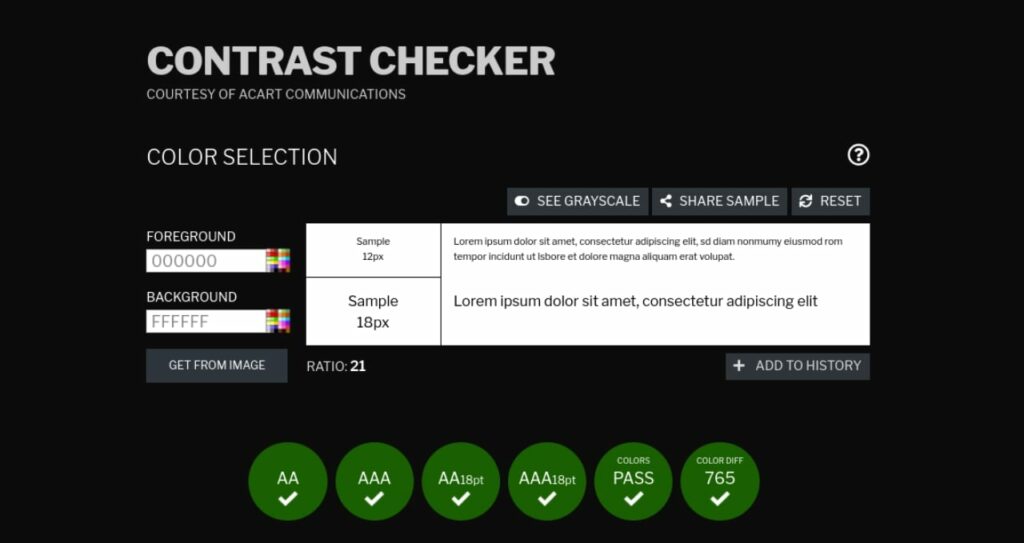
Some users may have difficulty seeing text if the color contrast is low. Therefore, we recommend using colors that have a high contrast ratio, such as black and white or black and yellow.

The color contrast throughout your site should ensure that all elements are distinguishable on the page. For instance, text should stand out rather than blending into the background.

There are a handful of online tools you can use to help you improve visual-accessibility. For example, you might find Contrast Checker useful when choosing your site’s color palette:

website contrast checker for accessibility

This tool lets you test out different color combinations. You can also use it to generate a score for existing color pairings on your site. For further guidance, you can also refer to WordPress’ Handbook on the appropriate use of color.

3. Provide Alt Text for Images

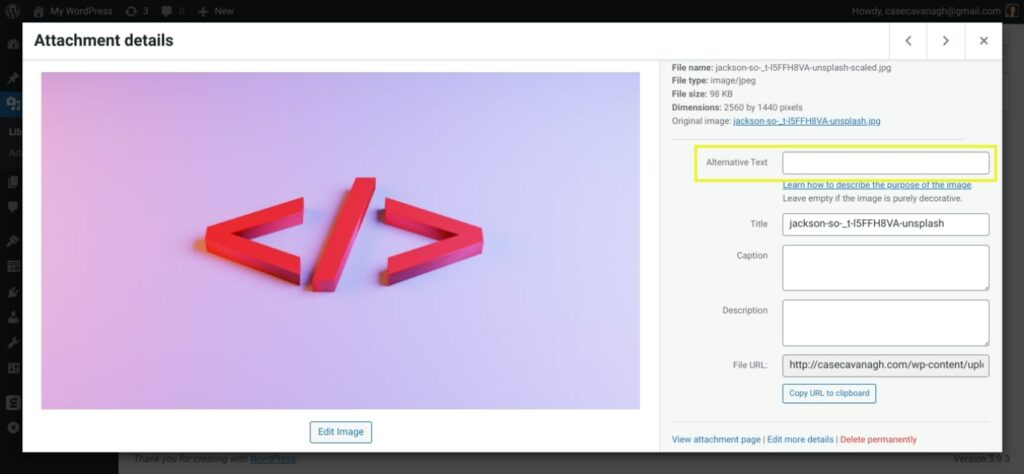
If you use images on your website, be sure to provide alternative text (alt text) that describes the image. This way, users who are unable to see the image will still be able to understand the content of the page when using assistive technologies such as dictation software.

You can add alt text to images in WordPress through your Media Library:

adding alt text on images for website accessibility

Another benefit is that alt text can help optimize your site to be more visible in search engines. You can use it to incorporate frequently-searched key terms that are relevant to your images.

4. Use Heading Hierarchies to Structure and Organize Content

Breaking up your content into smaller sections can make it easier to read. That’s why using headlines and lists to organize information on your pages can increase web accessibility.

Clear headings can help screen readers understand and interpret your pages. This also assists in-page navigation and helps those using assistive technologies browse the contents of your page.

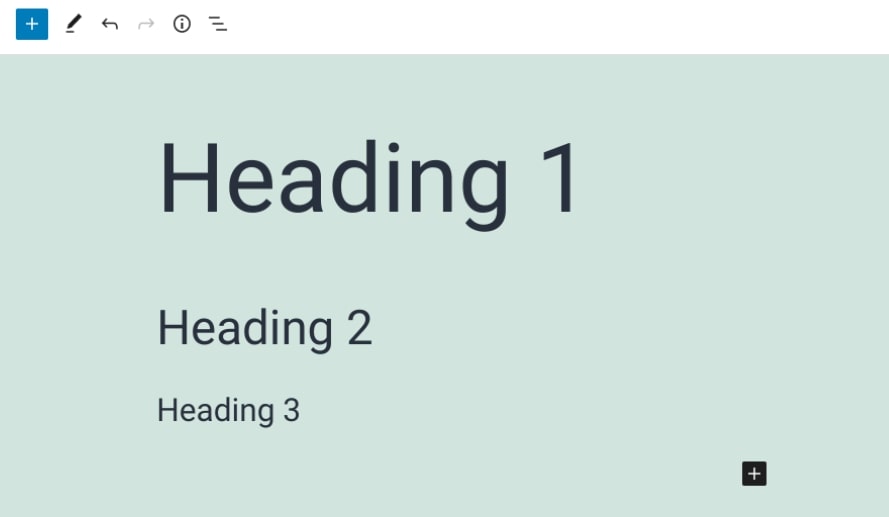
WordPress recommends using a set heading hierarchy, which includes using one H1 per page (typically for the title) and H2s and H3s for subsections:

adding proper HTML heading structure for accessibility

It’s best to use these headings in order, meaning H2s should come after the H1, followed by H3s, then H4s (if necessary). This level of organization and flow can also help out readers with cognitive disabilities.

5. Add Captions and Transcripts to Videos

If you include videos on your website, you’ll want to provide captions or transcripts so that users who are deaf or hard of hearing can still enjoy the content. Closed captioning and text transcripts let those using screen readers consume your content without having to rely on the visual imagery or audio alone.

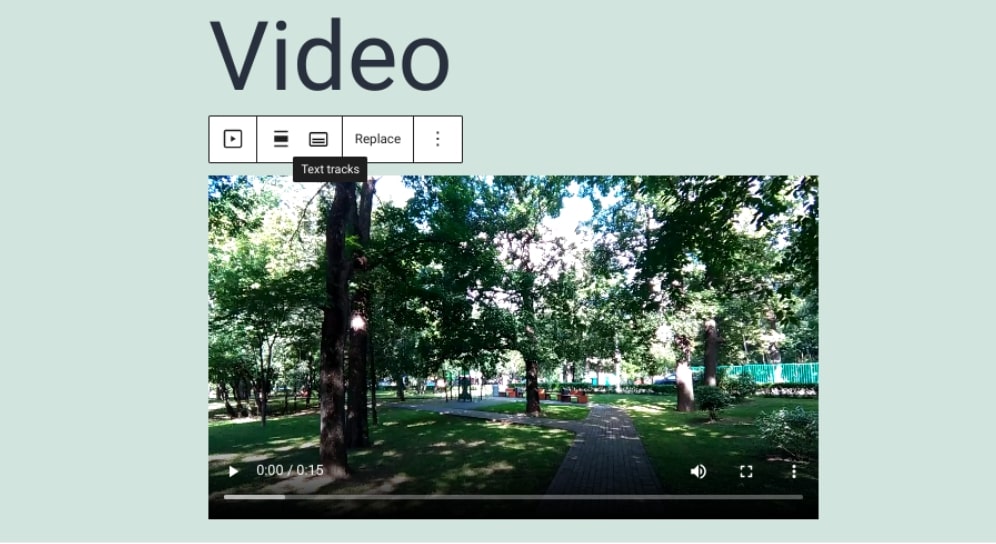
As of WordPress 5.6, you can add captions and subtitles to WordPress videos by using the Web Video Text Tracks Format (WebVTT) feature. To access it, simply insert a Video block on your page, then select the Text tracks button in your horizontal navigation menu:

adding captions to embedded video in WordPress

This will let you attach or upload a VTT file to your video. You can also use services such as Rev to create transcripts for your videos.

6. Design Forms Carefully

Forms can be difficult to use for some users, so it’s important to design them carefully. This includes making sure each field is clearly labeled and that the form is easy to navigate.

For example, you’ll want to place the labels directly adjacent to their corresponding fields. Additionally, it’s smart to include brief instructions that inform users exactly what they need to know in order to appropriately fill out the form.

You could also include placeholders with text that appear in the form fields as an example for users. This way, they have a better idea of how they should be filling out the form.

Plugins such as Formidable Forms come with helpful accessibility tools built-in:

WordPress form builder plugin

This form builder includes WCAG 2.0 standard compliance. Furthermore, it’s screen-reader ready and allows you to use high-contrast text. Plus, it’s keyboard-navigation-friendly. All of this can make it easier for visitors to complete your WordPress forms.

Make It Easy for Everyone To Access Your Site

Continued improvements in web accessibility are reason to celebrate. After all, if you run a WordPress website, you likely want to reach as many people as possible, including those with disabilities or impairments. Fortunately, designing your website with accessibility in mind is becoming easier and easier.

In this post, we discussed many strategies you can use when designing an accessible website. For instance, you can make sure that your website is keyboard-navigation friendly to be compatible with assistive technologies. You can also use alt text and video transcriptions for all your visual media. Most importantly, when you follow our simple guide, you can support a more equitable web experience, ensuring that your site is available to as many people as possible.

Want to hire a developer who can maximize web accessibility for your evolving WordPress projects? If you’d rather leave this important task to the professionals, check out our DreamHost Development Pro Services!

You Dream It, We Code It

Tap into 20+ years of coding expertise when you opt for our Web Development service. Just let us know what you want for your site — we take it from there.

website tech support

The post How to Design an Accessible Website (A Complete Guide) appeared first on Website Guides, Tips & Knowledge.


source https://www.dreamhost.com/blog/make-your-website-accessible/

Monday, 20 June 2022

27 WordPress Block Themes Perfect for Full Site Editing

WordPress 5.9 introduced Full Site Editing, a collection of features that help you build a beautiful website using blocks and other handy features. However, to take full advantage of the new changes in WordPress, you might want to consider switching to a new theme.

Fortunately, there are many WordPress block themes to choose from. These enable you to design your site and customize every page to your liking, without needing to hire a developer or learn how to code.

In this post, we’ll take a closer look at WordPress block themes and their benefits. Then, we’ll recommend 27 different options so you can decide which theme is best for you. Let’s get started!

An Introduction to WordPress Block Themes

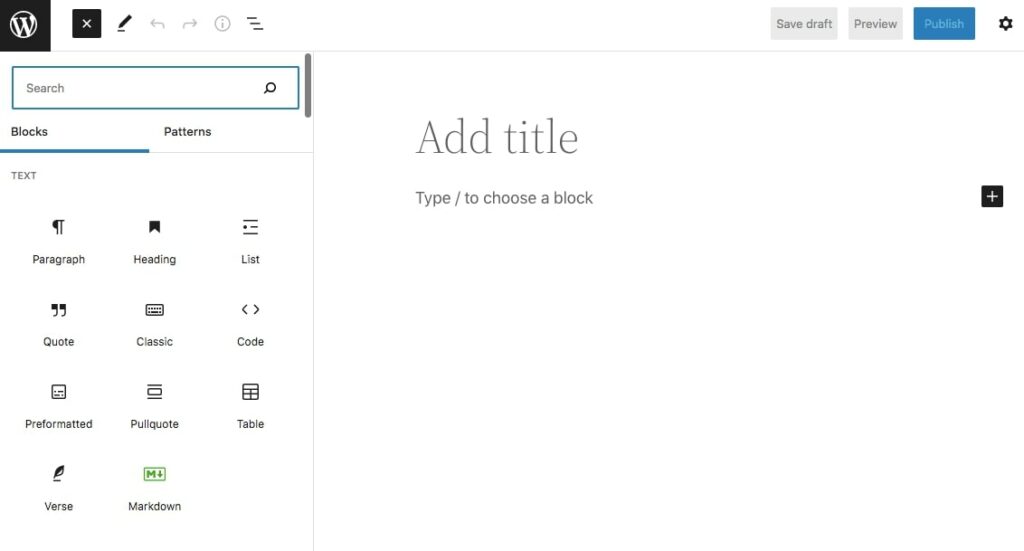
In 2019, WordPress introduced the Block Editor, also known as Gutenberg. This replaced the Classic Editor and revolutionized the content creation experience.

The Gutenberg editor enables users to build and customize posts and pages using blocks:

WordPress block editor

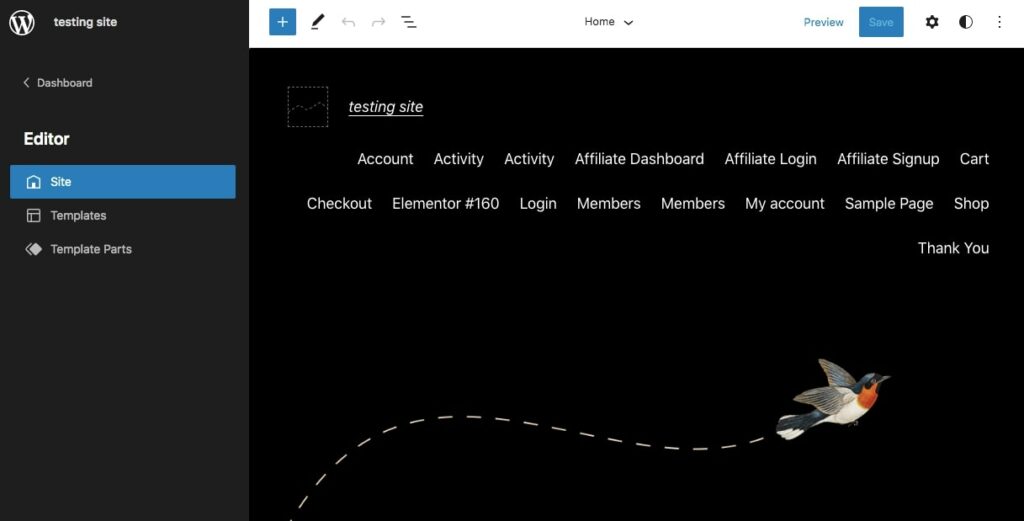
In 2021, WordPress released Full Site Editing, a collection of design tools which include a new editor. The Site Editor works like the Block Editor, and enables you to build your entire site with Gutenberg blocks.

For instance, you can insert theme blocks, create custom templates, and much more:

WordPress block theme

However, you can only access this feature if you’re using a block theme on your site. This is a WordPress theme that was built with blocks.

Here are some benefits of using a WordPress block theme:

  • Edit any feature without code
  • Customize design colors and typography with Global Styles
  • Automatically generate accessibility features such as keyboard navigation
  • Improve site speed by only loading rendered blocks on a page

With a block theme, you can customize every area of your site and add new features. If you’re a WordPress beginner, you can build an entire website from scratch without touching a line of code.

27 WordPress Block Themes Perfect for Full Site Editing

As we have seen, WordPress block themes offer many benefits when it comes to designing your site. To help you choose the right theme, we’ve compiled a list of our favorite options.

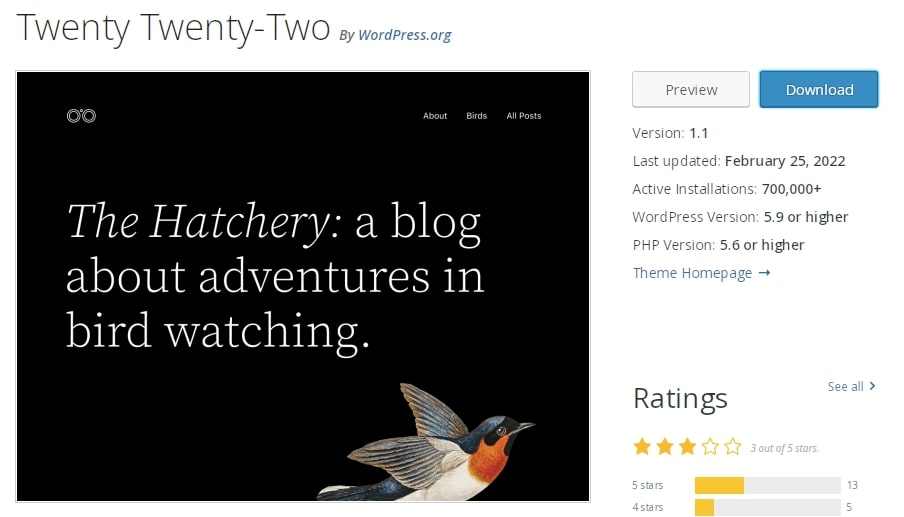
1. Twenty Twenty-Two

As the first official WordPress block theme, Twenty Twenty-Two is one of the most popular options. This default WordPress theme is styled with simple, natural imagery, and lets you customize its color palette, typography, page templates, and more:

WordPress block theme

Key features:

  • Customize page templates, headers, and footers
  • Insert pre-designed patterns
  • Alternate color schemes

Price: Since Twenty Twenty-Two is a default WordPress theme, you can use it for free.

Get Content Delivered Straight to Your Inbox

Subscribe to our blog and receive great content just like this delivered straight to your inbox.

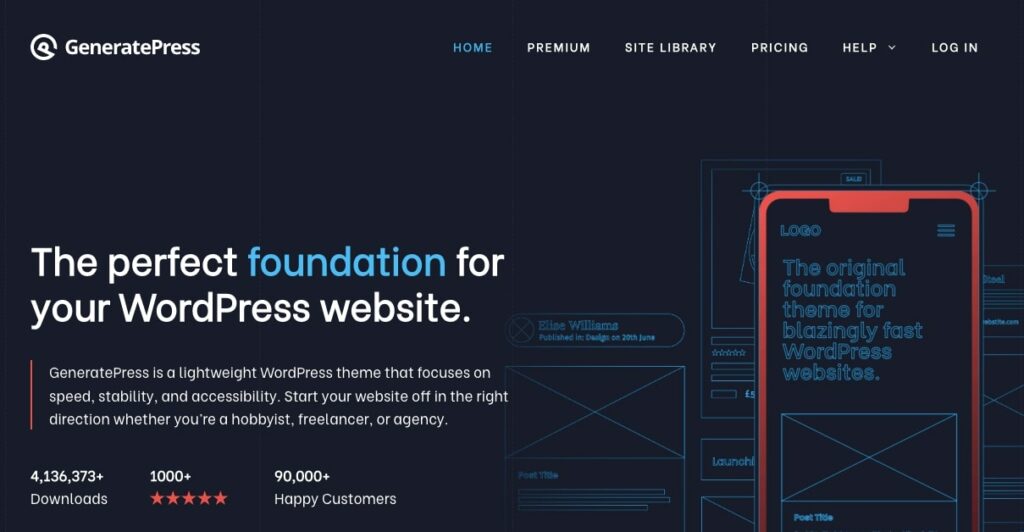
2. GeneratePress

GeneratePress is another popular block theme. It is responsive, easy to use, and lightweight.

Coupled with the GenerateBlocks plugin, this theme helps you build and edit your site with dynamic block elements:

WordPress block theme

Key features:

Price: You can download GeneratePress for free. However, the premium version comes with full access to the Site Library, where you can choose from many pre-designed starter layouts. GeneratePress Premium starts at $44 per year.

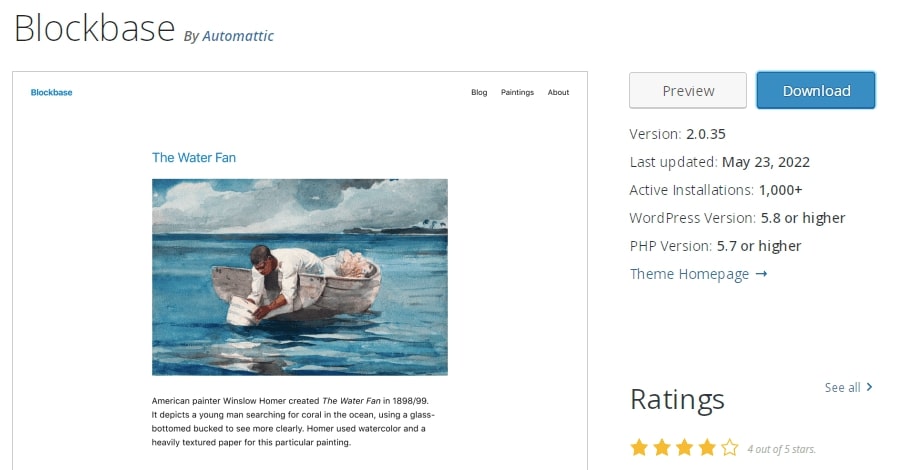
3. Blockbase

If you’re looking for a simpler theme, consider using Blockbase. It has a minimalist design so it can be configured from the ground up. You can even use it as a starting point to learn Full Site Editing:

WordPress block theme

Key features:

  • Minimal design that can be customized with Global Styles
  • 17 default color palette options
  • Page templates for search results, 404 pages, indexes, and more

Price: Blockbase is a free WordPress block theme.

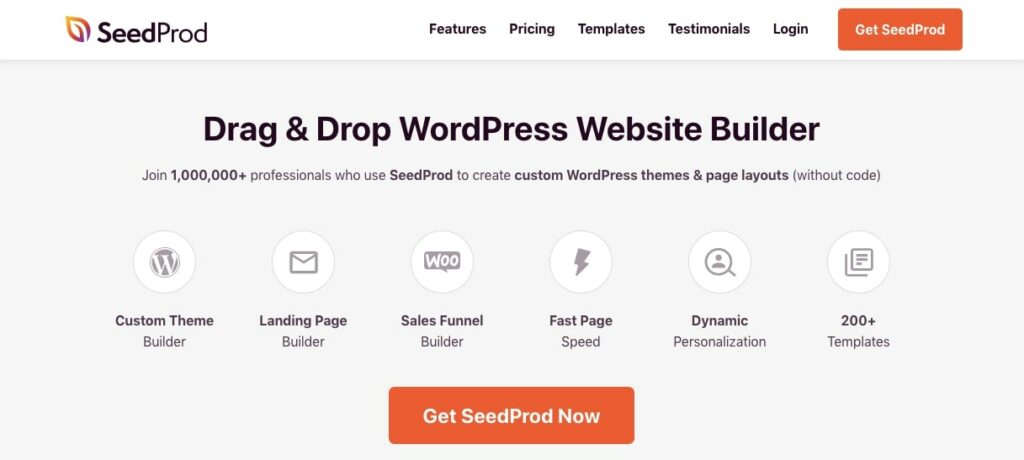
4. SeedProd

Although SeedProd is a website builder rather than a theme, you can use it to access Full Site Editing. It serves as an all-in-one solution for building a custom block-based website:

WordPress block theme

Key features:

  • 200+ pre-designed WordPress themes
  • 80+ page blocks
  • Editing options for headers, footers, pages, posts, archives, and more

Price: SeedProd is available as a free WordPress plugin. To access more templates, blocks, and integrations, you can purchase a premium plan for as little as $31.60 per year.

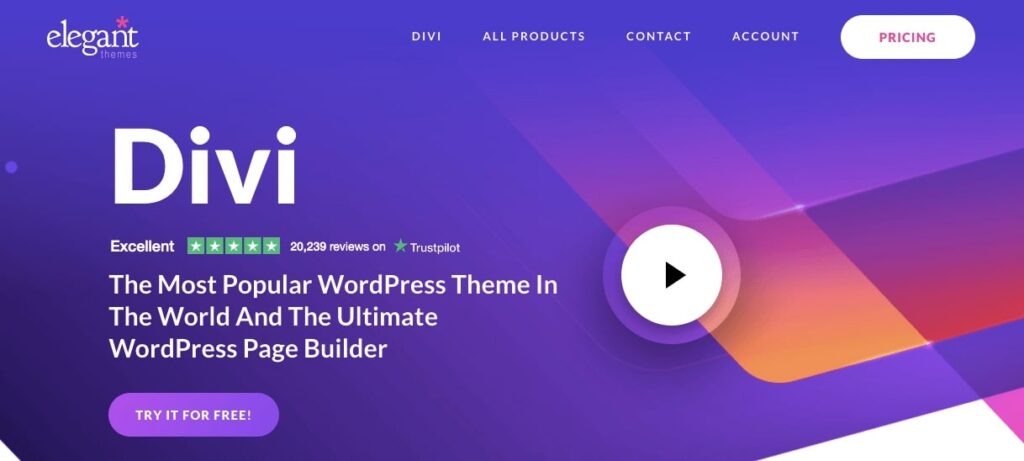
5. Divi

Divi is a powerful and flexible WordPress theme that enables you to customize your website with a visual editor. With Divi, you can manage your site’s global design elements and apply site-wide settings:

WordPress block theme

Key features:

  • Drag-and-drop visual builder
  • 40+ elements including forms, galleries, sliders, calls to action, and more
  • 800+ pre-made designs

Price: Divi is a premium theme that starts at $89 per year. This subscription comes with the full range of Divi products and hundreds of website packs.

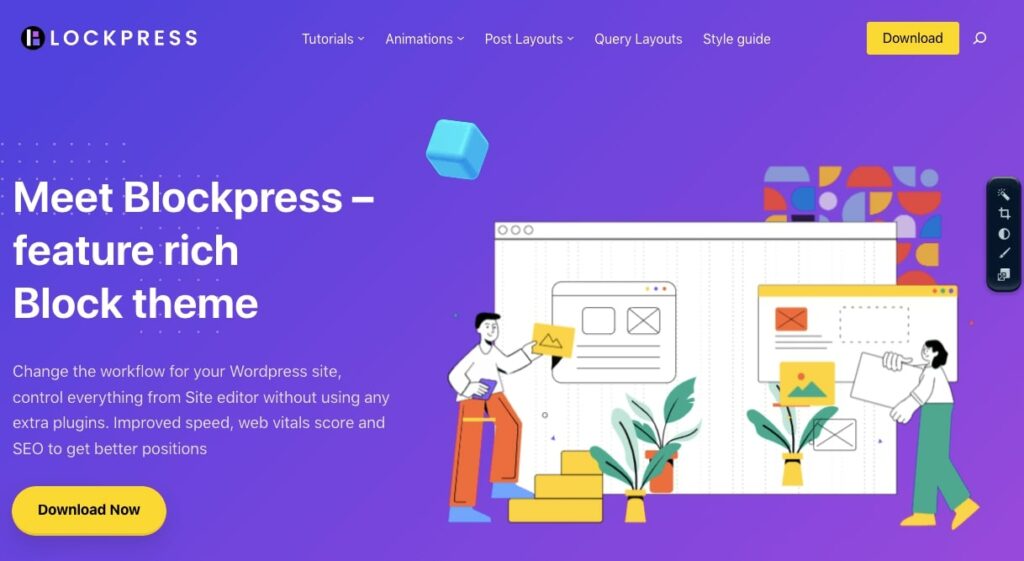
6. BlockPress

Another feature-packed block theme is BlockPress. With just one click, you can customize the style, colors, and typography of your website:

WordPress block theme

Key features:

  • Customize your site’s typography and colors
  • Optimize product pages beyond the default WooCommerce layout

Price: You can download BlockPress as a free WordPress theme.

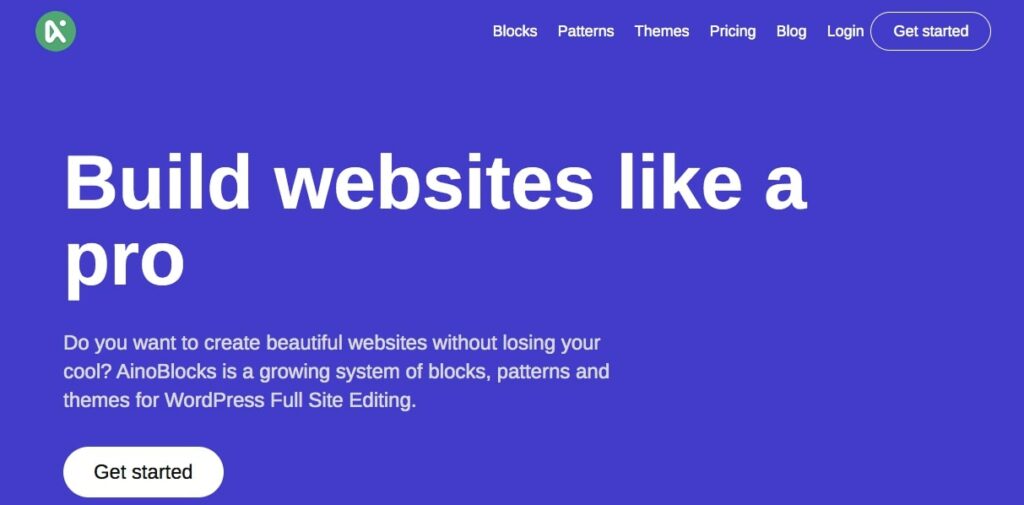
7. Aino

When used with the Aino Blocks plugin, the Aino theme can give you all the features you need to design an online store, personal blog, or portfolio. It offer a pre-designed pattern library, which you can use to instantly implement a new layout:

WordPress block theme

Key features:

  • Collection of Aino blocks
  • Pattern Library
  • WooCommerce support

Price: You can start using Aino blocks for free. However, its premium patterns and blocks are restricted to the Pro version. This starts at $89 per year.

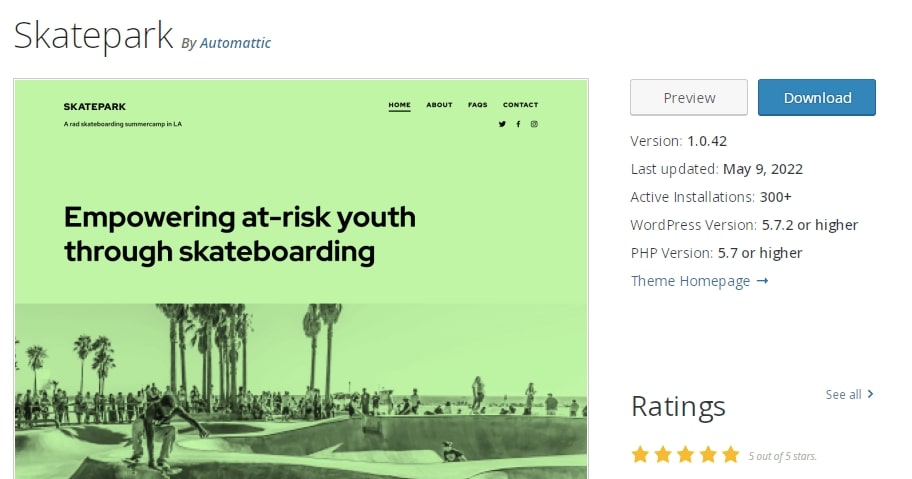
8. Skatepark

Skatepark is a block theme with a bold and vivid color scheme. Although it has more limited design options, you can customize the colors and fonts, as well as add new blocks and patterns:

WordPress block theme

Key features:

  • Duotone support and playful grid
  • Two basic theme colors, with custom color options

Price: Skatepark is a free WordPress theme.

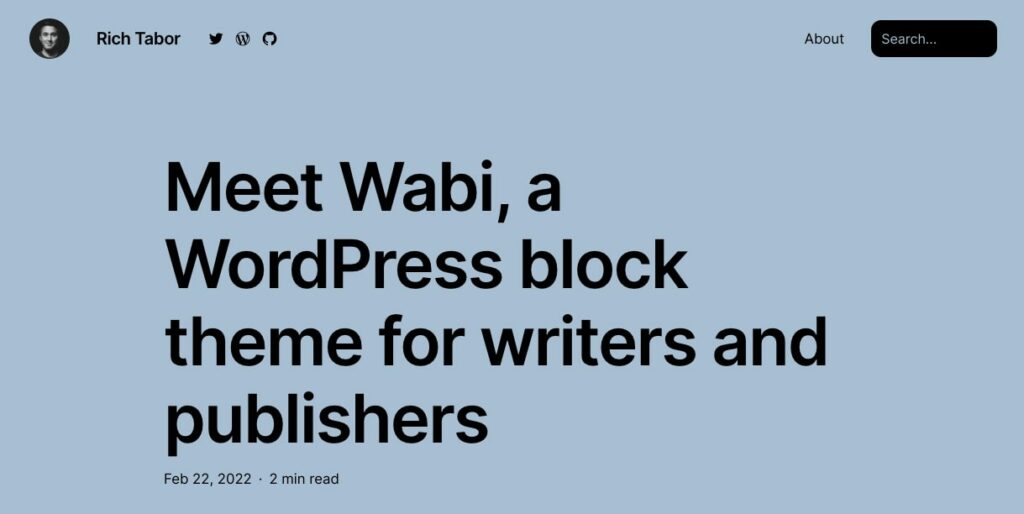
9. Wabi

If you’re a writer or publisher, Wabi might be the right WordPress block theme for you. This layout has a minimalist look, with aesthetic typography and a dynamic accent color:

WordPress block theme

Key features:

  • Six accent colors
  • Multiple style variants
  • Pre-designed patterns for subscribe forms, style guides, projects, and headlines

Price: You can download Wabi for free from the WordPress Theme Directory.

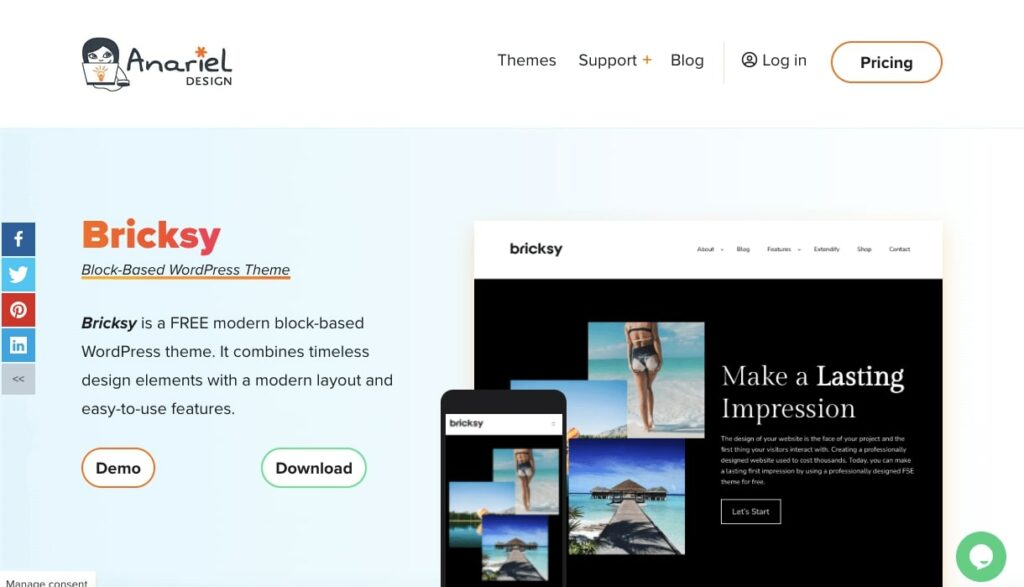
10. Bricksy

With Bricksy, you can extend the full-site editing experience with drag-and-drop block patterns. You can mix and match pages from different content niches to build your unique website. Plus, Bricksy offers pre-made patterns to help you save time:

WordPress block theme

Key features:

  • Layout patterns for travel, food, wedding, and fashion niches
  • Customizable block patterns

Price: Bricksy is available as a free WordPress theme. Meanwhile, Bricksy Pro starts at $59 per year.

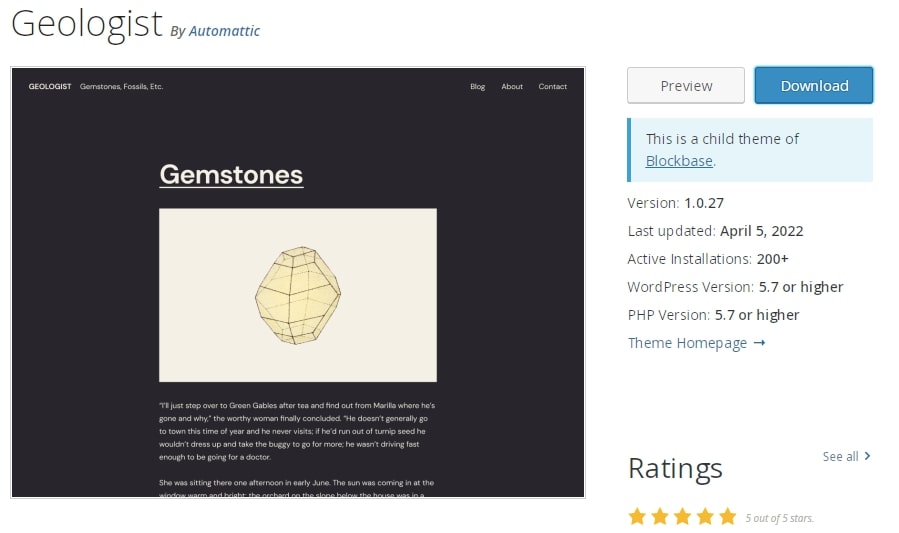
11. Geologist

Geologist is a child theme of Blockbase with a modern design style for bloggers. With a single posts column, sophisticated color palette, and simple typography, this block-based theme can be a great option for beginners:

WordPress block theme

Key features:

  • Sans-serif typography
  • Single column post layout

Price: Geologist is available for free.

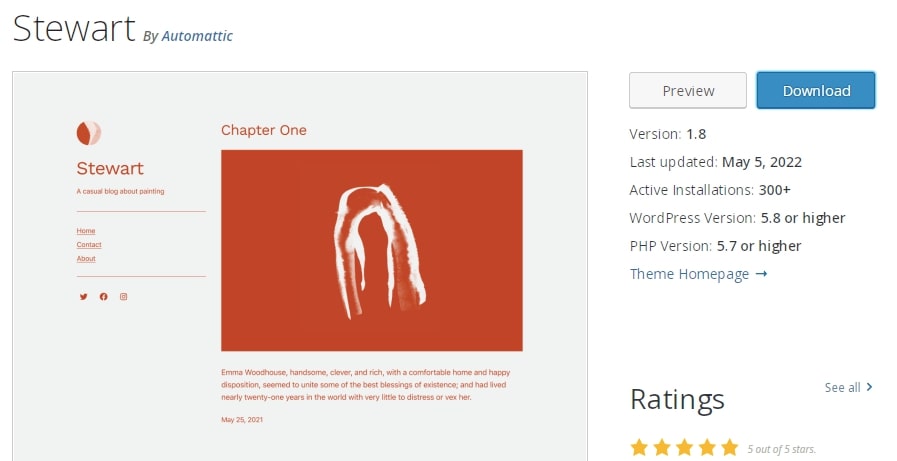
12. Stewart

Stewart has a default orange and light gray color scheme that can make your site look professional. It can be an effective option for bloggers:

WordPress block theme

Key features:

  • Customizable design settings in the Global Styles
  • Two-column layout

Price: Stewart is a free WordPress block theme.

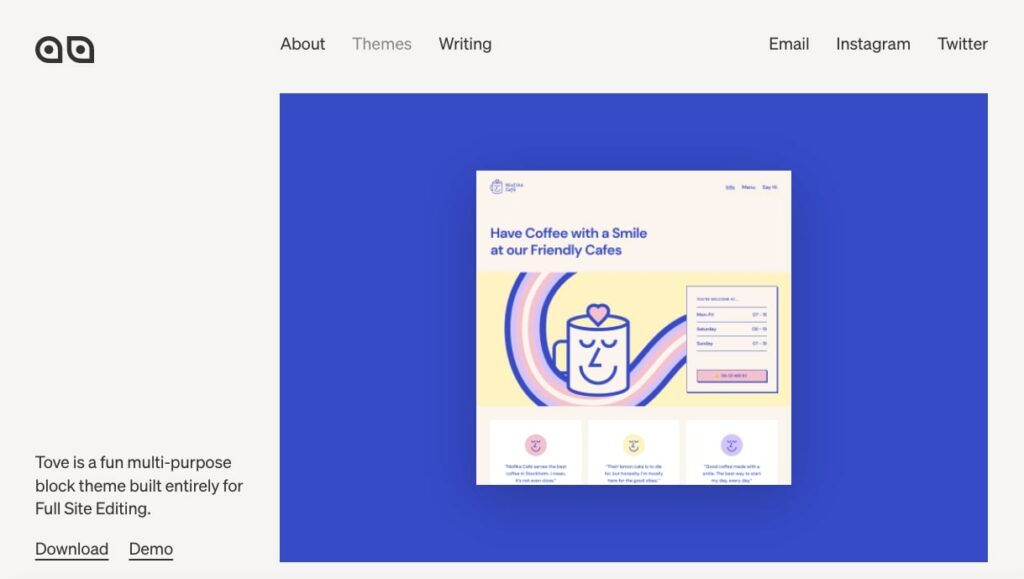
13. Tove

Tove offers a bright, fun, and colorful design. Although it was originally designed for cafe and restaurant websites, Full Site Editing makes it adaptable for virtually any niche. With many block patterns and designs, Tove is a flexible, easy-to-use block theme:

WordPress block theme

Key features:

  • 40+ block patterns, including layouts for menus and storefront information
  • Customizable headers, footers, and page templates
  • 6 header designs and 7 footer designs

Price: You can download Tove for free.

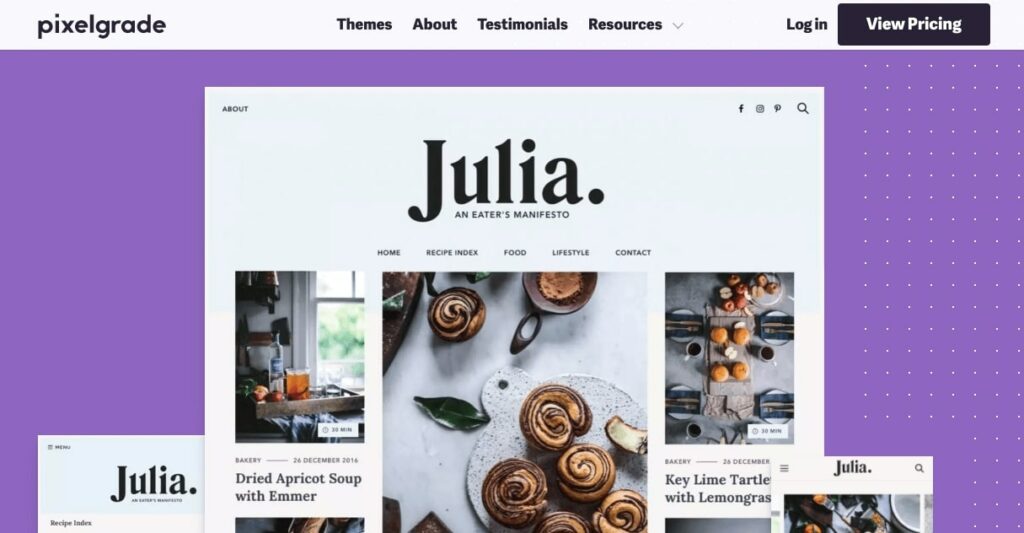
14. Julia

If you’re a food blogger, you don’t have to rely on a general block theme. Julia provides an easy way to share recipes and other culinary content. You can edit your posts and pages while viewing how they’ll look on the front-end:

WordPress block theme

Key features:

  • Magazine-style layout
  • Style Manager for changing layout styles and predefined color palettes
  • Drag-and-drop block editor

Price: Julia offers a lite version that is completely free. To access the Style Manager and additional support, Julia LT plans start at $75 per year.

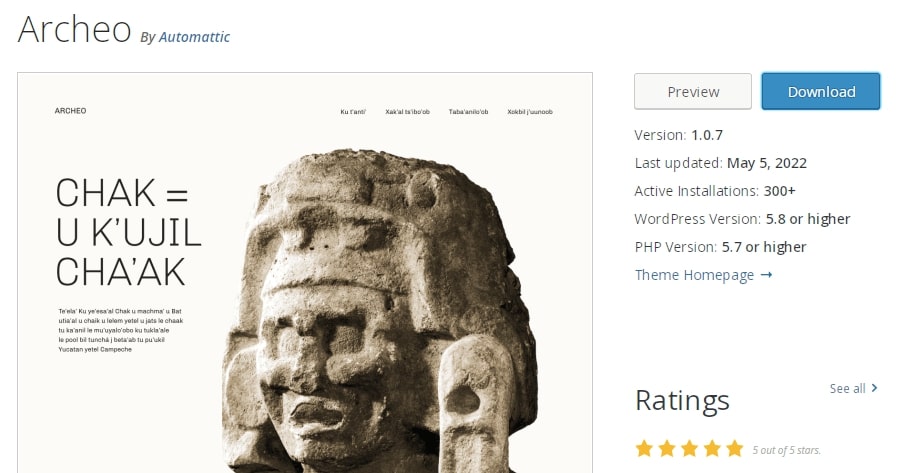
15. Archeo

If you’re interested in archaeology, consider using the Archeo theme. This block theme was inspired by the history and culture of the Mayan people:

WordPress block theme

Key features:

  • Full-width background images
  • Simple, vintage typography

Price: Archeo is a free WordPress block theme.

16. Financio

For a professional business website, try Financio. This WordPress block theme is best suited for financial companies, accountants, and consulting businesses. By downloading the compatible Gutenverse plugin, you can access extended patterns and templates for your niche:

WordPress block theme

Key features:

  • Professional business theme templates
  • Pre-made patterns and templates from the Gutenverse plugin

Price: The Financio block theme is free to download from the Theme Directory.

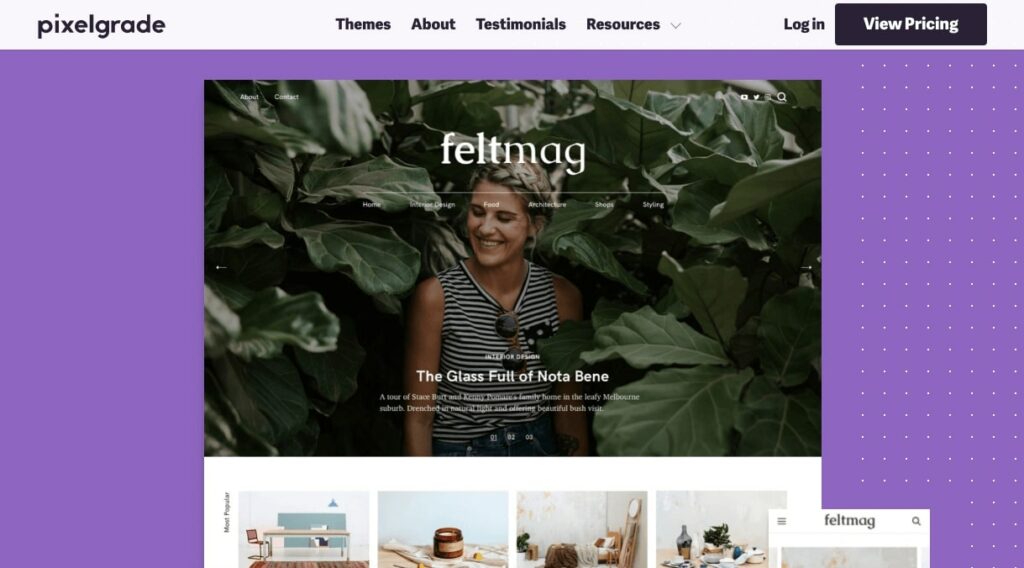
17. Felt 

Felt is a WordPress theme that resembles a magazine. Made for publishers of all kinds, it features several widgets for slideshows, grids, and featured posts. Using its Style Manager, you can change your website’s fonts and color scheme in the Site Editor:

WordPress block theme

Key features:

  • Style Manager
  • Widgets for list posts, promo boxes, carousels, and more

Price: You can download Felt Lite as a free WordPress theme. Meanwhile, Felt Pro comes with an improved Style Manager and extra widgets. Pricing starts at $75 per year.

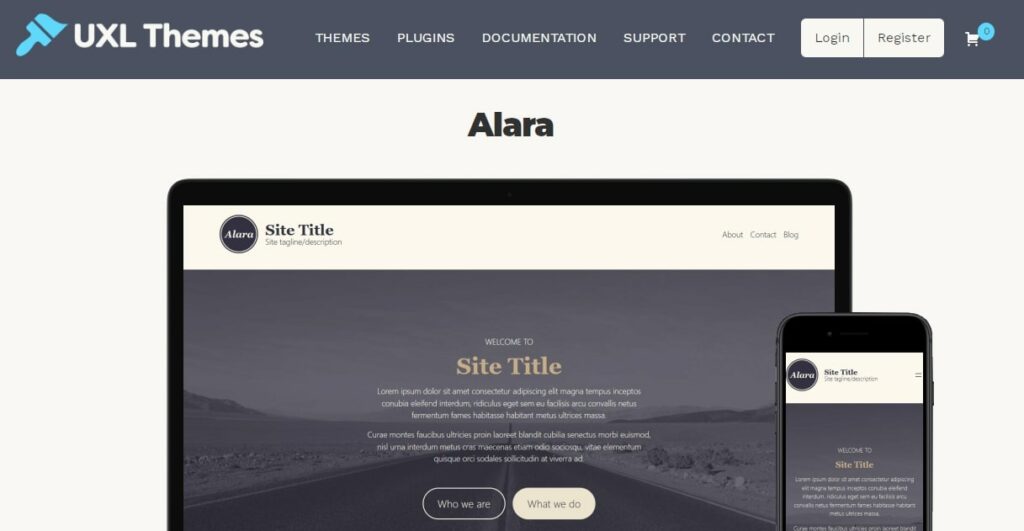
18. Alara

If you’re looking for a simple, vintage-inspired design, consider using the Alara block theme. Alara comes with a variety of patterns and style variations, so you can easily customize your color palette, typography, and templates:

WordPress block theme

Key features:

  • Bundled with design variations in color palette, typography, templates, and patterns
  • Supports e-commerce features

Price: Alara is a free WordPress block theme.

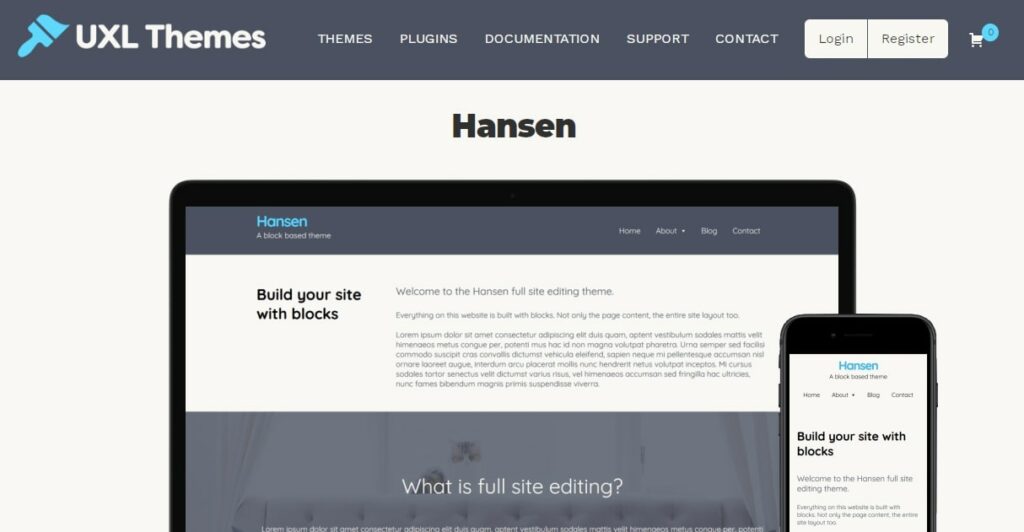
19. Hansen

Since Hansen provides pre-made blog patterns, it can be an effective block theme for personal websites. It also contains a Single Product template which you can use to build an online store. Additionally, it’s a simple but versatile theme that leaves room for many customizations in the Site Editor:

WordPress block theme

Key features:

  • 24 different default and theme colors
  • Template options for blog posts

Price: Hansen is a free theme.

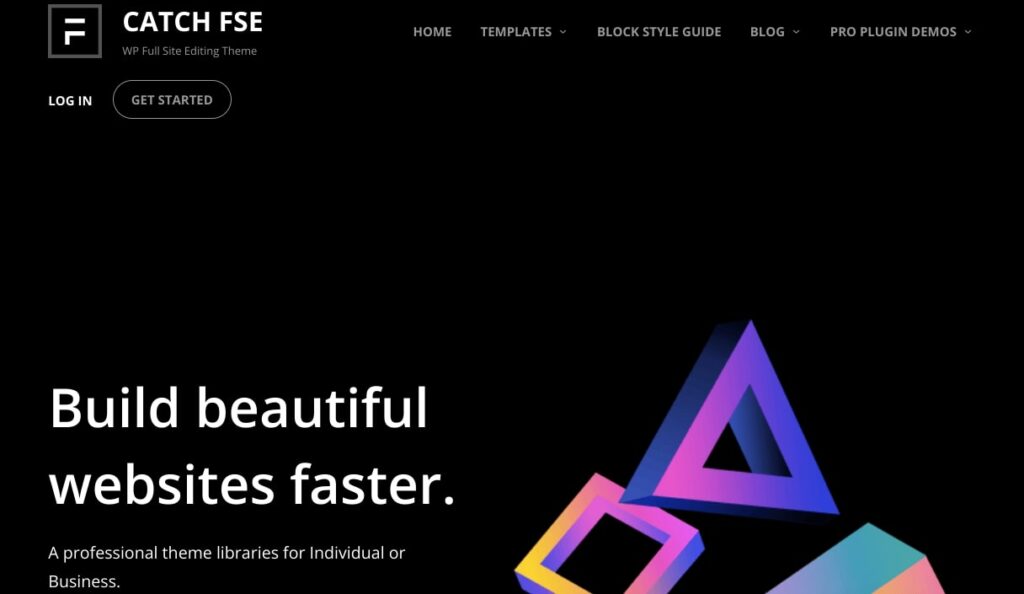
20. Catch FSE

Catch FSE has a dark and minimalist design. It can be used for all kinds of niches, from personal blogs to corporate websites. Thanks to its broad selection of block patterns and template parts, Catch FSE is one of the best themes for Full Site Editing:

WordPress block theme

Key features:

  • Drag-and-drop interface
  • 15 block patterns
  • 15 FSE templates and nine template parts

Price: You can download the Catch FSE theme for free. If you purchase the Catch FSE Pro plugin, you’ll get extended patterns and custom blocks. Pricing starts at $59.99.

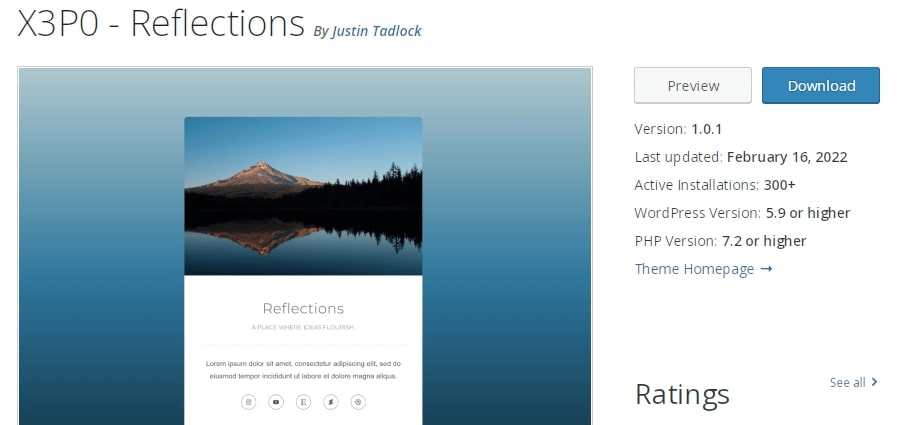
21. X3P0-Reflections

If you only need to create a simple one-page site, X3P0-Reflections can be an effective block theme. This design is best for basic profile pages and link trees:

WordPress block theme

Key features:

  • Supports one-page profile templates
  • Pre-designed profile card patterns

Price: X3P0-Reflections can be downloaded for free from the WordPress Theme Directory.

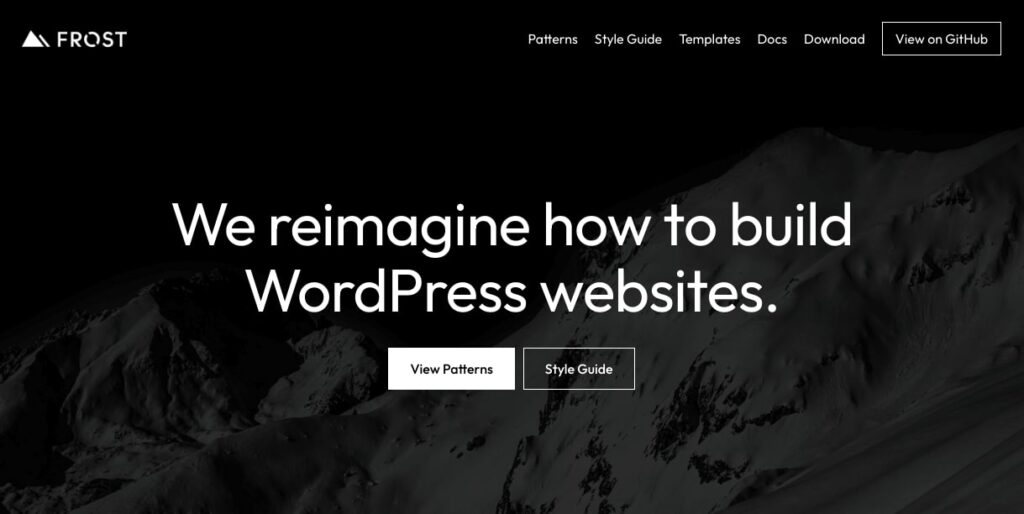
22. Frost

As an experimental Full Site Editing theme, Frost aims to extend the default features in the Site Editor. This theme provides a wealth of block patterns, including portfolio sections, call-to-action buttons, and much more:

WordPress block theme

Key features:

  • Patterns for featured boxes, headers, footers, link pages, and more
  • Templates for coming soon pages and cover images

Price: Frost is a free WordPress block theme.

23. Avant-Garde

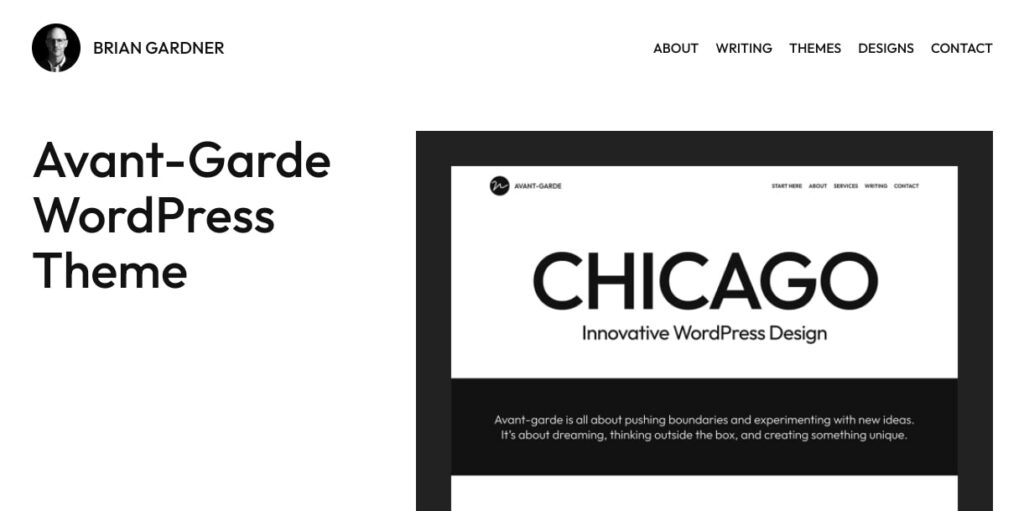
Avant-Garde might be the right block theme for those who love simplicity. It features a black-and-white color scheme and minimalist layout. Using its pre-made patterns, you can easily add a well-designed portfolio, pricing table, and services page:

WordPress block theme

Key features:

  • Pre-designed patterns for general pages, headers, and footers
  • Query patterns for a list of posts in columns

Price: You can download Avant-Garde for free.

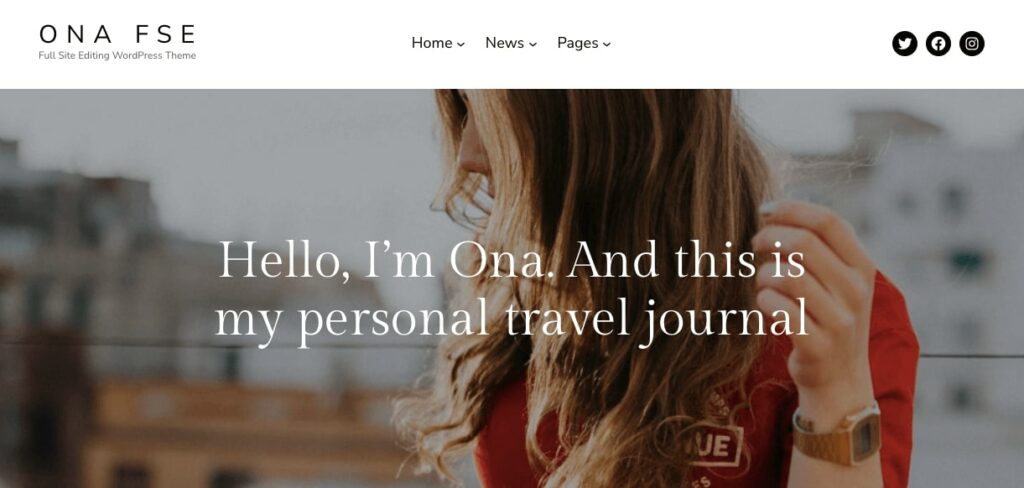
24. Ona

Ona has a lightweight and minimal design, which can help improve your site speed. You can choose from pre-made styles, pages, and patterns to fully customize your website:

WordPress block theme

Key features:

  • Main, Minimal, and Creative style options
  • Templates for contact pages, about sections, and more

Price: Ona is available as a free WordPress theme. However, you can access premium support, automatic updates, and theme tutorials with a subscription. These start at $49 per year for one website.

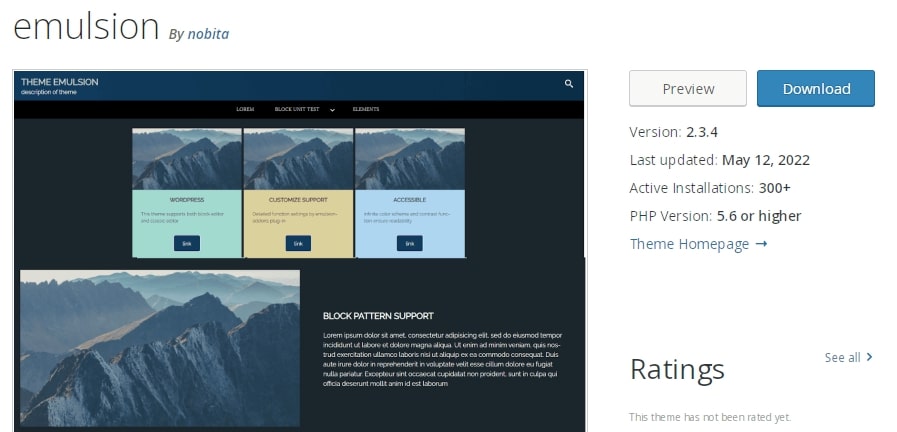
25. Emulsion

If you’re looking for a universal theme with a good amount of flexibility, Emulsion could be the right choice for you. This block-based theme supports Full Site Editing, but you can also switch back to the Customizer whenever you need to:

WordPress block theme

Key features:

  • Supports CSS for the Classic Editor and Block Editor
  • Automatic contrast for readability
  • Accessible features such as tab navigation

Price: Emulsion is a free WordPress block theme.

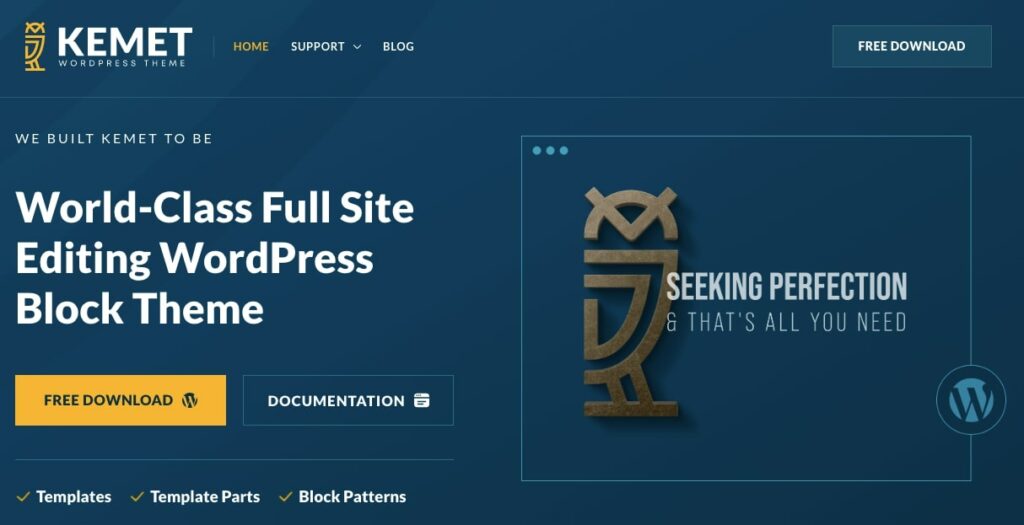
26. Kemet

With pre-designed block patterns, templates, and template parts, Kemet is a block theme that is incredibly easy to use. You can instantly implement these features in the Site Editor and adjust them to meet your needs. Additionally, you can use the Global Styles settings to customize your website’s color scheme and typography:

WordPress block theme

Key features:

  • Global Styles with five different color palettes
  • Ready-to-use block patterns
  • Optimized for fast loading and better SEO results

Price: You can download Kemet for free.

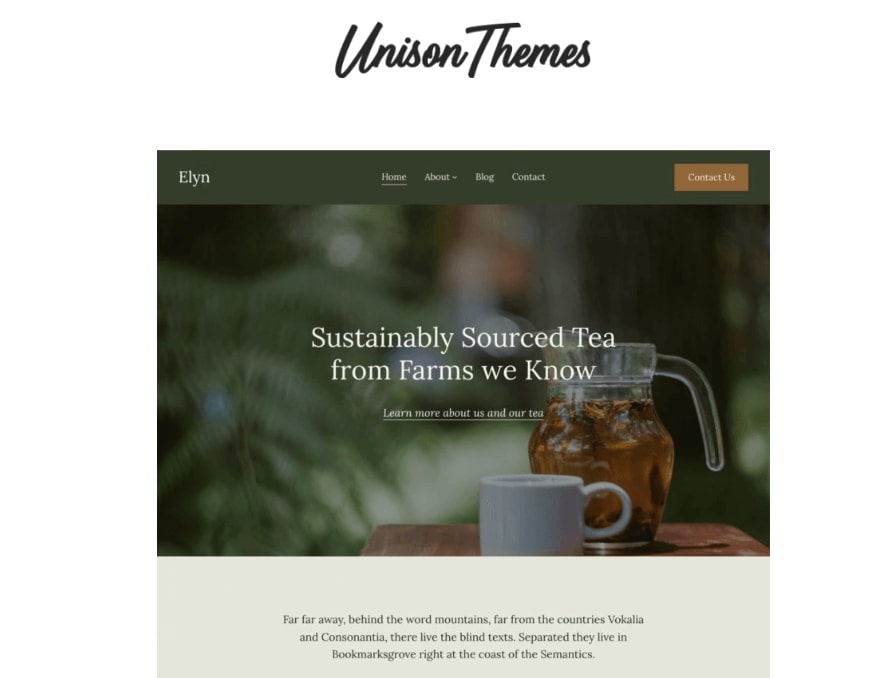
27. Elyn

Elyn is a beautiful block-based theme that can give any website a sleek and modern look. With this theme, you can access pre-made block patterns to easily insert a hero section, direct users to a call to action, or display your latest posts:

WordPress block theme

Key features:

  • Extended General, Header, and Blog block patterns
  • 18 theme palette color options
  • Pre-designed page templates and template parts

Price: The Elyn theme is free.

Take Advantage of Full Site Editing

Full Site Editing enables you to fully customize your website without any coding experience. Using a block theme, you can add and edit content blocks to design your ideal layout for different pages.

You can get started with a basic block theme such as Twenty Twenty-Two. If you’re looking for a more advanced option, you can use a theme like Tove or Catch FSE. These come with a broad selection of templates and designs.

When you’re building your dream website, you’ll need a good support system. Our DreamPress managed WordPress hosting takes care of your site’s security, updates, and maintenance. This way, you can focus solely on customizing your site’s design!

Do More with DreamPress

DreamPress Plus and Pro users get access to Jetpack Professional (and 200+ premium themes) at no added cost!

Managed WordPress Hosting - DreamPress

The post 27 WordPress Block Themes Perfect for Full Site Editing appeared first on Website Guides, Tips & Knowledge.


source https://www.dreamhost.com/blog/wordpress-block-themes/

Creating and Mastering GA4 Explorations

In the switch from Universal Analytics (UA) to Google Analytics 4 (GA4) — which will go fully into effect July 2023 — a lot of things have...