Friday, 9 July 2021

Web Accessibility Guide for Designers (6 Key Tips)

As a website designer, you play a significant role in a website’s accessibility and inclusiveness.  Many design elements, from typography to media, can create barriers for those with disabilities. With so many items that need to be addressed, it may feel like an impossible task.

Fortunately, there’s a lot of guidance available for designing a website that’s accessible to all. By giving careful attention to a few key areas, you should be able to include accessibility in your design process without breaking stride.

In this guide, we’ll introduce you to the concept of web accessibility and its importance. Then we’ll cover six key areas to keep in mind when designing an accessible website. Let’s get started!

An Introduction to Web Accessibility

Web accessibility means that all aspects of a website are usable by people with disabilities. Without it, much of the information on the internet would be inaccessible to a large percentage of the population. For online business owners, this would also equate to losing out on potential sales.

As of 2019, nearly 60% of the United States population with disabilities lived in a home with internet access. That translates to a lot of people who rely on accessible design to use the web fully. People with disabilities also tend to adopt technology at lower rates, meaning they may not have an option for which device to use when accessing a website.

The World Wide Web Consortium (W3C) developed the Web Accessibility Content Guidelines (WACG) to provide a set of standards to developers, designers, and others responsible for creating and maintaining content on the web.

The accessibility guidelines are organized into four principles, sometimes referred to by the acronym POUR:

  1. Perceivable: Website components must be presented in a way that users can perceive, regardless of disability.
  2. Operable: Navigation and operation must not require input actions that a user cannot perform.
  3. Understandable: Users must understand how to use and navigate a website and the content on it.
  4. Robust: Content needs to be compatible with current and future assistive technology.

These principles can seem overwhelming and even somewhat vague. However, there are concrete steps you can take to ensure that your website is accessible to everyone.

Get an Inclusive Design You’re Proud Of

Our designers will create a gorgeous website for your brand with usability guidelines and ADA compliance in mind. No accessibility problems here!
Web Accessibility Guide for Designers (6 Key Tips)

Having touched on how vital web accessibility is, let’s look at six areas to consider when designing an accessible website.

1. Make Visual Design Elements Readable

Typography is a fun area to showcase your creative flair, but the primary purpose of your website’s text is to convey information. There are a few guidelines to be mindful of when working with typography.

First, you’ll want to think about the contrast between the text and the background. Contrast is expressed as a ratio, and per WCAG guidelines, the minimum contrast is 4.5:1 for normal text and 3:1 for large text.

There are several tools you can use to test color combinations. WebAIM’s Contrast Checker is one of these.
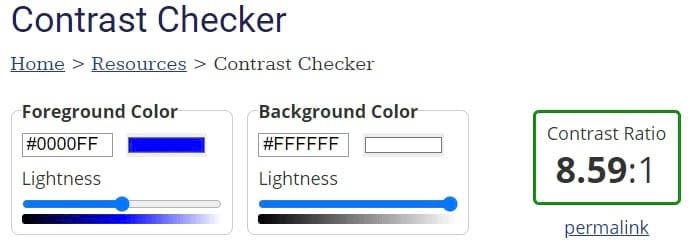
WebAIM’s contrast checker tool.

Line height and letter spacing also come into play where accessibility is concerned. To keep text readable, W3C provides the following guidance:

  • Line height must be at least 1.5 times the font size.
  • Spacing between paragraphs should be two times the font size.
  • Spacing between letters must be at least .12 times the font size.
  • Word space should be at least .16 times the font size.

Graphs are another way to present a lot of information in an easily understood format. However, if you’re only differentiating the elements by color, you could be shortchanging many people. In fact, there are about 3 million colorblind people worldwide who could be struggling with your content.

To be certain visual elements are understandable, consider using patterns as well as color in your graphs. When selecting designs, we recommend choosing ones that are different enough from each other. For example, lines or dots are easily discerned, whereas lines of varying thickness may not be.

2. Organize Content for Easy Understanding

No matter what type of website you’re designing, chances are there is a lot of text. You can improve accessibility by structuring content in a way that’s easy to skim and understand.

First, most users will appreciate you breaking your text up into short paragraphs. People often aren’t reading deeply on the web, and shorter sections are easier to scan through.

Headings are also crucial to scannability. Each heading should accurately describe the content beneath it and follow a logical hierarchy. This means using larger headings first and progressively smaller ones as you cover more specific information.

Using appropriate markup for your headings can make it easier for screen readers to read and navigate your content. In HyperText Markup Language (HTML), you’ll use tags <h1> down to <h6> to create hierarchical headings to break up your text.
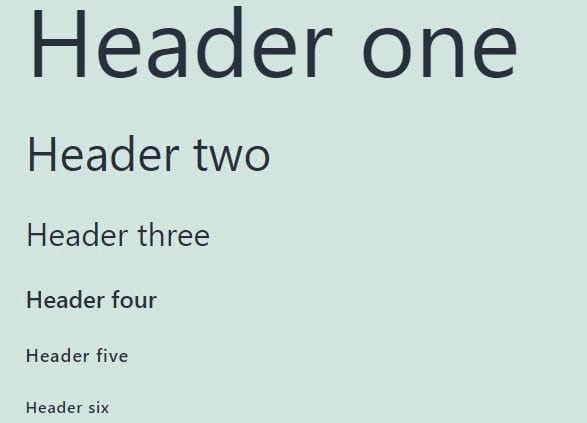
Headings arranged hierarchically from one to six.

When adding links to your content, be sure the anchor text is descriptive enough that readers will know where clicking on it will take them. Also, it’s smart to mention if the link will open in a new window. A window opening unexpectedly can cause issues for screen readers and confuse the user.

You should also let your users skip through the content without using a scroll wheel or repeatedly pressing an arrow key. This can be as simple as including a table of contents at the start of a blog post. You can also have a button that skips right to the main content of the page.

A ‘skip to main content’ button.

Next, we’ll explore some ways you can make interacting with your website easier.

3. Keep User Interface (UI) Elements Intuitive and Device-Independent

User Interface (UI) elements are anything on a website that visitors need to interact with to navigate, and they play a major role in the overall User Experience (UX). UI elements can include scrollbars, dropdown menus, and notifications.

For a website to be considered accessible, people using different devices need to be able to interact with these UI elements successfully. This means that device-independent design is crucial.

For example, some people are only able to use keyboards. To make it possible for them to navigate a webpage, you can include focus indicators to highlight buttons, links, and text fields when a user tabs through a page.

Anything on your website that can be interacted with should have a corresponding focus indicator. The appearance can vary from one browser to another, but they typically show up as a blue or white outline depending on the background color.

A focus indicator on the Google search page.

When adding focus indicators, you’ll need to define tab order. This order should be similar to how you read: top to bottom and left to right. You can test this by tabbing through your site.

Try to keep navigation and other menus in a consistent order throughout the website. These elements should also appear in roughly the same locations on each page because it makes them easier to memorize and quicker to use.

Touch targets are the areas a user taps when using a touchscreen device. When defining touch targets, you’ll want to be sure they’re large enough to be easily tapped by anyone. For example, people with neuromuscular disorders may lack the fine motor control needed to interact with a tiny target.

However, you also don’t want to create targets so large that they overlap with nearby elements. Tapping one button when you were aiming for another is enough to frustrate anybody.

Some users rely heavily on keyboard shortcuts. While you can define shortcuts for your website, it may not be the best course of action. Keyboard shortcuts are not standardized across the web, and any you create may conflict with the device someone is using. If you decide to add custom shortcuts, be sure to make this clear and provide guidance for using them.

There are some types of interactions that aren’t available on every device. For example, while pinch-to-zoom is convenient for mobile phones, it’s impossible on any computer without a touchscreen. Be sure content isn’t locked behind actions your users may not be able to perform. Provide multiple avenues to your information.

UX is a highly involved area of web design with a lot of moving parts. Therefore, you might consider adding a section to your style guide to help maintain consistency for all UI elements across your website.

4. Make Input Controls User-Friendly

Input controls are a subset of UI elements intended to accept input from a user. Examples include text fields, checkboxes, and radio buttons.

Forms can be tricky to design with accessibility in mind, but there are some guidelines to follow. You can start by labeling each field of your form. You might also include some example text in the field itself.

A lead generation form with labels and example text.

When laying out forms, we suggest using a vertical structure and placing each field on its own line. This makes navigating the form easier for keyboard-only users. On a related note, ensure that focus indicators are placed throughout the form.

You might break long forms into multiple sections as they can be overwhelming. You could also add a progress bar for people to know where they are in the process; this is likely to be appreciated by your users.

Finally, be sure to provide error messages that are clear and easy to understand. If possible, don’t clear the entire form when an error is made. It’s a good idea to include instructions for how to fix the mistake as well.

5. Include Multiple Ways to Enjoy Media

Media can add a lot to a website, but there are accessibility issues to be mindful of. Fortunately, you can ensure that any media you use is enjoyed by everyone.

First, some types of media are best avoided altogether. Flashing animation or pop-ups can potentially trigger seizures in some people. You may also want to skip scrolling text or animated content that can’t be paused. It can be difficult or even impossible for some users to absorb.

If you feel the need to include scrolling or animation, there are ways to make these elements more accessible. Be sure text moves slowly enough that visitors can read it easily. In addition, make it possible for users to pause the content and be clear about how to do so.

When you create video content for your website, you can include closed captioning for the deaf and hard of hearing. You should also add a text transcript of the video’s content for those using a screen reader.

Visitors who use screen readers can sometimes have a difficult time with images on a site as well. To make it possible for these people to see what is happening in a picture, you can include alt text.
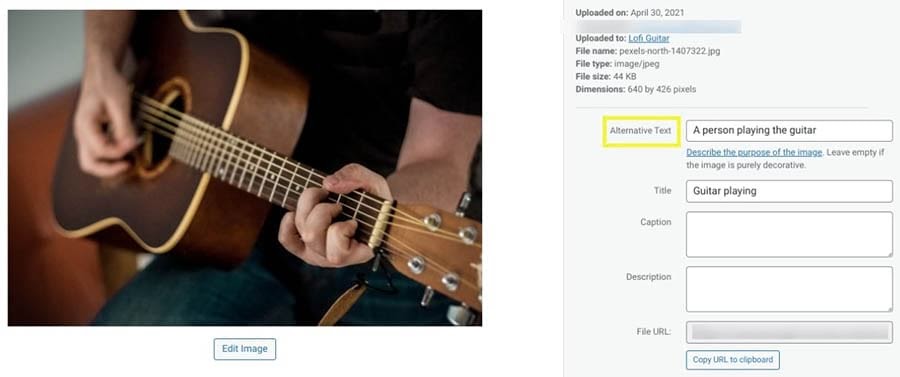
Adding alt text to an image of a person playing guitar.

Alt text is a description intended to show up when an image fails to load. However, screen readers also speak this text, so those with visual impairments don’t miss out.

When you’re writing alt text, you’ll want to be as descriptive as possible. You can base your description on what is featured in the image and the context of the surrounding content. Also, there’s no need to include the words “Picture of…” at the start of your alt text, as the screen reader will add that automatically.

6. Perform User Research and Testing

User research and testing probably aren’t as exciting to you as the design process, but they’re crucial for nailing accessibility. User research is best done early in the process to get a handle on who your users are and what they expect from you. You can do testing throughout the design process to help keep you heading in the right direction.

Thorough research ensures that none of your users will fall through the cracks and will help you develop a plan for designing your website. You might use focus groups or surveys to determine what users need from your website and how they intend to use it.

You’ll likely want to do some testing throughout the site-building process. You might try A/B testing at the wireframing stage when there’s still time to pivot. Once your site goes live, you could observe people using your website and ask for their thoughts as they accomplish specific tasks.

During research and testing, it’s best to gather a diverse group of participants. Including those of all abilities gives you a better chance of designing a site that works for everyone.

You can also perform testing yourself, such as trying to navigate your website using only your keyboard. For other elements of accessibility, you might want to try a plugin such as WP Accessibility.
The WP Accessibility plugin.

This plugin is free to use. It can help you correct a variety of accessibility issues.

DreamHost Takes Inclusivity Seriously

We regularly report on diversity, accessibility, and representation in the tech industry. Subscribe to our monthly newsletter so you never miss an article.

Let’s Make Accessibility Standard

Focusing on accessibility during the design process can result in a website that’s accessible to everyone. While it may seem like a lot to keep track of, the payoff is well worth the extra effort.

Keep the following in mind when you’re designing your website:

  1. Make visual design elements readable.
  2. Organize web content for easy understanding.
  3. Keep User Interface (UI) elements intuitive and device-independent.
  4. Make input controls user-friendly.
  5. Include multiple ways to enjoy media.
  6. Perform user research and accessibility testing.

Building an accessible website is a lot easier with the right web host in your corner. DreamHost’s Shared Unlimited hosting can ensure that you get off to a great start with a fast and reliable website!

The post Web Accessibility Guide for Designers (6 Key Tips) appeared first on Website Guides, Tips & Knowledge.


source https://www.dreamhost.com/blog/web-accessibility-guide-for-designers/

Wednesday, 7 July 2021

How to Fix the “Briefly Unavailable for Scheduled Maintenance” Error in WordPress

Is your website stuck in maintenance mode? During updates, WordPress displays a temporary notice on your site that reads: “Briefly unavailable for scheduled maintenance. Check back in a minute”. However, this message may sometimes remain visible after a few minutes, thus preventing visitors from accessing your site.

Thankfully, fixing this error doesn’t require technical expertise. The maintenance mode issue is one of the easiest WordPress problems to resolve — and prevent.

In this article, we’ll look at the main causes of the WordPress maintenance mode error. We’ll also show you a quick fix for this issue and share some tips to help you avoid the same problem in the future. Let’s get started!

Skip the Stress, Delegate to Us

Avoid troubleshooting when you sign up for DreamPress. Our friendly WordPress experts are available 24/7 to help solve website problems — big or small.

What the Maintenance Mode Error Is (And What Causes It)

When updating core software, themes, or plugins, WordPress puts your site in maintenance mode. It does this by creating a temporary .maintenance file in the root folder of your site.

Anyone who visits your site during the update process will see the following message:

The “Briefly unavailable for scheduled maintenance” message in WordPress

Typically this notice is only up for a few seconds. Once the updates are done, WordPress automatically deletes the .maintenance file, and the message disappears from your site.

However, an error may prevent your site from completing updates. When this happens, the maintenance notice stays up on your site, making it inaccessible.

There are several reasons your site might be stuck in maintenance mode:

  • You may have closed the browser window in the middle of an update.
  • You may have tried updating a lot of plugins at the same time.
  • The update script may have timed out due to a slow hosting server response or a low memory problem.

To resolve this issue, you may need to increase your site’s PHP memory limit. However, we’ll also be looking at two other simple fixes for this maintenance mode error.

How to Fix the “Briefly Unavailable For Scheduled Maintenance” Error in WordPress

Fortunately, there’s a very quick way to fix the WordPress maintenance error in WordPress. All you have to do is delete the .maintenance file from your site’s root directory.

First, you’ll need to connect to your site using a Secure File Transfer Protocol (SFTP) client such as FileZilla. Alternatively, you can access your site by logging into your web hosting account and using the file manager.

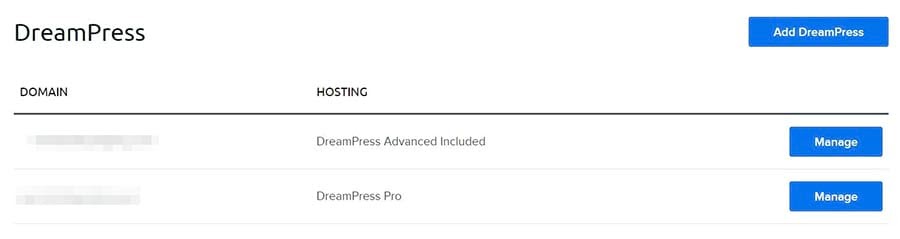
If you have a DreamHost account, you can navigate to WordPress > Managed WordPress in the sidebar, find your domain, and select Manage.

Accessing the file manager in your DreamHost account

On the next page, click on the Manage Files button in the Details section. In the file manager, open the folder with your domain name.

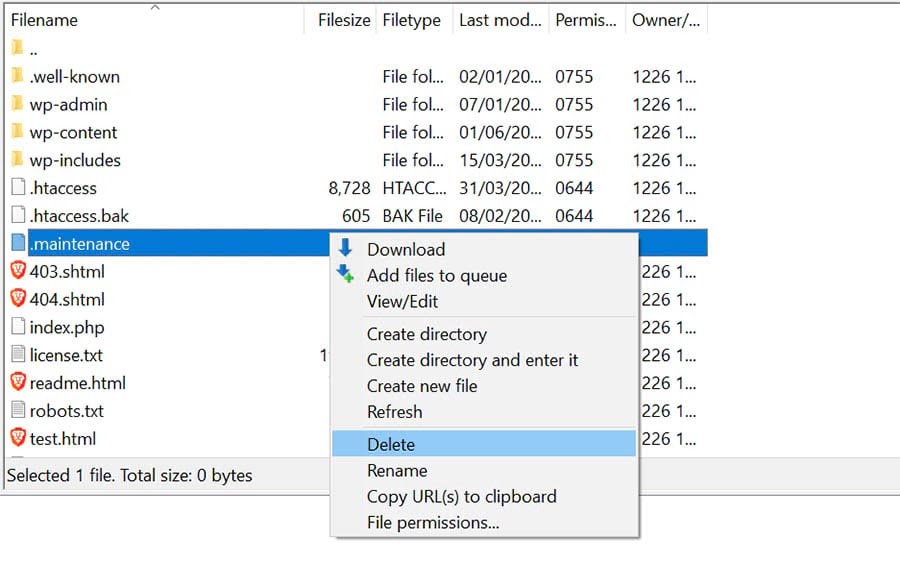
In your site’s root directory, open the public_html folder, locate the .maintenance file, and delete it.

Deleting the .maintenance file in your site’s directory


If you’re using an SFTP client and can’t see the file in the directory, it may be hidden. To find it, go to the menu and click on Server > Force showing hidden files.

Showing hidden files in FileZilla

Your site should now be out of maintenance mode. If you’re still getting the error message, you may need to update the wp-activate.php file.

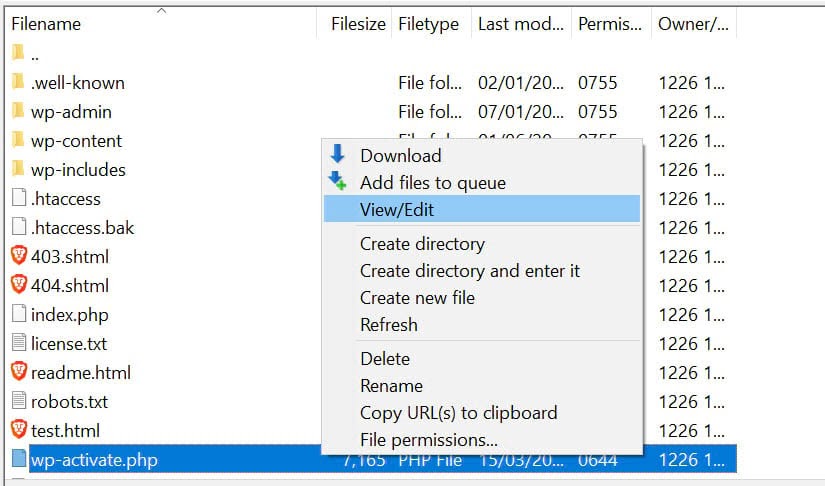
To do this, go back to your site’s root directory and find the wp-activate.php file.

Editing the wp-activate.php file in your site’s directory

If you’re connected to your site via your hosting account, you may be able to open and edit the file within the file manager. Alternatively, you can download it to your computer.

Open the wp-activate.php file and locate the following line of code:

define ('WP_INSTALLING', true)

Next, change the value “true” to “false” so that the code looks like this:

define ('WP_INSTALLING', false)

Save your changes and close the file. If you’ve been using the file manager in your hosting account, you don’t need to do anything else. If you’ve edited the wp-activate.php file on your computer, you’ll need to upload it to your site’s root directory.

Once you’ve completed the above steps, return to your site and refresh it. You should now be out of maintenance mode.

How to Prevent the Maintenance Mode Error

When your site gets stuck in maintenance mode, people are unable to view your content. Thus, if you fail to notice the problem straightaway, you may lose potential conversions.

Fortunately, there are several steps you can take to prevent this error in the future:

  • You can update your plugins and themes one at a time. While updating plugins in bulk saves you a bit of time, it can lead to conflicts and errors during the process.
  • You can upgrade your hosting plan. It’s a good idea to choose a managed WordPress hosting plan for enhanced site performance and fewer technical issues.
  • You can check the compatibility of your themes and plugins with your current version of WordPress. For this, you may want to set up a staging site so you can test new themes and plugins on an offline platform before making your changes live.

Moreover, you may want to avoid closing your browser until all updates are complete.

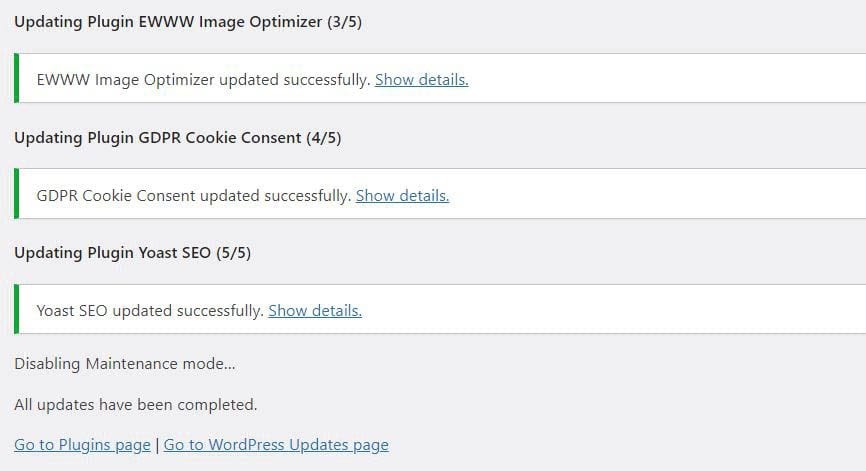
Updating plugins in WordPress

If you exit the browser before then, WordPress won’t be able to update and remove the .maintenance file. You’ll know that updates are ready once you see the “All updates have been completed” status, as shown in the screenshot above.

We also recommend that you check your site when running updates. This way, if the maintenance error does crop up again, you’ll be able to spot it and get it fixed immediately.

How to Customize the Maintenance Mode Notice

You can also avoid the default WordPress maintenance notice by using a plugin. This will enable you to manually put your site in maintenance mode before running any updates. You’ll also be able to customize the message.

One popular tool you can use is the SeedProd plugin. After installing and activating the plugin, navigate to SeedProd > Pages in your admin dashboard. Then click on Set up a Maintenance Mode Page.

Creating a maintenance mode page using the SeedProd plugin

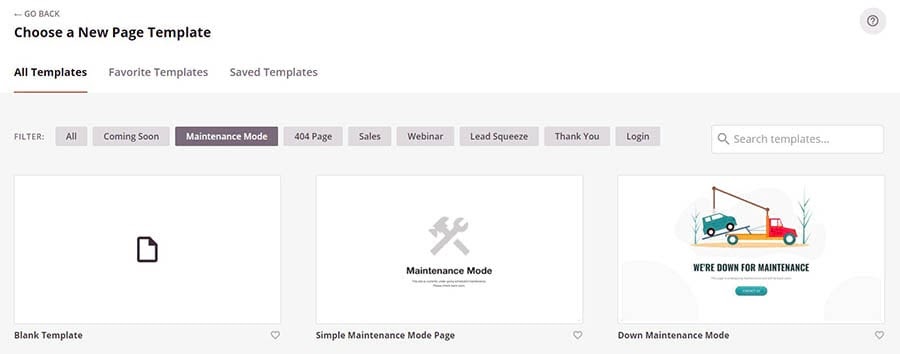
Next, you can choose a template and customize it to your liking. Note that some templates and features are only available in the premium version of the plugin.

Selecting a template for the maintenance mode page in SeedProd

Every time you need to run updates, you can head to SeedProd > Pages and simply activate your maintenance mode page. This will replace the default WordPress maintenance message.

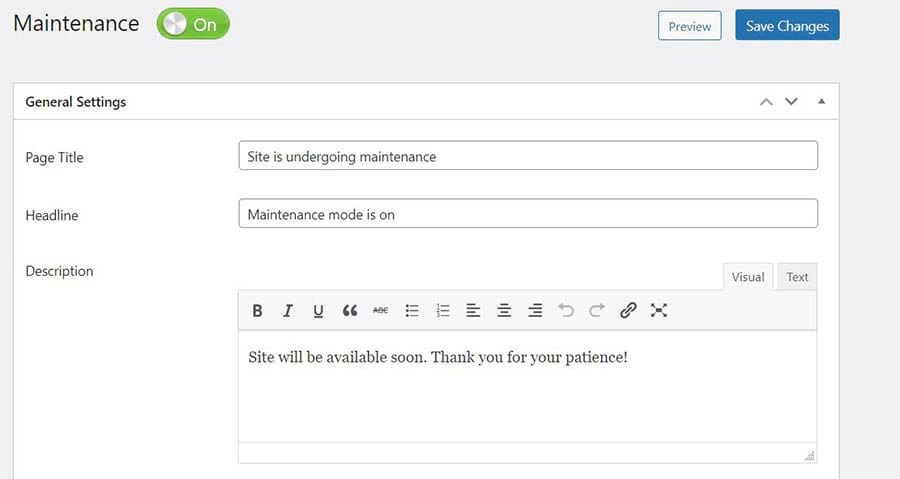
Another option you may want to consider is the Maintenance plugin. Install and activate the plugin, then click on Maintenance in your dashboard and edit the text you want to be displayed on your maintenance page.

Customizing your maintenance mode notice using the Maintenance plugin

You can also choose a premium pre-built theme. The plugin also lets you select pages and posts that you want to exclude from maintenance mode. Once you’re done, click on the blue Save Changes button.

Similarly, the WP Maintenance Mode plugin lets you create your own maintenance page. After activating the plugin, navigate to Settings in your dashboard and select WP Maintenance Mode.

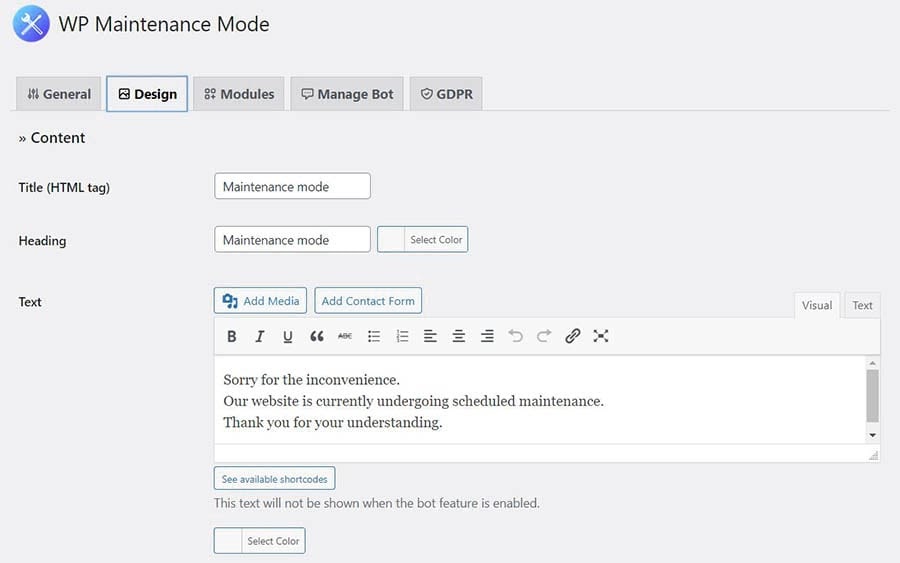
To customize the content of your page, click on the Design tab.

Editing your maintenance mode text in the WP Maintenance Mode plugin

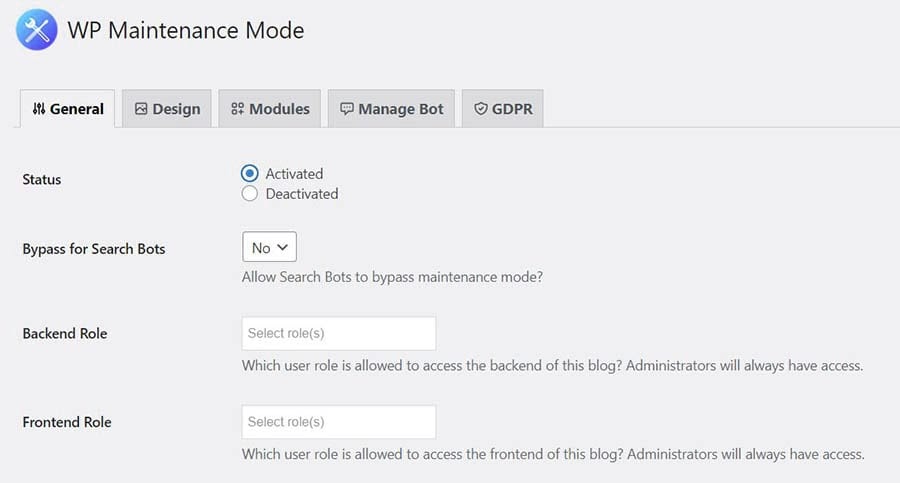
When you’re done, click on Save settings at the bottom of the page. To activate maintenance mode, go to the General tab and select the Activated option.

Activating the maintenance page using the WP Maintenance Mode plugin

You can also use these maintenance mode plugins for other purposes. For example, you can activate them while making some major changes to your content or working on a particular page or section on your website.

WordPress Error Resources

Now that you know how to tackle the “Briefly Unavailable for Scheduled Maintenance” message, you can learn how to solve and prevent other issues on your site. We’ve put together several tutorials to help you troubleshoot the most common WordPress errors:

Are you looking for more information about running a WordPress site? Check out our WordPress Tutorials, a collection of guides designed to help you navigate the WordPress dashboard like an expert.

Take Your WordPress Website to the Next Level

Whether you need help navigating the WordPress directory, fixing incorrect credentials, or choosing the right WordPress plugin, we can help! Subscribe to our monthly digest so you never miss an article.

Fix the Briefly Unavailable For Scheduled Maintenance Error

WordPress puts up a notice on your site during updates to let visitors know it’s currently under maintenance. This message is only visible for a few seconds, but an error during the updating process may result in your site getting stuck in WordPress maintenance mode.

To fix the maintenance mode error, you simply need to delete the .maintenance file in your site’s root directory. You can also prevent this problem from cropping up again by running updates one at a time, ensuring that your plugins are compatible with the latest WordPress version, or upgrading to a better hosting plan.

Are you looking for an advanced hosting solution for your WordPress site? Our DreamPress plans offer high-performance WordPress hosting with 24/7 expert support. This means that we take care of all your technical issues, so you can focus on growing your business.

The post How to Fix the “Briefly Unavailable for Scheduled Maintenance” Error in WordPress appeared first on Website Guides, Tips & Knowledge.


source https://www.dreamhost.com/blog/how-to-fix-wordpress-error-unavailable-scheduled-maintenance/
Thursday, 1 July 2021

Bogotá Marketer Inspires Local Entrepreneurs with Focus on Brand and Sustainability

Inspiration is Susan Rodriguez’s favorite word.

Inspiration is also what struck her while working for a big-name branding agency in Bogotá, Colombia. She loved her work as a manager, guiding the strategic vision to bring marketing services to clients throughout the country looking to grow businesses and increase profits.

The only problem? The big agencies Rodriguez spent her career working for only took clients with big budgets — at least $4,000. Which got her thinking: Is there room in the market for a different approach?

“Many businesses were left out for not having this type of budget,” says Rodriguez. “So, I decided to bet on creating a business model that would be effective for small to medium enterprises.”

She took that inspiration and ran with it, launching her own small business that specializes in giving fellow small business owners the chance they need to grow by offering networking, social media, and marketing services, combined with financial planning to sustain that growth. Channeling her favorite word and her favorite industry, Rodriguez named her business Inspiramark — short for inspiration marketing.

“I am convinced that implementing comprehensive marketing strategies will allow any brand to increase its positioning,” she says.

Rodriguez believes in dreams, working to make them come true for herself and her clients. Using a simple DreamHost shared hosting plan, Inspiramark meets its revenue goals quarter after quarter, employs six people, and positions new Bogotá brands for real, long-term growth.

You’ve got to admit — that’s pretty inspiring.

Want to Meet More Awesome Site Owners?

Subscribe to the DreamHost Digest for inside scoops, expert tips, and exclusive deals.

Growing and Sustaining Dreams

Rodriguez grew up in Bogotá, Colombia’s capital, in a family that always valued education.

“Fortunately, I was able to graduate from college and I’ve had different learning opportunities thanks to my parents who have supported me throughout all this time,” she says. “They’ve been a great support” throughout her career, as has her husband, Jair Pineda, who works with Rodriguez as Inspiramark’s CFO.

Susan Rodriguez and her husband, Jair Pineda.

In August 2018, Rodriguez made the leap from agency marketing work to owning her own business.

“Our mission is to inspire brands that dare to believe growth is possible,” she says, “and make those dreams come true.”

Drawing on her education and background, Rodriguez built Inspiramark to provide marketing strategies to increase brand exposure. She believed strongly that, no matter a business’s budget, entrepreneurs deserved a fair shot — and that depended on how well they attracted new customers through smart marketing. Soon it became clear to Rodriguez that, along with marketing and PR, the scrappy small-business owners she worked with could also benefit from help with their finances.

“We noticed that high impact entrepreneurs have big financial problems that we had the chance to tackle,” she says. Growth and profitability are the main outcomes she offers her clients, and adding on financial planning services, Rodriguez says, makes sure that these new brands can be sustainable over time.

“Our main focus is marketing strategies based on the clients’ financial plans,” she says. “Therefore, we always ensure that implemented strategies are profitable and sustainable.” Along with financial advice, Inpiramark offers communication and sales training.

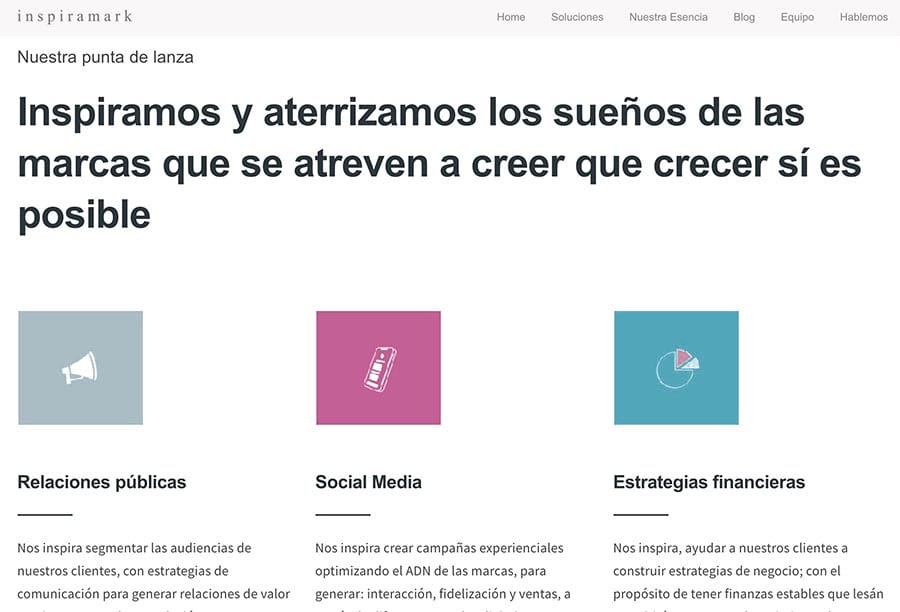
Inspiramark homepage

In Rodriguez’s work with her clients, brand exposure and long-term sustainability is the goal. Inspiramark’s specialty is working with entrepreneurs and small/midsize businesses — “those are decisive, have a clear vision of their business and want to grow,” Rodriguez says. “They are aware that investing in marketing allows them to be ahead of the curve to get more recognition and that good financial management will push them to increase their sales and be sustainable.”

Going Viral

Susan and her team at an event.

For Rodriquez, creating the perfect marketing plan is everything.

“Marketing wise, what I am most passionate about is having the opportunity to create, to think of different strategies to reach our client’s targeted audience,” she says.

Rodriquez was surprised to find plenty of work for Inspiramark creating marketing strategies in the music business — definitely not a straightforward industry, she says.

“Working in the music industry has been one of the most spectacular challenges,” she says. “Within this industry you have to be disruptive, non-traditional.”

Take, for example, one of her current clients — a record label called M Records. She’s focused the marketing strategy around pushing artists’ new releases, primarily through social media and navigating relationships with distributors. Along with creating press kits and unconventional graphics, Rodriquez has seen promotional TikTok videos for the label’s artists go viral, and she’s helped them connect with Spotify and Deezer Latin America. Another helpful strategy, she says, is launching teaser campaigns on social media and interacting directly with fans through private chats.

It’s all in the name of increasing brand exposure and telling the business’s story in a way that connects with audiences emotionally.

“The best marketing strategies are the ones that build loyalty and connect to the audience’s heart,” she says. “They help their potential customers recognize them as a brand. When implementing Inbound Marketing strategies using content that tells stories, we generate more sales and it almost always happens that they are motivated by an emotional purchase.”

Taking the Lead

Susan Rodriguez on the Inspiramark homepage

“I think inspiration should be implicit in all areas of life,” says Rodriguez. “Especially when it comes to leading.”

Inspiramark, she says, needs to take the lead for its clients by “being an example of what we offer,” she says. She wants her business to provide inspiration and leadership for other small and midsize businesses, especially her clients. She’s found this means that, in addition to investing time and resources heavily in those clients and their brands, she’s got to do the same for Inspiramark.

“On different occasions Inspiramark became our last priority as a brand, and while we kept very well the social networks or the positioning of our clients, our brand was left behind and this cannot happen,” she says. “Our brand needs to also be our priority.”

Another lesson she’s learned in running Inspiramark: Keep marketing. Even when her team is stretched meeting the needs of current clients, they’ve got to keep eyes on growth and the future — again, just like the brands they work with.

“Our work often consumes us,” she says. “But we can never stop looking for businesses. We learned that we cannot trust that the clients we have now will be around forever. The business seeding process can often take three months. So we can’t stop.”

She’s found three reliable ways to always keep potential clients in the pipeline. The first ( and most reliable) is referrals. “What’s worked the most for me,” says Rodriguez, “is customer referrals, or people I’ve met over the years reaching out to me and we start working together.”

Connections made through LinkedIn bring in business too: “I currently have almost 9 thousand contacts and about 70% come from marketing or communications managers,” she adds. Using these tools, combined with targeted Instagram marketing campaigns, Rodriguez has managed to keep herself very busy at Inspiramark.

In fact, it’s grown from just Rodriguez and her husband to employing a talented team that includes social media managers, writers, and a public relations specialist. Finding the right people to help, she says, has been a big part of her success in building and growing Inspiramark. Some of these employees, Rodriguez says, grew their skills right along with the business.

“A perfect combination of experience and good attitude is sometimes difficult to find,” she says.
“So, we have chosen to train some people we see have great potential. It hasn’t been easy, but we can now see wonderful results.”

Making connections with people has been one of the most enjoyable parts of running her business, Rodriguez says. She’s had the chance to network with journalists, social media influencers, unions, government workers, and more. She uses these networks to help her clients make important connections — and she just honestly likes knowing more people.

“I really enjoy socializing and meeting people, over the years you can build important alliances,” she says.

Finding a Home Online

The most important tool for any business — especially one specializing in telling digital stories and building brands online — is their very own home on the internet. Inspiramark’s website is simple and to the point, making it as clear as possible what they can offer to potential clients.

“I like that our website is easy to navigate and the information is concrete,” says Rodriguez. “It still needs some improvement, but I think it is functional. My hope is that whomever visits the site fully understands the most crucial information about us — what we do and how we can help them.”

Inspiramark.com puts these crucial details right at the top, with large text announcing what Inspiramark can do for small and mid-size businesses.

“This is a very simple website; it doesn’t require much work,” says Rodriguez. The credit for the simple functionality and maintenance, she adds, goes to her host. She chose to work with DreamHost when she started her business because she appreciated the simplicity and clarity in DreamHost’s own branding.

“The provided hosting information seemed clear to me: DreamHost would be able to support what I was looking for in terms of accessibility and communication,” she says.

DreamHost Homepage

Her shared hosting plan and the WordPress website she built on it have been reliable since day one, leaving Rodriguez and her team free to focus on the work they love. “I’ve liked the fact that I haven’t had any issues with my hosting,” she says. “As of this moment, I only have a shared hosting plan, and that has been more than enough.”

We Support Your Dream

Whatever your online goals, we’ll be right there with you, making sure your site is fast, secure, and always up. Plans start at $2.59/mo.

Following the Numbers

Rodriguez is a people person — necessary in her line of work — and she’s a numbers person. When it comes to growing her own business, and advising her clients in growing theirs, she’s all about the numbers.

“It has always been clear to us that numbers are the basis for any decisions we make,” she says.“Every quarter we make projections of expenses and sales in order to set goals to reach. We almost always reach them.”

Right now, she’s working hard on reaching her current numbers-based goal: doubling Inspiramark’s billing income by the third quarter this year. “This will allow us to grow our work team and hire more people that would help me with the operations,” she says. As founder and CEO of Inspiramark, her focus is always on the future, looking for new clients to serve and new ways to serve them.

“The most common feedback we get from clients is that we have helped them change their business perspective,” Rodriguez says. “We’ve shown them everything must be focused on profitability and sustainability.” Many have thanked her for helping them write, stick to, and update a business plan.

She’s got plenty to keep her busy at work — and doesn’t really slow down at home either. With her husband and cousin she’s developing a brand of pajamas that they plan to launch this summer.

Another place she keeps busy? The kitchen: “Something I love doing is cooking, it’s satisfying. Being able to cook for someone I care for and appreciate is a delight and I’m constantly looking for new recipes I can try out.”

For Rodriguez, there’s no shortage of inspiration.

The post Bogotá Marketer Inspires Local Entrepreneurs with Focus on Brand and Sustainability appeared first on Website Guides, Tips & Knowledge.


source https://www.dreamhost.com/blog/customer-spotlight-inspiramark/

Wednesday, 30 June 2021

Pinterest Marketing Guide: How to Promote Your Business in 2021


If you run an online business, chances are you spend a lot of time on your social media marketing. If you’re not including Pinterest in your marketing plan, you could be missing out.

Pinterest is a highly visual platform that functions more like a search engine than a social network. As a result, you can reach new audiences, drive more traffic to your site, and access detailed analytics to help you achieve your goals. Even better, Pinterest is a fairly easy platform to get started with.

In this guide, we’ll discuss why you might want to get your business on Pinterest. Then we’ll share six steps to help you set up an account, create shareable Pins, and build your presence on this platform. Let’s get started on your Pinterest marketing strategy!

Why You Might Want to Use Pinterest to Promote Your Business

Pinterest is so much more than a social media platform. It’s actually a visual search engine, which comes with a unique set of advantages for businesses. For one, content lasts much longer than on other platforms, meaning your Pins can continue to yield results for you months after you post them.

Something else that makes Pinterest attractive is its user base. The platform boasts approximately 459 million monthly users, most of whom are adults. If this is a demographic you’d like to target, it’s smart to put your business on this platform.

Finally, 80% of Pinners discover new brands or products on Pinterest. This makes it an excellent tool for putting yourself on the radar of new audiences.

Get Social and Grow Your Business with DreamHost

Our experts will help create a powerful social media strategy and level up your execution so you can focus on running your business.

Pinterest Marketing Guide: How to Promote Your Business in 2021 (In 6 Steps)

Now that you’ve seen that Pinterest can be a valuable addition to your marketing strategy, let’s have a look at six steps for getting started.

Step 1: Set Up a Pinterest Business Account

Your first step will be to set up a Pinterest business account. This account type differs from a personal account in a few key ways. First, you’ll be able to claim your website and other social platforms, so your profile information will show up on every Pinterest Pin that includes your content.

You’ll also be able to build ads and use them alongside your organic Pins to help drive traffic and conversions. If you’d like some additional guidance, you can sign up for a free ads consultation.

Finally, a business account will grant you access to detailed analytics. You can pull valuable insights from this data to improve your Pinterest strategy.

To set up your business account, head to Pinterest Business and click on the Sign Up button. First, you’ll be asked to create an account or log in to an existing one. Next, you’ll be brought to this screen where you can begin building your profile.

Adding basic profile information to Pinterest Business.

You can include as much or as little information as you like. You’ll probably want to include a profile picture, as well as a few ways for customers to reach you. If you have a physical location, you can add that information as well. Remember to click on the Save button at the bottom of the screen if you make updates.

Step 2: Create Popular Pins

Once you have your Pinterest business account ready to go, it’s time to create some Pins. Before you get started, you’ll want to identify some of the popular trends in your niche. Fortunately, Pinterest provides you with a few tools to accomplish this.

First, you might want to have a look at Pinterest Predicts. This highly visual report is full of advice for what topics will soon be trending in several niches.

The Pinterest Predicts tool.

You can also narrow your search by category or audience. Alternatively, you can download the report in PDF format.

You might also want to check out Pinterest Trends. This tool is a bit more focused on the present, so you can use it to discover what’s currently trending on Pinterest in different categories.

Current trends on Pinterest.

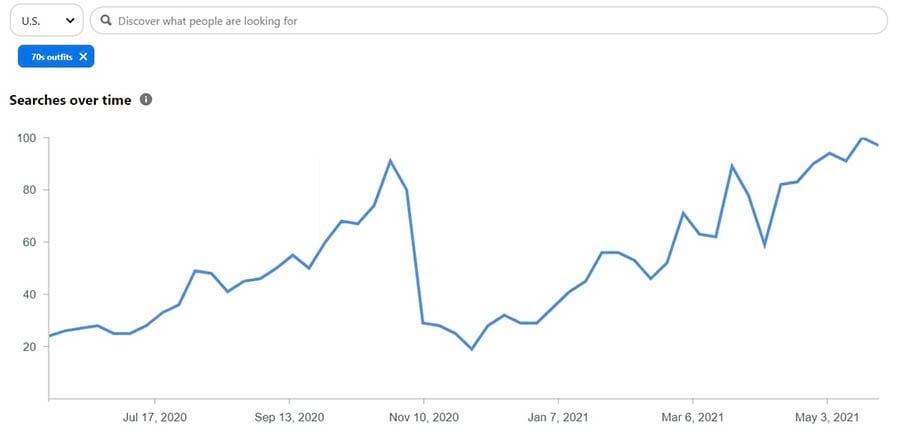
Click on any keyword to see a graph of searches over time. You’ll also see the most popular Pins for the search term, as well as a selection of related trends.

A graph showing searches over time.

These tools provide powerful insights that can help you plan the content of your Pins. However, there is also a strong visual component that you’ll want to keep in mind.

As we said, Pinterest is a highly visual platform, so you’ll want to be sure the images you’re using for your Pins are top-notch. Of course, you’ll want to choose high-quality images, but you’ll also need to pay attention to the size.

The best Pins are longer than they are wide. While the ideal image size is 735 by 1102 pixels, it’s more important to be mindful of the aspect ratio, which is 2:3. This will prevent the images in your Pins from being truncated in users’ feeds. You’ll also want to add alt text to your Pins, just as you would on your website, to make them accessible.

Like with your other social media channels, it’s best to keep your Pins aligned with your brand aesthetic. For example, you may want to include a branded logo on your images or just adhere to a specific style when you’re creating content.

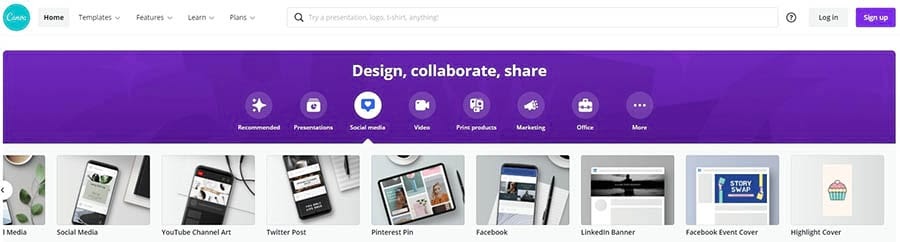
You can make it a bit easier to follow these guidelines by using a tool like Canva.

Canva, an online photo editing tool.

With Canva, you’ll have access to various templates for Pins, so you’ll always have the ideal dimensions. Canva also provides some powerful collaboration tools in case you’ll be working with a team. Finally, the Brand Kit feature will make it easy for you to keep your logo, colors, and fonts consistent across all of your social media platforms.

Pinterest also lets you create video Pins. These play automatically as users scroll through their feeds, so they are more engaging than other Pins.

When creating a video Pin, keep in mind that users won’t necessarily have their volume on as they scroll through the page. So don’t be afraid to include plenty of text, both to grab attention and to get your message across.

Once you’ve created some brilliant Pins, the next step is to make sure they’re found. Similar to how you would handle Search Engine Optimization (SEO) for your website, you’ll rely heavily on keywords to rank high in search results. Therefore, you may want to include them in your Pinterest board names and descriptions. You can also add keywords to your image filenames.

Step 3: Optimize Your Pins for Maximum Traffic

So far, we’ve discussed how you can use SEO to be sure your Pins show up in search results. However, there are some other tactics you can try to help drive visitors to your website.

First, some days and times are better than others for getting eyes on your Pins. While you’ll want to do some experimentation to discover when is best for your content, CoSchedule found that 8-11 p.m., 2-4 a.m., 2-4 p.m., and 1-3 p.m. are the best times to post. Additionally, you may want to publish your content on Fridays and Saturdays.

You’ll also want other people to Pin your content to their own boards to help widen your reach. You can start by adding a Pinterest button to your website. The Easy Social Share Buttons plugin enables you to do this quickly.

The Easy Social Share Buttons plugin.

Of course, you’ll want to be sure you’re including Pin-worthy images with your content and placing them strategically throughout your website. While you’ll likely include a Pin It button with your social share icons, there are a few other places you may want to have one.

If you have a blog, you can try optimizing your featured image for Pinterest to be sure it looks great when pinned. You might also want the button to appear when a user hovers over your photos or other shareable elements on your site.

If you have an email newsletter, try including some of your Pins in it. Use this opportunity to show off some of your best content and urge readers to visit your Pinterest page.

You might also try using a Pin’s Call To Action (CTA) to encourage people to pin your content to their own boards. The more popular a Pin is, the more likely it is to appear in search results and help solidify your reputation as an expert, which can also increase traffic to your site.

Finally, you might want to connect your Pinterest profile with other social platforms and your website. You can do this by claiming your other accounts.

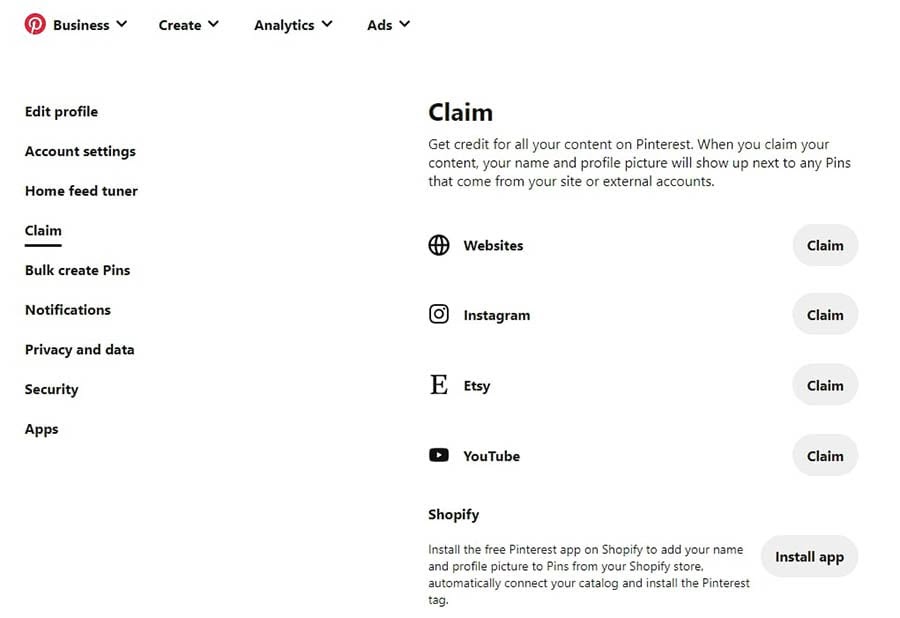
From your Pinterest account settings, click on Claim in the menu at the left of the screen. You’ll have the opportunity to claim your website, Instagram, YouTube, Etsy, and Shopify stores. Simply click on the Claim button, log in to your account, and grant Pinterest the required permissions.

Claiming a social media account on Pinterest.

Now, any Pins created from your connected platforms will be attributed to you. You’ll also get credit for any Pins you made before you connected other accounts, but this may take a few days.

Step 4: Build Relationships and Gain Followers

Like other social media platforms, Pinterest is all about building relationships with your followers. One of the easiest ways to achieve this is by posting frequently and consistently.

Unlike some other social media platforms, overposting isn’t much of a concern with Pinterest. However, you don’t want to publish an entire day’s worth of Pins at one time. So instead, spread them out, keeping the optimal posting times in mind.

You’ll also want to include a mix of content in your Pinterest strategy. Don’t be afraid to have plenty of content from other accounts if you think your followers will find it interesting. Providing value is essential to creating loyalty among your customers.

Additionally, remember to respond to any comments left on your Pins. You can also leave friendly, helpful comments on your followers’ Pins to help build connections.

While communicating with your audience is crucial, you might also want to engage with popular boards outside your immediate network. This tactic can be especially effective if you want to build relationships with influencers. If you decide to reach out this way, you can do some research to ensure that the creators and their content align with your brand values.

To find popular boards in your niche, start by typing a relevant keyword into the search bar. To narrow your search to boards, use the drop-down menu on the right.

How to search for boards on Pinterest.

Once you click on a board, you’ll be able to see the follower count. If you’d like to follow the board, click on the three dots next to the name and select Follow.

How to follow a board on Pinterest.

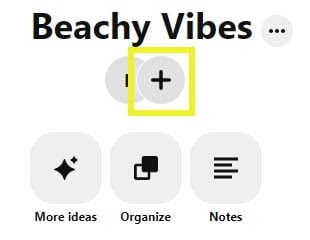
You might also want to try inviting others to Pin on your boards. This can add some diversity to your content. To create a group board, click on the plus sign under the board’s name.

How to create a group board on Pinterest.

You’ll be able to set permissions for your collaborators. Choose whether they can change existing Pins or just add their own.

Collaborator settings for group boards on Pinterest.

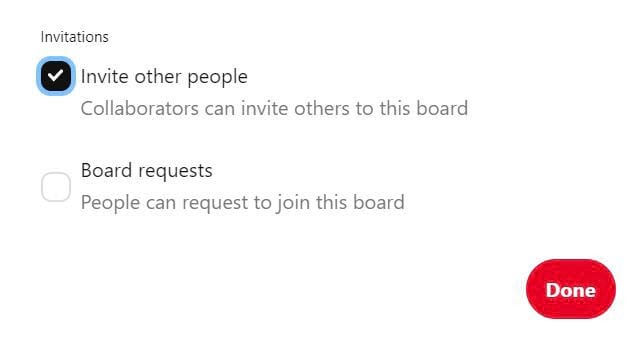
You can also allow them to invite others to the board.

Collaborator settings for group boards on Pinterest.

Now, you can search for collaborators by name and invite them to your board. Alternatively, you can copy a link to the board and share it directly with them.

How to invite collaborators to a shared board.

You can find people on Pinterest the same way you find boards. After typing the user’s name into the search box, select People from the drop-down menu.

How to search for people on Pinterest.

You might want to connect with people you already know, such as friends and family, as well as bloggers or brands that you follow on other platforms. This can help you build a decent following more quickly.

Step 5: Promote Your Brand

When it comes to promoting your brand on Pinterest, Rich Pins are one of the most valuable tools you have at your disposal. Rich Pins include additional, real-time information and more ways to direct people to your website.

Product Rich Pins display the price and availability of your products in real-time. When shoppers click on your Pin, they’ll be brought directly to your website, where they can complete their purchase.

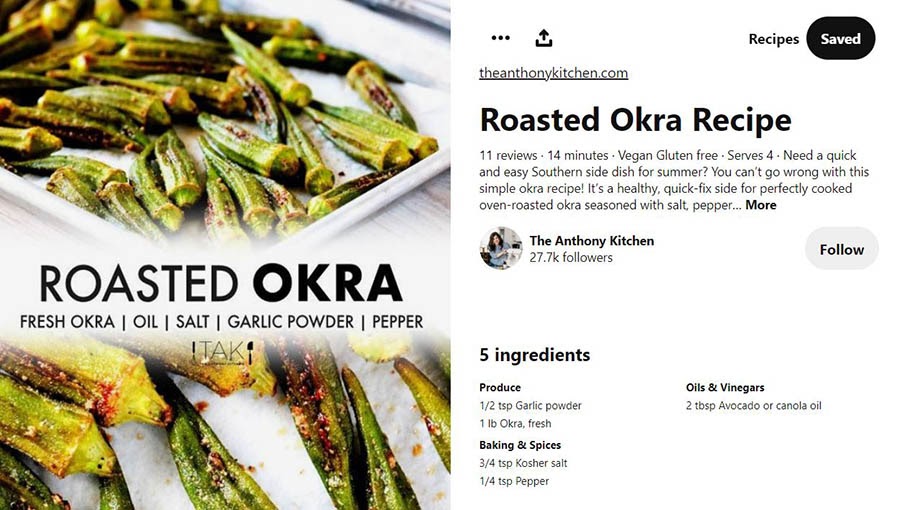
Meanwhile, Recipe Rich Pins can include ratings, cooking time, a list of ingredients, and whatever other information you might want to include. If you make changes to the recipe on your website, the corresponding Rich Pin will update automatically.

A Recipe Rich Pin featuring ingredients and cooking time.

If you’re a blogger, you may want to consider using Article Rich Pins, which display the title, pin description, and author of the piece. Like Recipe Rich Pins, this type of Pin will automatically update when you edit the article.

Remember to include a relevant link to your website in every one of your Pins. As your content travels across Pinterest, you’ll want to ensure that users can quickly get to the source.

While you do want to promote your products and services, your followers may get bored if that’s all they see from you. You can mix up your content by regularly pinning from other sources in your niche. While searching for other brands to follow, you can also save interesting Pins to a secret board to share later.

If you have a blog on your website, you may want to create a board exclusively for your blog posts. This will be especially helpful for those who find you through Pinterest rather than your website, as they’ll quickly see the kind of content you publish.

Additionally, you might want to put some thought into how you arrange your boards on your profile page. Keeping your most active and popular boards at the top can give a Pinterest user a sense of what your brand is all about. However, save some of this space for your blog posts and product boards as well.

Pinterest boards on a user’s profile.

Finally, you can take advantage of holidays, just as you would with blogs and other social media content. Try to have event-based Pins ready at least a month in advance, so you won’t feel rushed to publish content at the last minute. This way, when users are searching for Christmas gift ideas or Thanksgiving recipes on Pinterest, your content is more likely to appear in their feeds.

Step 6: Track Your Success With Pinterest Analytics

When you set up a business account, you’ll have access to Pinterest Analytics. You’ll want to get this feature set up as soon as possible so you can begin gathering valuable data, including your audience demographics and click-through rates.

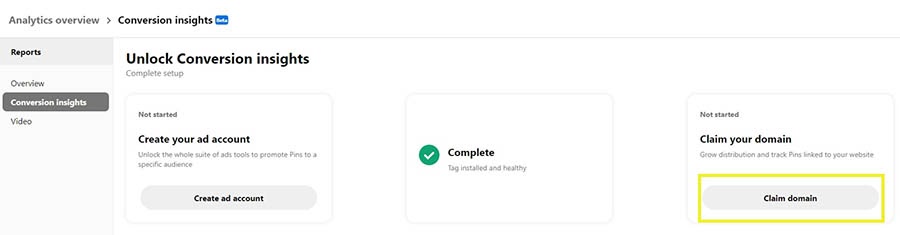
While you’ll have access to some information right away, to take full advantage, you’ll need to claim your domain. From your Business Hub, you can navigate to Analytics > Conversion Insights. Then click on the Claim domain button, followed by the Claim button next to Websites.

Claiming a domain on Pinterest.

You’ll have the option to claim via HTML tag, HTML file, or text record. Finally, enter your website’s URL and click on the Verify button.

Verifying a website on Pinterest.

Once you’ve claimed your website, you may also want to join the Verified Merchant Program. You’ll have badging on your profile that can help you generate trust, as well as a Shop tab where Pinterest users can make purchases without going to your website.

Digital Marketing Tips in Your Inbox

Whether you need help creating fresh pins, setting up a marketing campaign on Twitter, or writing a viral blog post, we can help! Subscribe to our monthly digest so you never miss an article.

e

Get Some Pinterest Followers

While the thought of getting involved with another social media platform may not be appealing, the potential benefits of using Pinterest will likely make your effort worthwhile. Long-lasting, highly visual content can do a lot to help spread the word about your business.

Let’s recap the steps we shared for getting your business on Pinterest:

  1. Set up a Pinterest Business account.
  2. Create popular Pins.
  3. Optimize your Pins for maximum traffic.
  4. Build relationships and gain followers.
  5. Promote your brand.
  6. Track your success with Pinterest Analytics.

Do you need some help with your Pinterest strategy? We can handle social marketing for you! Learn more about our social media marketing services and how we can help you grow your business.

The post Pinterest Marketing Guide: How to Promote Your Business in 2021 appeared first on Website Guides, Tips & Knowledge.


source https://www.dreamhost.com/blog/pinterest-marketing-guide/

Creating and Mastering GA4 Explorations

In the switch from Universal Analytics (UA) to Google Analytics 4 (GA4) — which will go fully into effect July 2023 — a lot of things have...