Wednesday, 19 May 2021

10 of the Most Popular WordPress Plugins for 2021

WordPress is the perfect platform for creating just about any type of website. It’s beginner-friendly and very flexible. However, there are certain things it isn’t intended to do by default, so you may find yourself looking for a way to add specific features.

Fortunately, the larger WordPress community has created a solution in the form of plugins. These are add-ons you can install on your WordPress site to include new options and functionality. There’s likely a plugin available that can accomplish just about anything you might want to do with your website.

However, wading through all of the available plugin options can be time-consuming. So in this article, we’ll introduce 10 of the most popular and highly recommended WordPress plugins for 2021. 

First though, let’s talk a little more about what plugins are, why they’re so useful, and where you can find them!

An Introduction to WordPress Plugins

The core WordPress platform includes a lot of useful features that make building and running a website simple — even for complete beginners. However, it can only do so much. You may find you want more options or functionality than WordPress core can provide on its own, which is where plugins come in.

WordPress plugins are pieces of add-on software you can download and install to your site. They provide additional features and functionality — sometimes making just one small change, other times implementing an entire suite of options. You can find a plugin that will add nearly anything to your site, including contact forms, an online store, or extra security features. You can even use plugins to boost conversions and generate leads!

There are thousands of plugins to choose from, at various price points. We’ll talk more about where to look for them soon, but first, let’s dig a little deeper into why they’re so important.

We Make WordPress Easier

Leave migrating your site, installing WordPress, managing security and updates, and optimizing server performance to us. Then you can focus on the fun stuff, like adding the most popular WordPress plugins to your site!

Why Plugins Are a Useful Addition to Your WordPress Site

WordPress dashboard 'Plugins' list.
Plugins can add many new features and options to your WordPress site.

As we’ve explained, WordPress is a powerful and flexible solution right out of the box. However, if you want to create a truly memorable and unique site, plugins are a perfect solution. This is true whether you’re running a blog or a huge e-commerce site.

There are plenty of reasons to consider adding plugins to your WordPress site:

  • Many plugins add the specific, targeted features and functionality you need for the type of site you’re creating.
  • Alternatively, some plugins make the practical aspects of building a website easier (such as page-builder plugins).
  • Finally, plugins can make your site safer and improve its performance. In fact, we’ve already identified 13 of the best security plugins for your website. 

What’s more, WordPress’ thriving community means there are many excellent free or low-cost plugin options — so you don’t have to break the bank to improve your site. As long as you’re making sure to select the right plugins, there’s really no reason not to take advantage of all the benefits they offer.

How to Find and Choose the Best WordPress Plugins

The WordPress.org Plugin Directory
There are plenty of awesome free plugins in the WordPress.org Plugin Directory.

Now that we’ve discussed why adding plugins to your WordPress site is worthwhile, it’s time to talk about how to do it! With so much choice, it’s crucial to make your selections carefully. Poorly designed or older plugins can slow down or even break your site.

When searching for the best plugins to suit your needs, you’ll want to look for the following things:

  • Whether the specific features and/or functionality of the plugin matches what you’re looking to achieve.
  • User reviews and ratings, and the plugin’s overall popularity (a popular plugin isn’t necessarily better, but it’s a good sign).
  • The plugin’s price and plan options.
  • How recently the plugin was updated (in general, be wary of anything that’s gone longer than six months without an update).

There are plenty of places online to find plugins, including directories, storefronts, and developers’ websites. 

  • For free plugins, we’d recommend starting with the official WordPress.org Plugin Directory. It has a myriad of excellent options and displays all the facts you need to make an informed choice. 
  • If you’re interested in premium plugins, you can check out CodeCanyon for an equally impressive selection.

Once you’ve found a plugin you’d like to try out, it’s simple to install and activate it on your site. Keep in mind that it’s best to only add one plugin at a time, so if any issues crop up, you can identify the cause.

If you’re still feeling overwhelmed by all of the different types of available plugins, don’t worry. That’s why we’ve compiled this list of 10 of our current favorites. Yep, you’re welcome!

10 of the Most Popular WordPress Plugins for 2021

The following plugins are highly recommended for beginners and advanced users alike. Each meets the criteria we discussed in the previous section and offers a unique feature set.

In short, if you’re creating an awesome WordPress website in 2021 or sprucing up an old site, these are the first plugins you’ll want to check out!

1. Jetpack

Jetpack is an all-in-one plugin created by the developers of WordPress (Automattic), which offers a whole suite of features activated on a module-by-module basis. This includes functionality such as contact forms, site security, user engagement options, site backups, and much more.

If you pay for the premium version, you’ll also get access to features that can help your site rank higher in search engines, plus several useful advertising tools. While Jetpack Professional is normally $299 per year, you can get it for free with our DreamPress Plus and DreamPress Pro hosting plans. That way, you’ll have access to both a fully managed hosting system and a comprehensive set of features to keep your site secure.

Key Features:

  • Provides protection from brute force attacks.
  • Lets you secure your logins and add two-factor authentication to your site.
  • Includes various analytics and social sharing tools.

Price: Freemium | More information

2. Yoast SEO

Search Engine Optimization (SEO) is a strategy that, when followed correctly, can help your site rank higher in search engines such as Google and Bing. However, it’s a complicated set of rules and guidelines, and can be challenging to implement effectively. Fortunately, Yoast SEO makes it easy to optimize your posts and pages by offering you a set of tools to hone your keywords and customize what will appear in search engines.

Key Features:

Enables you to optimize your search engine results, including titles, URLs, and meta descriptions.

Analyzes your pages and posts and points out areas for improvement.

Lets you control what pages of your site are displayed in Google search results.

Price: Freemium | More information

3. Contact Form 7

You’ll likely want your site’s visitors to be able to get in touch with you, whether it’s just to share their thoughts on your content or to sign up for your services. Including a contact form directly on your site is a convenient way to make that possible. Contact Form 7 enables you to add multiple such forms to your pages — and customize them so users can submit precisely the information you need.

Key Features:

  • Lets you create and customize contact forms and insert them into your pages or posts.
  • Makes it easy to add unique fields to your forms.
  • Enables you to include a reCAPTCHA solution on your forms to combat spam.

Price: Free | More information

4. WooCommerce

One thing the core WordPress platform doesn’t include by default is the ability to create an e-commerce store. That’s where WooCommerce comes in. This plugin is the most popular e-commerce solution for WordPress and lets you create an online store to sell physical and/or digital products. Its developers (the folks at Automattic) also offer many useful free and premium extensions that can provide additional functionality for your store.

Key Features:

  • Enables you to display and sell physical and digital goods directly from your website.
  • Includes multiple payment and shipping options.
  • Offers access to a wide range of features via extensions.

Price: Freemium | More information

5. The Events Calendar

There are plenty of plugins available that enable you to add a list of events to your website. The Events Calendar is one of the best since it’s both easy to use and provides high-quality results. Plus, you can fully customize your calendar — and keeping it updated is simple.

Key Features:

  • Lets you create events and add them to one organized calendar.
  • Enables users to view your calendar in multiple ways.
  • Incorporates additional features, such as a search function and maps.

Price: Free | More information

6. Slider Revolution

Slider Revolution is another very popular plugin that’s included in many premium WordPress themes. It helps you spruce up your site’s design by enabling you to create sliders, carousels, and more. This plugin offers many options to display your images, posts, videos, and other content in a visually appealing and user-friendly manner.

Key Features:

  • Includes a visual, drag-and-drop page editor to simplify the design process.
  • Lets you add sliders, carousels, and hero scenes to your site.
  • Offers a front-page designer, so you can customize your home page.

Price: $25 | More information

Be Awesome on the Internet

Join our monthly newsletter for tips and tricks to build your dream website!

7. Easy Social Share Buttons for WordPress

These days, it’s difficult to build a successful online presence without the strategic use of social media. Fortunately, integrating your social media with WordPress is simple with Easy Social Share Buttons for WordPress. Using this plugin, you can add buttons to your site that encourage visitors to share your content via their own social media accounts.

What’s more, there is also a wealth of additional features, such as email opt-in forms, analytics, and many extensions that help enhance the sharing experience.

Key Features:

  • Enables you to add social media sharing buttons to your posts and pages.
  • Includes 52 templates to start from, plus many design options and animations.
  • Integrates with over 50 different social media networks.

Price: $19 | More information

8. EWWW Image Optimizer

Images that are too large or poorly optimized can slow down your site, hurt your users’ experience, and even drive some visitors away. EWWW Image Optimizer is a powerful, useful tool that optimizes both new and existing images on your site, so they have as little impact on its performance as possible. There’s also a cloud-based version (the EWWW Image Optimizer Cloud) that provides extra security during the process.

Key Features:

  • Automatically optimizes images and converts them to the best file format for performance.
  • Provides various compression options, such as pixel-perfect and high compression.
  • Includes security features such as SSL encryption and free 30-day image backups.

Price: Free | More information

9. Akismet
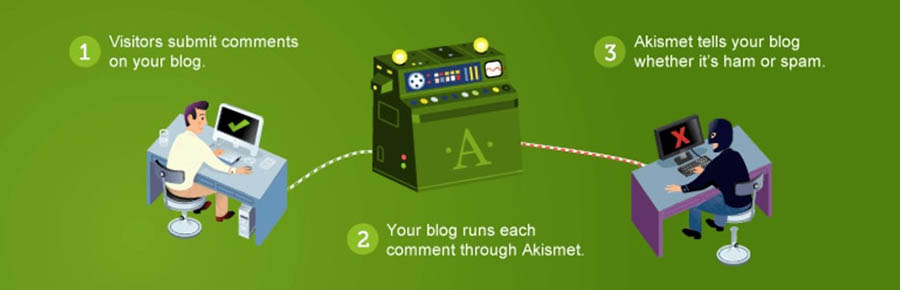
Akismet comes pre-installed on many WordPress installations. It’s easy to overlook this plugin or fail to activate it, but it’s an excellent tool you’ll want to take advantage of. It protects your site from spam comments by filtering them out, so visitors can engage with your content without having to wade through irrelevant advertisements or repeat messages. The free version is sufficient for most sites, but the premium option can be a smart choice for businesses.

Key Features:

  • Checks all comments to your site automatically and filters out potential spam.
  • Lets you review what’s been marked as spam, so you can correct the plugin if necessary.
  • Connects to a global, constantly updated database, which means it’s always improving.

Price: Freemium | More information

10. MonsterInsights

MonsterInsights is the most popular Google Analytics plugin for WordPress. When you use this tool, you can quickly and easily connect your site up to the Google Analytics platform. You’ll get a Google-specific dashboard right in your WordPress admin panel, so you can make data-driven decisions in the context where it matters most. 

MonsterInsights can also help you track your customers across multiple platforms and devices. This includes integration with Google’s Accelerated Mobile Pages (AMP). Another benefit is that, unlike other link-tracking plugins, MonsterInsights won’t slow your website down. All of these features can help you get a comprehensive picture of your website’s traffic, so you can make improvements. 

Key Features:

  • Provides custom reports for data regarding Audience, Behavior, Content, Ecommerce, Forms, Search Console, and Custom Dimensions. 
  • Offers easy integration with WooCommerce for product and sales tracking. 
  • Enables use tracking for Google Adsense and affiliate links.

Price: Freemium | More information

The WordPress Plugin Directory Awaits

WordPress plugins are such useful tools that it’s almost certain you’ll want a few to round out your site. The only tricky part is choosing the best ones, since there are thousands available that do almost anything you could think of. In this list, we’ve introduced you to 10 excellent plugins that could serve your site well in 2021. 

Are you looking for more plugins to add to your WordPress dashboard? We’ve got you covered! Our team has put together several guides to help you choose the best add-ons for your WordPress site.

Of course, the world’s top WordPress plugins won’t make that much of a difference to your website if your web host isn’t up to the challenge. Here at DreamHost, we pride ourselves on our managed WordPress hosting plans. Since they’re optimized specifically for the platform, they ensure a safe, secure, and seamless experience for your WordPress site’s visitors! Check out your options today!

The post 10 of the Most Popular WordPress Plugins for 2021 appeared first on Website Guides, Tips & Knowledge.


source https://www.dreamhost.com/blog/most-popular-wordpress-plugins/

Tuesday, 18 May 2021

Common WordPress Image Upload Issues and How to Fix Them (5 Methods)

Since about 65% of people are visual learners, images are an important part of any website. And when you’re regularly uploading images for your WordPress website, it’s natural to run into the occasion error message.

Fortunately, there are ways to diagnose even the vaguest image upload issue. By running through a checklist of common fixes, you should have no problems adding beautiful, eye-catching visuals to your website.

In this article, we’ll look at why image-related errors can be tricky to diagnose. We’ll then share five solutions to try the next time the WordPress Media Library doesn’t want to cooperate with your creative vision. Let’s get started!

An Introduction to WordPress Image Errors (And Why They’re a Problem)

Beautiful, eye-catching images are a crucial part of almost any website. If you’re running an e-commerce store, product images are particularly important for driving sales, as they enable people to see what they’re purchasing. Maybe that explains why on average, images make up almost 17% of a web page’s total weight.

The WordPress media library upload screen.

However, uploading images to WordPress isn’t always straightforward. Sometimes, this popular Content Management System (CMS) may display a failure to upload error. These issues are notoriously difficult to diagnose, as they’re triggered by a wide range of factors. That can make it difficult to know where to start to address the problem.

The good news? We can walk you through the steps we take to take to identify and fix image upload issues in WordPress.

We'll Fix Your Image Upload Issue

Avoid troubleshooting when you sign up for DreamPress. Our friendly WordPress experts are available 24/7 to help solve website problems — big or small.

Common WordPress Image Upload Errors and How to Fix Them (5 Methods)

Nothing is more frustrating than having your workflow interrupted by a vague error message. Here are five ways to fix upload errors, so you can get back to adding striking visuals to your website.

1. Rename, Resize, and Re-Upload the Image

If you’re only encountering issues with a specific image, you can start by taking a look at the file’s name. If you’re using special characters ($, *, &, #) or accent letters (ñ, á, é), these can cause issues with the WordPress uploader.

The image may also be too large — both in terms of dimensions and file size. You can change an image’s dimensions using your favorite editing program. If you’re trying to upload a particularly high-resolution graphic, you can reduce the size without impacting the quality using a compression tool such as TinyPNG.

The TinyPNG plugin upload screen.

If you regularly encounter issues due to file size, then WordPress’ limit may be set too low. You can raise the limit by adding code to your site’s php.ini file:

upload_max_filesize = 128M

post_max_size = 128M

max_execution_time = 300

If your site doesn’t already contain a php.ini file, you can create it inside the PHP folder for the current PHP version your site is running.  Then, simply add the above code at the end of the file.

2. Increase the Memory Limit

When you try to upload an image, you may encounter the WordPress HTTP error. This can sometimes be caused by low server resources or unusual traffic. For this reason, it’s always worth waiting a few minutes and then attempting to re-upload the image.

If the issue doesn’t resolve itself, then you may be exceeding the WordPress memory limit. You can increase the amount of memory that PHP has to use on your server by connecting to your site over SFTP.

Next, open your wp-config file. You can then add the following, which will increase the limit to 256MB:

define( 'WP_MEMORY_LIMIT', '256M' );

If this doesn’t resolve your issue, your problem may be related to threading. WordPress processes images using either the GD Library or Imagick module, depending on which one is available.

Imagick was designed to use multiple threads in order to accelerate image processing.  However, some shared hosting providers limit Imagick’s ability to use multiple threads, which can result in an HTTP error. You can often resolve this issue by adding the following to your .htaccess file:

SetEnv MAGICK_THREAD_LIMIT 1.

3. Deactivate Your Plugins

Third-party software can sometimes interfere with your image uploads. If you’re using any plugins, it’s always worth deactivating each one in turn and testing to see whether this resolves your image upload issue.

Deactivating plugins in the WordPress dashboard

If a plugin is to blame, you can double-check to make sure you’re running the latest version. If you’ve fallen behind on your updates, you may be struggling with a problem that’s already been addressed.

If you’re running the latest version, we recommend contacting the plugin’s developer to ensure that they’re aware of the issue. This can also be an opportunity to ask whether they plan to solve this problem in their next release. If the plugin is critical to your site and no fix is forthcoming, it may be time to look for an alternative solution.

4. Clear the Cache

If you’re using a caching plugin, then clearing the cache may be enough to resolve your image upload errors. It’s important to note, however, that it is incredibly rare for the cache to prevent a file upload, so we’re including this fix out of an abundance of caution.

If you think that caching could be causing the error, the steps you take will depend on your chosen caching solution. For example, if you’re using the W3 Total Cache plugin, you can clear the cache by selecting Performance > Purge All Caches from the WordPress toolbar.

Purging all caches in the WordPress dashboard Appearance menu.

If you’re unsure how to clear the cache in your specific tool, the plugin’s Settings menu is often a good place to start. You can also check the developer’s official documentation for more details.

5. Try the Browser Uploader

If you’ve tried all of the above fixes and are still encountering problems, you can use your browser’s built-in file uploader. Unlike WordPress’ image uploader, the browser uploader doesn’t support multiple file selection or drag and drop. However, it can be a useful workaround when you need to upload an image quickly.

To access the native image uploader, navigate to Media > Add New. You can then select the browser uploader link.

Selecting the ‘browser uploader’ link in the WordPress native image uploader.

Next, click on Choose file. This launches the familiar file selection dialog, where you can upload the image as normal. If this workaround succeeds, we recommend trying to upload an image using WordPress’ standard image uploader afterward, to see whether this has resolved your problem.

Take Your WordPress Site to the Next Level

Whether you need help tweaking directory permissions, choosing a WordPress theme, or finding the uploads folder, we can help! Subscribe to our monthly email newsletter so you never miss an article.

Additional WordPress Error Tutorials

Once you’ve solved your image upload error, the adventure isn’t over. There’s always more to learn about WordPress! We’ve put together several tutorials to help you troubleshoot other common WordPress errors:

Want more information on managing a WordPress site? Check out our WordPress Tutorials, a collection of guides designed to help you navigate the WordPress dashboard like an expert.

WordPress Images Made Easy  

Visuals are crucial for catching (and holding) the visitor’s attention, but image upload errors are frustratingly common. By following some simple steps, we’re confident that you can get your site back on track — even when the error message itself doesn’t provide much information.

Let’s recap five ways to resolve common WordPress image upload issues:

  1. Rename, resize, and re-upload the image.
  2. Increase the memory limit.
  3. Deactivate your plugins.
  4. Clear the cache.
  5. Try the browser uploader.

Are you tired of handling WordPress errors with no help? All of our DreamPress hosting packages include 24/7 customer support as a standard option. Regardless of the problem, our expert team will be on hand to help you get back on track!

The post Common WordPress Image Upload Issues and How to Fix Them (5 Methods) appeared first on Website Guides, Tips & Knowledge.


source https://www.dreamhost.com/blog/how-to-fix-wordpress-image-upload-issues/

Friday, 14 May 2021

Run a Small Business? Here are 8 Ways to Manage Your Stress

There are plenty of perks to owning your business — like being the boss, for one. You get to see your own plans and dreams come to life. And you can set the company track exactly as you see fit. But the downside to running a small business? All of the stress that comes with it. That’s why learning to manage stress is crucial for small biz owners.

“Managing stress is important as a business owner because typically, we tend to be sole proprietors or have few employees,” says Amanda Pratt MSW, LCSW, CPLC, The Chronic Illness Therapist, Imagine Life Therapy. “This means that if we burn out, it can ultimately slow business progress or momentum and when we aren’t well, our businesses can’t be well. We also know that if we cope poorly with stress, we tend to have worse physical and mental health outcomes overall, so business owner or not, this is an area that I feel should be a top priority for all of us.”

Reducing stress should always be at the top of your to-do list to keep you sane — and your company healthy, too. “That’s why it’s important not to feel guilty for stepping back or prioritizing some ‘me’ time,” says Poppy Greenwood, mental health advocate, serial entrepreneur and co-founder of female entrepreneur support platform Meyvnn.

Luckily, there are plenty of small business stress management techniques that will help take away the tension and anxiety of your work. Give these tactics for some instant stress relief.

8 Ways to Handle Work-Related Stress

Stressed small business owner.

1. Recognize What’s Going Well

“This is one of the first things I will point out to clients — it’s just as important to recognize what’s going well (if not more so) as it is to recognize where things aren’t going so well,” Pratt says.

“Strategies that work best for us tend to play off our strengths. It’s also good to take inventory of areas of coping where we tend to have more engaged or active responses to stress (versus disengaged responses) and can inform our future attempts at other areas of stress management. We all have habits that come more naturally to us that are healthy, and I believe these are the strategies we should tap into first to address when creating a stress management plan.”

Plus, when you consider what’s going right with your business, that instantly puts you in a positive mindset, which makes it much easier to combat stress. “Taking stock of things that have gone well helps you put into perspective the change you are affecting and the growth that you have achieved,” Greenwood says. “Feeling that you’re making progress, no matter how small, is one of the best ways to relax. It helps you to recognize you’re on a journey, and that your work towards whatever goal you have is pushing you forwards.

“It also just makes you feel more organized,” Greenwood says. “Being able to identify where things are working or are not makes you feel like you have control over what is happening, in what can feel like the chaos of running a business.”

Focusing on the good things about your business also keeps your mind in the present. “When you’re stressed, your brain tells you that you have to stay vigilant,” says Drema Dial, Ph.D., psychologist and life coach. “Your brain goes into hyperdrive with all the things that could be going wrong, will go wrong, might have already gone wrong, and how will you fix it! This is one way our brain uses to keep us locked into familiar routines. This is precisely why it’s imperative to break this cycle, which keeps us chained to unhealthy coping behaviors and keeps your stress level high.”

You’re Cordially Invited

Join DreamHost’s Facebook group to connect with like-minded website owners and get advice from peers and experts alike!

2. Identify Your Stressors

“Identifying your stressors is vital to be able to tackle them,” Greenwood says. “Stress usually comes from a problem you haven’t yet started to solve or are having trouble solving. I think the best way to identify stressors is to take a step back. When you’re an entrepreneur, you’re constantly working and adjusting and testing to grow. Being in that kind of intense mindset all day long can really constrict a wider perspective you need to really pinpoint the areas that are causing you stress and how best to tackle them. Once you’ve identified what is causing you stress, you are much more able to work out how to deal with it. And even just identifying what is causing you stress can help alleviate some of it.”

Remember that people respond to stress in their own unique way. “Self-awareness is key here because everyone is different,” says Mike McDonnell, international speaker, serial entrepreneur, global brand co-owner and podcaster. Once you know what stresses you out, you can delegate those tasks to others. If that’s not an option, knowing that a particular part of the job triggers anxiety can help you prepare to tackle it and just take a deep breath before going in. Over time, you can work on changing your response to the stressor.

“We can do this through practicing mindfulness techniques to open our awareness to our body sensations, thoughts, and behaviors,” Pratt says. “We can also self-monitor through journaling or tracking mood states, symptoms and thought habits. And while it’s good to identify stressors, it’s even more important to identify our perceptions and responses to these stressors. Research shows us that it matters less what the stressor is and more how we respond to the stressor.”

3. Build a Solid Schedule

“Structure is important because the more we plan, the less we have to actively anticipate what might happen,” Pratt says. “Planning helps us have a greater sense of self-efficacy or confidence in our ability to handle whatever might come up.”

When you have a regular routine, you know what to expect at work, and that gives you a sense of peace and control, making it easier to keep stress at bay. If you know in advance that you have a difficult item to cross off your to-do list, tackle it first thing in the morning to avoid that sense of dread. Plus, you’ll feel accomplished and ready to conquer whatever else comes your way.

“Your body also likes a routine — it’s good for your circadian rhythm, which is effectively your internal body clock that can dictate things like when you feel tired or energized and can really impact your ability to focus,” Greenwood says. “For example, I know my energy and concentration dip around 3 p.m. So, in my routine around that time, I usually have a workout scheduled that gives me some time away to re-energize.”

A common complaint from small business owners is that there are never enough hours in the day. “Usually when we delve into this issue, the problem is not a lack of time but a lack of a schedule,” Dial says. “A schedule allows a person to plan, to anticipate, and helps keep life organized. I recommend that all activities go onto a schedule, even play time!”

4. Prioritize Your Time

There’s a reason “self-care” has become such a buzzword — we’ve come to realize just how crucial it is to carve out time for ourselves to keep a healthy mental state. Looking after yourself is key to keeping work stress under control.

“Prioritizing ‘me time’ is really important because it is so easy to get caught up in what you’re doing, you can really forget about yourself and who you are — separate from your business,” Greenwood says. “Taking time for yourself, or using it to go out with friends and family, is often what re-affirms your belief in what you’re doing. It’s really important to not lose yourself within your business, because that, in the worst case scenario, then can lead to your business itself losing its way.”

As a small business owner, it’s all too easy to fall into the trap of always being on the clock. Just as you schedule time for certain tasks you need to get done, you should schedule free time. “I teach clients to see their downtime as beneficial to creativity and efficiency because they tend to work better after taking a break,” Dial says. “Taking a break allows the brain to take in new information and to generate creativity.”

5. Learn to Say ‘No’

“When you’re starting out, you may not have the luxury of opportunities flying at you, so you say yes to everything,” McDonnell says. “But eventually you focus on your mission and ask yourself, ‘Will this help me get there?’ before deciding yes or no.”

Of course, saying no can be really tough. But it’s important to remember your value and that you have limited time. “Instead of thinking you may offend the other person, it’s an opportunity to show them that when you decide to do something, you really value what you’re doing and you’re doing it on your terms,” Greenwood says.

Otherwise, taking on more than you can handle is the fastest way to fall into a stress trap. “It’s important to learn that setting boundaries is necessary to safeguard small business owners’ well-being, their time, and to protect their business,” Dial says. “When approached with a request, the small business owner should ask themselves the following: ‘1. Is this something I want to do? 2. Do I have time to do it? 3. What is its importance level, and will it fit it into my schedule?’”

Saying no is also key to setting boundaries. “When we don’t set boundaries, we end up feeling taken advantage of, burned out, stressed out, and end up as people pleasers, workaholics, isolated, or feeling misunderstood,” Pratt says. “Simply stated: Boundaries are one of the best things you can do for your physical and mental health and wellness.”

6.Delegate or Outsource Tasks

When you’re used to being the boss, it can be hard to let go and give up control. But as any small business owner knows, you can’t do it all. And if you’re trying to, then you’re probably not doing a good job at every single thing. That’s why learning how to delegate or outsource certain parts of the biz is a foundation for being successful.

For example, do you struggle with Facebook but love working face-to-face with clients? Using a social media marketing service or hiring an employee to handle administrative tasks might free you up to do just that. Figure out how you want to spend your time and what you’d rather avoid.

In the end, outsourcing allows you to grow your company. “It’s important early on to recognize where your weaknesses are, so that you can hand over those areas to other people who do them much better,” Greenwood says. “Doing this can also relieve so much stress, not having a task hang over you that you know you need to do but that you struggle with and find time-consuming.”

The good news? DreamHost offers a huge range of professional services! Whether you need help with web design, marketing tasks, site management, or development projects, our team of experts is standing by to tackle these tasks for you.

7. Choose Your Tools Wisely

Work tools and software are meant to make your job easier — not harder. But if you’re spending more time learning how to use them than actually using them, it’s not doing you any favors. “It’s important to choose tools wisely, because they are meant to be the things that take away stress and help with tasks instead of adding to the problem,” Greenwood says.

Opting for reliable small business appsweb management tools, and hosting services will always pay off in the end. Imagine if your business’ website went down? That’s why it’s worth using DreamHost hosting and WordPress to have one less thing to worry about.

“Test out different software until you find the one that takes your stress away so you can benefit fully from it,” McDonnell says.

Shared Hosting That Powers Your Purpose

We make sure your website is fast, secure and always up so your visitors trust you.

8. Unplug During Your Off-time

“You’re not a robot,” Greenwood says. “You can’t work all the time and expect to maintain the same level of productivity and efficiency. You need to replenish your energy levels, and not just physically but mentally, emotionally, and spiritually. When you’re working on your business, you want to be present and in the moment. That would be difficult if you’re unable to unplug in your off time and feel a conflict between your work life and your personal life.”

As a small business owner, you probably feel tied to your phone, but you need time away from answering emails and checking in with customers. “Unplugging and doing a digital detox allows parts of your brain to rest,” Dial says. “Reading, watching TV, going for a walk, and talking with others are all great ways to engage a different part of your brain. Make sure you take time for activities you find enjoyable. It’s essential to combat stress by seeking out experiences that will help restore you.”

It’s especially important to power down your devices and avoid blue light, which can keep you awake, at least an hour before bedtime. Plus, you won’t have to worry about an email keeping you up that night. You’ll sleep better so you can be rested and alert for the next day of tending to your business.

No More Sleepless Nights

It’s no secret that running a small business is one of the most challenging (and stressful) things you’ll ever take on. But entrepreneurship also one of the most rewarding! So tell us: How do you manage workplace stress as a small-biz owner? What keeps you fired up as you “Rise and Grind?” And do you have any tips for prioritizing your mental wellbeing? Connect with us on Twitter and let us know your thoughts!

The post Run a Small Business? Here are 8 Ways to Manage Your Stress appeared first on Website Guides, Tips & Knowledge.


source https://www.dreamhost.com/blog/small-business-ways-to-manage-stress/

Wednesday, 12 May 2021

How to Pick the Right Plugins for Your WordPress Website (In 4 Steps)

One of the advantages of WordPress is its customization potential. With an ever-growing number of plugins available, you have the opportunity to build the website of your dreams. However, having so many options to choose from can make it hard to pick your site’s best fit.

Fortunately, there are ways to narrow down your decision. By prioritizing your specific needs and learning how to evaluate a tool’s quality, you can find solid plugins to optimize your site.

In this article, we’ll introduce you to WordPress plugins. We’ll also take you through four easy steps to pick the perfect candidates for your page. Then we’ll wrap up by giving you some potential plugins to consider. Let’s get to it!

An Introduction to WordPress Plugins

A WordPress plugin is a third-party program that adds functionality to your site. While themes can adjust the look and feel of a page, plugins provide the actual features. They can thus have a sizable impact on the visitor’s experience.

Given that plugins tend to be specialized, they enable you to curate a full-site experience with several different programs. For example, let’s say you want to set up a secure online store with ease. You might use the Jetpack plugin for security, WooCommerce for the store, and Elementor to build and customize the storefront.

Plugins can also affect your back-end experience. For example, you may find that you prefer tools with a user-friendly focus. The sheer amount of software available means that you’re likely to find one that suits your needs.

Nevertheless, you can have too much of a good thing. Using plugins in excess can slow your website down. As such, you’ll want to consider your choices carefully to help maximize performance while minimizing potential issues.

A methodical approach can also help you find the highest-quality candidates, especially if you’re searching in a popular category and need to compare tools. Doing a small amount of research can make it easier for you to pick the right plugins on the first try.

How to Pick the Right Plugins for Your WordPress Website (In 4 Steps)

A little bit of structure can help expedite the selection process. Below are four easy steps that you can follow to pick the right plugins for your WordPress website.

Step 1: Identify Your Plugin Requirements

The first step is to decide what you need from a plugin. While this may seem obvious, assessing your exact needs can be surprisingly helpful. After you’ve created a list of features you’d like, you can also try prioritizing them. This can help you focus on finding a plugin that matches your primary requirements.

Many plugins have multiple uses. These tools can be time-savers, especially if you have several related needs. However, you may want to consider mixing and matching plugins, as this flexible outlook can expand your options.

It’s also important to understand that some plugins come at a cost. A premium plugin typically offers benefits such as extra features or priority support. Therefore, you may want to decide what functionality you’d be willing to pay for. If you’re on a tight budget, though, don’t stress. You’ll likely be able to find a free plugin (or a combination of similar plugins) that’ll help you achieve your goals even if you miss out on some of the premium features.

If you’re unfamiliar with WordPress extensions as a whole, we recommend browsing a few popular WordPress plugins to get an idea of what’s available.

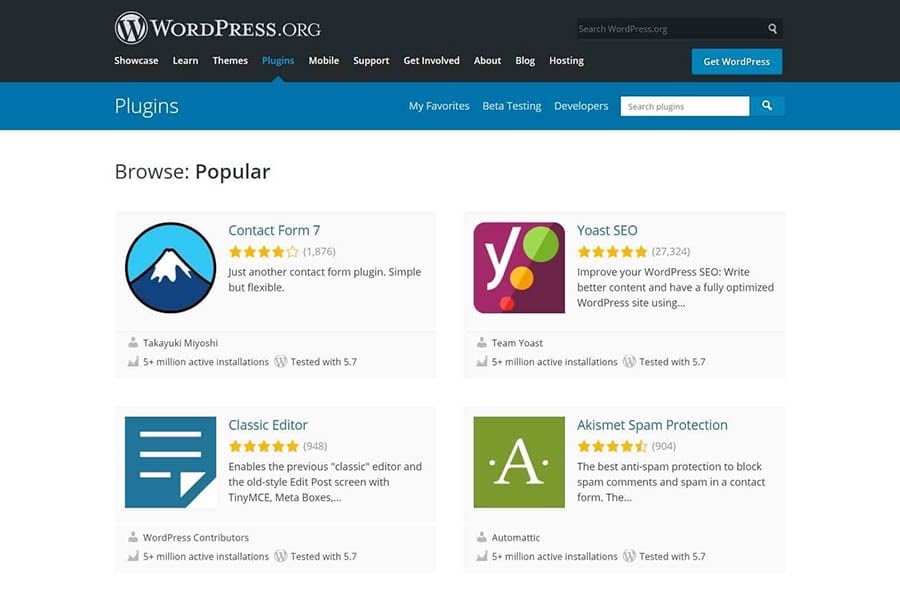
The WordPress.org plugin directory displaying popular options.

With so many options, it can be easy to get turned around. We recommend keeping your particular needs in mind throughout the process to help you focus on your key features and establish some structure for your search.

Step 2: Search for a Plugin

After you’ve laid out your must-have features, you can start the process of searching for a plugin. Many developers offer downloads from their official sites. However, if you’re looking for a more centralized marketplace, it’s hard to go wrong with the WordPress Plugin Directory.

The WordPress Plugin Directory.

The WordPress Plugin Directory is the official place to find WordPress-approved software. Staff members check each submission for quality and security, so you’re likely to find a wide variety of top-notch programs.

As we mentioned earlier, some premium plugins require payment. However, you may also encounter tools that offer a free version alongside their premium options. Jetpack is an example of this “freemium” model.

An excerpt of Jetpack’s plugin description.

You might also come across free versions of premium plugins through unofficial channels. While these may seem appealing, we recommend avoiding them at all costs. They are often stolen versions that can put your site at risk for malware.

To ensure that your search circumvents pirated material, you stick to reputable websites. You might also want to steer clear of any scenarios that seem “too good to be true,” as these are often illegitimate products designed to trick users.

Once you’ve decided on a place to search for your plugin, you can start actively looking for a tool. Don’t be afraid to spend some time shopping around and exploring your options. After you’ve found a plugin that catches your eye, you can proceed to the next step.

We Make WordPress Easier

Our automatic updates and strong security defenses take server management off your hands so you can focus on what really matters: growing your website.

Step 3: Review Information About the Plugin

Next, you can focus on a single plugin. There are a variety of factors you’ll want to consider at this stage. In the WordPress Plugin Directory, most of the important information is accessible by scrolling down on the plugin’s page.

The WooCommerce main page in the WordPress Plugin Directory.

Using WooCommerce as an example, let’s start with ratings and reviews. You can find this section on the right-hand side.

A portion of WooCommerce’s information page showing the “Ratings” section.

WordPress ratings work on a star system, with one being the lowest and five being the highest. You can also access reviews by clicking on See all. These often include more specific information regarding the program. It’s important to peruse both positive and negative reviews for a balanced picture.

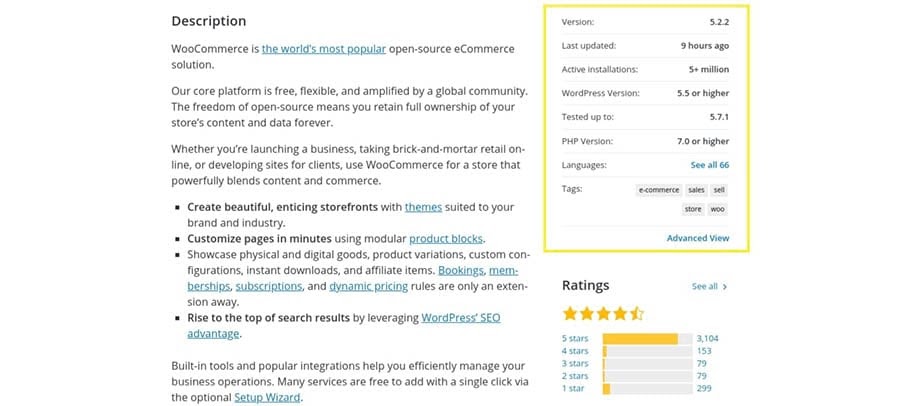
Next up, consider a plugin’s active installations and update schedule. This section is located directly above the ratings.

A close-up of WooCommerce’s installation statistics.

Last updated displays the most recent update, a crucial part of site security for any program. A large number of Active installations can also indicate a high-quality plugin. You can even check to see if the plugin is compatible with your version of WordPress to avoid breaking your site.

Let’s move on to the Support section, typically located under the ratings.

The support section of the WooCommerce plugin.

A high number of resolved issues is a positive sign, as it indicates that the developers are responsive. Reading through some support questions can also give you an idea of potential challenges you may face when using the software.

Finally, there’s plenty of other information on this page that might be helpful. For instance, scrolling down to the section marked Screenshots can show you the User Interface (UI). You might also want to check the FAQ section to learn more about common issues.

We recommend focusing on the factors that you find most important. Then you can use that personalized metric to easily compare different plugins. After you’ve narrowed your choice down to one tool, you can move on to the last step.

Step 4: Download and Test the Plugin

Finally, you can download the plugin and test it on your site. We encourage you to consult a plugin’s installation instructions before downloading it because they may contain important information to help you avoid software-specific issues.

Once you’ve checked any instructions, you can navigate to your WordPress dashboard. Select Plugins > Add New from the right-hand menu. Next, enter the name of the plugin you want to install in the Search plugins box. Here’s the WooCommerce result as an example.

The WooCommerce plugin as viewed from the dashboard.

Click on the Install Now button to start the process. After it’s done, the button will change colors and read as Activate.

The WooCommerce plugin button labeled “Activate.”

You must activate the plugin to use it on your site. Click it as soon as you’re ready to move on. Similar to installation instructions, some tools may come with an introductory message or setup tips. You may want to read these over in case they contain useful information.

After you’ve set up the plugin, you can start testing its performance. An important issue is how it impacts your site’s speed. To test this, we recommend using a tool such as GTmetrix.

The GTmetrix test tool.

Before you activate the plugin, we recommend testing your site’s baseline speed. You can write the results down and re-test once the plugin is up and running. If the plugin has a considerably negative effect on your speed, you may want to reconsider using it.

There are other ways that you can test a plugin. For instance, you may want to send a basic question to support to see how responsive the developers are. Alternatively, you might use a staging site to determine usability and front-end functionality.

WordPress Plugins to Consider for Your Site

Armed with the above four steps, you’re ready to find the perfect plugin. However, perhaps you’re still unsure where to begin. If that’s the case, we’ve put together some recommendations for you to kickstart your search.

If you’re setting up your first site, you may be seeking the essentials. It’s hard to go wrong with plugins that help you improve Search Engine Optimization (SEO) or site security. Even seasoned WordPress professionals make frequent use of such tools.

Alternatively, maybe you’re a content creator. If you’re launching a podcast website, for example, you probably have different needs than the average blogger. In that scenario, it’s important to consider specialty plugins that are designed with your niche in mind.

Finally, you might be curious about ways to improve your workflow. Plenty of developers have answered the call, providing plugins to help you work more efficiently and communicate without friction. This kind of technology can be especially helpful if you’re working with a team.

There are countless quality plugins to explore. Applying our four-step method and prioritizing your needs can help you discover the ones that will fit your site the best. Our team has also put together several guides to help you find great add-ons for your WordPress site.

Once you’ve found the right plugin, be sure to check out our WordPress plugin installation tutorial to learn how to set it up in your WordPress dashboard.

Take Your WordPress Website to the Next Level

Whether you need help selecting a caching plugin, adding a contact form, or installing a premium theme, we can help! Subscribe to our monthly newsletter so you never miss an article.

The WordPress Plugin Directory Awaits

WordPress’ flexibility is wonderful. However, too many options can overwhelm you and make deciding difficult. Fortunately, you can find a well-fitting plugin by approaching the search systematically and focusing on your site’s needs.

In this article, we covered four steps to help you pick the right plugins for your WordPress website:

  1. Identify and prioritize what you need from a plugin.
  2. Search for your options in legitimate, quality marketplaces.
  3. Review the available information on each plugin’s page.
  4. Download the software and test it against your expectations.

Even with the perfect plugins, putting together a website can be tough. Let us do the heavy lifting with our DreamPress managed WordPress hosting!

The post How to Pick the Right Plugins for Your WordPress Website (In 4 Steps) appeared first on Website Guides, Tips & Knowledge.


source https://www.dreamhost.com/blog/how-to-pick-wordpress-plugins/

Creating and Mastering GA4 Explorations

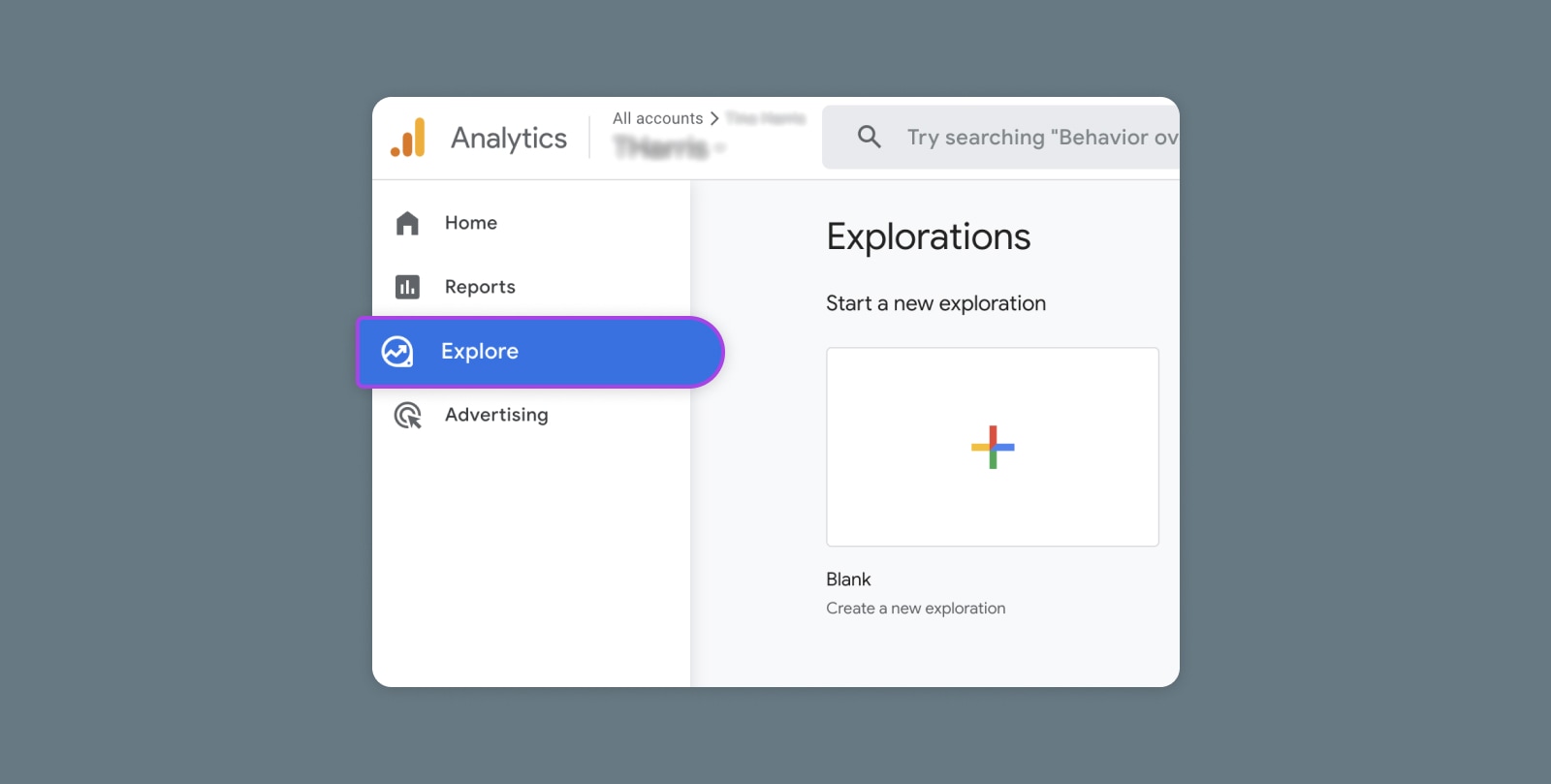
In the switch from Universal Analytics (UA) to Google Analytics 4 (GA4) — which will go fully into effect July 2023 — a lot of things have...