Wednesday, 9 September 2020

19 Great Resources for Diverse Stock Photos

The imagery you choose to share — on your website, social media accounts, and marketing materials — says a lot about your business.

After all, a picture is worth a thousand words.

Returning and potential customers, as well as employees and anyone else who crosses paths with your business, will look at the choices you make in your images. Are they reflected in those photographs? Do your visuals showcase true diversity and representation?

“Inclusive imagery matters because our world is a beautiful and diverse place, and we need to embrace and celebrate that in terms of the visual content we put out into the world,” says Claudia Marks, Senior Art Director, iStock by Getty Images.

“For brands, it’s an important consideration to make and, ideally, one that you make consistently with every visual choice,” Marks adds. “It’s safe to assume that most small businesses want to expand their reach, which means attracting as many customers as possible. It also means intentionally choosing imagery which is inclusive and, therefore, speaks to people broadly and welcomes them to interact with you and your business.”

In this article, we’ll make the business case for diversity, share some tips for adding inclusive imagery to your site, and explain the growing demand for culturally diverse stock photos. Most importantly, we’ll share 19 great stock photo agencies and websites you can turn to when you want diverse, inclusive stock imagery for your business — no tired stereotypes here!

We’ve got a lot to cover. Let’s dive in!

Create a Website for All

We make sure your website is fast, secure, and always up so you can focus on the things that really matter.
The Business Case for Diversity

There are plenty of reasons small business owners should opt for inclusive stock photos. Most importantly, it’s simply the right thing to do.

But from a business perspective, it can also help a website owners’ bottom line. “The more you demonstrate that you welcome everyone or that your product is for everyone, the more people will be open to seeing what you have on offer and potentially becoming a customer of yours,” Marks says. “That’s a win-win for any business owner.”

However, using inclusive stock art isn’t as easy as finding one person of color in an image and patting yourself on the back. There are certain guidelines to keep in mind to ensure you’re portraying true diversity.

“Think about the concepts behind your business and what you are selling,” Marks says. “Make intentional choices in your imagery to ensure you show the kinds of customers you want to appeal to — all of them. Ask yourself if you unconsciously chose images that reflect your personal bias and, if so, challenge that. Know your audience . . . learn what they respond to and what resonates with them best.”

How to Get Started With Diverse Imagery

Remember to include everyone in your images. Marks suggests asking yourself a few key questions:

  • What is the widest your customer base can be?
  • How can you appeal to your core demographics, while still conveying the message behind your product or service?
  • What can you show your potential customers — as opposed to just telling them — so that it resonates more clearly and in a more meaningful way?

To ensure that site owners give the appropriate credit when using images, familiarize yourself with Creative Commons and fair use rules. Take some time to read up on copyright restrictions; the best and simplest explanation can be found at creativecommonsusa.org.

To quickly boil it down, examples of fair use in United States copyright law include using images for commentary, search engines, criticism, parody, news reporting, research, and nonprofit educational purposes. Before you post a photo, do your due diligence to make sure it’s okay to do so (especially if it could qualify as commercial use).

The Increasing Demand for Diverse Photos

In recent years, many new stock art agencies with diverse representation have cropped up to meet the demands of conscious business owners and media outlets. In addition, existing agencies, including Getty, have expanded to embrace more diversity.

“Since launching LeanIn, we’ve expanded the ways we authentically — and inclusively — show the world and its beautiful humans,” Marks says. “We recently created the Nosotros Collection, which sought to expand our offering of Latinx content to more honestly depict Latinx people of all origins across the U.S. and North America and, ideally, banish false cultural stereotypes which pervade our media. We’ve also launched the Disability Collection in partnership with Verizon Media to more authentically show people of all abilities navigating everyday life, and the Disrupt Aging Collection in partnership with AARP to re-picture the 50+ community.”

Plus, to support small businesses during the COVID-19 pandemic, Getty also made select content free to download.

19 Great Resources for Diverse Stock Photos

1. #WOCinTech Chat
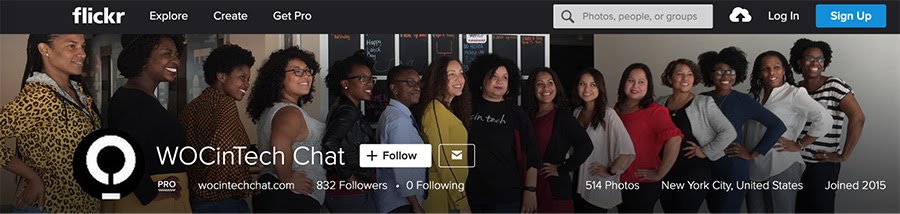
The WOCinTech Chat page on Flickr.

The tech industry is notorious for being overwhelmingly male and white. #WoCinTech Chat is trying to change that stereotype by sharing photos of women of color in various technology fields. Even better, every single picture is free to use, thanks to the Creative Commons license. There’s just one caveat: Every photo has to be credited with either a link to the collection and/or the hashtag #WoCinTech Chat. When you think about it, it’s a double win, since it drives more visitors — and hopefully followers — to their site. The collection is curated by Flickr.

2. UKBlackTech

Group of Black co-workers having a meeting.
Source: ukblacktech.com

Most young people of color don’t see themselves represented in the fields of technology. When UKBlackTech — a British organization whose mission is to boost the growth of Black and ethnic minorities in the tech sector — learned about this, they organized a photoshoot to create the images that were missing. In addition to including people of color, they also aimed to include a distinctly British aesthetic. Under Creative Commons licensing, the collection can be used for free as long as UKBlackTech or www.ukblacktech.com is credited.

3. Nappy

Young man recording himself on a video camera.
Source: nappy.co

Diverse stock art shouldn’t just capture people in staged activities. Nappy offers “beautiful, high-res photos of Black and Brown people” in everyday life, ranging from exercising to eating, working, hanging out — you name it. And because Nappy wants to increase representation in the media, the images are free to use. They recommend giving them credit, but it isn’t mandatory. Nappy was created by Shade, a talent agency that specializes in diversity.

4. CreateHer Stock
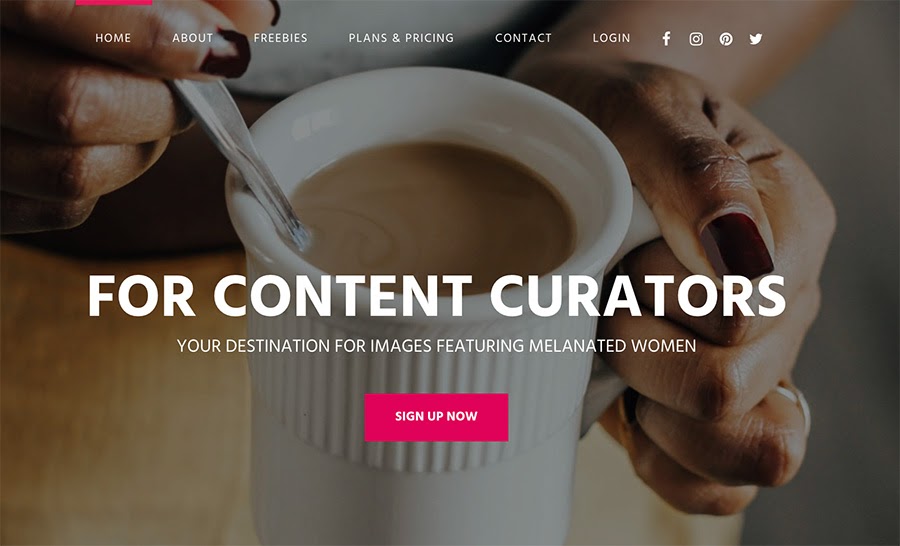
The createherstock.com home page.

CreateHER Stock isn’t a one-way business. Founder Neosha Gardner is creating a community by encouraging people to connect with her team on collaborations, including adding their own stock photos to the collection, and sending out a monthly email newsletter to keep everyone apprised of updates and giveaways. The stock photo site offers more than 3,500 photos of women of color spanning an array of categories, from workplace to lifestyle. Gardner launched the site when she couldn’t find photos of women of color for a blog post in 2014. They offer both royalty-free and paid options.

5. TONL

The tonl.co home page.

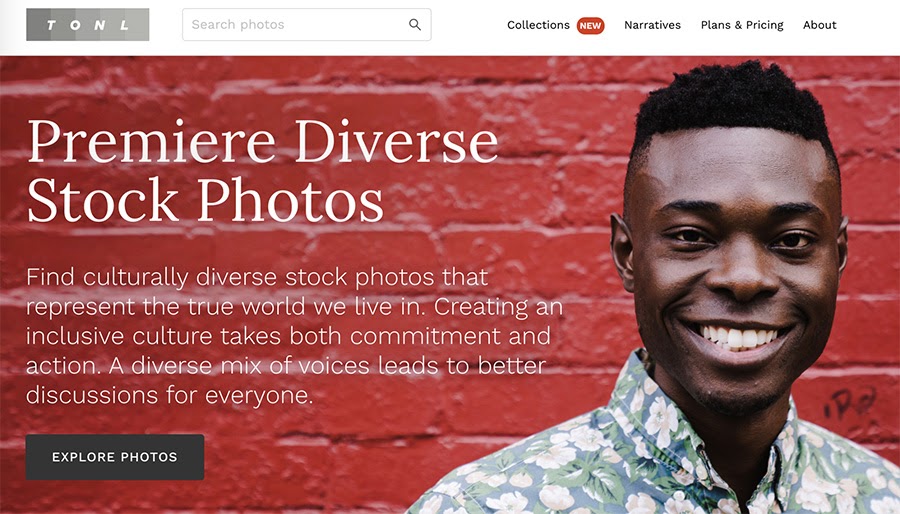
On their website, TONL says, “A diverse mix of voices leads to better discussions for everyone.” The agency is living up to those words by focusing on images that show a glimpse into the lives of all types of people. They bring deeper context to their images by sharing text with each to provide a wider story. To make finding just the right images easier, the site’s offerings are organized into narratives such as taste, travel, tradition, technology, and trend. Within those categories, you’ll find an array of everything from religious images to family photos. They can be purchased à la carte or with a subscription.

6. Picnoi
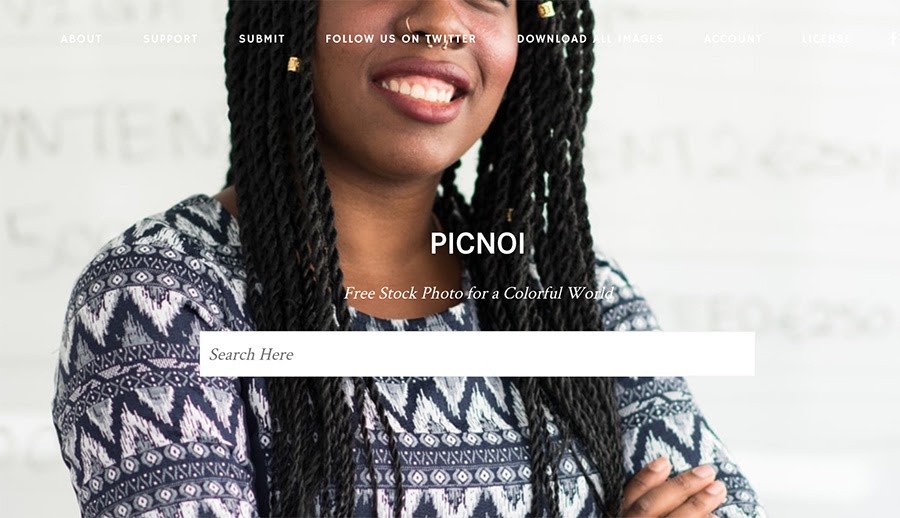
The picnoi.com home page.

When you can’t find stock image essentials that show a range of skin tones and races, there’s Picnoi to fill the gap. The co-op knows that most free stock images have very few options when it comes to showing people of color, so they created a space for bloggers, website owners, designers, publishers, advertisers, and anyone else to have free access to diverse images right at their fingertips. Picnoi doesn’t require attribution, but they appreciate it, so do them a solid and link to Picnoi to spread the word.

7. The Gender Spectrum Collection: Stock Photos Beyond the Binary

The genderphotos.vice.com home page.

When talking about inclusive imagery, gender identity is often left out of the conversation. Luckily, The Gender Spectrum Collection fills that void with photos of transgender and non-binary folks. Powered by Vice media, the images are free to use. Organized by category — including lifestyle, relationships, and work, to name a few — Vice encourages clients to use the images mindfully to help bring awareness to gender bias and stereotypes, elevating the trans community along the way. The photos run the gamut of the LGBTQ spectrum, featuring people in all facets of life.

8. DragonImages

Example of a stock image from dragonimages.asia

To ensure Asian people are represented correctly in imagery, Pressfoto Group, a stock photography house, launched DragonImages under their umbrella in 2012. Based in Asia, they ensure their photos accurately represent culture, customs, and ethnicities from across the continent. They shoot on location using Asian models, encompassing a wide array of categories and themes. In addition to being available at Pressfoto, many of their images can be found at popular stock photo agencies such as iStock, Shutterstock, and Fotolia. DragonImages purposely prices their photos very low —  often for less than a dollar — to make them widely accessible. More than 50,0000 of their photographs have been used all over the world. 

9. Mocha Stock

The mochastock.com home page.

Sequoia Houston was constantly on the lookout for professional, diverse visuals she could use for campaigns at her marketing job, but they were next to impossible to find. She took matters into her own hands and launched Mocha Stock. From diverse stock images to illustrations to videos, Mocha Stock offers it all, showcasing people of color with a real vibe. A few of their themed galleries include celebrating women, business, and family. The royalty-free images are priced affordably to suit all budgets.

10. Diversity Photos
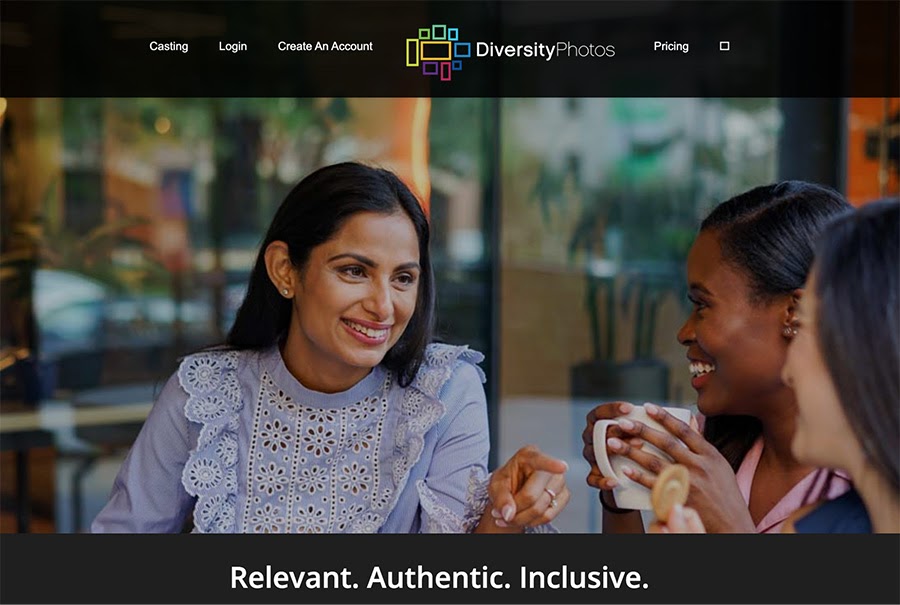
The diversityphotos.com/ home page.

“Relevant. Authentic. Inclusive.” That’s how Diversity Photos describes their collection, and it’s spot on. They cover every topic you can think of and make it look believable, from business to health, spirituality, family, disabilities, and culture — all neatly organized into categories. With super high-quality and professional photos, they offer subscriptions or à la carte purchases at attainable prices.

11. The Lean In Collection from LeanIn.org/Getty

The Lean In collection home page.

A team effort between Getty Images and LeanIn.org, the women’s empowerment nonprofit launched by Sheryl Sandberg, this photo library features more than 6,000 images of female leadership, both in work and life. Aiming to dispel gender stereotypes and imagery that depicts patriarchy, The “Lean In Collection” shows women and girls as equals and empowered. “The goal is to shift perceptions, overturn clichés, and incorporate authentic images of women and men into media and advertising,” Marks says.

12. The 67 Percent Collection from Refinery29/Getty

Example stock image from The 67 Percent Collection.

This is a collection of imagery created by the team at Refinery29 to dive deeper into how millennial and Gen Z women view themselves and the world — unapologetically themselves and embracing every aspect of who they are,” Marks says. It’s all about raw images of women from various walks of life and backgrounds.

13. MuslimGirl.com Collection from Getty

Example stock image from the MuslimGirl.com collection

“We partnered with their founder, Amani al-Khatahtbeh, to purposefully change how young, modern Muslim women and girls are depicted in the media and advertising,” Marks says. “Whether they choose to wear a hijab or not, they are more than they have been depicted in pop culture.  They have the same aspirations and emotions and passions and intelligence as all modern girls and women and should be depicted as such to normalize their existence in our world and specifically the West.”

14. Shestock from Blend Images

Images of women by women doesn’t sound revolutionary, but it was when Shestock was launched in 2012, making it the very first woman-centric stock image collection. In addition to supporting female photographers, it aims to eliminate gender bias and show women in more authentic and empowering situations. For example, Shestock shares photos of women in STEM fields to encourage young girls. The collection is available for purchase through Blend Images.

15. LGBT Photos by Pexels

The LGBTQ spectrum truly is as broad as a rainbow, and Pexels captures this sentiment in their curated section of LGBTQ photos. From portraits to lifestyle shots and everything in between, Pexels covers the bases with an ethnically diverse group of people in an authentic way. Even better, all of the photos and videos are free. Attribution isn’t necessary, but it is appreciated by both Pexels and the photographers.

DreamHost Takes Inclusivity Seriously

We regularly report on diversity, accessibility, and representation in the tech industry. Subscribe to our monthly newsletter so you never miss an article.

16. TetraImages.com

The latest collection from Tetra is Blend images, which is all about photography and footage of multicultural and diverse people shot by artists from across the globe. They cover any category you can think of — small business to city life, beauty, nature, food, holidays, seasons, health living, education, Americana, and pharmaceuticals, to name a few. The conceptual images are fresh, modern, and realistic, and all are available for editorial and commercial licensing.

17. The LGBT section at Twenty20
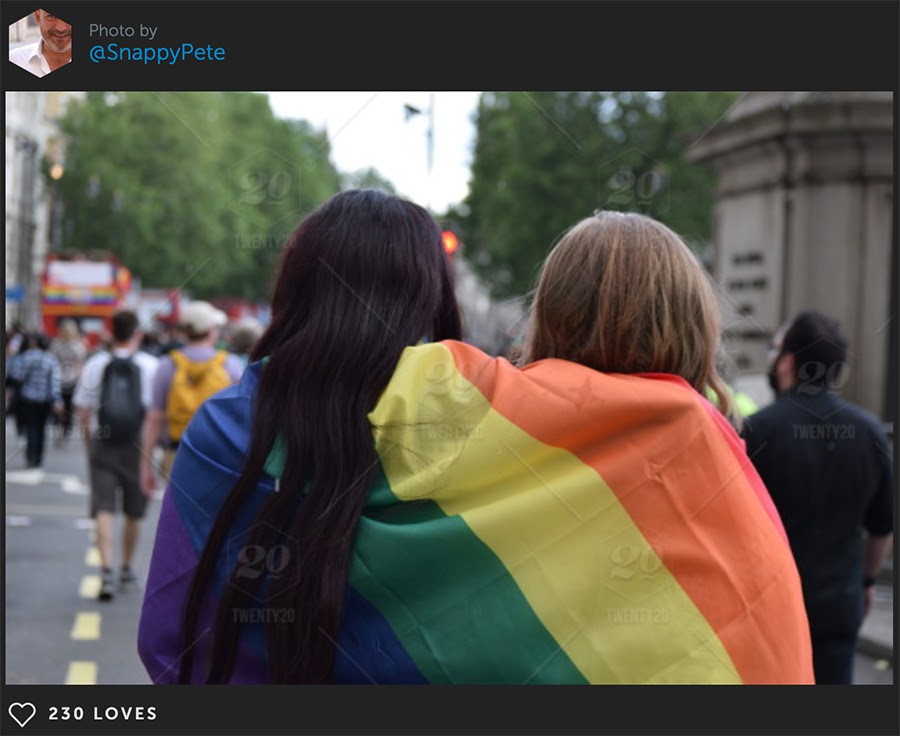
Example stock image from the Twenty20.com collection

Twenty20 fills their LGBTQ section with people of color, a range of identities, and striking images that deliver a deeper message. To make it easier to find exactly what you’re looking for, their LGBTQ section is organized into several categories, such as Pride, couples, and happy people. They offer subscriptions from $16.50 per month.

18. PhotoAbility
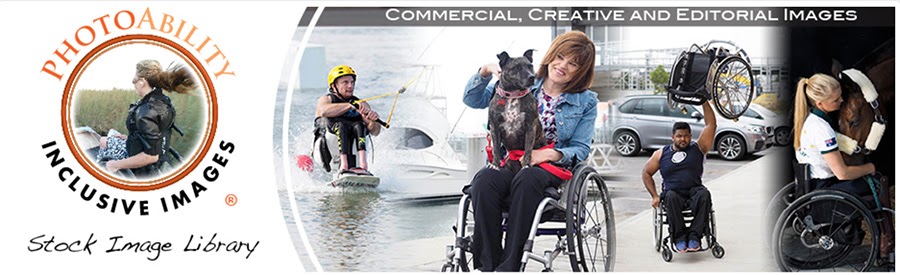
The photoability.net home page.

It doesn’t get more authentic than PhotoAbility and their models. Every single person portrayed in the images has a disability and a portion of each sale goes directly to them. The photos feature adults and children with disabilities in various settings, including travel, sports, business, and lifestyle, aiming to increase positive imagery of people who use wheelchairs, canes, walkers, guide dogs, and other mobility devices. They offer a range of prices to fit every budget, with a deep discount for advocacy groups.

19. Canva’s Natural Woman Collection

Tired of the male gaze? Canva is too, which is where their Natural Woman Collection comes in. Authentic and true to life, it captures women in their natural state, whether that’s in nature, striking a yoga pose, taking selfies with friends, or with their families. Canva offers both free and premium shots to make the most of your budget.

The post 19 Great Resources for Diverse Stock Photos appeared first on Website Guides, Tips & Knowledge.


source https://www.dreamhost.com/blog/diverse-stock-photos-resources/

Friday, 4 September 2020

What Is User Experience (And How Can You Use It to Build a Site That Suits Your Audience)?

What a time to be alive!

Beginners with no coding experience can now build a website with minimal effort and expense. Even better, the options are limitless: You’ve got an entire arsenal of colors, fonts, images, and buttons at your disposal. But with so many design elements to play with, it can be tempting to go a bit wild.

“A sprinkle of animation here! A dash of cheetah print there!”

But, as is often the case with things that glitter, it’s easy to go overboard — especially if your creativity is reducing the functionality of your site.

Whether you want to sell a product or share some blog posts, you’re not really building the website for you. It’s your site’s visitors that need to be happy with the design and user interface. That’s where User Experience (UX) comes into play. Keeping a strong focus on UX while building your site should pay off in higher conversions and lower bounce rates.

In this article, I’ll give you a crash course in UX and explain what a UX designer does. Then we’ll go over some tips on recognizing good UX design when you encounter it. Finally, I’ll show you how to use UX to create a better website for your audience. Feel free to jump ahead to the section that’s most beneficial to you!

Ready to talk UX strategy? Let’s get started!

An Introduction to User Experience (UX) and Why It Matters

Simply put, User Experience (UX) is how interacting with technology makes a user feel. UX applies to any technology, from an app to a game console.

When it comes to websites, UX design is about optimizing the interaction between the human user and the page. A site built with solid UX principles should leave the user feeling like they accomplished what they came to do without frustration.

That may make you think of going all out with the website’s visual design. That might include flashy animations and gigantic image carousels. If you remember MySpace, you probably still have nightmares about animated glitter and MIDI versions of Blink-182 songs . . . yikes.

A MySpace profile using lots of bright colors and glitter.

But UX design has a lot less to do with how a site looks than how it’s used. To be effective, your website should be a complete experience — not just words and images on a page.

Users will forget data, such as how much they paid for the products they ordered. However, the experience of ordering should be pleasant and effortless. That experience will stay with them, increasing the odds that they’ll buy from you time and again.

If your site delivers a poor UX, you may see the opposite result. Users who become stressed out or angry when using your site will likely head to one of your competitors’ sites. They have many options and no reason to return to a website that’s difficult to use.

If you’re still not convinced that UX matters to your website, here are a few key statistics:

All of this serves to illustrate the importance of good UX design when building a website.

The Role of the UX Designer

UX is so vital there’s an entire profession dedicated to optimizing it. A UX designer’s day-to-day tasks will vary based on what kinds of projects they’re tackling. However, the goal is usually the same. The UX designer’s job is to optimize the user’s experience when interacting with digital technology while also keeping in mind the well-being of the business.

To achieve this balancing act, the UX designer follows a process that results in multiple deliverables.

Before any actual designing starts, there’s a lot of UX research to do. Therefore, the designer may first create one or more audience personas. This enables the designer to understand the user’s needs.

Next, the UX designer may present a potential user flow diagram to help explore possible ways that a user may interact with the website. They can then translate that information into a prototype. Prototypes may be as basic as a wireframe, a rough blueprint for what a final web page could look like. The designer may also create a more visually-robust prototype or even one that can be interacted with.

A basic wireframe for designing a website.
A basic wireframe.

The UX designer’s responsibilities don’t end with the final design. Once the site is launched, they may conduct usability testing or look into usage analytics to identify and fix potential problems.

In other words, they’re involved with all stages of a website’s creation and launch.

How to Recognize Good UX Design

If you’re handling your own UX design, it’s your responsibility to advocate for your audience while ensuring that you’re still getting what you want from your site. To do that, the first step is to learn how to recognize robust UX design.

With that in mind, let’s look at some examples of UX in the wild. There are four key elements you’ll want to pay close attention to.

1. Navigation

Poor navigational design can render any website useless. Moving through a site should be smooth and intuitive. The navigation menu should also be accessible no matter what device a visitor is using.

Breadcrumb navigation is one way designers prevent users from getting lost, especially if a website has many pages.

H-E-B’s website, using a navigation bar and breadcrumbs.

It’s also important to pay attention to links. Web designers who employ strong UX make sure you can identify links when you see them. This often means underlining them and using a different text color. They’ll also use meaningful anchor text, so you know where the link is taking you before clicking on it.

2. Content

A significant part of successful UX is understanding how people interact with different parts of a website. For example, most people don’t read web page content normally. They scan it and then stop to read if they’ve found something interesting.

Content is scannable if a user can quickly browse through a blog post or sales page and come away with a clear idea of what it’s communicating.

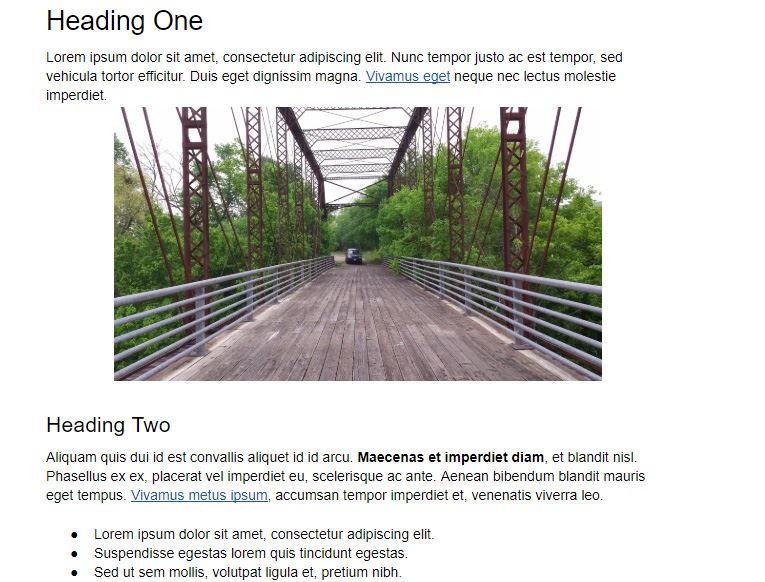
Content made scannable using headings, short paragraphs, and a bulleted list.

Keeping paragraphs short is one way to create scan-friendly content. Those paragraphs should be broken up frequently with headings, lists, and images. Designers may also make use of pull-quotes, bolded text, and similar elements.

3. Animation

Animation is an effective way to stand out from a sea of websites and grab a user’s attention. It adds an element of fun and can contribute to creating a memorable experience for the user.

However, there’s a right and a wrong way to go about implementing it.

Subtle animation can provide feedback while you wait for a transaction to complete. An animation can also loop endlessly while you struggle to focus on reading a product description. These approaches create two very different experiences. The overuse of animation can also affect UX on mobile devices.

4. Responsiveness

Optimizing a website for mobile users is a must. If you’re like most people, you usually use your phone to access the internet. If you come across a site that you have to struggle to use on your device, you’re likely to simply abandon it.

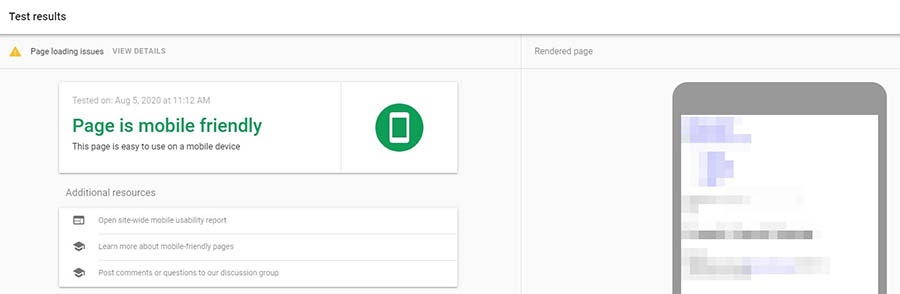
Beyond choosing a responsive theme, you can take additional steps to ensure that your site works well on all screens. For example, you can run your website through Google’s Mobile-Friendly Test Tool.

Sample results of Google’s Mobile-Friendly Test Tool.

This tool will alert you to issues that are keeping your site from being mobile-friendly. You may find that a particular font is too difficult to read on a tiny screen, for instance, or that buttons are too small to tap easily.

How to Use UX to Design a Site for Your Audience

Now that you know what good UX is, how do you apply it to your site?

You probably won’t be doing intensive market research or prototyping with high-fidelity wireframes. Still, putting on your UX designer hat can help you create a site that both you and your audience will love.

First, it’s important to be clear about why you have a website and what you want it to do. For example, are you:

Next, get to know your ideal user or potential customer. Creating a user persona will help you imagine how your target audience may interact with your website. This persona can be as simple as who the person is, what they want, and what keeps them from getting it. Crucially, you must identify what the user needs to be successful on your site.

Remember that accessibility is an integral part of UX. You may have visitors who use assistive technology, so consider making accessibility a priority when building your site.

You can also check out your competitors’ sites to see what’s working for them. Is the shopping cart icon always in the upper-right corner? Maybe yours should be, too. You can be creative without reinventing the wheel; users shouldn’t have to figure out how your site works to accomplish their goals.

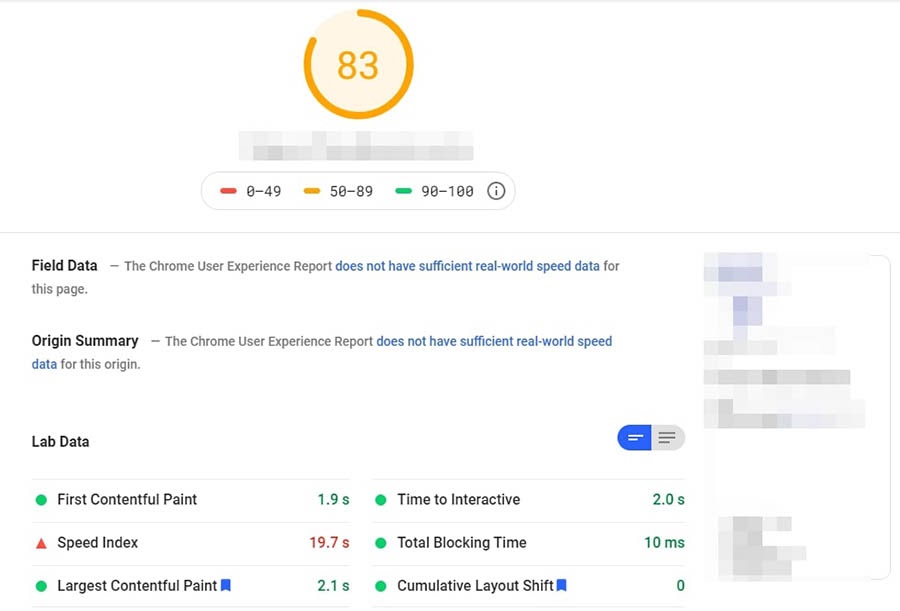
Sample results from Google’s PageSpeed Insights.

Finally, website performance matters for UX. Slow pages will cause visitors to leave before the site has a chance to load. There are many ways to speed up your site, although your best bet is to start with quality hosting.

Building a Better User Experience?

Partner with DreamHost. We’ll make sure your website is fast, secure, and always up so your visitors trust you. Plans start at $2.59/mo.

UX Resources

At this point, you’ve likely figured out that UX design isn’t something you optimize in one shot. There’s a lot more to this field than we can cover in one article.

UX Matters’ home page, which uses an infographic for navigation.

Fortunately, there are many quality UX resources you can refer to as you continue to improve your website:

  • Awwwards is where you can find inspiration. Grab some coffee; you’ll probably be scrolling for a while.
  • UXmatters covers just about everything related to design. There’s content for everyone — from the seasoned UX strategist, UX researcher, UI designer, or graphic designer to brand-new UX enthusiasts.
  • UX Magazine publishes the latest news, timely insights, and UX research for anyone interested in improving their visitors’ digital experience.
  • Stack Overflow is the place for all your burning questions. It’s an open community of helpful, knowledgeable people.
  • Website and Digital Marketing Help is a Facebook group powered by DreamHost where website owners of all levels can share best practices and ideas.

If you combine these resources with research and practice, you should find yourself implementing good user experience practices in no time.

Design a Great User Experience

You don’t need to be a professional UX designer to build a website your audience will love interacting with. All it takes is some understanding of what will make life easier for your visitors and a willingness to build a site that provides that experience.

UX describes what the experience of interacting with your website is like for users. Optimizing your site’s UX means ensuring that it has clear navigation, creating content that’s easy to scan, testing it for responsiveness, and more. There’s a lot to learn, but there are also plenty of useful resources and knowledgeable designers who can help.

After that, you’ll be ready to conquer the internet with your UX-optimized website! You can check some of the performance-related tasks off your list early with our high-quality shared website hosting plans.

The post What Is User Experience (And How Can You Use It to Build a Site That Suits Your Audience)? appeared first on Website Guides, Tips & Knowledge.


source https://www.dreamhost.com/blog/what-is-user-experience/

How Much Does a Domain Name Cost?

One of the most important concerns for any business is increasing brand visibility. Among other things, this requires choosing a strong domain name.

But here’s the (not quite) million-dollar question: How much will it cost you?

There are a few factors involved, but it’s not hard to estimate what you can expect to spend on a domain name for your website. Being armed with this knowledge upfront is crucial to make sure that you’re getting a good deal and not overextending your budget.

In this article, we’ll discuss the most important factors to keep in mind when choosing and buying a domain name. We’ll also discuss how much you can expect to spend and how domain price relates to your web hosting service. Feel free to jump ahead to the section that’s most important to you.

Let’s get started!

Your Idea Starts with a Great Domain Name

Don’t let someone else register your URL. Search DreamHost’s 400+ TLDs to find the perfect fit for your website.

What Is a Domain Name (And Why Do You Need One)?

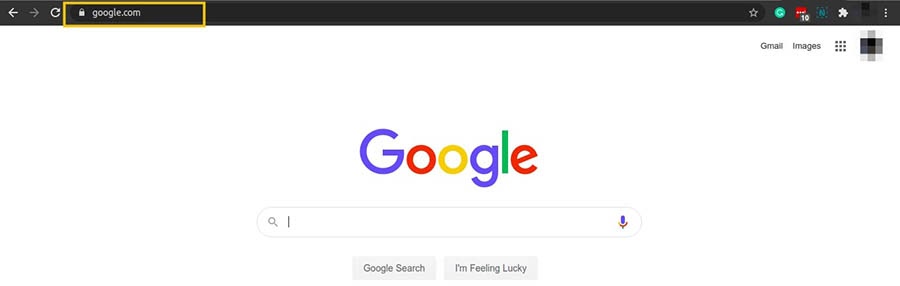
To visit a website through your browser, you’ll usually enter an address that tells the browser where to go. It usually begins with “http” or “https”. Some popular examples of web addresses are https://facebook.com/ and https://www.google.com/.

“The home page of the Google.com website.”

However, what we’re interested in is the latter part of those addresses: i.e., “google.com”. That’s the site’s domain name, and one of the first things you’ll do when building a website is to register one. This is what makes it possible for people to access your site easily on the internet. A unique and professional domain name can even help instill trust in your brand.

You’ll usually start thinking about acquiring a domain name when you’re considering a new business idea or creating a new site. However, you could also buy domain names to hold on to them for future use or to resell them for a profit.

If you’d like a domain-extension deep dive, check out our beginner’s guide to domain name registration.

How Much Does a Domain Name Cost (And What Determines This Price)?

The cost of a domain name will be affected by several factors. These can include:

  • Your domain registrar (the company you’re buying from)
  • Your Top-Level Domain (TLD); options range from .com and .org to .inc and .club
  • The length of your contract with your registrar
  • Whether or not you’re also paying for domain name privacy
  • The popularity of the keywords included in your domain name (domain registries set the prices for popular keywords)

You can expect to spend around $10 to $20 per year for most domain names. This can go up to $50 or more for some new TLDs — think extensions .best and .bio — while high-demand domains with TLDs like .game can cost a few hundred dollars.

It’s also important to know that some web hosting services provide a free domain with the purchase of a hosting plan.

On the other hand, certain domains with broad single-word names, such as hotels.com, business.com, insurance.com, and so on, have been known to sell for millions of dollars. These are premium domain names and won’t be sold by every registrar.

How to Buy a Domain Name (5 Key Tips)

There are a few things to consider when you’re in the market for a domain name. All of these can affect how much you’re likely to pay, so it’s best to be prepared for the most common scenarios in advance.

1. What to Do If the Domain Name You Want Is Already Taken

If your desired domain name is unavailable, you’ll need to decide how much using it is worth to you. You’ll likely have to spend a lot of money if you’re determined to buy it from the current owner.

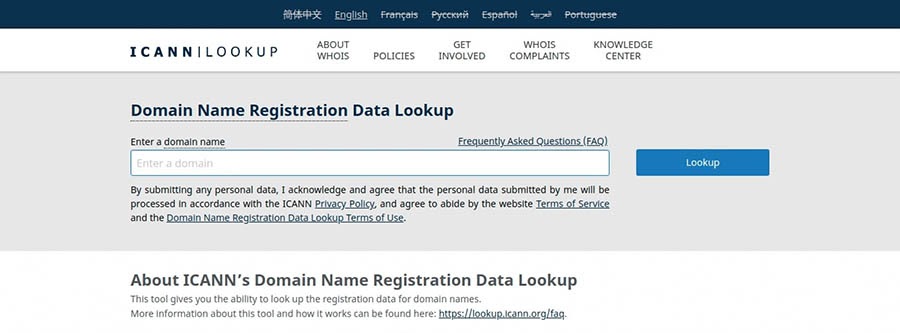
Because of the California Consumer Privacy Act and GDPR regulations from the European Union, it’s not quite as easy as it used to be to look up a domain owner’s contact information on the WHOIS directory. However, you can still use the directory to see the organization name related to the domain.

“The ICANN WHOIS lookup tool.”

Even if the owner has opted for full domain name privacy protection, their domain registrar should be able to help you connect with the domain owner via a third-party company, such as Tiered Access. This helps to ensure privacy for the domain owner. You should expect the process to take several days.

Once you’ve made contact, the next step is to make an offer, either directly or through a domain name broker. For a fee of 15–20% of the transaction cost, a broker can assist in managing the negotiation process and provides protection for your money.

Of course, you have other alternatives as well.

You could use a different TLD, set up a domain lease, or search for a very similar name that is available. We’ll discuss some tips for doing that next!

2. How to Find Available Domains

Whether you’re just starting to look or you need a replacement for an existing domain name, there are a few ways to explore your options. You might start by doing some brainstorming based on keywords that are related to your business or website.

You’ll generally want to keep your domain name simple, to avoid misspellings and confusion. A search tool can come in handy here. You can enter your ideas in our domain search tool to learn about availability and pricing. You’ll also get suggestions for related domains, which can be helpful when your first choice is unavailable.

“DreamHost’s domain search tool.”

This tool also enables you to move right on to the purchase phase if your desired name is available.

3. How to Choose the Best Domain Option for You

Some rules of thumb to keep in mind as you shop for a domain name are:

  • Buy a .com domain unless you have a good reason not to (for example, if the .com version of your domain name is unavailable or if you’re only targeting a regional audience). To learn more about your options, check out our guide to new top-level domains.
  • Short domains are generally best. However, short doesn’t always mean simple. You’ll want to strike a balance between length and memorability.
  • Don’t forget to research the domain name. You’ll want to make sure that your brand and domain names don’t infringe on any trademarks and that there isn’t a negative history associated with the domain. It’s also important to note that many registrars don’t allow users to register domains related to tragic events or disasters. For example, NameCheap restricted the registration of domains with COVID-19 related terms, such as coronavirus, n95, or covid, to combat fraud.

We used to caution against using symbols or numerals in your domain name, but several large organizations now successfully deploy hyphens and numbers in their URLs. Consider, for example, financial powerhouse deutsche-bank.com or 62.com, one of the largest domain registrars in China. Just remember: If you’re going to add a hyphen or numerals to your domain name, make sure it’s easy to remember.

Of course, it can take some effort to settle on the right option. However, this upfront investment of time can pay off with a strong domain that benefits your site and never needs to be changed.

4. Where to Buy a Domain Name

Buying a new domain, rather than one that’s already owned, will be the best option for most people. The domain registration and purchase processes vary a little based on what registrar you use but should be straightforward.

Domain registrars are companies that manage and sell domain names. There are standalone registrars, but most hosting providers also sell domain names.

For example, registering a domain here at DreamHost can be an easy and practical way to go. Since we’re both a domain registrar and a hosting provider, you can make your purchases together as a package.

5. Domain Name Fees to Watch Out for

When buying a domain name, you’ll need to watch out for hidden fees. Certain fees can be nudged into the dark corners of a registrar’s terms of service. These might include:

  • Transfer fees: This is the cost of moving your domain from one registrar to another. This type of fee was commonplace in the early aughts but is pretty unusual in today’s market.
  • Renewal fees: Domain name registrations typically work on a contract basis. For example, a registration may cover just the first year, after which the domain will need to be renewed periodically afterward.

It’s not uncommon for a registrar to offer a low price for the first year and then increase it upon renewal. And that’s not necessarily the registrar’s fault. For example, the price of .com is governed by the U.S. Department of Commerce, and domain registries, such as VeriSign, must obey the law.

Additionally, some registrars might offer discounts that only apply if your contract with them is long-term. This means you’ll need to ensure that your costs will remain relatively stable.

You’ll also want to be wary of registrars that offer domain names for unusually cheap prices. These might charge high administration fees or manipulate your WHOIS information.

Domain Name FAQs

Before we wrap up, let’s answer a few common questions about buying domain names.

Do I need more than one domain name?

This is more a business decision than a necessity. You only need one domain name for your website. However, you might want to buy multiple domains with spelling variants and redirect them to your site, just in case people misspell your main address.

You might also have unique domain names for different aspects of your business to help your users find what they need more easily. An alternate domain can also serve as an easier-to-remember variant of the original domain.

And if you’re in a business where the competition is stiff — say you’re running for elected office — it can be worth it to buy several variations of your domain (including ones that are not very flattering, ahem) so that the opposition can’t use them.

What are the best TLDs?

The best TLD is simply the most meaningful and appropriate one for your business. This means it depends on what you’re using your site for, as well as how much you can afford to spend.

For most sites, .com or another popular option will suffice. However, a company might use a .info or .help domain for its knowledge base and .blog for its company blog. Another might also use .promo for handling discounts, .design for sharing digital assets, and .dev for its developers.

How are domain names and Search Engine Optimization (SEO) related?

It’s important to start thinking of ways to make your site search engine-ready from the outset. Since keywords are used by search engines for ranking your content, you might want to consider including a relevant keyword in your domain name.

Keep in mind that Google’s algorithm is resistant to keyword-stuffing: the practice of cramming your domain name with keywords so as to rank higher than other websites. So don’t try to include multiple keywords in your domain as this can have a detrimental effect.

The good news is your choice of TLD will not affect your ranking on Google. The search engine’s algorithm treats new TLDs (e.g. .xyz and .online) and legacy TLDs (e.g. .com and .org) equally.

How many domains can I host?

You can host an unlimited number of domains on our Shared Unlimited and VPS hosting plans. You’ll also be able to create email addresses under each domain, set up forwarders to send emails to your main email account, and forward domains to existing websites. Our control panel also enables you to manage all your domains easily in one central location.

Can I use my domain name for email, as well as for another site such as LinkedIn?

Yes, you can set up email at your custom domain name and still have it point to sites such as Facebook, Twitter, or LinkedIn. Just as getting a professional domain name can help with your brand image, using it for email addresses and social media sites can do the same.

Get Professional Email @yourdomain

Promote your website with every message you send when you set up professional email with DreamHost. Plans start at $1.67/mo.

Domain Pricing Made Easy

In addition to creating a hosting account, registering a domain name is one of the most important business decisions you’ll make. It offers you a way to maintain an online presence and increase visibility for your brand. However, it can take some effort to do the necessary due diligence, and ensure that you’re getting the best bang for your buck.

In this post, we discussed some key considerations to keep in mind when shopping for a domain name. These include:

  1. What to do if the domain name you want is already taken.
  2. How to find available domains.
  3. How to choose the best domain option for you.
  4. Where to register a domain name (consider your web host if they’re an accredited registrar).
  5. Domain name fees to watch out for.

Ready to buy a domain name? With our domains, you can expect straightforward pricing, access to hundreds of unique TLDs, easy management, and more!

The post How Much Does a Domain Name Cost? appeared first on Website Guides, Tips & Knowledge.


source https://www.dreamhost.com/blog/domain-name-cost/

Tuesday, 1 September 2020

Everything You Need to Know About WordPress: A 5-Minute Crash Course

If you want to build your own website, you can’t go wrong with WordPress. This flexible, powerful Content Management System (CMS) powers more than 37% of all sites on the internet, making it a leading platform.

However, like a TSA agent, it can be intimidating at first glance.

Fortunately, WordPress is much easier to understand than the airport’s ever-changing security protocol. With just a brief introduction, you’ll quickly find yourself able to create a stunning website in about five minutes. Plus, you can customize it to meet your exact needs and goals.

And you don’t even have to take your shoes off!

This article is a quick WordPress crash course, explaining what the platform is and why it’s so special. I’ll also give you an idea of what this CMS can be used for, then show you how to get started with DreamHost.

To the boarding gate!

Power Your Site with Managed WordPress Hosting

Hassle-free, high-performance WordPress hosting can help you grow your business. Plans start at $16.95/mo.

What Is WordPress?

If you’re looking to build your first website, WordPress is an excellent solution.

WordPress is a Content Management System (CMS), a platform you can use to build and maintain a website without any knowledge of coding. This software enables you to customize just about every aspect of your site.

The first version of WordPress was created in 2003 by Matt Mullenweg and Mike Little. It began as a simple platform designed for people who wanted to create basic blogs and host them on the internet. Over time, however, it’s grown into a flexible, powerful tool for creating almost any type of site.

Before moving on, it’s important to make sure we’re on the same page. There are differences between WordPress.com and WordPress.org. The former is a website builder where you can create and host a site for free. It’s simple to use but also limited in what it can do. WordPress.org is a more powerful platform, so we’ll be focusing on it for the rest of this article.

What Makes WordPress Unique?

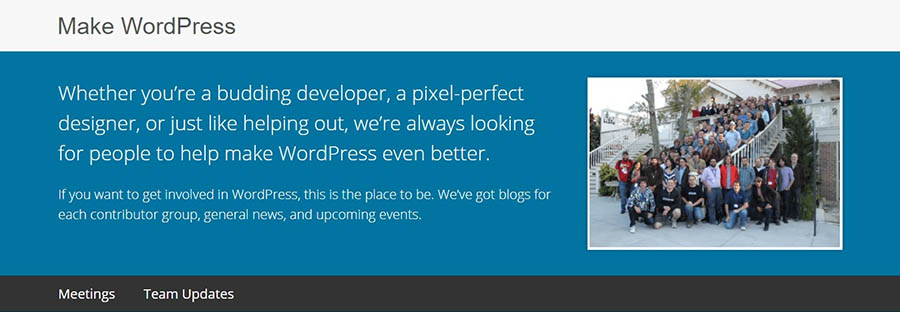
Many developers, designers, and other people contribute to making WordPress better every day.

The first thing you need to understand about WordPress is that it is open-source software. If you aren’t familiar with the term, it means the platform isn’t restricted under copyright or trademark, and is freely available for anyone to download and modify (under what is called the GNU General Public License).

What’s more, it means the WordPress Core is developed and maintained by a dedicated community.

This is great news for you as a user for a variety of reasons:

  • The platform is (and always will be) free to use.
  • Many free and low-cost tools are created for use with WordPress (more on this in a moment).
  • WordPress is designed by its community to be user-friendly and to have the features most needed by website creators.
  • You have a lot of freedom in how you choose to use and interact with the software and can modify it in any way you’d like via coding and other tools.

The fact that WordPress is open-source has enabled it to develop a strong, diverse community of contributors and enthusiasts, who regularly gather at WordCamps around the globe.

Remember that 37-percent-of-websites stat I threw at you earlier?

It’s not a stretch to say WordPress is an incredibly popular platform, and that makes getting help when you need it easy. You can find plenty of online documentation, forums, WordPress-focused blogs, dedicated courses and resources (including our own DreamHost Academy) and much more. No matter what you’re trying to do, chances are someone else has done it before and can help you out.

Of course, WordPress isn’t just for beginners!

The beauty of the CMS is that it’s able to scale alongside its users. As you learn about the platform and acquire new technical knowledge and skills, you’ll be able to do more and more with WordPress. You can create and run a simple blog, but you can also design large, complex websites for businesses and online stores. With WordPress, the sky’s the limit!

What Can You Do With WordPress?

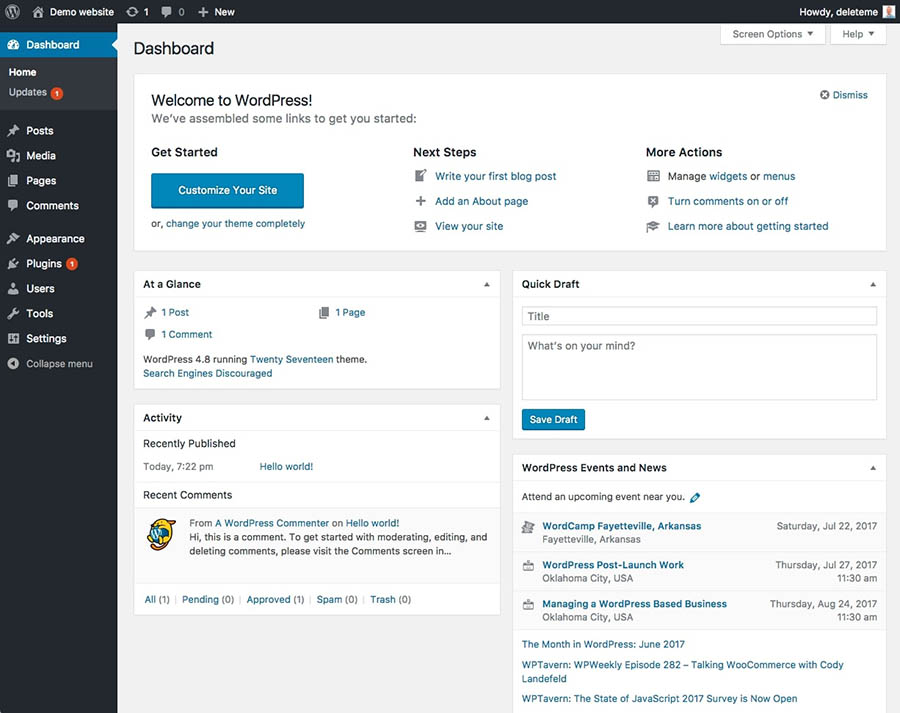
The WordPress dashboard makes it easy to manage everything about your site from one location.

WordPress began as a small, blogging-focused platform. This means it has a lot of features that lend themselves to blogs, and it’s perhaps the best solution you can find for that type of site. There’s an easy-to-use editor for creating posts, robust comments functionality, and much more.

However, WordPress is no longer just for your personal blog. In fact, you can use it to create just about any type of site you can imagine. Here is just a small selection of the types of sites WordPress is ideal for:

  • Online portfolios: With the right WordPress theme, it’s easy to set up an online portfolio to showcase your achievements and skills, display your work and past projects, and (most importantly) to reel in new clients.
  • Affiliate websites: If you want to create an affiliate marketing website (or monetize your site in some other way), the WordPress community offers lots of dedicated solutions.
  • News sites: WordPress’ blog format works well for news articles, and many of the same features lend themselves to both blogging and news sites.
  • E-commerce stores: If you’re running a store online (or planning to), there are lots of WordPress tools, such as the WooCommerce plugin, to make the job simple (be sure to check out our WooCommerce Hosting package to get started).
  • Community hubs: You can easily create forums, fan sites, knowledge bases, wikis, or any other place for like-minded people to gather online.
  • Business sites: Whether your business is large or small, you can share information, provide contact details, incorporate your branding, and build a strong online presence.

If you aren’t sure what type of site you want to create yet, you can always start small and scale up over time. It isn’t hard to begin with a simple blog, and turn it into a news or affiliate site whenever you’d like. You can also create a site that fulfills various roles — for example, a business website with an accompanying company blog, as well as a connected storefront to sell your products or services.

While many of the sites listed above are made possible thanks to WordPress themes, plugins, and other tools, we’d be remiss not to mention the many features the platform offers out of the box that are useful to all types of sites.

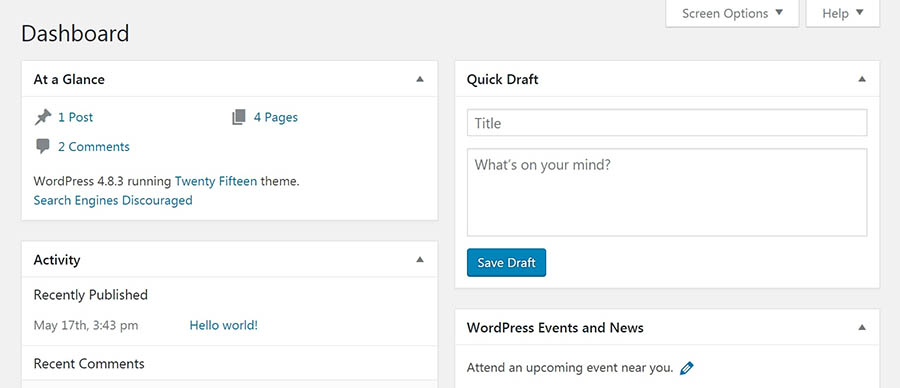
Chief among these is the central, user-friendly WordPress dashboard. This is a private admin area you log into, where you can control all aspects of your site from one place.

wordpress dashboard overview

The dashboard is also home to a flexible, easy-to-use editor that makes content creation a breeze. You get access to plenty of settings and customization options so you can make the site your own. Plus, WordPress is designed with performance, security, and Search Engine Optimization (SEO) in mind — crucial elements for practically every site regardless of its size or focus.

Last but not least, WordPress offers a wealth of themes and plugins to personalize your experience.

The Ultimate WordPress Crash Course

Whether you need help with WordPress development or writing your next blog post, we can help! Subscribe to our monthly digest so you never miss an article.

How Do You Customize WordPress?

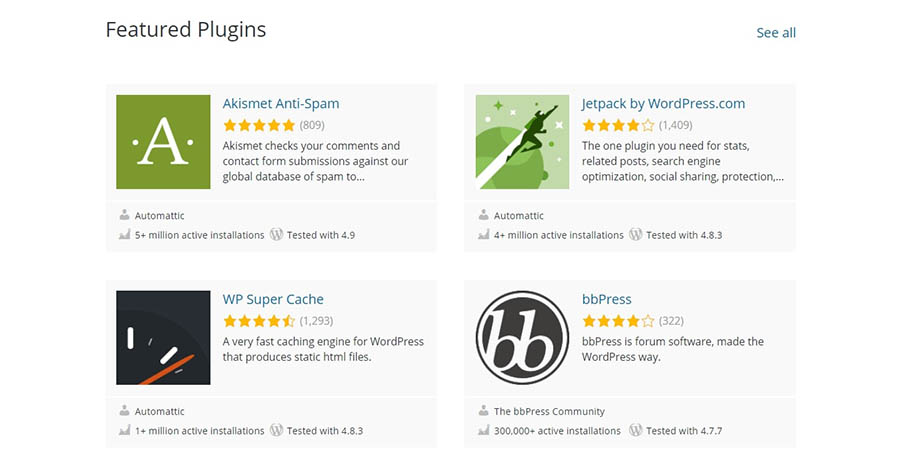
The WordPress Plugin Directory offers tools that can add nearly any feature imaginable to your site.

On its own, WordPress is a powerful but fairly basic website solution. You can make some changes to the way your site looks and acts, and if you’re comfortable with HTML and CSS, you can make just about any alterations you’d like. If you don’t have that level of technical proficiency, however, you can use themes and plugins to customize it to your exact needs.

Themes are pieces of software you can download and install on your WordPress website, which change the way it looks. Using a theme, you can alter your site’s layout and appearance and even make some changes to its functionality.

Some themes are general-purpose, making it possible for you to personalize your site to match your own style and branding. Others are specific to a particular type of website — so you can find themes perfect for blogs, online stores, portfolios, and just about anything else. Either way, themes usually provide access to a lot of pre-made elements you can mix and match to create a unique look, whether or not you’re a designer.

Choosing a theme can be a difficult decision. Our WP Website Builder makes this task easier, providing over 200 top-quality options to choose from. It only takes a single click to install your favorite. Once you’ve installed your theme, you’ll be able to use the builder’s drag-and-drop tools to fully customize your website. There’s no coding or design skills needed!

In contrast to themes, plugins enable you to add new features and functionality to your site. You can find simple plugins that add only one new feature, such as a contact form or image gallery, or comprehensive options to make radical changes to the way your site functions.

Using plugins, you can build a storefront, enhance security, optimize your site for search engines, create a forum or wiki, and much more. Whatever you’d like your site to do, chances are you can find a plugin to make it possible. To prove it, we’ve written many a plugin tutorial over the years:

There are a lot of places to find WordPress plugins and themes online. If you’re new to the platform, we’d recommend starting with the official Theme Directory and Plugin Directory. A few minutes spent browsing through these pages should give you a clearer idea for what WordPress is capable of with just a few modifications.

How Should You Get Started With WordPress?

Hopefully, by this point we’ve convinced you that WordPress is well worth trying out. Now what?

Since WordPress is a self-hosted platform, there are a few steps involved in creating your first site. But don’t worry! The process isn’t that hard. For a birds-eye view of the process, check out the quick-start video above, then read through the steps below for a complete walkthrough. 

1. Sign up for a Hosting Plan

You’ll need access to a web server — a place where your site’s data and files are saved, which can transmit information across the web to anyone who visits your domain name. This means purchasing a hosting plan.

There are many types of plans available, depending on your particular needs and the kind of site you’re creating. One of the best choices you can make is to pick a quality, WordPress-specific hosting plan.

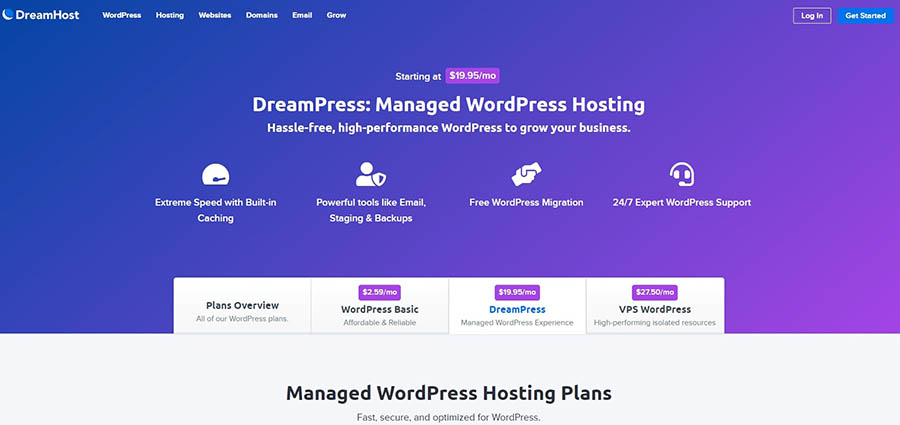
DreamPress managed WordPress hosting plans.

Consider our own DreamPress plans, for example. We pre-install WordPress for you, so you can get your site up and running fast. These plans are also managed, which means we’ll take care of ensuring that your site performs well and runs securely — so you can focus on designing your content.

If you choose the DreamPress Plus or Pro plans, you’ll also get Jetpack Professional. This is a comprehensive plugin that provides SEO and security features for free.

If you’re on a tight budget, you could consider our Shared hosting plans. Starting at just $2.59/mo, these plans give you everything you need to get a site up and running without investing too much up front. As your site grows, you can always upgrade to a more robust DreamPress plan down the line.

Whichever plan you choose, we’re happy to help you get set up and answer any questions you might still have about WordPress and web hosting. We have plenty of WordPress experts you can contact through a variety of channels, day or night.

Once you’ve decided which hosting plan is right for you, add it to your cart and begin the checkout process. We recommend that you opt to have us install WordPress and enable WP Website Builder during registration (it makes building your site quickly much easier). 

Shared Unlimited hosting options.

Once you’ve paid for your plan, you’ll receive an email confirmation that includes the information you’ll need to get started.

2. Explore Your Control Panel

Once you’ve signed up for a hosting plan, you’ll want to get familiar with your control panel. You can start by logging in from the DreamHost user panel login page and having a look around. This control panel is where you’ll find all the tools you need to manage your website.

DreamHost’s control panel.


There are a couple of administrative tasks you’ll want to take care of right away. You’ll need to register a domain (if you didn’t do so during the checkout process) and make sure WordPress is installed. Later, you’ll also use this control panel to configure your website mail, add new users, and access your MySQL databases.

3. Register a Domain

This is the unique web address where your site will be hosted. Try to choose a domain that is unique and catchy but simple enough for visitors to easily remember. You can check to see if your desired domain is available (and buy it) from a domain registrar or a web hosting company.

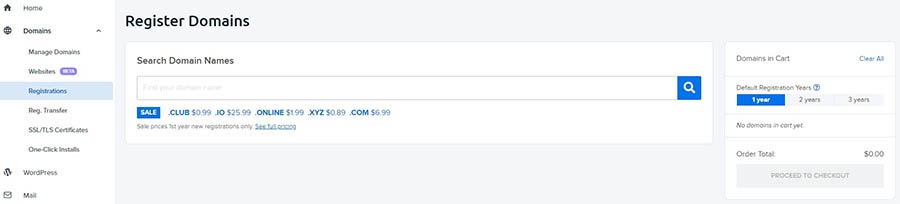
Registering a domain name using DreamHost’s control panel.

Once you have a domain and a hosting plan, it’s time to start building a site!

If you opted to have us pre-install WordPress for you during your account registration, move on to step 4. If you didn’t, you can install WordPress manually, although many hosting providers will offer an easier solution. WordPress-specific hosts (like us!) often offer a one-click installation option.

4. Access and Customize Your Site

Now it’s time to actually build that website you’ve been dreaming about! 

WP Website Builder’s “getting started” wizard will be ready and waiting for you the first time you log in to your WordPress dashboard. This wizard, which was built by our friends at BoldGrid, will guide you through everything you need to do to get your site published and ready for visitors.

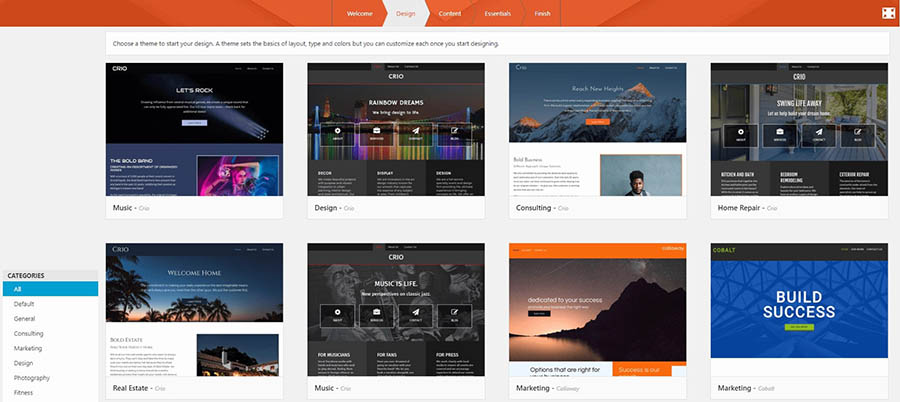
Alt text: BoldGrid’s Inspirations theme collection.

First, you’ll pick out your theme using the Inspirations library. This is a massive collection of themes organized by industry. Each theme includes gorgeous demo content, which you can swap out for your own original content as needed.

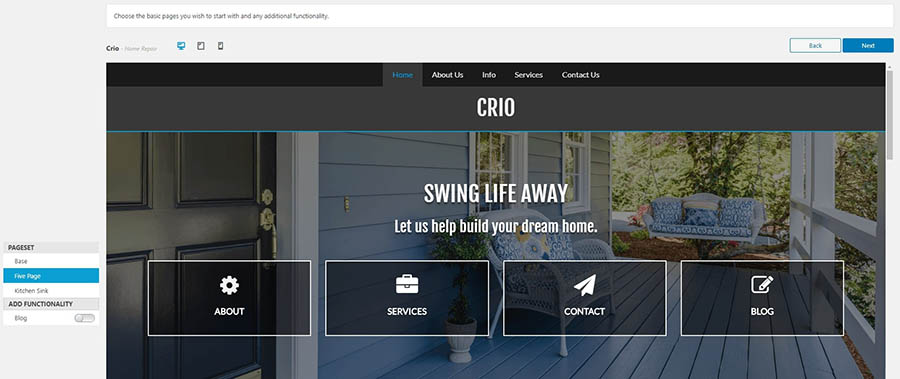
Page and feature selection in BoldGrid’s setup wizard.

Once you’ve picked your favorite theme (and don’t worry, you can always change your mind later) you’ll choose which pages are installed and whether or not you want a blog on your site. You can keep it simple, or go with the ‘kitchen sink’ option to install all of the available pages. You can also check the responsiveness of your theme, to make sure it looks right on every device.

Finally, you can give the wizard some information that it can use to fill out other areas of your site, such as your social media profiles. This section is optional, but it will save you a lot of time later on.

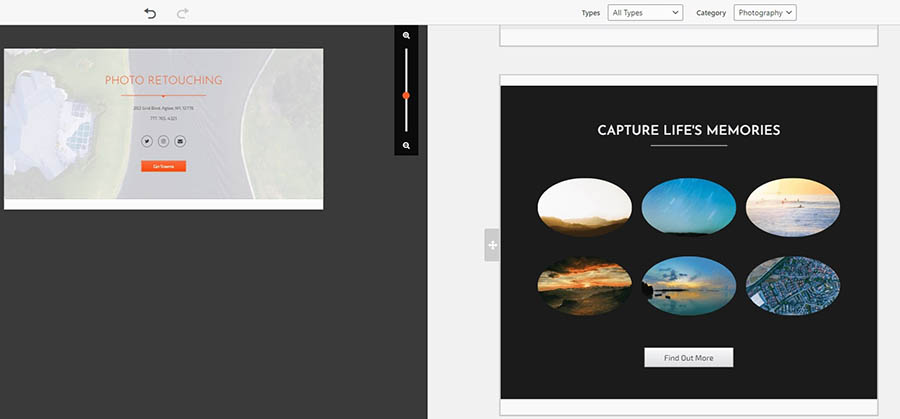
Adding content blocks to a page using the WP Website Builder.

After exiting the wizard, you’ll see your site’s pages on your WordPress dashboard. From there, you can further customize your pages using the drag-and-drop editing tools and pre-built design blocks. 

With the WP Website Builder, you’ll see your edits in real time, so you won’t have to blindly guess at what you’re changing. You’ll use these same tools to add content to your blog.

If you feel like your website is missing features, you can start exploring plugins you may want to add. It’s okay to start small with this step. We recommend looking for a quality theme first, and then choosing a couple of plugins to add the features you want.

You can always install more plugins over time as you need them. If you aren’t sure where to start, there are a handful of popular plugins that are a smart choice for almost any website.

5. Start Creating Content

There are two main types of content in WordPress: posts and pages (although some themes and plugins add more options). Both use the same beginner-friendly editor, so you’ll find that putting together your first few pieces of content is a breeze. 

Don’t forget to include a contact page so visitors can get in touch! If you entered your contact information during the setup process, the WP Website Builder will automatically add it to your contact page.

SEO suggestions for the “pet photography” keyword.

As you add content to your site, you’ll use the same drag-and-drop tools that made building your pages so simple. Plus, WP Website Builder will give you Search Engine Optimization (SEO) suggestions right on the page. This will help get more traffic to your beautifully-designed website!

WordPress Course Complete

WordPress is popular largely because it’s a perfect solution for a wide variety of applications. Both beginners and seasoned developers can use it to create small blogs, booming e-commerce sites, and everything in between. 

What’s more, it is surprisingly simple to get started with!

To create your first WordPress site, you’ll need to select a domain name and sign up for a hosting plan (we recommend DreamPress). Then you can install the platform and start customizing your site. With the WP Website Builder, this process is fast and easy. Choose a unique theme, add your pages, do some quick customization, and you’re ready to publish!

The post Everything You Need to Know About WordPress: A 5-Minute Crash Course appeared first on Website Guides, Tips and Knowledge.


source https://www.dreamhost.com/blog/wordpress-crash-course/

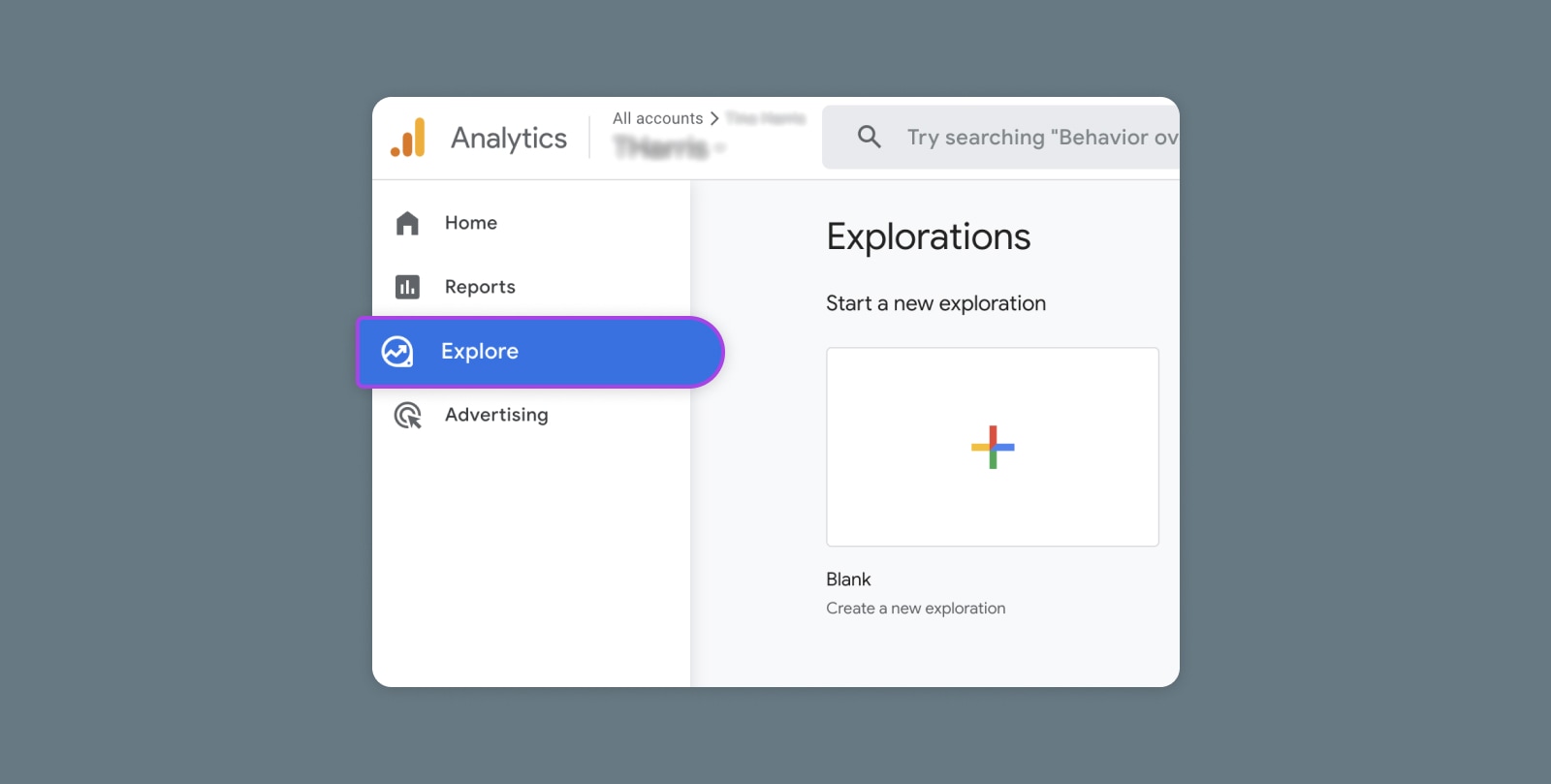
Creating and Mastering GA4 Explorations

In the switch from Universal Analytics (UA) to Google Analytics 4 (GA4) — which will go fully into effect July 2023 — a lot of things have...