Thursday, 18 March 2021

How to Fix White Text and Missing Buttons in the WordPress Visual Editor (5 Steps)

Picture this: You log in to your WordPress dashboard to write a new blog post. You fire up the Classic Editor, only to find a problem. All of the formatting buttons are missing, and the text is white and impossible to see.

Encountering this error can be frustrating. It may even prevent you from getting work done, potentially putting you behind schedule. Fortunately, there are several solutions to this issue.

In this article, we’ll look at exactly what this error involves and then walk you through how to fix it in five steps. Let’s get started!

An Introduction to the White Text and Missing Buttons Error in the WordPress Visual Editor

Before we dig into this error, let’s clarify exactly what we mean by the “visual editor.” This refers to the nicely-formatted editor you use to create your posts or pages in WordPress, whether that’s the Classic Editor or the newer Block Editor.

The error we’re dealing with in this article occurs with the visual editor when using the Classic Editor plugin.

The WordPress visual editor.

The formatting buttons along the top suddenly vanish. Additionally, the text you write in the editor field may appear the same color as the background, making it unreadable.

This makes using the Classic Editor pretty much impossible. If you rely on it to create your blog content, you’ll want to fix this problem as quickly as possible. Fortunately, this issue isn’t difficult to correct.

What to Do Before You Start Troubleshooting

Before you start troubleshooting, we recommend making a backup of your site. If you’re using DreamHost, we make the backup process incredibly easy.

If you’re using a different hosting provider, it likely also offers a backup solution. You can consult the appropriate documentation for instructions. You can also opt for a WordPress backup plugin such as UpdraftPlus.

Skip the WordPress Error Stress

Avoid troubleshooting when you sign up for DreamPress. Our friendly WordPress experts are available 24/7 to help solve website problems — big or small.
How to Fix White Text and Missing Buttons in the WordPress Visual Editor (In 5 Steps)

This error is most likely either a problem with your browser cache or with the Classic Editor itself  — both of which can be easily fixed. We recommend following these five steps in order, and only proceeding to the next if you’re still experiencing the issue.

Step 1: Clear Your Browser Cache

The first and simplest method you can try is clearing your browser cache. Your browser saves versions of websites you visit (including your WordPress editor) to make loading them quicker.

If your cache is corrupted or has stored a version of a page with errors, it may continue to load the broken page. Clearing the cache forces the browser to load a fresh copy of the editor, hopefully resolving the problem.

To clear your cache in Google Chrome, click on the three-dot menu icon in the upper-right corner, and then click on Settings. Under the Privacy and security section, select Clear browsing data.

Options for clearing user data and cache in Google Chrome.

In the pop-up, make sure only Cached images and files is selected, and then click on Clear data. If you don’t use Chrome or want further guidance, you can refer to our guide on clearing your browser cache.

Step 2: Deactivate All of Your WordPress Plugins

Next, you can check if a plugin might be causing the issue. The best way to do this is to deactivate all your plugins (except for the Classic Editor), check to see if the problem is resolved, and then re-enable them one by one until the error returns.

At that point, you’ll have isolated the problematic plugin. Then you can check for updates, look for alternatives, or simply leave it deactivated if it’s one you don’t depend on.

To deactivate your WordPress plugins, head to the dashboard and navigate to Plugins > Installed Plugins.

Check the box next to all of the plugins except for the Classic Editor. In the Bulk actions box, you can choose Deactivate and click on Apply. Then reload the WordPress editor and verify that everything is working properly.

If deactivating your plugins resolved the error, your next step is to isolate the plugin that was causing it. You can go down the list one by one and click on the Activate button under the plugin’s name. After each one is reactivated, check to see if the error has reappeared. If not, you can move on until you find the problematic plugin.

Step 3: Replace the TinyMCE Folder

TinyMCE is the technical name for the WordPress Classic Editor. It’s an open-source editor that’s used by quite a few platforms, in addition to WordPress.

An issue with the TinyMCE files can cause the editor’s buttons to disappear. To fix this, you can replace the folder with a fresh copy.

First, download the version of WordPress your site is using. You can find the current version number by checking the bottom-right corner of any page in your WordPress dashboard.

The WordPress version in use on a website.

Open up the WordPress zip file and move the TinyMCE folder somewhere else, such as your desktop. It’s located at wp-includes/js/tinymce.

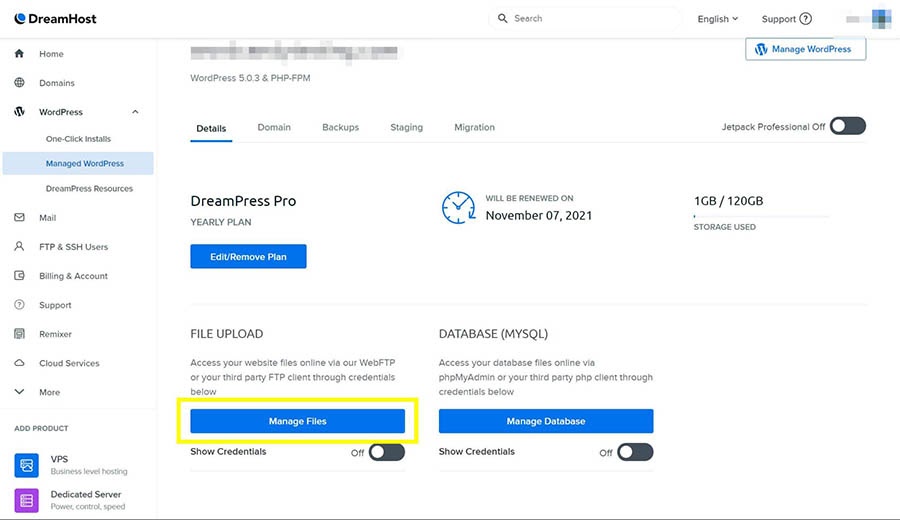
Finally, you’ll need to access your WordPress site’s file system and replace the old folder with the new one. Head to your DreamPress account (see Step 1 for instructions). Under the Details section, click on Manage Files to open the DreamHost file browser.

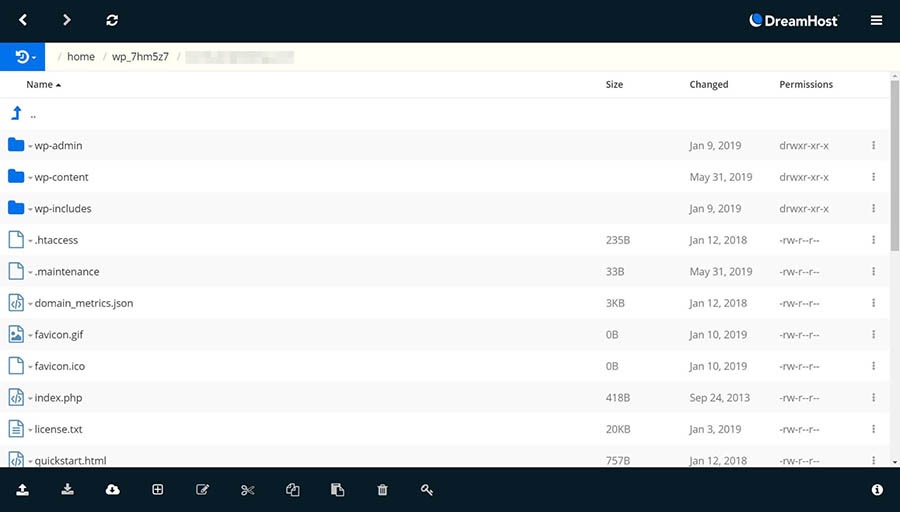
The DreamHost file manager.

If you’re not a DreamHost customer, you can also access your site via Secure File Transfer Protocol (SFTP). Navigate to wp-includes/js and upload the new copy of the TinyMCE folder using the “up arrow” button in the bottom left. Then you can refresh your WordPress dashboard and check the editor again.

Step 4: Modify the wp-config.php File

If the above fixes haven’t worked, you can try modifying your wp-config.php file to force WordPress to load scripts individually. To do so, start by opening up your WordPress site in the DreamHost file manager or via SFTP, as outlined above.

The wp-config.php file is located in the root directory of your site. Simply add the following line of code to the top of the file, right after the opening <php> tag:

define(‘CONCATENATE_SCRIPTS’,false);

Here’s what your code should look like:

The wp-config.php file, showing the location of the opening <php> tag.

When you’re done, save the file, refresh your site, and then try to load the visual editor again. If you’re still seeing the error message, proceed to the last step.

Step 5: Install the Advanced Editor Tools Plugin

Previously known as TinyMCE Advanced, the Advanced Editor Tools plugin is a version of the TinyMCE script that offers additional features.

The Advanced Editor Tools plugin.

Essentially, it provides you with a hybrid of the TinyMCE editor and the Block Editor. Also, it’s free to download and use.

After you install and activate it, you can locate the settings by navigating to Settings > Advanced Editor Tools.

The Advanced Editor Tools plugin settings.

Once it’s activated and you’ve configured the settings to your liking, refresh your WordPress site. Now, when you go to a new WordPress post or page, you should see that the previously-missing buttons appear in your visual editor.

Additional WordPress Issue Resources

Want to learn more about fixing common WordPress errors? We’ve put together several guides to help you.

Website Management Made Easy

Let us handle the backend — we’ll manage and monitor your website so it’s safe, secure, and always up.
WordPress Visual Editor Problem, Solved

If your WordPress editor is experiencing problems, such as unreadable white text or disappearing buttons, don’t worry. Like many WordPress errors, this one is relatively simple to fix, and there are multiple methods you can try.

As we’ve discussed, you can follow these five steps to resolve the white text and missing buttons error in the WordPress editor:

  1. Clear your browser cache.
  2. Deactivate your WordPress plugins.
  3. Replace the TinyMCE folder with a fresh copy.
  4. Modify your wp-config.php file.
  5. Install the Advanced Editor Tools plugin.

If you want to make troubleshooting easier, consider using DreamPress, our managed WordPress hosting solution. With DreamPress, we take care of problems for you, so you can focus on what matters.

The post How to Fix White Text and Missing Buttons in the WordPress Visual Editor (5 Steps) appeared first on Website Guides, Tips & Knowledge.


source https://www.dreamhost.com/blog/how-to-fix-white-text-missing-buttons-wordpress/

Tuesday, 16 March 2021

Door Sixteen: An Old-School Blog With a DIY Heart

In 1998 — when influencer wasn’t a career choice and Search Engine Optimization didn’t run the internet — Anna Dorfman started blogging just for the heck of it. Before the millennium, people shared their thoughts on the World Wide Web because they wanted to, without a sponsored post in sight.

“I’d love to give a shout-out to my fellow old-school bloggers — those of us who have been at it since the early days and who got into blogging long before it was something that was monetized or sponsored,” Dorfman says. “As much as I strongly believe that people should be paid for their work, there’s something special about writing just for the sake of sharing ideas and observations with the world. My favorite blogs are the ones that aren’t optimized for SEO, and where the writing is truly coming from the blogger’s heart. To those of you who are still blogging (and loving it) after a decade or two, cheers.”

As one of the OG bloggers, Dorfman and her blog from 2007, Door Sixteen, are still going strong.

“When I started Door Sixteen, I intended for it to solely cover house renovation projects, but I’ve never been able to hold that kind of focus for long,” she says. “I really just write about whatever I think is worth sharing in a format that’s longer than makes sense on social media.”

The name of her blog came from her initial inspiration to spotlight her home projects. Sixteen was the street number of the Victorian row house in Newburgh, New York that she was renovating when she launched the blog.

Want to Meet More Awesome Site Owners?

Subscribe to the DreamHost Digest for inside scoops, expert tips, and exclusive deals.

Taking Door Sixteen on the Road

Anna Dorfman headshot.

Though Dorfman has stuck with the Door Sixteen brand, her residences have changed over the years, with her blog following her to eight different homes, ranging from the Hudson Valley to Manhattan, Brooklyn, and her relocation across the country to New Mexico.

“I moved into a mid-century pueblo revival-style house in Santa Fe, New Mexico, about three years ago, and for the time being, my focus is really on documenting the renovation of the house,” Dorfman says. “This type of architecture (and the relative “newness” of a house built in 1950 versus 1890) has presented a real learning curve for me after spending my entire life in New York, and that’s translated into a totally different set of projects for my readers to (hopefully!) enjoy. Beyond that? Who knows! I have fantasies of renovating a trailer or RV to use as a vacation home, but that’s a far-off dream. The good/bad news is that houses never run out of projects! There’s always something to do and always something to share.”

Dorfman has documented her home makeovers every step of the way, sharing how to DIY a floating banquette, building cabinet cubbies for extra storage, and painting and stenciling the kitchen floor, to name a few.

What makes Door Sixteen a true standout? Unlike aspirational home blogs that follow the lives of the rich and famous, Dorfman is a real person with a real home, making everything delightfully accessible. You don’t have to be a contractor or have an architecture degree to pull off her projects.

Anna Dorfman’s mid-century pueblo revival-style house in Santa Fe, New Mexico, covered in snow.

“Beyond maintaining some kind of loose timeline of my life and homes for my own future reference, the only thing I’ve ever wanted to accomplish with Door Sixteen is making regular people with regular skill sets and regular budgets feel empowered to make their homes feel like their own,” Dorfman says.

“I don’t think it matters whether you own or rent, or whether you can only afford a few basic supplies,” she says. “Television reality shows — and now sponsored social media posts — have gone a long way toward making people feel like ‘luxurious’ living is the dream, and that comfort in your surroundings and a sense of place and permanence are goals we may never be able to achieve. Even if it’s something as simple as re-caulking the bathtub in a rental apartment, I want people to know that they deserve to feel happy about where they live and to know that they are capable of doing all kinds of renovations and repairs all by themselves.”

But Door Sixteen isn’t just renovation projects for those eager to use their tool kit.

Alt-Text: Fritz the long-haired chihuahua, Door Sixteen’s guest star

Dorfman has expanded her blog to encompass that very wide lifestyle rubric, with her musings on food and drink, health, movies, books, music, pets (her dog Fritz, a long-haired chihuahua, is a frequent guest star), and travel.

Are you looking for jewelry organization ideas? Wondering how to remove a gel manicure at home? Or where to find a fun yet functional pill organizer? Dorfman has tips and tricks for those, too.

That’s just one of the ways Door Sixteen has grown and evolved over the years.

“The biggest change has really come about because of the advent of social media,” Dorfman says. “My blog posts have gotten longer on average as a result, because brief things that would have previously made it to my blog now take the form of an Instagram post (or even just a Tweet). I don’t know whether this is good or bad, but it’s definitely an evolution. I struggle with this shift sometimes, because there’s a transient quality to social media that, over time, stands to minimize the value of things that are shared. That said, I think I personally have become a better writer and photographer as a result of working with a longer post format. It certainly takes a lot longer to create a blog post in 2021 than it did in 2007!”

Her Day Job? Book Cover Design

Despite the bounty of content and pretty presentation of Door Sixteen, blogging isn’t Dorfman’s full-time job. That would be a book cover designer, which has been her career since 1998.

“For a couple of decades I worked in-house at Simon & Schuster, and now I work on a freelance basis for a number of publishing companies,” she says. “I also have a bunch of side gigs going at any given time, which is where my blog enters the picture.”

You shouldn’t expect to see her work as a book cover designer on Door Sixteen, though. “I don’t share my book cover design work on my blog very often because it’s not something that I feel compelled to write about,” Dorfman says. “My work mostly stays within the confines of my portfolio site and occasionally social media.”

annadorfman.com showing Dorfman's book cover designs.

Though she has clearly mastered multitasking, Dorfman approaches her work much like her blog: honest, accessible, and realistic.

“I focus very little on big goals and eventual achievements and mostly on what tasks need to be addressed in the moment,” she says. “I really just want to do the best job I can with what’s on my plate on any given day. That’s probably not the key to success, but it’s who I am. Beyond that, I think keeping your desk tidy, wearing comfortable clothes that make you feel good, and backing up your computer every day are pretty good suggestions.”

Partnering with DreamHost Online

Door Sixteen’s floating corner banquette DIY project

Another arsenal in her toolbox is DreamHost, which is Dorfman’s go-to for all her websites, and they go way back.

“I became a happy DreamHost customer way back in 1999 when I started my first blog, Absolutely Vile,” she says. “A friend of mine was using DreamHost to host her personal website, and I liked the low-key, friendly attitude the company projected. It’s been 22 years now, and I’ve never looked back!”

In addition to Door Sixteen, Dorfman also has a book cover design portfolio site at annadorfman.com hosted by DreamHost. “My prints are currently only available through my drop-ship shops at Society6 and Fy, but at some point in the future I may also sell them directly from a self-hosted website—that depends whether I can find the time to manage another endeavor,” she says.

Dorfman’s favorite thing about DreamHost is the scalability. “No matter how many websites I host for myself or family members, and no matter how much (or how little) traffic those sites generate, I’m able to adjust my plan in a way that matches my changing needs,” she says.

We’ll Support Your Dream

Whatever your online goals, we’ll be right there with you, making sure your site is fast, secure, and always up. Plans start at $2.59/mo.

Door Sixteen runs on WordPress and Dorfman uses Adobe Creative Suite for any graphics or photos. For Door Sixteen’s design, she customized a version of the Florence theme from Solo Pine. And like everyone else with a blog, she uses social media to direct her followers there.

“It’s very rare that I consciously promote my blog, but I do always post links to my blog posts on social media,” Dorfman says. “I think that’s how most people keep up with their favorite bloggers these days!”

While Door Sixteen has grown and evolved over time, its mission hasn’t changed much in its 15-year existence, which is impressive in itself.

“There is nothing more rewarding than hearing from a reader that they’ve taken on some kind of task because they felt empowered by something I wrote,” Dorfman says. “It could be anything from painting a room to embarking on the restoration of an entire historic property — I love knowing that people are trusting themselves to do things that might have seemed impossible otherwise.”

The post Door Sixteen: An Old-School Blog With a DIY Heart appeared first on Website Guides, Tips & Knowledge.


source https://www.dreamhost.com/blog/customer-spotlight-doorsixteen/

Thursday, 11 March 2021

The DreamHost Control Panel Keeps Getting Better

In the first post of this series, we introduced some exciting recent updates to the new Websites section of the DreamHost account control panel! We looked at Grid View for browsing the sites in your account with previews of their homepages and List View for showing your domains in greater detail.

But this redesign wasn’t just about looks — it’s already enabled us to add new features to the panel in record time! Free WordPress Migrations, Change Your Domain, and DNS Propagation Tracking are available to all DreamHost customers right now!

In our last post, we also touched on the history (namely the what and the why) of our new approach to helping you manage your websites, but we didn’t have time to get into the details on all that we’ve been able to accomplish already with the new platform! It’s a new day and a new blog post. Let’s get to it!

You’ve Got to Move It, Move It

Free WordPress Migrations have been a game changer for anyone with an existing website who wants to move it to a new home here at DreamHost. Migrating WordPress sites across web hosts can be tricky, with multiple opportunities for things to go sideways.

The decision to switch hosting providers is a big one and is often easier said than done!  Our new custom migration plugin eliminates any pain and confusion from the transfer process and frees you up to focus on what matters.  You won’t even have to think about futzing with hosts files and database entries, and you won’t have to hold your breath wondering if everything will work after DNS finishes propagating!

Simply install the DreamHost Automated WordPress Migration plugin, grab the migration token from your DreamHost control panel, and paste that token into the plugin. Our migration robots then go to work while you sit back, relax, and binge Ted Lasso.  Once your site’s data is moved over, update your domain to use DreamHost’s nameservers, and you’re live!

Build It Now, Name It Later!

Let’s say you’re not quite ready to hit Publish with your website. Maybe you’re still searching for the perfect domain name. Maybe you’re working on a new version of your site quietly behind the scenes with a temporary domain. At some point, you’ll need to change the domain name that’s associated with your site. Sounds simple! Right?

Unfortunately, updating the domain on a WordPress site can be a complex, tedious task, fraught with peril and downtime if everything doesn’t go just right.

While it’s always been safe to use a free temporary domain (e.g., something.dreamhosters.com) for a site that’s not quite ready for prime time, the necessary behind-the-scenes WordPress configuration changes have been another matter. The site owner is normally responsible for updating their website to actually work with the new domain. Unless you’re the type that already knows their way around a .htaccess file, it can be a daunting experience.

We developed a site renamer function for our Managed WordPress offering, DreamPress, years ago. It handled the heavy lifting, updating a website’s details and databases to work with its new URL. The renamer proved to be such an essential tool that we wanted to share it with all of our WordPress users — and this project gave us a chance to make that happen!

While One-Click Staging is still exclusive to DreamPress, anyone can now stage a WordPress site using a temporary domain, thanks to the new Change Your Domain feature in the control panel!

See? That’s What I Was Talking About…

The DNS propagation checker in the DreamHost control panel.

The most exciting new feature of our domain management tools came out in February 2021!

For years, our support team has risen to the challenge of educating customers about how DNS and domain name propagation works. While our customers’ general tech-savviness has steadily increased over that time, DNS is still a difficult concept to articulate via emails, chats, and phone calls. Most of the time, users want to know one main thing: Can the world see my website?

We set out to create a more visual way to provide real-time feedback on your domain’s status — and the new DNS Propagation Checker was born!

With this tool, users can instantly perform a DNS lookup against multiple nameservers located in different parts of the world. It will alert you when a site is not pointed to DreamHost’s nameservers, verify when propagation has completed, and enable you to check and view the status of any record type (MX, CNAME, etc.) in real-time on a map. No more wondering whether your DNS is good to go!

There’s Much More To Come!

We can’t get enough of the new Websites control panel, and we hope you love it too! From its new look and feel to the foundational improvements that are already helping our eager developers roll out additional features quicker than ever before, this is just the beginning!

We have more improvements and features for our new domain management system in the works, including tools to help you master your SEO and drive more qualified traffic to your site, a reboot of our popular DreamShield Malware Remover service, and a series of improvements to our flagship Managed WordPress service DreamPress. Check out the new Websites control panel now!

The post The DreamHost Control Panel Keeps Getting Better appeared first on Website Guides, Tips & Knowledge.


source https://www.dreamhost.com/blog/more-control-panel-improvements/
Wednesday, 10 March 2021

10 Most Important Digital Marketing Trends for 2021

2020 was an unprecedented year by all accounts, throwing challenges at businesses most could never have imagined, let alone planned for. Thankfully just three months into 2021 and some semblance of normality seems to be returning — albeit with caveats.

Many of us have had to make drastic changes to the way in which we operate. Many of us work with customers or clients who have had to do the same. The effects of this will continue to be felt long after normality has resumed, and this includes how we market ourselves.

Digital marketing is always evolving. Every year new trends appear. Existing tactics start to gain traction. And others are resigned to the dustbin.

2021 is somewhat different.

Not because there are no changes. Far from it. But because many of the things driving change have not been seen (at least on the sort of scale seen in 2020) since long before the advent of the internet.

If we are to learn anything from this, it’s how important it is to future-proof our brand against the unexpected. To increase brand loyalty. To diversify. To be ready to adapt. And to market ourselves harder and smarter.

On that last note, here are 10 of the most important digital marketing trends to pay attention to in 2021.

1. More Companies Adopt AI Technology

We’re sure you’ve heard of AI and Machine Learning — but did you know it’s more accessible than ever to businesses on a budget?

AI will power the future of digital marketing, and 2021 is when we will see it take off. Marketers can use AI for:

  • Content creation (yes, some content doesn’t need a human writer)
  • Personalization marketing
  • Chatbots that can provide customer service
  • SEO software that can write thousands of product descriptions in a matter of minutes
  • Marketing automation

A word of caution as you start to look at how you can apply AI to your digital marketing, however. Some companies use the phrase without actually applying any AI to their service. Be wary about these tools’ outputs and never invest without thoroughly checking what is produced on the other side.

While it may seem like a great way to save money and resources, consumer AI is still in the early stages of its development.

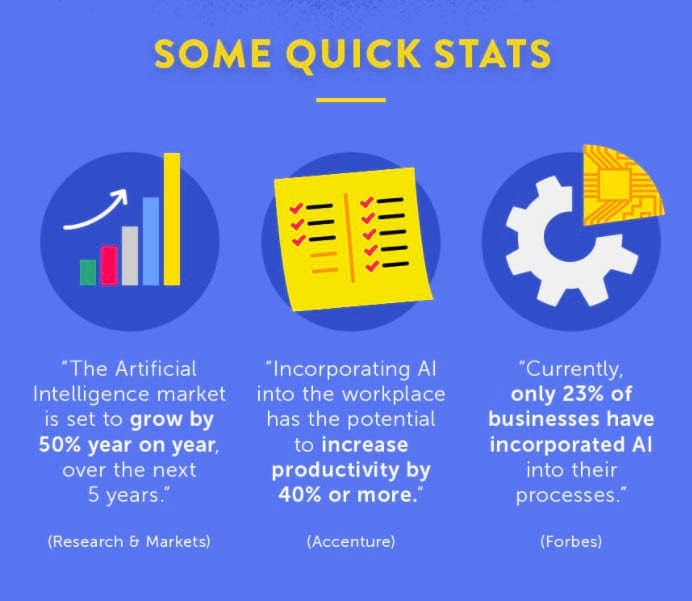
That said, it’s a good way to get ahead. Look at this data collated by Adzooma.

Adzooma AI Quick stats

2. Easy-to-Consume Content Will Become More Prevalent

As any content marketer knows, Google has always said that content is king.

Over time some studies have shown that longer content performs better. But these studies have one problem. They’re rarely based around a particular set of search results or niche. And this makes the results a little misleading.

Marketers have created epic guides and content pieces that go over the much-loved 1500 wordmark. But there’s more nuance than that.

You need to know what works in your vertical. What helps you convert visitors into customers.

With the advent of passage-based ranking from Google, we have seen a shift. What was gospel (as far as marketing experts were concerned) is no longer necessarily true. Google is able to not only look at different sections of a site from a different perspective, but also the singular pieces of content themselves.

Forward-thinking digital marketers have seen this and are already adjusting older content to more closely emulate what ranks well.

While it is mainly anecdotal, we’ve seen that the easier content is to consume, the better it tends to perform.

When we say easy to consume, we are talking specifically about:

  • Content that answers specific questions rather than being an epic guide
  • Content that is broken down into distinct sections
  • Content that is visibly more appealing
  • Content that serves a purpose for the user and guides them to take the actions that they set out to achieve

Expect to see a lot more of this in 2021 and well into the future.

3. Culling Social Media Channels Will Be On Social Media Marketers’ Minds

What? Getting rid of social media channels is going to be a marketing trend in 2021?

We have seen a recent resurgence of brands like Chase and Uber completely turning off paid digital ads, with no drop in custom or revenue. In 2021, expect to see an increasing number of brands follow suit and move partly, if not entirely, away from paid social.

For years brands thought that the more channels they were on, the more business they would drive. It’s apparent that this just isn’t sustainable. You need to be more selective.

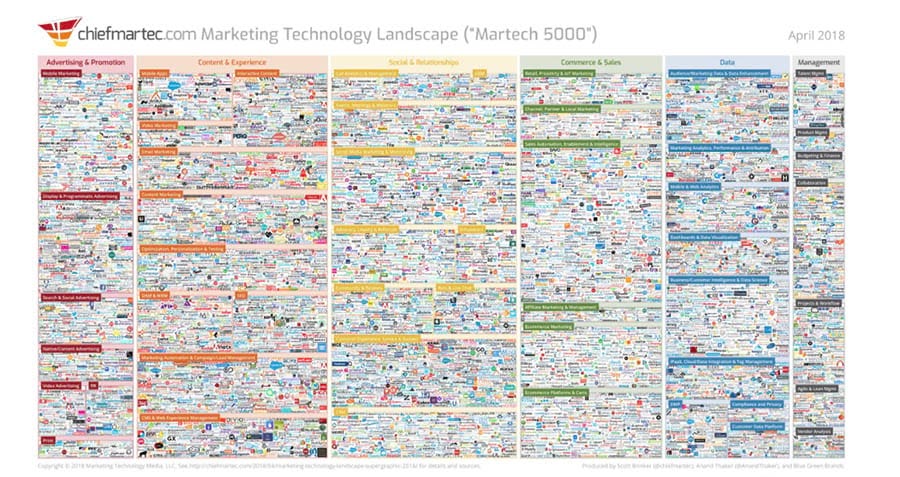
It’s not surprising when you look at how many social channels you *could* be on.

Marketing Technology Landscape Supergraphic (2019)
Image Source

Do you want to pull all the social media channels out of this tech stack?

As marketers gather even more data to help them figure which channels actually add to the bottom line, expect them to start culling the ones that just don’t give them an ROI.

4. UGC to Enhance the Customer Experience

UGC (or User Generated Content) has a bad reputation in digital marketing. Traditional pieces of content were left open for others to contribute to, often without moderation. This can lead to many issues — specifically trust issues on Google’s part (more on this later).

But it’s seeing a resurgence; not just on websites but on social channels as well.

By offering incentives like discounts and freebies, brands can tap into their audience — the people who already love their brand — to spread their message further and more effectively.

When there’s so much noise across digital marketing channels, it becomes less about the brand and more about the people who already use it.

Add to this that it cuts down on the amount of content that digital marketers have to produce, and it’s a win-win situation.

5. Virtual Events Are Going to Be Sticking Around

In 2020, we didn’t have a choice.

If we wanted to put on an event or a conference, it had to be virtual. If we wanted to attend a conference or event, it had to be virtual.

COVID-19 has changed events forever. While events and conferences will return to the real world at some point, many organizers are likely to keep them virtual (or at least do a mix between in-person and virtual events). There are mutual benefits to this:

  • Virtual events are cheaper to put on and thus less expensive — if not free — for the attendees.
  • There are no geographic restrictions — a virtual event can be attended from anywhere in the world with a decent wifi connection. This benefits attendees, but it also benefits the organizers, who have a bigger talent pool to pull from when it comes to speakers.
  • As people get more used to virtual events, it becomes possible for smaller companies to put on events when previously, the costs were prohibitive.
  • Niche events that would have been harder to put on due to small audience numbers can go ahead when conducted online.

We all want to return to some kind of normality. We want to be around people (well, some of us), but there will be a bigger choice of events. That befits the consumer and the attendees much more.

6. Increase in Voice and Visual Search

When reports show that around 55% of American homes will have some sort of smart speaker in their home by 2022, you can see why this will be an emerging digital marketing trend from 2021 onwards.

Savvy marketers know that voice search will be critical in the future if you want your customers or prospective customers to know who you are and what you stand for.

Voice search is about branding and delivering value-based content to your customers.

For some brands, visual search will play a more significant part in their strategy and start to come into its own in 2021.

When you have brands that are embracing Pinterest Lens and Google Lens, you need to stop and think. If they are seeing success, how are they doing it? How are they using it to drive business?

Visual search will be big moving forwards, and if you’re in a niche like fashion, beauty, food, or home decor, you should be keeping a close eye (no pun intended) on developments. You might not need to be the maverick or the pioneer, but you need to be an early adopter if you want it to work for your brand.

7. Google Core Updates and EAT

Google has been especially busy in the last few years, striving to make sure that their search results are as relevant as they possibly can be. While this has always been their mission, they seem to have ramped it up recently.

There have been several significant changes to their algorithm in the last three years — referred to as Core Updates. While your typical site owner might not be aware of these, most digital marketers are.

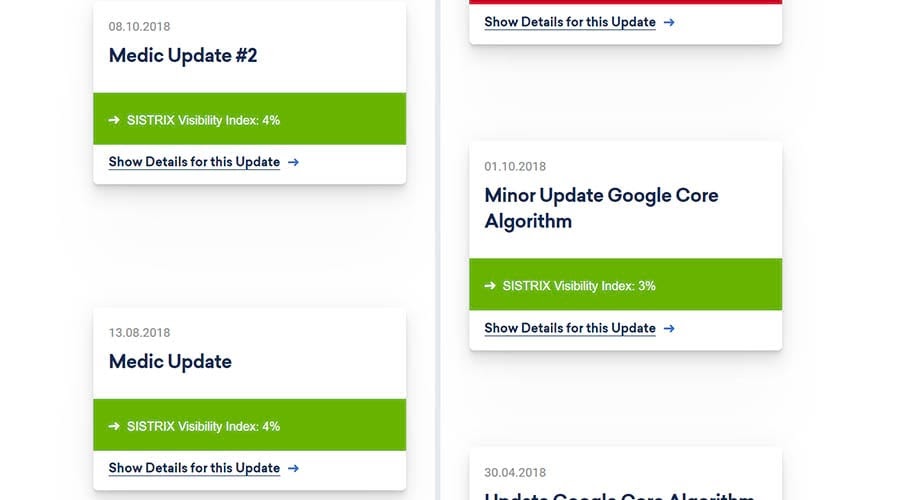
If you want to find out if your site has been affected, you can check using this nifty tool. Simply pop in your domain name to see if you’ve won or lost with each of these updates.

Google Updates Calendar in Sistrix

But how are domain owners and websites making sure that their business stays on top of these updates?

That’s a little more difficult — especially when Google doesn’t explicitly say what changes they’ve made. That said, you can read between the lines when they share things on their Google SearchLiaison Twitter account.

Webmasters and SEO specialists have been concentrating on improving their sites with several tactics.

Trying to Improve E-A-T on Their Sites

Yeah, it sounds odd, but it stands for Expertise, Authority, and Trust. Put simply, this is about increasing — or at least demonstrating — that you are an expert in your field. That your content should be considered more authoritative than content from others in your niche.

We don’t have enough time to go into it here, but you can read more about E-A-T in these articles:

Improving Website Usability

In other words, paying more attention to the user journey and tweaking your user experience (UX) in response. Google wants to reward sites that give the best possible experience when on their site, so this is one (very important) way of helping your site move up the rankings.

Expect both of these to be vital for your SEO strategy in 2021 and beyond — especially when Google rolls out Core Web Vitals[a] as a ranking factor later this year.

Search Engine Optimization Made Easy

We take the guesswork (and actual work) out of growing your website traffic with SEO.

8. SERP Features Become Even More Important

For several years, Google has included a wealth of new features across both mobile and desktop. The cynical digital marketer will say this keeps users on Google for longer, so more ads can be served. But it’s not that simple.

They serve another purpose. They are genuinely useful for the user (never forget that Google’s original focus was “to organize all of the world’s information.”)

The most common Search Engine Result Page features include:

  • Featured snippets
  • Knowledge panels
  • News boxes
  • People also ask
  • Shopping results
  • Site links
  • Image packs
  • And much, much more
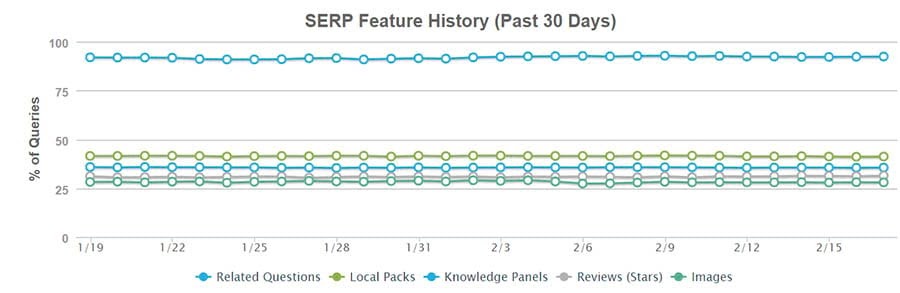
 Moz Pro SERP feature over time
Image source

As real estate in the search results gets increasingly scarce, you can be sure digital marketers will work out the best way for the websites they work on to get more visibility.

Over the last few years, we have seen lots of guides to getting featured snippets for sites, in order to secure the top spot for any given search query. But more and more marketers are now looking to see where else they can gain visibility.

As long as the SERP features they rank for drive traffic and revenue, marketers will try to capitalize on them.

Keep an eye out for new features when launched, and skate where the puck is heading.

9. SEO Testing Will Become More Prominent  

Many digital marketers have been investing in CRO (Conversion Rate Optimization) for years, and rightly so. It helps generate more revenue (or leads) from the traffic you’re already getting. What’s not to love?

Unfortunately, testing for search engine optimization has recently become somewhat problematic. However, some big companies found workarounds. Take Pinterest and eBay, for example. You can read about their testing and experiments here:

However, implementing this sort of strategy is tough without a big team. As a result, numerous platforms have popped up that make testing more affordable and accessible, creating opportunities for smaller businesses to jump on the CRO bandwagon. These typically use either Google Search Console data and A/B testing.

While some software is still a little expensive for the average business (like SearchPilot), several cheaper options make it really easy to roll out experiments and then apply learning to other parts of your sites or other sites entirely.

If you want to find out more about how SEO testing works, you should check out these tools:

You can be sure that many digital marketers are already doing so and helping their businesses or clients get better rankings in the search engines.

10. More Brands Start Using TikTok

TikTok — it’s everywhere, right?

We’ve saved the most contentious trend for last on purpose. Tik Tok gets a bad rep. There have been issues with censorship and bans in some countries. But you can’t deny its growth.

Some social platforms come and go, and you can’t keep an eye on them all — never mind having your brand on them all (see No. 3). But Tik Tok seems here to stay and has been embraced by younger and older generations alike.

Tik Tok isn’t going to be suitable for every brand, but it will be a valuable acquisition channel for some. As 2021 continues, we think you should be keeping a close eye on how bigger brands fold Tik Tok into their social media marketing campaigns and what you may be able to do to emulate their success.

Marketing Insights in Your Inbox

Whether you need help finding a target audience, choosing a social media channel, or increasing brand awareness, we can help! Subscribe to our monthly digest so you never miss an article.

What’s Your Digital Marketing Strategy?

2020 was a tough year. 2021 offers hope. Many brands that struggled through the last 12 months are starting to recover.

But this doesn’t mean we should rest on our laurels. We need to learn from the events of the last year. We need to understand that getting too comfortable is dangerous — that we can never predict what’s around the corner.

And we need to embrace change. Both in how we operate and how we market ourselves.

  • Adopting AI technology
  • Being smarter about the social channels we invest in
  • Changing our approach to content creation
  • Welcoming user-generated content
  • Being virtual where possible
  • Considering voice and visual search
  • Paying closer attention to Google’s updates
  • Targeting more SERP features
  • Boosting conversions via testing

These are all things that will help shape digital marketing over the next 12 or so months. Don’t fall behind. Embrace them. Use them. And hopefully, we’ll all see the success we deserve in 2021.

The post 10 Most Important Digital Marketing Trends for 2021 appeared first on Website Guides, Tips & Knowledge.


source https://www.dreamhost.com/blog/digital-marketing-trends/

Monday, 8 March 2021

What Are Core Web Vitals? And Why Is Google Setting a Minimum Threshold for Them?

As you may know, Google measures over 200 signals to determine search engine results and rankings. Among those signals (or factors), there are several metrics that focus less on Search Engine Optimization (SEO) and more on your website’s overall User Experience (UX).

Core Web Vitals fall into the latter category. In 2020, Google announced that it will begin to measure Core Web Vitals for websites to determine whether they will qualify for a ranking signal boost. These vitals include elements such as visual stability scores and page load times, and the update is due to roll out in May 2021.

If all that doesn’t make much sense at this point, don’t worry! In this article, we’ll talk about what Core Web Vitals are, why they’re important, and how Google’s announcement affects you as a site owner. Then we’ll show you how to measure and improve your Core Web Vitals score. Feel free to jump ahead to the sections you’re most interested in:

Ready? Let’s get to it!

An Introduction to Core Web Vitals (And Why They’re Important)

The upcoming Google update is all about improving the page experience for users. To do that, Google will take into consideration the “page experience signal” – a set of metrics that when taken together translate into a better UX.

Among those metrics, you have factors such as:

Those may not be the type of signals you usually think about when trying to reach the top of search engine rankings. Traditionally, users worry more about keyword optimization, metadata, content, etc. However, it’s not news that Google also takes website performance into account when determining search results.

With the Web Vitals initiative, Google’s goal was to figure out which page experience signals have the most significant impact on UX. The three metrics Google landed on as most important are the Core Web Vitals. Every site can measure these metrics, and if yours fall within a specific threshold, you’ll likely get a ranking boost. Let’s go over what those three Core Web Vitals are.

Search Engine Optimization Made Easy

We take the guesswork (and actual work) out of growing your website traffic with SEO.

1. Largest Contentful Paint (LCP)

When we measure a website’s loading time, we usually talk about one set of numbers. For example, we say a website loads in one second or two. However, that’s not the most accurate way to measure loading times.

As you may know, websites don’t load in one fell swoop. If you visit any site right now, you’ll see that some elements load before others. You might see part of the page appear near-instantly, but the rest of it may take some extra time.

A more accurate way to measure page loading times is by using multiple metrics. Among them, you have the following two factors:

  • First Contentful Paint (FCP): How long it takes for the first element on a page to appear in your browser.
  • Largest Contentful Paint: This measures how long it takes to load the largest element on a page in your browser. In other words, it tells you how long it takes for a page to finish loading.

Google uses FCP as one of its Core Web Vitals because it gives you a good idea of how fast or slow your website is. In practice, LCP scores can vary from page to page, depending on how much traffic your website receives, your server response, and many other factors.

PageSpeed Insight results showing FCP and LCP numbers.

Users tend to leave a website if it takes over two seconds to load. Google understands that, which is why it’s best to keep LCP times under that threshold.

As soon as the Web Content Vitals update rolls out, Google will start to measure these elements for websites it ranks, with different thresholds for each. We’ll show you an overview of what those thresholds are in a minute. For now, let’s talk about the second Core Web Vital.

2. First Input Delay (FID)

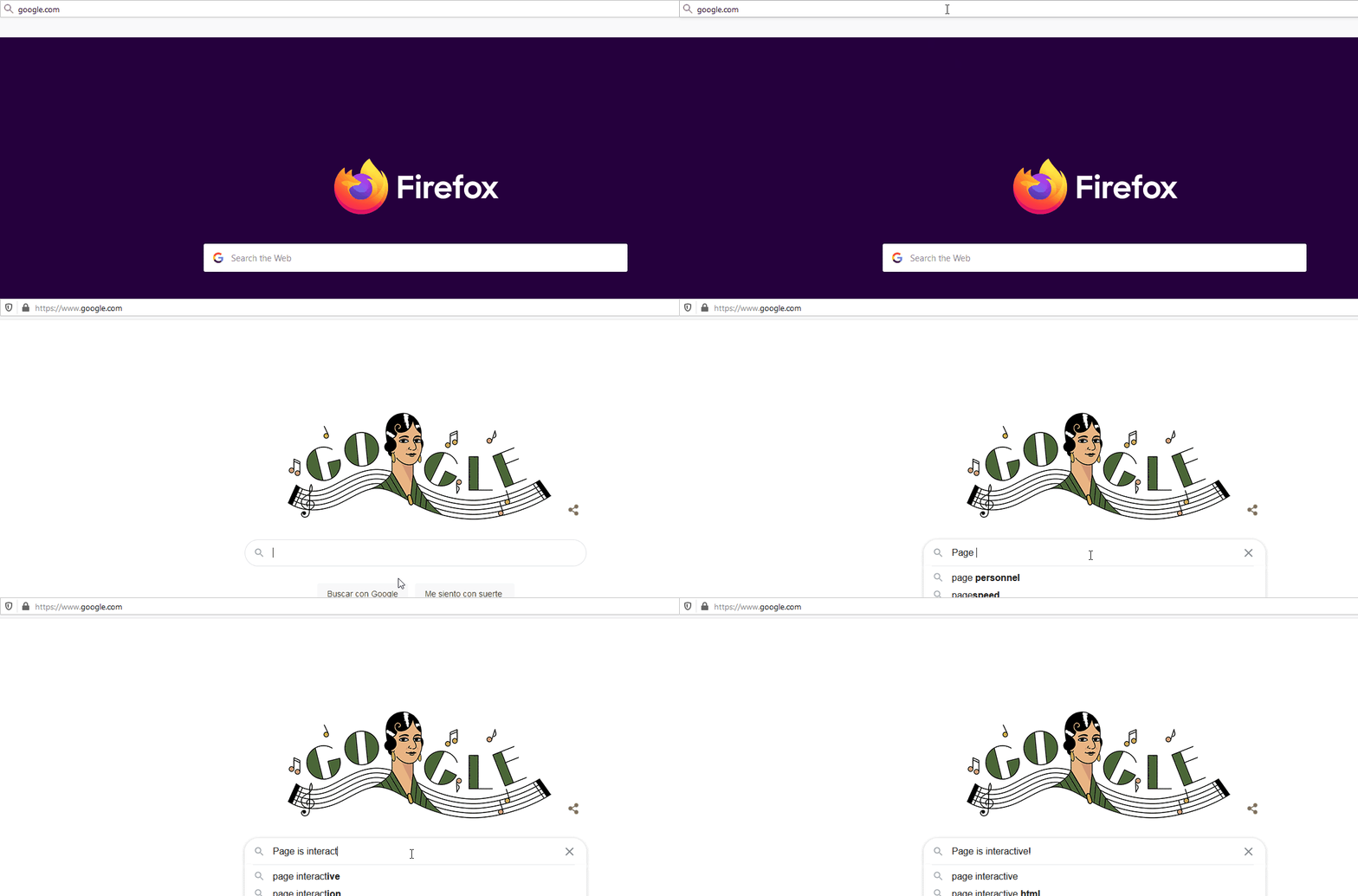
If a website takes too long to load, it will also be delayed before it becomes interactive. The First Input Delay (FID) measures precisely that — how long it takes for a page to be interactive after it loads.

Measuring how long it takes for Google.com to become interactive.

By “interactive,” we mean any action that involves receiving feedback from the website, such as clicking on a button, submitting a form, executing mouseover effects, and more. Ideally, FID should be near-instant.

FID results from PageSpeed Insights

In the above example, you can see that our test website takes 31 milliseconds (ms) to become interactive. By Google standards, anything below 100 ms is fantastic.

As far as UX goes, this metric is important because it can make using your site more enjoyable. If you see that a page finishes loading, but you can’t interact with it, that can be frustrating. It may even lead users to think that the page is broken.

Usually, if there’s a significant delay between the time a page takes to render and the time it takes to become interactive, it’s due to scripts loading in the background. If those scripts take too long to load, your FID times will go up.

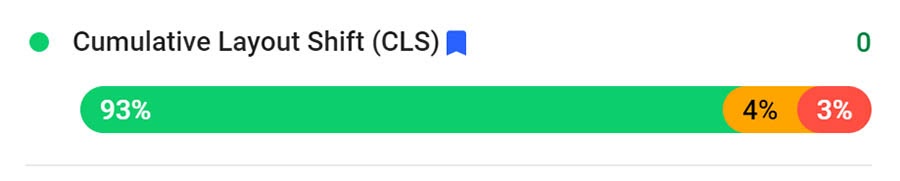
3. Cumulative Layout Shift (CLS)

There are few experiences as frustrating as loading a website and trying to click on something, only for the entire page to shift as more elements render. That’s called a “layout shift,” and CLS measures how long it takes for a whole page to stop moving around.

CLS results from PageSpeed Insights

By Google standards, your layout shift scores or CLS times should be below 100 ms. The closer that number is to zero, the more stable your pages will look as they load.

CLS becomes even more critical for mobile users since elements are more likely to shift around on smaller devices. That’s why it’s important to remember that a good CLS score on desktop might not translate to the same results on mobile.

What Google’s Announcement About Core Web Vitals Means

The concept of Core Web Vitals is simple. You want LCP, FID, and CLS times to be as low as possible. If they are, it means that you’re providing a better UX and that you might get a rankings boost from Google.

However, if you want to get that boost, your metrics need to fall within the recommended thresholds for each vital. Google separates results for each metric into three tiers:

  1. Good
  2. Needs improvement
  3. Poor

Now let’s take a look at what the thresholds are for each tier and Core Web Vital:

LCP FID CLS
Good < 2.5 seconds < 100 ms < 100 ms
Needs Improvement 2.5-4 seconds 100-300ms 100-250 ms
Poor > 4 seconds > 300 ms > 250 ms


Ideally, you want all three metrics to fall within the Good range as dictated by Google. If your Core Web Vitals all look good, then, in theory, you’ll get a ranking boost. However, the specifics of how this process works are still unclear, including:

  1. What happens if not all of your Vitals are within the optimal range (but some are)
  2. Whether websites that meet all of the criteria will get a badge of some sort in the Search Engine Results Pages (SERPs)

One thing we do know is that positive Core Web Vitals benchmarks will become a requirement if you want your page results to appear in the Google “Top Stories” section.

An example of the Google top stories section.

Aside from the initial ranking boost that Google promises, the inclusion of badges and having your pages featured in Top stories should also significantly impact your Click-Through Rates (CTRs).

It’s equally important to understand that by improving Core Web Vitals, you may be able to significantly reduce your bounce rate and get users to stay on your website longer. However, your mileage may vary.

For now, the recent Google algorithm update is slated to release in May 2021. This means you still have plenty of time to measure and optimize your Core Web Vitals.

How to Measure Core Web Vitals (2 Tools)

If you want to improve your Core Web Vitals metrics, you need to have an accurate picture of what they are. There are lots of tools you can use to get an idea of how fast your website loads. However, if you want a Core Web Vitals report, we recommend the following two options.

1. PageSpeed Insights

PageSpeed Insights is an online service that uses Google Lighthouse tools to give your website a performance score and provide you with metrics to measure how it stacks up against other sites.

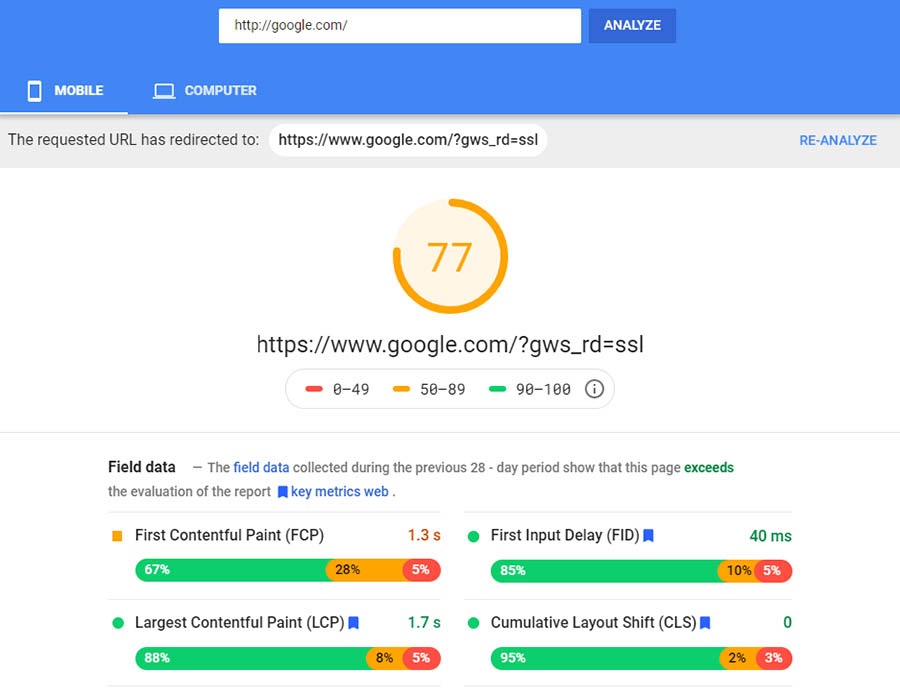
Throughout this article, we’ve shown you snippets of PageSpeed Insight results. To use the tool, you can visit its website and enter a URL to test it. Then you’ll see a results page such as this one:

PageSpeed Insights mobile results.

As you can see, the Field data section includes all the Core Web Vitals that Google wants you to keep an eye on. If the numbers are green, they fall within the Good threshold. Yellow stands for Needs improvement and Red for poor.

Taking a close look at each result, you’ll notice that PageSpeed Insights tells you what percentage of your page’s elements fall within each performance category. In the above example, all the results are green except for FCP. What’s more, the LCP score is less than two seconds, which tells us that google.com loads pretty fast (which shouldn’t come as a surprise).

PageSpeed Insights also provides you with both mobile and computer scores. By default, it shows your mobile score first, and you can switch between them using the tabs at the top of the screen.

PageSpeed Insights desktop results.

Usually, there’s a slight difference between mobile and computer scores. However, both scores should improve when you optimize your website, and the associated Core Web Vitals should go down for each.

One great thing about using PageSpeed Insights over other website speed testing tools is that it provides you with cumulative data for the past 28 days (if it’s available for your site). That means the numbers you see aren’t a snapshot from a specific time but rather an average of data collected over an extended period.

2. Search Console

Search Console is one of the most powerful SEO tools you can use for your website. It shows you massive amounts of information that can help you optimize your website, improve traffic, and fix SEO issues.

In 2020, Search Console started showing Core Web Vital metrics within its dashboard. To see yours, navigate to Enhancements > Core Web Vitals.

Core web vitals in Google Search Console.

Although the results might be a bit harder to read than with PageSpeed Insights, Search Console offers three major advantages over using PageSpeed Insights directly, which are:

  1. You can see how Core Web Vital scores shift over time, thanks to the included graphs.
  2. The report enables you to see both Mobile and Desktop results on the same page.
  3. Search Console measures Core Web Vitals for your entire website instead of a single page.

Being able to measure site-wide Core Web Vitals alone is more than enough for us to recommend that you use Search Console. If you want to meet Google’s criteria for Core Web Vitals before the algorithm update rolls out, this is the best tool to make that happen.

How to Improve Your Core Web Vitals Score

By and large, you can improve Core Web Vitals score by improving your website’s performance. There are several ways to make your pages load faster and become interactive sooner. However, here’s what we recommend you focus on to improve each vital:

  1. LCP. You can use a performance-oriented hosting provider that offers fast server response times, remove unnecessary scripts from your site, optimize media elements on your pages, and enable lazy loading.
  2. FID. We recommend that you enable browser caching and remove unnecessary scripts or defer non-critical JS, so it doesn’t stop other elements from becoming interactive.
  3. CLS. If you want to make CLS a non-issue, you can set specific dimensions for all the media on your pages and load non-critical interface elements below the fold, so your page doesn’t shift initially.

If you’ve already spent time optimizing your website for performance, many of those methods should be familiar. Overall, improving your Core Web Vitals isn’t as tricky as it sounds. However, we recommend that you start measuring the metrics before you do any work on your website, so you can see how your loading times improve after each change.

Ready to Boost Your Performance Metrics?

Whether you need help improving a ranking factor, understanding page experience, or using Chrome DevTools, we can help! Subscribe to our monthly digest so you never miss an article.

The Secret to SEO? A Good User Experience

We know that Google tracks hundreds of signals and metrics to determine search ranking positions. Every new algorithm update changes the game slightly, and with the Core Web Vitals update, Google is showing us that it’s going to start looking even closer at the quality of each website’s UX.

Measuring positive UX isn’t as simple as tracking SEO metrics, however, which is why Google relies on the three Core Web Vitals to see if you’re doing a good job. Those vitals are:

  1. LCP: How long it takes for the largest element on each page to load.
  2. FID: How long it takes for a page to become interactive.
  3. CLS: How long it takes for elements on your page to stop shifting.

Are you ready to improve your website’s UX and get to work on its SEO? DreamHost Pro Marketing service empowers you with a team of experts to help you get more traffic for your site!

The post What Are Core Web Vitals? And Why Is Google Setting a Minimum Threshold for Them? appeared first on Website Guides, Tips & Knowledge.


source https://www.dreamhost.com/blog/google-core-web-vitals/

Wednesday, 3 March 2021

Introducing DreamHost en Español

You may not realize this, but we speak Spanish!

Some of us always have.

But DreamHost — the brand, the myth, the legend — is bilingual!

Spanish is the official language of nearly two dozen countries and territories around the world, with over 477 million native speakers worldwide.

Heat map of the world showing country names of 477 million native speakers worldwide and 95 million plus additional speakers.

With numbers like those, it’d be silly for us to only cater to an English-speaking audience. DreamHost’s mission is to help businesses succeed online — wherever they happen to be.

Being able to speak with small business owners in their native language while they work to find success online is important to us, so we made it happen!

Growing The Team

In 2018, we hired a Spanish-speaking team of specialists to provide technical support for our growing customer base. Offering technical support to our Spanish-speaking customers in their native language was just a first step, however.

Going All The Way

With two years of experience providing bilingual technical support, we decided to double down on our efforts to better support our Spanish-speaking customers.

In 2020, we launched translated versions of our own website, our knowledge base, our customer control panel, and all of the transactional emails that we send our customers to provide a seamless, Spanish-first experience.

You Could Be Reading This in Spanish

All the great tutorials you’ve come to expect from the DreamHost blog are now available in Spanish.

Every web interface, email, blog post, or press release we write will always be available in both English and Spanish.

Want to Make the Switch?

Enabling Spanish support on your DreamHost account is as simple as changing your browser’s default language.

You can also toggle between languages on your control panel by clicking the drop-down in the upper right corner. Please note that changing your control panel’s language will also change our emails to you.

Toggling between languages in the DreamHost control panel

We’re thrilled to be able to provide a fully translated DreamHost experience as we continue to partner with customers around the world to help them find success online.

The post Introducing DreamHost en Español appeared first on Website Guides, Tips & Knowledge.


source https://www.dreamhost.com/blog/introducing-spanish-language-initiative/

Tuesday, 2 March 2021

How to Fix WordPress Error 404 Not Found

You’ve likely seen the “Page Not Found” error before. Unfortunately, if you operate a website of any sort (WordPress or not), the day will probably come when you see the message on one of your own pages.

Fortunately, like many common WordPress errors, 404s are relatively easy to troubleshoot and fix. The solution usually involves restoring your site’s permalink structure — something you can do in just a few minutes.

In this article, we’ll explain just what a 404 error is and what can cause one on your site. Then we’ll walk you through how to fix it in four simple steps. Let’s get started!

An Overview of the WordPress 404 Error

A 404 error, also known as a “Page Not Found” error, indicates that your browser can’t locate the page you’re trying to access. The exact message can look a bit different depending on the browser you’re using, but it will generally always contain either the “404” code or a “page not found” message of some kind.

Websites can also create their own custom 404 pages.

A custom 404 error page.

Seeing this notification (or any other error message) when you’re trying to access your site can be frustrating. While there is a chance that your post has actually gone missing, the vast majority of the time, there’s a more benign cause.

Some common reasons that WordPress posts might return 404 errors include:

  • A mistyped URL. It could simply be attributed to a typo in the URL. This is the most common cause.
  • An issue with your Domain Name System (DNS) settings. If you’ve recently updated any of your DNS information and you’re seeing this error, it could be because the changes haven’t propagated fully. It can take up to 48 hours for this process to complete.
  • Problems with the permalink structure of your site. Permalink problems can be caused by a missing, broken, or corrupted .htaccess file. Compatibility issues with WordPress components such as plugins and themes could also be the culprit.

Regardless of the cause, this error prevents access to your site, so it needs to be resolved as quickly as possible. We’ll look at troubleshooting and resolving the problem shortly.

Skip the Stress

Avoid troubleshooting when you sign up for DreamPress. Our friendly WordPress experts are available 24/7 to help solve website problems — big or small.

Why 404 Errors Matter

404 errors pose several problems for a website, beyond simply preventing you from accessing pages. First, they create a poor User Experience (UX).

If there are many of these errors on your site, and they aren’t resolved quickly, they could eventually turn users away. In the worst-case scenario, those visitors could land on a competing website instead, costing you business.

404 errors can also hurt your Search Engine Optimization (SEO). Search engine crawlers won’t index a page that returns a 404 because they think it doesn’t exist.

What to Do Before Troubleshooting the WordPress 404 Error

Before changing your permalink settings or .htaccess file, it’s a smart idea to create a backup of your website and database. This way, if you accidentally make something worse, you can easily restore your site to a functioning state.

If your website is hosted with DreamPress, backups couldn’t be easier. DreamPress automatically backs up your entire site every day, so you always have a fresh copy to access. You can also create a manual backup with just a few clicks.

How to Fix WordPress Posts Returning 404 Error (In 4 Steps)

With a fresh backup of your site in hand, it’s time to get to work. You’ll want to follow these steps in order and check if the error has been resolved after each one.

Step 1: Reset Your WordPress Permalinks

The first step to try is resetting your permalinks. Head to your WordPress dashboard and navigate to Settings > Permalinks.

The WordPress Permalink Settings page.

From here, just click on Save Changes. That’s right — you don’t actually need to edit anything. Clicking that button will update the permalink settings even if you don’t make any changes. This is important because it also refreshes the rewrite rules used for “pretty permalinks.”

With this done, go ahead and reload the pages you were trying to access. If everything works, you’re all done. If you still get a 404 error, head to the next step.

Step 2: Restore Your .htaccess File

If resetting your permalinks didn’t work, the next strategy is restoring your .htaccess file. This controls how WordPress interacts with the server and how it generates permalinks for your pages. Restoring it to the default settings can fix sudden 404 errors.

To restore the .htaccess file, you’ll first need a way to access it. If you’re using DreamPress hosting, you can use the built-in file manager found in the DreamHost control panel. Most other web hosts offer a similar feature, or you can use a Secure File Transfer Protocol (SFTP) client such as FileZilla. We have detailed instructions for connecting via SFTP if you need help.

For this example, we’ll use the DreamHost file manager. Head to your DreamHost panel and navigate to WordPress > Managed WordPress in the sidebar.

The DreamPress domain settings page.

Find the domain you’re having trouble with and click on the blue Manage button. On the next page, make sure the Details tab is selected at the top, and then click on Manage Files.

The DreamHost file manager.

This will open the file manager in a new tab. Locate and click on the folder that corresponds to your domain name. You’ll find the .htaccess file in this directory (it’s the same one that contains items such as wp-content).

The location of the .htaccess file in the WordPress root folder.

Next, click on the file name and select Edit from the list of options. You can copy the current contents of the file and paste them somewhere for safekeeping. For now, you’ll want to replace the contents with the following:

# BEGIN WordPress

<IfModule mod_rewrite.c>

RewriteEngine On

RewriteBase /

RewriteRule ^index.php$ - [L]

RewriteCond %{REQUEST_FILENAME} !-f

RewriteCond %{REQUEST_FILENAME} !-d

RewriteRule . /index.php [L]

</IfModule>

# END WordPress

This is the default .htaccess file for WordPress. When you’ve pasted this in, go ahead and save the file.

Restoring this file will also reset the permalink settings for your WordPress site. Therefore, if you’re using a custom permalink structure (or have changed it at all from the default), you’ll need to restore that setting too.

To do so, head back to your WordPress dashboard and navigate to Settings > Permalinks (just like Step 1 above). You can change it to whatever you were using before and then save it.

Finally, refresh your website and attempt to load the pages that were returning 404 errors. If everything works now, congratulations! If not, proceed to the next step.

Step 3: Disable All of Your WordPress Plugins and Theme

If you’ve reset your permalinks and .htaccess file, but you’re still seeing 404 errors on your site, the next step is to check your plugins and theme. Plugins, in particular, can sometimes have bugs or compatibility issues that prevent a site from loading.

Let’s start there. The basic idea is to disable them one by one and then check your website. If the error persists, turn it back on and move to the next one.

To get started, head to your WordPress dashboard and navigate to Plugins > Installed Plugins.

The ‘deactivate’ button on the WordPress plugin settings page.

Locate and click on the Deactivate button below the first plugin. You can see that active plugins are shaded blue, while those that are off are white (as you can see with Akismet in the screenshot above). Now, refresh your site and see if the 404 error is still occurring.

If you get the error message, head back to the plugins screen, re-activate the plugin you just tried, and move to the next one in the list. If you find one that resolves the issue, you can check for updates that may resolve the problem or find an alternative with similar functionality.

If none of the plugins prove to be the issue, it’s time to try changing your theme. Head to Appearance > Themes.

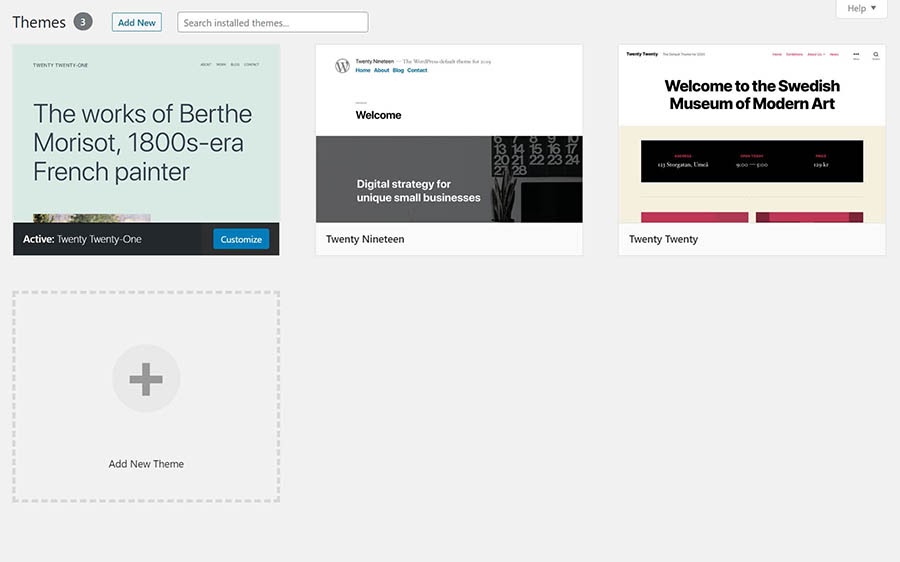
The WordPress theme manager.

Your currently-active theme is marked as such. Hover over one of the others and click on Activate. Then refresh your site and try to access the problematic page again.

Note that changing your theme can alter your site significantly. So if you find that your theme is the issue, you may need to spend some time finding one that provides a similar look and features.

Step 4: Set Up a 301 Redirect for Moved or Renamed Content

This one is a bit of a bonus step. If you do actually have content that’s been moved or renamed and thus doesn’t exist anymore at the URL you were using previously, you’ll want to set up some 301 redirects to point that old URL to the new one.

The easiest way to do this is with a WordPress plugin such as Redirection.

The Redirection WordPress plugin for managing 30 redirects.

This tool will enable you to quickly set up the redirects you need. Plus, it’s free and user-friendly.

How to Create Your Own “Error 404 Not Found” Page

If you want to set up your own custom 404 error page, you can do so relatively easily. The process involves adding one line to the .htaccess file to point the error to a specific page and then creating that page. We have full instructions for setting up a custom error page to walk you through the process.

Take Your WordPress Website to the Next Level

Whether you need help navigating the WordPress dashboard, creating a custom 404 error page, or choosing a caching plugin, we can help! Subscribe to our monthly digest so you never miss an article.

Tools to Help You Monitor 404 Errors Moving Forward

Finally, if you want to keep an eye out for 404 errors in the future, you can use a few handy tools. The Google Search Console will show you crawl errors that the Google bots have come across as they index your site. This is a simple way to see all the issues Google is encountering.

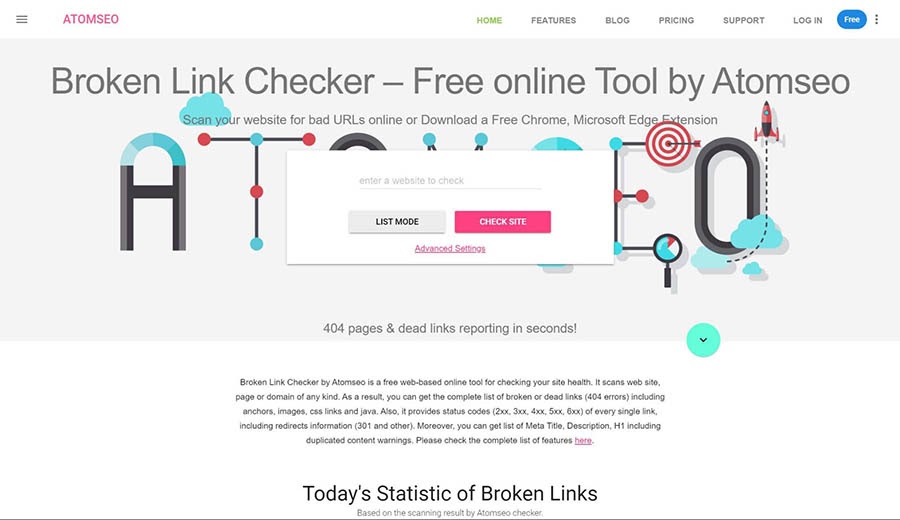
You can also enter your URL into a specialized tool such as the Broken Link Checker, which will scan your entire site for broken links and let you know if it finds a 404 page.

The Broken Link Checker tool for finding 404 errors on your website.

It’s free and easy to use. You can simply input your domain and then click on Check Site.

Ready to Find That Missing WordPress Post?

A 404 error can be frustrating — especially when it happens on your own site. These messages cause problems with SEO and ruin your site’s UX. Fortunately, they’re not too difficult to resolve.

Fixing 404 pages generally involves restoring your site’s permalink structure and setting up redirects for any posts that are actually gone. You can then use tools such as Google Search Console to monitor your site for future 404s.

If you want to spend less time dealing with errors, consider switching to DreamPress, our managed WordPress hosting service. We’ll take care of all the troubleshooting for you, so you can focus on what matters!

The post How to Fix WordPress Error 404 Not Found appeared first on Website Guides, Tips & Knowledge.


source https://www.dreamhost.com/blog/how-to-fix-wordpress-404-error/

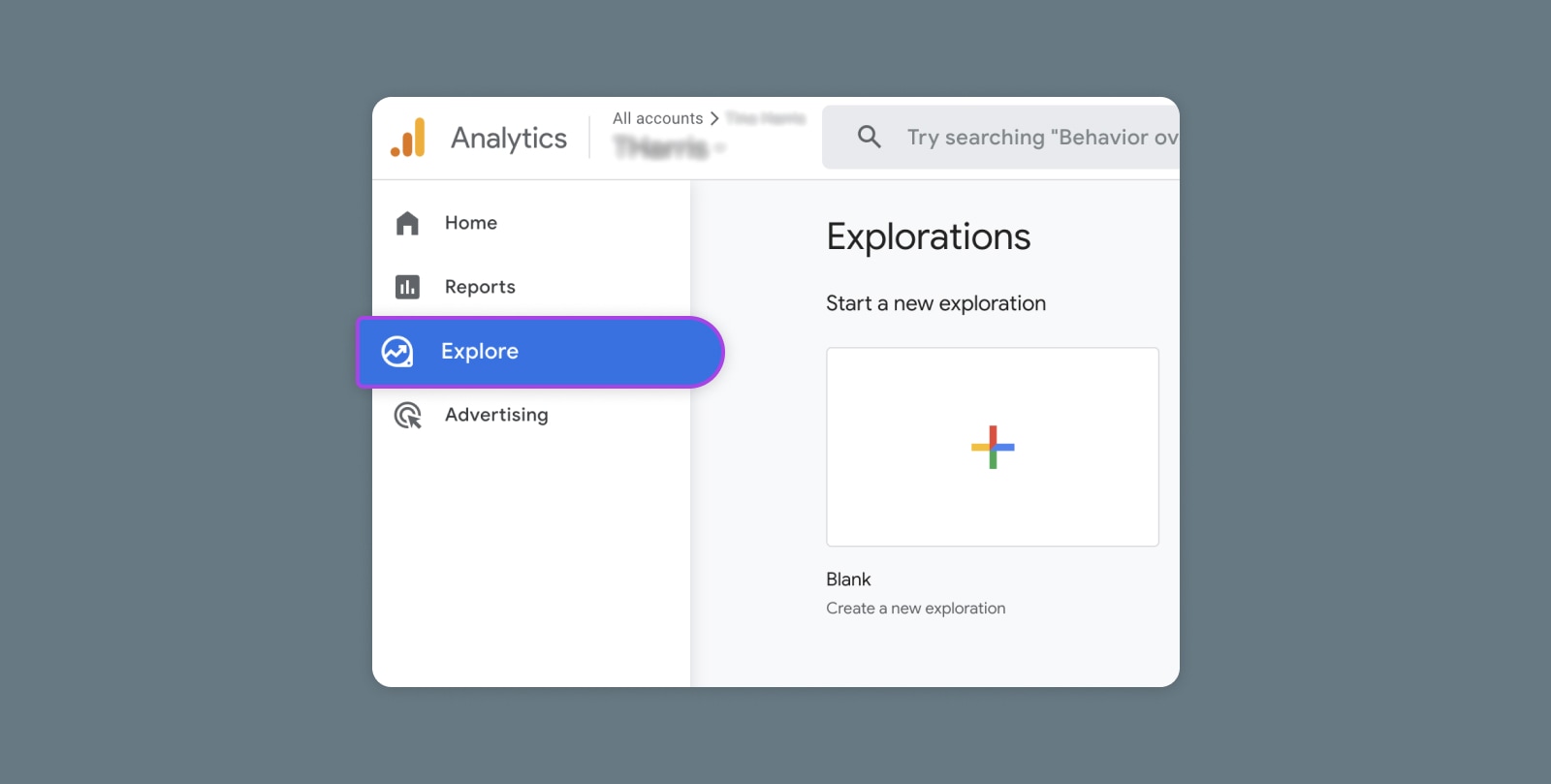
Creating and Mastering GA4 Explorations

In the switch from Universal Analytics (UA) to Google Analytics 4 (GA4) — which will go fully into effect July 2023 — a lot of things have...