Building a website used to be a challenging, time-consuming endeavor. It typically required experience with different programming languages, and you rarely had a simple preview of how the final result might look. While some still use this manual approach to site building, it’s by no means the only option.
Fortunately, website builders offer a stress-free way to get a professional website up and running in no time. These builders come with a drag-and-drop editor, which removes many complicated steps in the website creation process.
In this post, we’ll take a closer look at website builders and discuss their pros and cons. Then, we’ll look at ten of the best website builders to help you select the right one for your specific needs. Let’s get started!
What Are Website Builders?
A website builder is an online platform or program that enables you to build a website without any coding knowledge. It typically features drag-and-drop software that you can use to customize elements on a page. Plus, many website builders also include a variety of excellent pre-built page templates and sections you can start customizing right away.
How Does a Website Builder Work?
- Manage all website settings, content, and design from a single dashboard.
- Easily import page templates or build your own global templates using a simple drag-and-drop editor.
- Control simple configuration of all page and SEO settings right from the editor.
- Before publishing, preview your content on all devices, from desktop to mobile.
Website builders can exist in both online and offline formats, the main difference being an internet connection. An online website builder won’t require any software downloads; it’ll simply work through your internet browser. This enables you to work on your website anytime and anywhere, as long as you have a stable internet connection.
Many online website builders now come with accompanying hosting services, so you don’t have to worry about that extra technical hoop. This is an easy-to-use option for newbies.
On the other hand, offline builders function as downloadable software programs, where your computer hosts your files until you’re ready to upload them to your web host. With this option, you can work on your site offline, but this will require a little more technical know-how. However, you’ll need to buy a separate plan from a web host.
How Websites Were Built Before Website Builders
Recently, website builders have become increasingly popular. During the COVID-19 crisis, many people needed to quickly get their businesses online. With website builders, even beginners could create a well-designed site even without coding experience.
By 2026, the global website builder market is expected to grow to $2.7 billion. Ultimately, this no-code movement has revolutionized the process of site creation. However, you may be wondering, how difficult was it to build sites without website builders?
Coding a Website From Scratch
Ever since WordPress was created in 2003, anyone can use its simple visual interface to build a website. Utilizing easy-to-install themes and plugins, you don’t have to be a coding expert to get online. However, it hasn’t always been this simple.
Before website builders or Content Management Systems (CMS) like WordPress existed, websites had to be built manually. As a result, potential website owners had one of two options: hire a developer or learn how to code.
To build a website from scratch, you must be familiar with HTML, CSS, and JavaScript. The HTML and CSS work together to create a visible web page, while JavaScript adds interactive elements. As a beginner, this skill set can be challenging to develop.
Using a Framework
As you might imagine, coding a website from scratch can be time-consuming. To help speed up this process, designers and developers typically use frameworks.
Otherwise called CSS frameworks, front-end frameworks contain folders and files with pre-written code. They can provide a solid foundation to kickstart the development process. Plus, using a framework means you won’t need to rewrite the same code if you start another project.
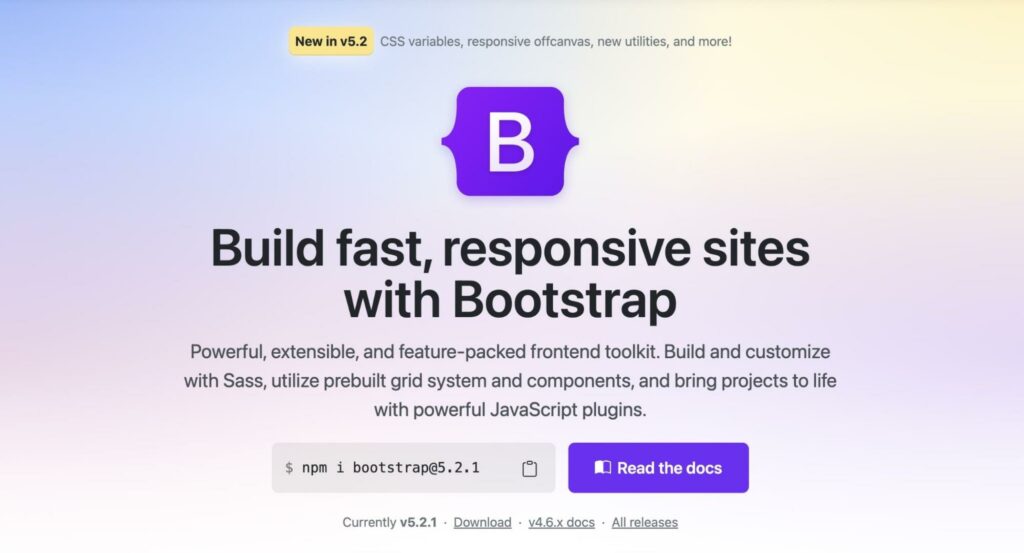
One popular option is Bootstrap. This front-end CSS framework helps developers build responsive and mobile-friendly websites:
Foundation is another framework with a customizable and responsive grid, a library of Sass mixins, JavaScript plugins, and accessibility support. These features make it easier to rapidly deploy code development:

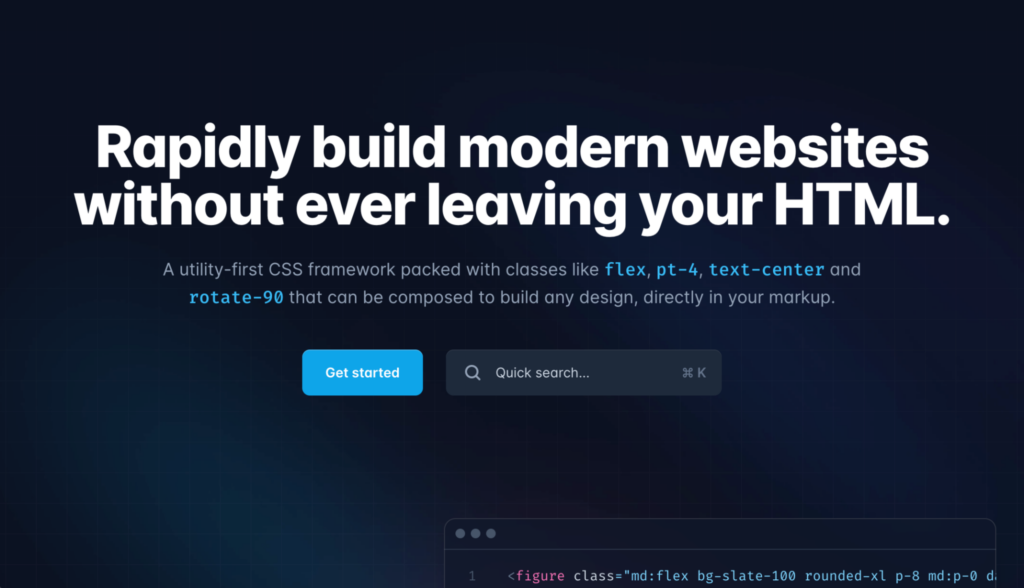
TailwindCSS is a new CSS framework that allows for rapid development using utility-classes that make it easily adaptable to your brand’s design system. While not having a predefined grid system it’s utility-classes make it easy to create your own on the fly.
Although frameworks can offer a starting point for website development, they are not the easiest for beginners to use. You’ll still need a deep understanding of coding languages to use them effectively. By comparison, website builders require no coding at all.
Installing Pre-Made Themes
With a CMS like WordPress, you don’t necessarily need coding experience to build a website. Since this platform is open-source, other developers have designed pre-made themes for you to use.
A website theme includes a group of files with all the graphics, style sheets, and coding for your site. With the right theme, you won’t need to hire a developer or perform complex coding yourself.
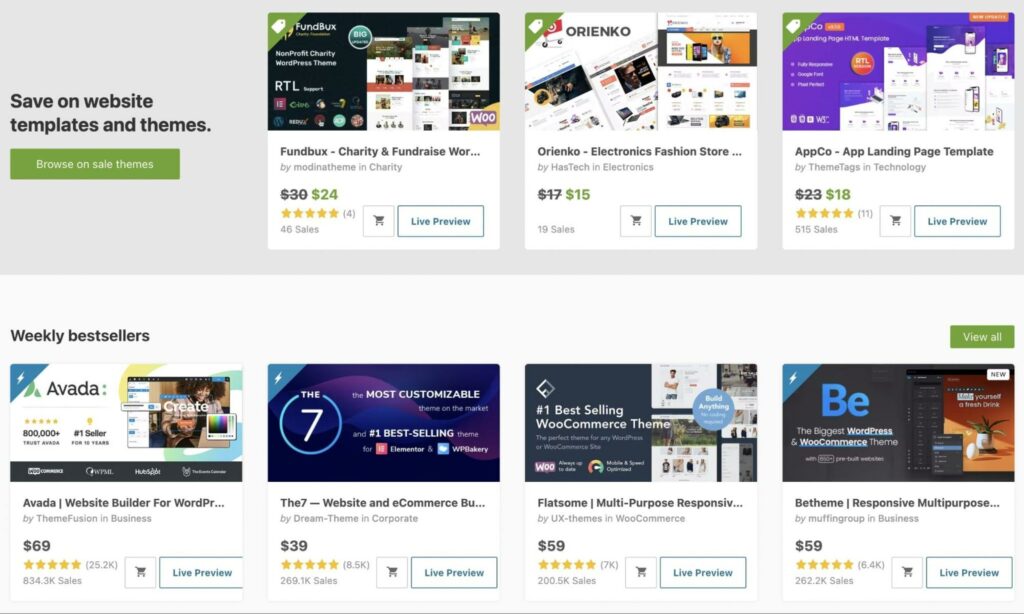
You can find free themes in the WordPress Theme Directory. Alternatively, Theme Forest is a marketplace with a wide range of premium website designs:
Using WordPress, you can easily upload new themes and instantly change your site design whenever you like:
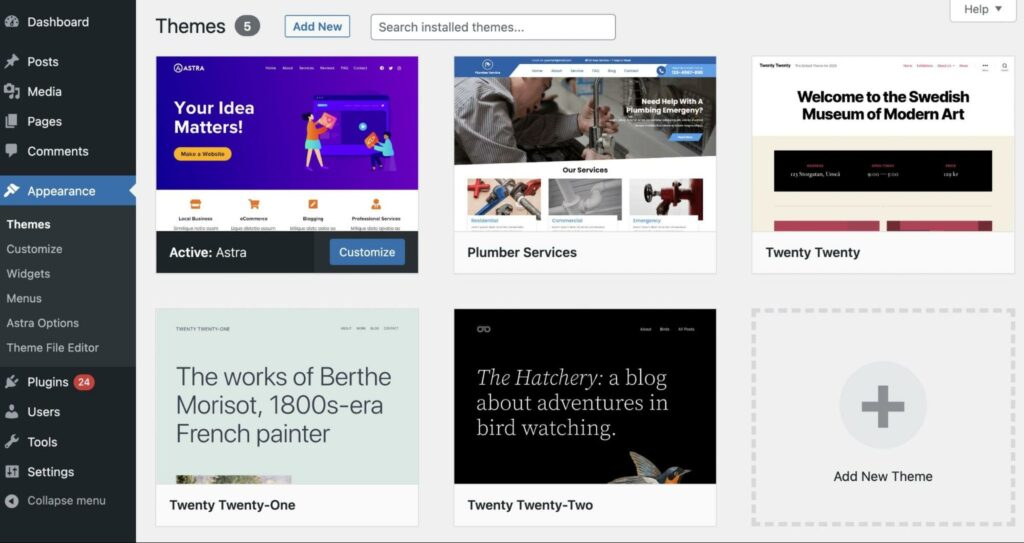
On the other hand, using a theme comes with limitations. Even if developers claim that their pre-made theme is intuitive and customizable, it may not offer the specific features or functionality you want. Therefore, to fully customize your theme, you may need to edit its style sheets or template files.
Using a Visual Editor or Page Builder Plugin
Before website builders, you could use page builders to create your website. These plugins are similar to website builders, with drag-and-drop editors and complete sets of visual design tools.
The main difference is that page builders help you design individual pages of your site. Alternatively, you can use a website builder to create your entire site from scratch.
Although the adoption of website builders is growing, many people still use page builders to design their online content. According to the 2022 Web Almanac report, 34% of WordPress users built their sites with a page builder. Some of the most popular options are Elementor and WPBakery:
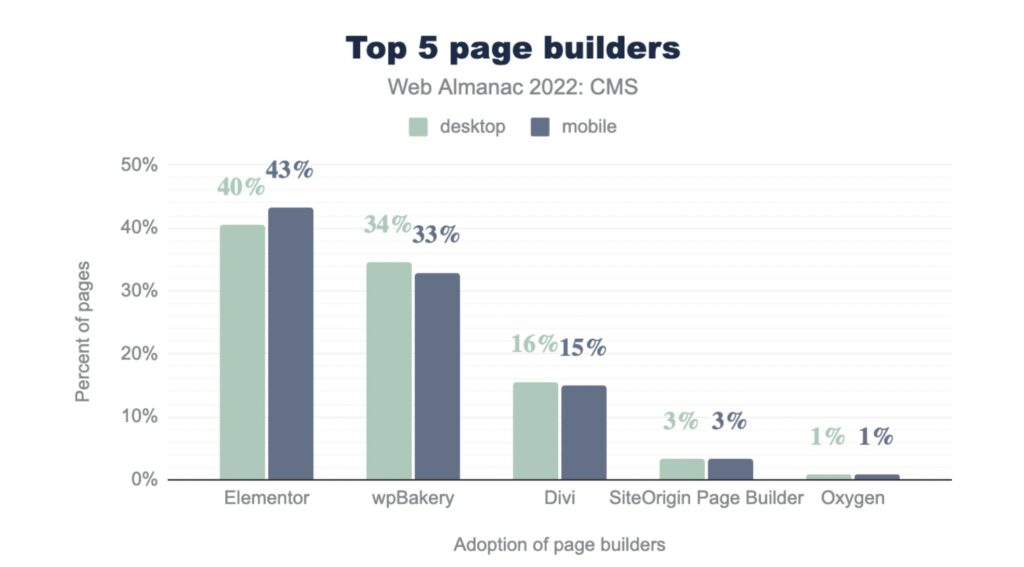
Image credit: Web Almanac by HTTP Archive
As you can see, Elementor is dominating this market. You can use this free WordPress plugin to start customizing every part of your web pages. Elementor includes page templates, content widgets, and other useful features:
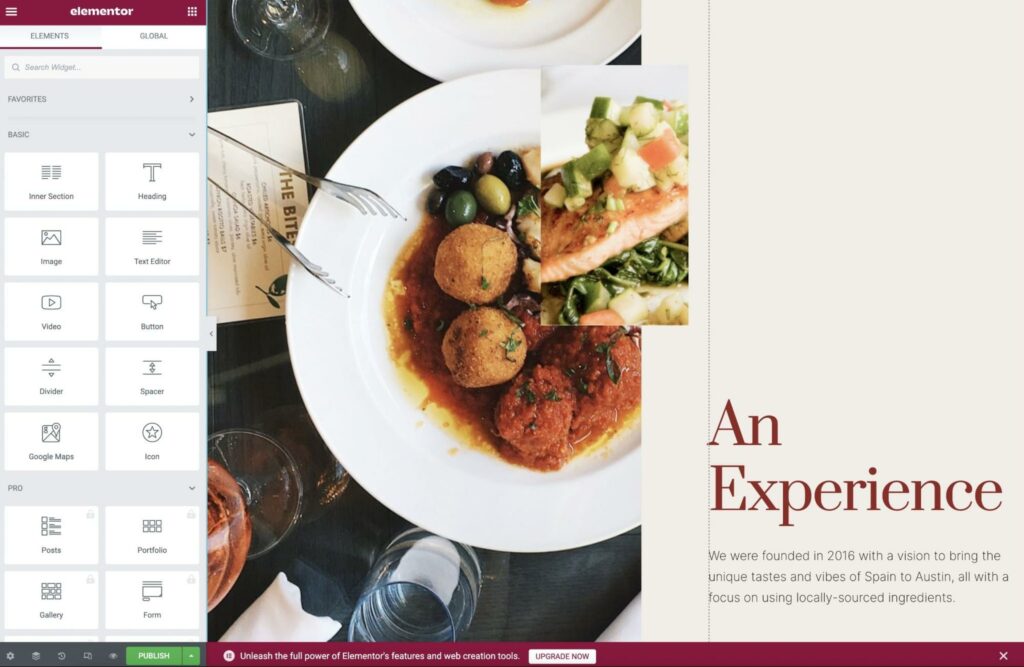
It’s important to note that Elementor has evolved to become both a website builder and a page builder. When you install it as a plugin in WordPress, it’s only capable of page editing. However, you can now fully build and host your site in Elementor (without WordPress) if you’d like. Therefore, it may become increasingly more attractive to beginners.
Website Builders: The Future of Web Design
For many years, it has been incredibly difficult for beginners to create their first websites. Without any coding knowledge, it can be virtually impossible to build a site from scratch or use a framework. Although pre-made themes and page builder plugins can make this process easier, they come with limitations.
This is why website builders have become so popular. They offer a code-free way to build and customize a website, all in one platform. With an option like Wix, you can even use AI to create a website for you:
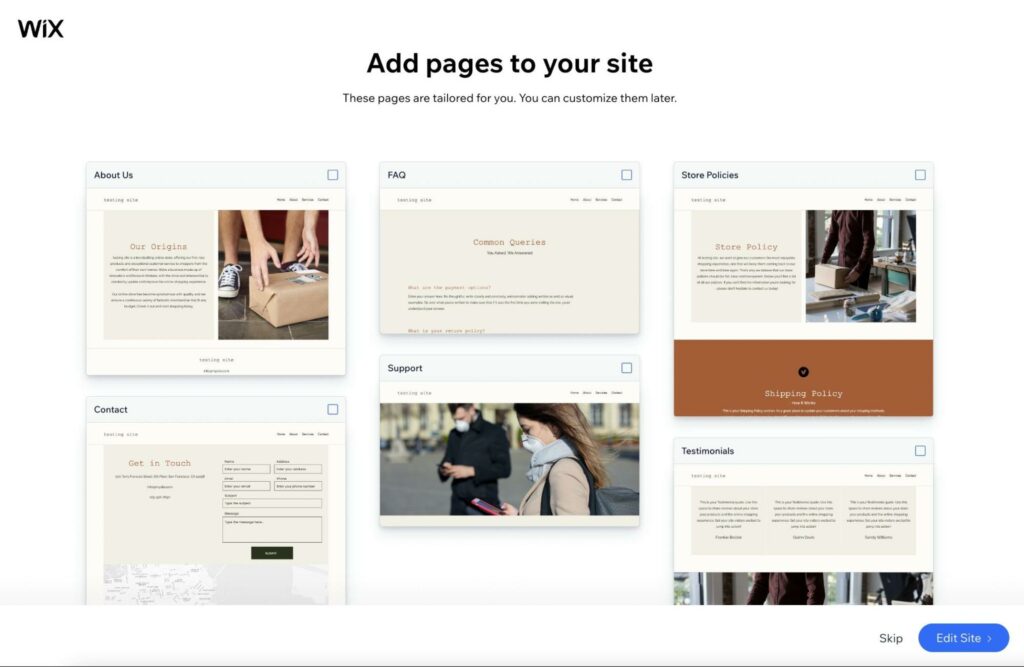
As website builders continue to evolve, we expect an increase in the number of advanced site-building “wizards.” By automating the development process, site owners can dedicate themselves to a purely administrative and overseeing role.
Since this technology is so effective, web agencies may start lowering the cost of their design services. By taking advantage of website builders, professional design can become more accessible.
Additionally, agencies will need to remain competitive when it’s so easy for regular users to create their own sites. This is reflected in the decline of the US web design industry, which has decreased by 3.1% between 2017 and 2022.
Furthermore, although the popularity of website builders is growing, CMSs shouldn’t be overlooked. WordPress currently powers 35% of all websites, steadily increasing from 33.6% in 2021.
Considering other platforms, CMS have now created 45% of all mobile web pages:
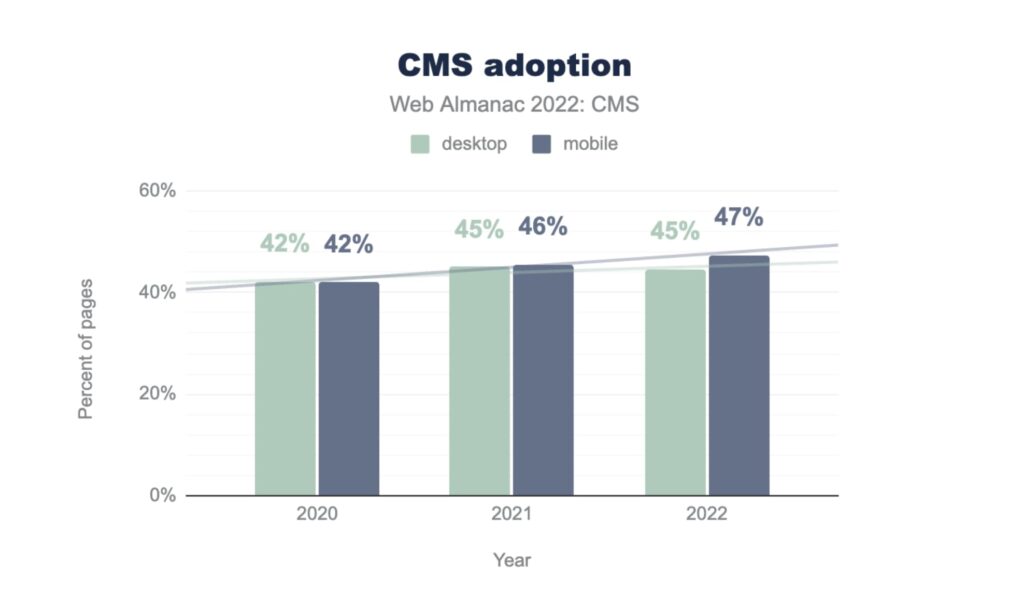
Image credit: Web Almanac by HTTP Archive
In WordPress, the new Full Site Editing (FSE) features are starting to emulate website builders since users can create and customize all parts of their site using WordPress blocks. Furthermore, they can directly edit their theme template files without touching any code:
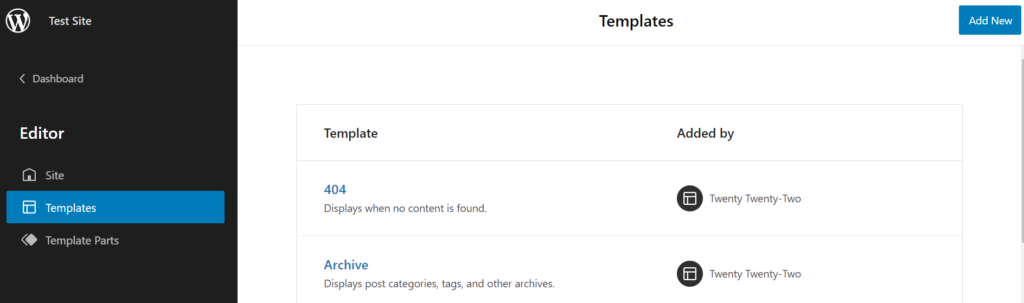
In theory, WordPress users no longer need page or website builders since everything can be controlled from the familiar WordPress interface. As more website builders develop their own technology outside of the WordPress framework, however, there may be more fragmentation.
Ultimately, using a website builder can simplify every part of owning a website. With a unified platform for domain registration, hosting, email, and Search Engine Optimization (SEO), complete beginners will have everything they need to run and manage a successful website.
What Are the Pros and Cons of Website Builders?
Website builders are excellent tools for small businesses looking to establish a strong online presence quickly and simply. Let’s list some of its main pros and cons to help you decide whether a site builder is right for you.
Pros
Website builders can simplify the site creation process, avoiding extensive development time. In a matter of minutes, you can create your unique website with pre-formatted layouts outfitted with your brand’s content, images, and videos:
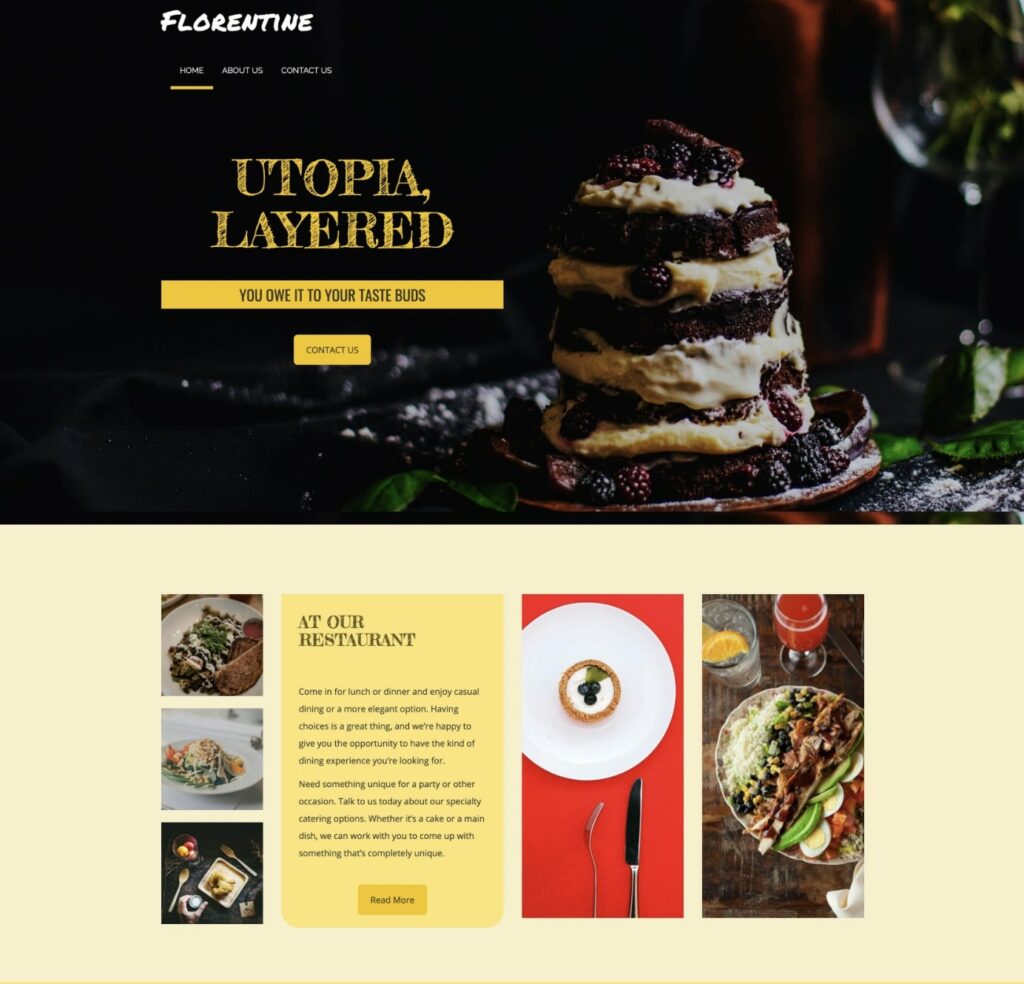
Simple Site Creation
For beginners, it can be confusing to enter the world of website creation. Often, this process involves finding a good web hosting provider, registering a domain name, and choosing a Content Management System. With a website builder, this process becomes much easier.
On a website-building platform, you can get a new site up and running in minutes. Once you sign up, the platform will usually ask you questions about the type of website you want to build:
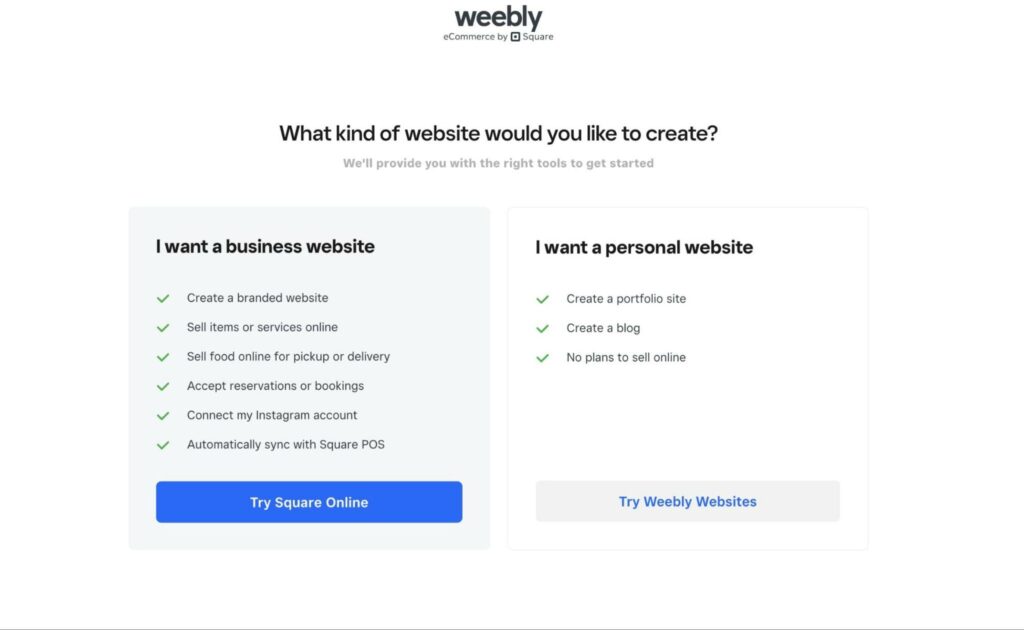
Based on your answers, website builders can suggest which theme and page templates to use. Then, you’ll have simple ways to update your site’s global styles, widgets, and even third-party apps:
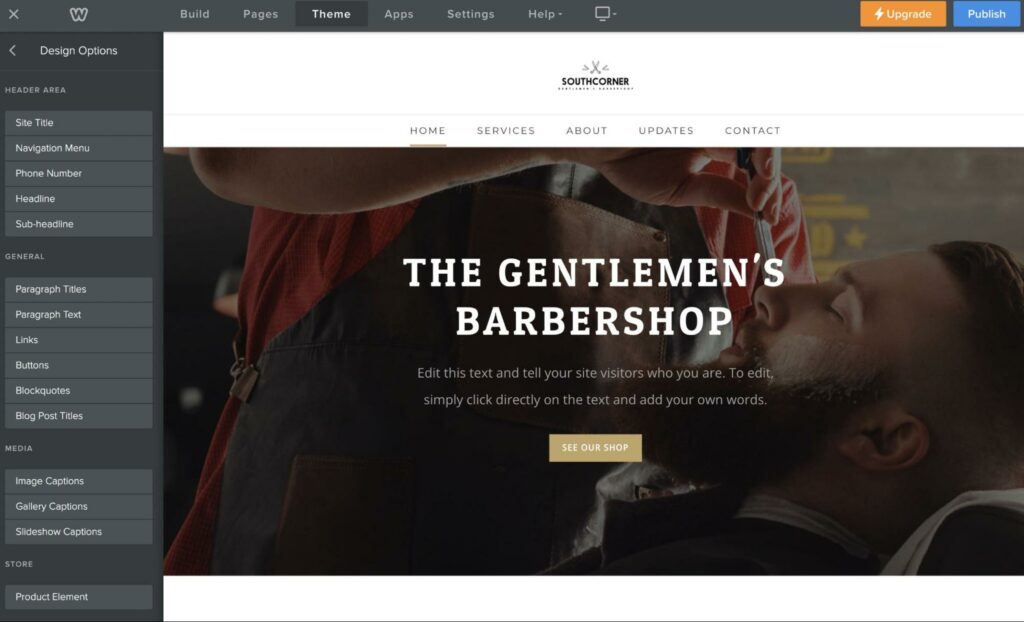
Ultimately, a website builder can provide everything you need to build a new site without difficulty. Without leaving the platform, you can create, edit, and publish your online content without having to edit any code.
Flexible Design
A good website builder can also help your pages stand out from the crowd. With a full library of choices, optimized layouts, attractive and user-friendly design elements, and customization options, you can make your site one of a kind.
Website builders do all the heavy lifting by offering pre-packaged designs. They also allow you the freedom of template creation and customization, so you can give your site its own personal touch.
No Coding Required
You might think you have to be an experienced developer or designer to design a website. Fortunately, website builders enable you to build well-designed pages without writing a single line of code. Plus, you don’t necessarily need to ace color theory, possess photo-editing skills, or be versed in typography to create an appealing website.
Since they don’t require tricky or constant upkeep, website builders are very low-maintenance compared to other tools. Your site will still need to be updated with fresh content regularly, but website builders make that process easy.
Low Cost
Finally, getting a functioning (and gorgeous) site up and running doesn’t have to be expensive. With free trial periods and many affordable options, website builders can allow you to focus on other business expenses.
Cons
Although website builders have many benefits, you may want to find another way to design your site. Drag-and-drop builders can be effective options for beginners, but they may be limiting for more experienced developers.
Limits to Customization
If you have some technical know-how, you’ll likely want more freedom when customizing your site. You may be eager to outfit your site with more features not supported by a website builder.
Plus, with a site builder, you don’t always have control over the code governing your pages. When you’re looking for a top-of-the-line option, hiring a web designer or building a DIY website from the ground up may be worthwhile.
Potential Plan Limitations
Another thing to keep in mind is that budget-friendly web builders may restrict your site in some areas based on which plan you’re on. A specific platform might limit the number of pages a site can have, offer fewer e-commerce options, or restrict how much storage you can use.
If you have plans to expand in the future, you’ll want to research providers carefully to make sure you find the best match for your long-term website goals.
Vendor Lock-In
One drawback to consider is vendor lock-in. It takes a considerable amount of time writing, organizing and laying out content. The optimal website builder will offer some way to export your content/data into another, should you so choose.
What to Look For In a Website Builder (10 Tips)
Not all site builders are created equal. So what sets apart an average builder from a great one? When you’re looking for the best option, consider this list of must-have features!
1. Ease of Use
Website builders are known for being beginner-friendly, but some are easier to use than others. When selecting a site builder as a novice, it’s best to find one that doesn’t require advanced coding skills to operate.
For example, many users prefer a simple drag-and-drop interface. With a website builder, you can select content modules and drop them anywhere on the page.
There are also click-to-edit website builders, which take the shape of visual What-You-See-Is-What-You-Get (WYSIWYG) editors. They enable you to edit the layout and content directly on the page:
This intuitive, real-time interface also lets you immediately see what the final result will look like once published. Any changes you make will instantly be visible in the editor, so you can explore how each edit affects the site.
We recommend looking for a simple, user-friendly interface that helps you build a website easily — regardless of your web design experience. This way, you can skip the learning curve and start building a beautiful website immediately.
Get Content Delivered Straight to Your Inbox
Subscribe to our blog and receive great content just like this delivered straight to your inbox.
2. High-Quality Templates
Your audiences can likely spot a cheap-looking site from a mile away. This makes it important to pick a website builder that has high-quality templates.
With clean and attractive layouts, you can make a strong first impression. Many platforms will display templates directly on the website, so you can easily view and avoid any poorly-designed options.
3. Easy to Update
One of the most important tasks in maintaining a website is performing frequent updates. If you run your website on outdated software, you will be more vulnerable to bugs and security threats.
With WordPress, you’ll have to manually update your core software, themes, and plugins. However, website builders often come with built-in updates and around-the-clock monitoring that can protect your site at all times.
Your website also needs top-notch content that is regularly published, updated, and shared to increase traffic. When looking for a website builder, you’ll want to make sure it provides easy ways to manage and update your posts and pages.
4. Plugins, Integrations and Marketplaces
It often takes a handful of SaaS apps to keep an online business humming. You’ll find that the deeper your website is integrated with your business operations the easier it is to scale.
A marketplace allows independent developers and large companies to easily deploy and sell plugins.
Look for a website builder that offers integrations with the services you use and you’ll save time and headaches in the long run.
5. Social Integration
Ideally, your audience should be able to connect with you in more ways than one. If your website has social sharing features, this can help grow both your organic traffic and social media engagement.
Your site builder should allow you to display social media icons to help new visitors engage with you. It’s important to ensure that the builder you choose can integrate with your social platforms.
6. Active Community
Engaged communities offer a trove of knowledge, often quicker than a product’s support team may provide. Look for discord communities or discussion boards around your website builder. Find YouTubers who are creating content and tutorials around your website builder platform. The more active community the more help will be available to you.
7. Domain and Email Options
Along with your web host, you’ll want to own your own piece of internet property — meaning a domain and branded email address. These elements can help you project a more professional image for your business.
If you don’t have these elements, you risk losing credibility and authority. For example, if you register a free domain name with Wix, your URL will look like this: ‘accountname.wixsite.com/siteaddress’. Meanwhile, a Top Level Domain (TLD) like .com will look cleaner, which can lead to more click-throughs.
Fortunately, there are site builders that provide options for domains and email registration. Our website builder at DreamHost includes a free domain even with the cheapest subscription. With a higher plan, you can also access email hosting.
8. Powerful Form Builder
Your visitors will likely need easy (and clear) ways to contact you — whether they want to submit a complaint, send questions, or make suggestions. Therefore, you’ll want to ensure that your website builder has the tools to create responsive, secure, user-friendly forms.
9. Deep Customization Options
After you select a pre-designed template or create your own, you will want to style it. A great website builder should provide the freedom to add personal touches and customization options such as fonts, text styles, or color schemes.
10. Affordability
As a beginner, you might feel overwhelmed by the costs of creating a new website. Often, this requires purchasing a web host and domain name. You may even consider hiring a professional developer to handle your website design and functionality.
Many website builders offer a cost-effective solution. Platforms such as Wix and Weebly offer completely free ways to get your website up and running.
However, free website builders don’t usually support custom domains. This leaves you with a branded URL rather than a web space you completely own. Plus, free plans may place ads on your website.
Here at DreamHost, we created the most cost-effective solution. Our website builder is bundled with a WordPress hosting plan, which includes a free domain:
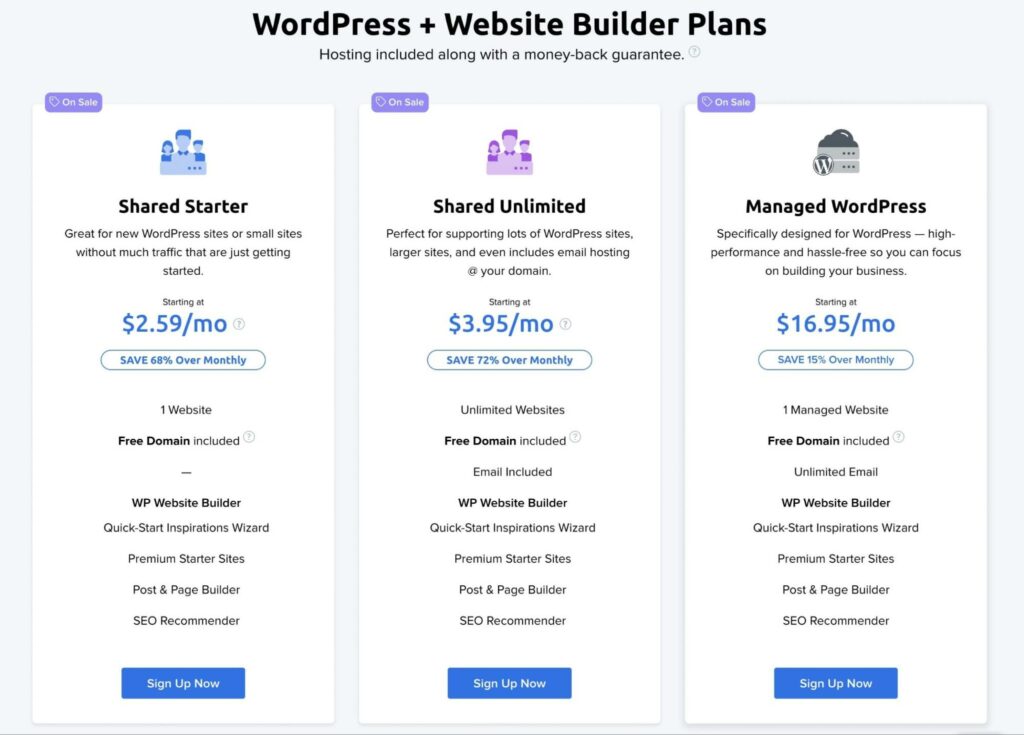
This is also cheaper than other website builders, starting at only $2.59 per month. If you’re a beginner who’s looking to grow your site, this may be the right option for you.
10 Popular Website Builders for Code-Free Web Design
In the past, website design involved learning coding languages like HTML, CSS, and JavaScript. However, website builders have made it easier than ever to build sites without coding experience. The only challenge is finding the right tool for your needs.
Let’s look at some of the best website builders on the market.
1. Elementor
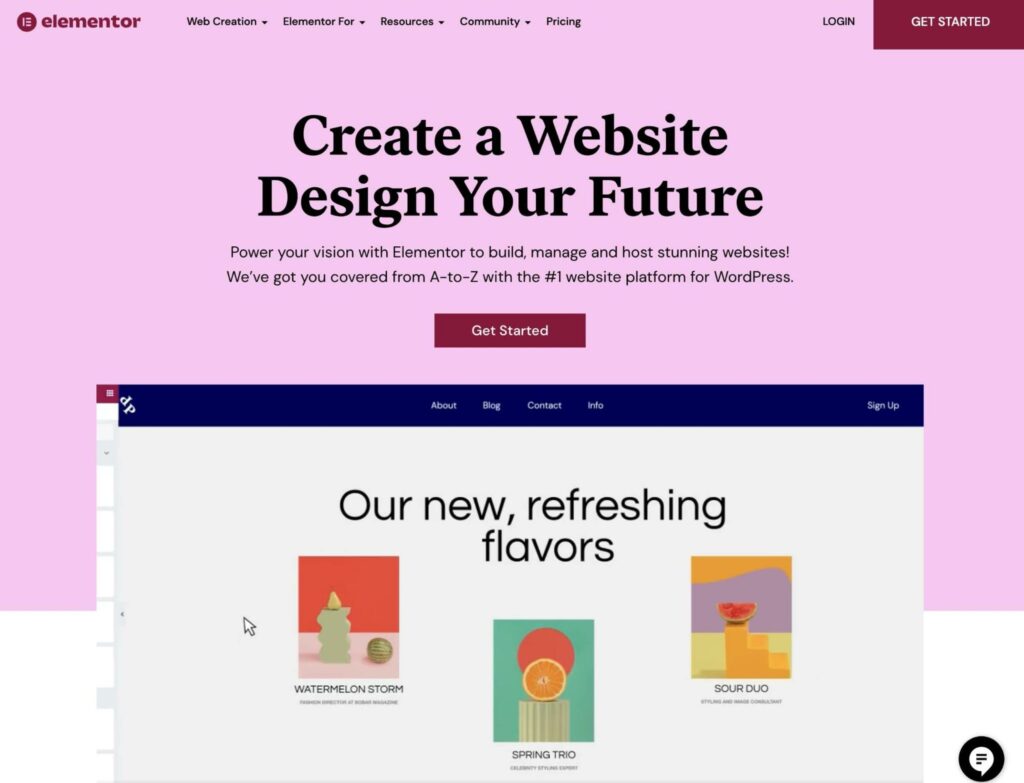
One of the most popular website builders available is Elementor, with over five million active installations. Using its responsive drag-and-drop editor, you can build any type of website, from online shops to blogs:
Key Features:
- Live drag-and-drop editor
- 100+ widgets
- 100+ full website kits
- 300+ templates
- Theme Builder
If you’re new to web design, you may prefer Elementor because of its Website Kits Library. Rather than starting with a one-page template, you can create a fully designed website in a single click. This can significantly accelerate the design process.
Pricing: You can download Elementor as a free WordPress plugin. Elementor subscriptions start at $49 per year and include the Website Kits Library. Plus, you can get this website builder bundled with Elementor Cloud hosting for $99 annually.
2. Divi
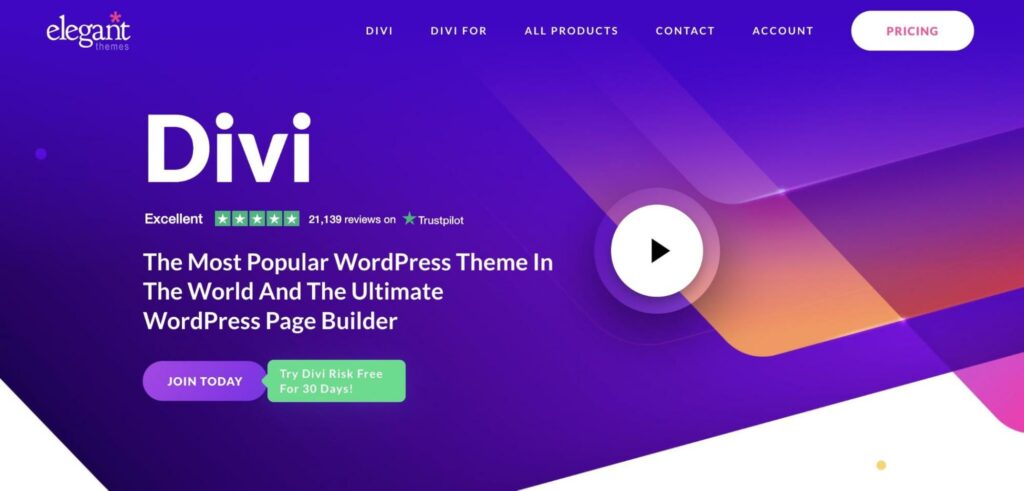
Divi is a user-friendly website builder with a front-end visual editor. It includes over 2,000 pre-made layouts designed for specific niches like events, services, technology, business, and more:
Key Features:
- Drag-and-drop page building
- 40+ modules
- 200+ website packs
- Global elements & styles
- Custom CSS
As a new website owner, you can benefit from Divi’s visual editor and pre-made website packs. Divi can also be an effective option for agencies. Its affordable plans can support team collaboration across unlimited websites.
Pricing: Divi plans start at $89 for yearly access. These include hundreds of pre-made website packs, unlimited website usage, and premium customer support.
3. DreamHost Website Builder
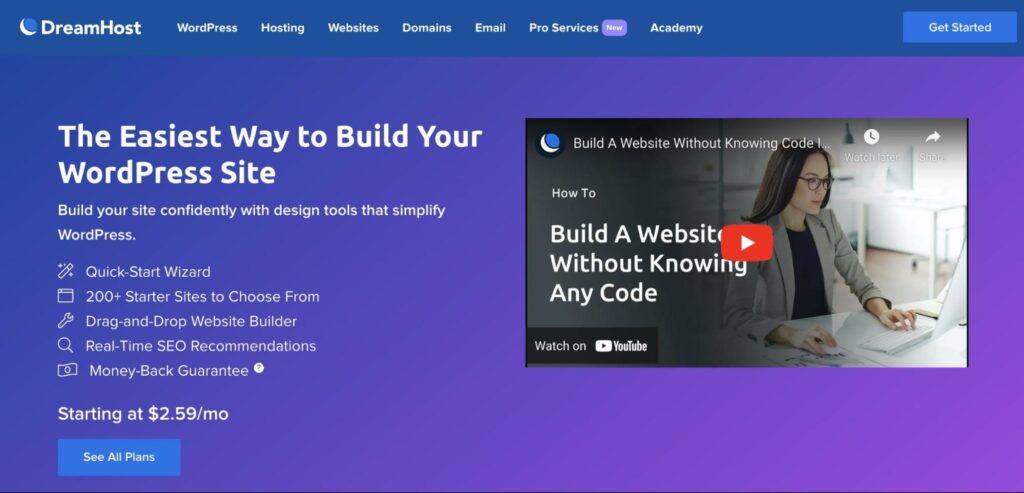
If you want to create a simple site that’s easy to maintain, DreamHost’s website builder is the ideal choice. It doesn’t require any coding knowledge or additional plugins. The tool even features a site creation wizard to make things that much easier for you:
Key Features:
- Drag-and-drop editor
- Quick-start inspirations wizard
- 200+ starter sites
- 100+ design blocks
- On-page SEO suggestions
Our website builder is also included with DreamHost’s shared hosting plan. This can enable beginners to easily bundle website development costs. With this option, you can purchase hosting, a domain name, an SSL certificate, and a website builder all in one place.
Pricing: At DreamHost, we offer combined WordPress + Website Builder plans that start at just $2.59 per month.
4. WordPress Site Editor
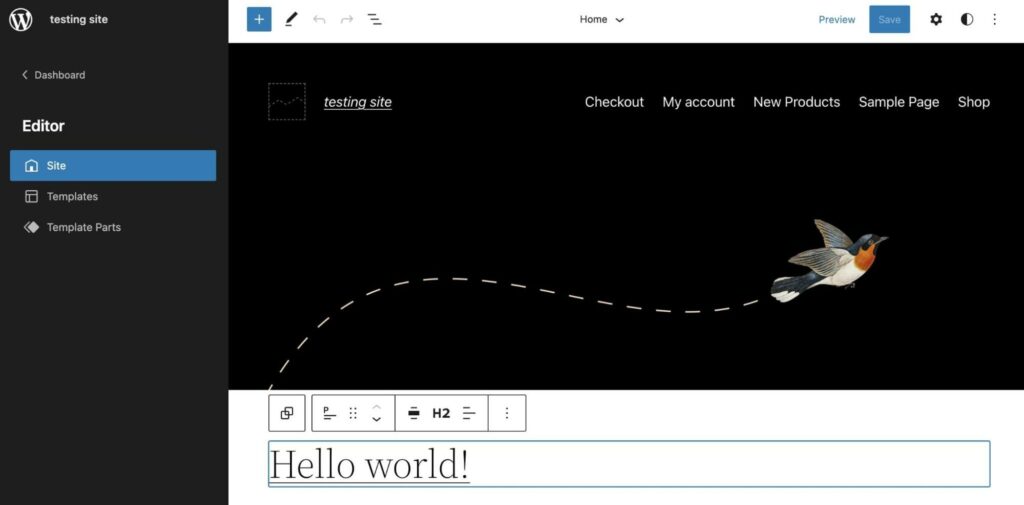
With the creation of block themes, you can now use the default WordPress tools to build your website. If you have WordPress 5.9, you can fully customize your site with Gutenberg blocks. This is known as Full Site Editing:
Key Features:
If you enjoy editing blog posts with the WordPress Block Editor, you can extend this functionality to your whole website. Rather than dragging and dropping elements onto a page, the Site Editor enables you to insert and edit content blocks. You can also create templates for your archive pages, blog posts, and more.
Pricing: After you create a WordPress website, you can simply install a block theme to start using the Site Editor. You can find many free options in the Theme Directory.
5. Shopify
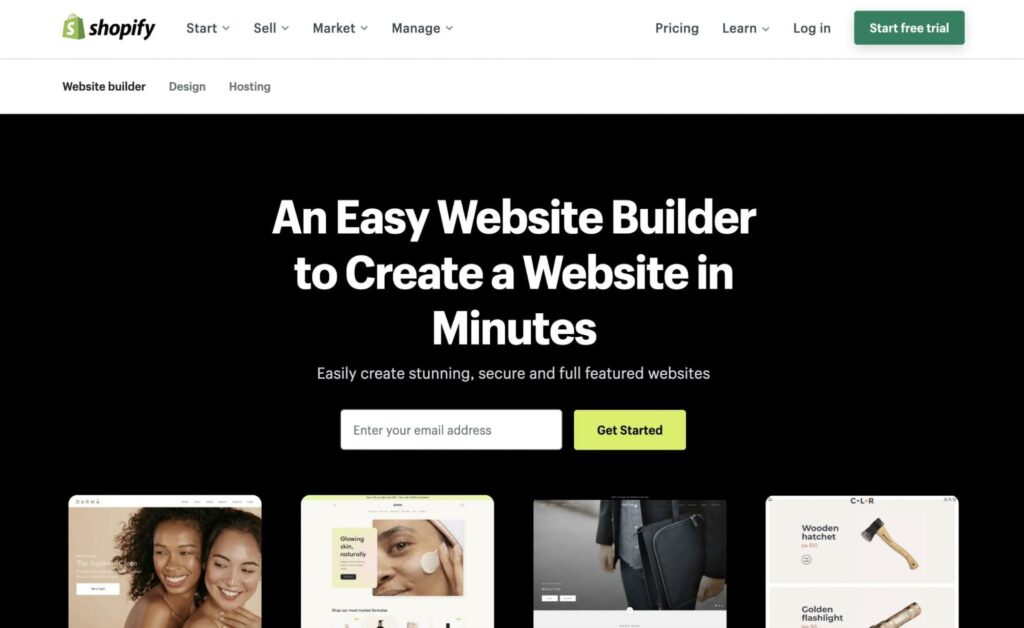
When selling products online, you may want to consider finding a small business website builder. Shopify is a popular option for entrepreneurs as it provides an easy drag-and-drop store builder, payment gateways, and sales-tracking software:
Key Features:
- Drag-and-drop store builder
- 70+ free store themes
- 100+ external payment gateways
- Mobile-responsive
- Business analytics dashboard
With Shopify, you can successfully create and grow your online business. Using built-in automated marketing and Search Engine Optimization (SEO) features, you can start attracting new customers and building a loyal clientele. Additionally, Shopify supports many design themes and third-party app integrations to customize your store easily.
Pricing: To start using Shopify, you’ll need to purchase a plan. The Basic plan starts at $29 per month and gives you access to basic reports, two staff accounts, and up to four inventory locations.
6. Squarespace
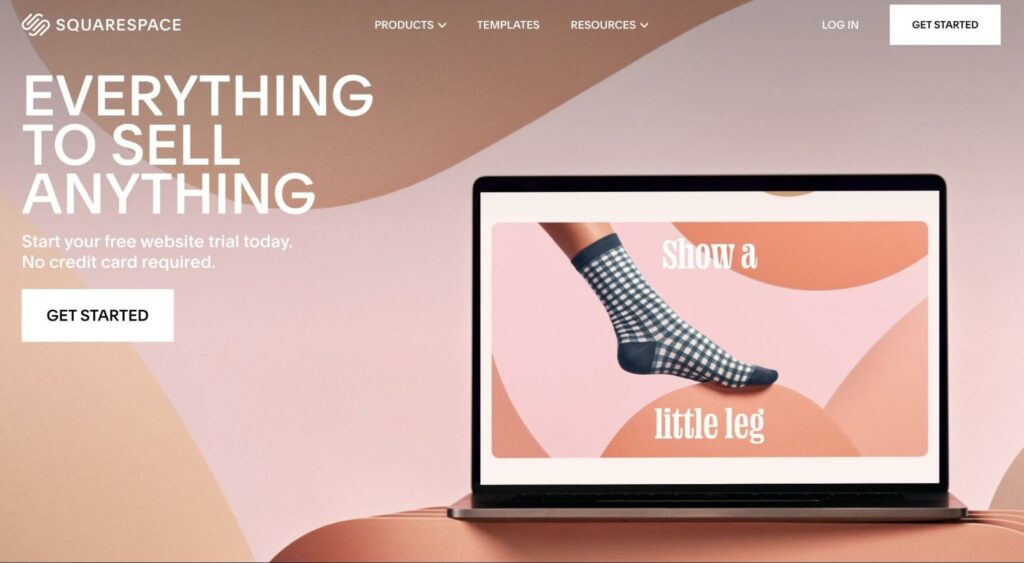
Originally founded in 2003, Squarespace was created as a platform for creative individuals to take their ideas online. This website builder is known for having clean designs and a wide range of features:
Key Features:
- Customizable website templates
- Blogging tools
- SEO-optimized
- Traffic analytics
- Integrates with apps such as Instagram, Twitter, and Google Maps
You can use Squarespace to build your online portfolio, blog, or online store. Its flexible templates serve as an effective starting point. Then, you can use the website builder to customize each page with custom fonts, images, and more.
Pricing: Squarespace subscriptions start at $16 for a personal plan. This comes with a custom domain, unlimited bandwidth, templates, and basic website metrics. You can also start a 14-day free trial to try out this website builder before you buy it.
7. Wix
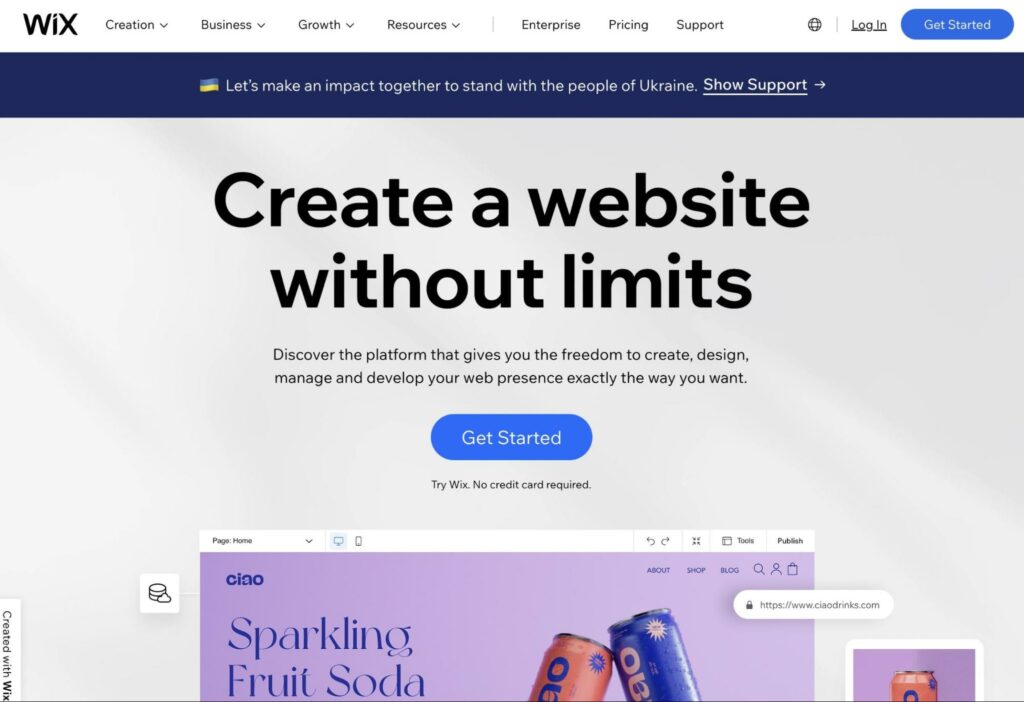
Wix has over 200 million users, making it one of the most popular website builders available. With this platform, you can create your first website, customize its design, and add advanced features, all without touching a line of code. Using its ADI (Artificial Design Intelligence), you can even allow Wix to design a website for you:
Key Features:
- Drag-and-drop editor
- 500+ website templates
- Wix ADI
- SEO tools
- Tracking analytics
If you’re looking for a free website builder, Wix can be a great choice. However, keep in mind that a free plan does not come with a custom domain. Plus, your website will have Wix ads and limited storage and bandwidth.
Pricing: You can build a Wix website for free. If you want advanced features, you can purchase a premium plan starting at $16 per month. For online businesses, you can also consider Wix ecommerce plans which are slightly more expensive, at $27 per month.
8. Weebly
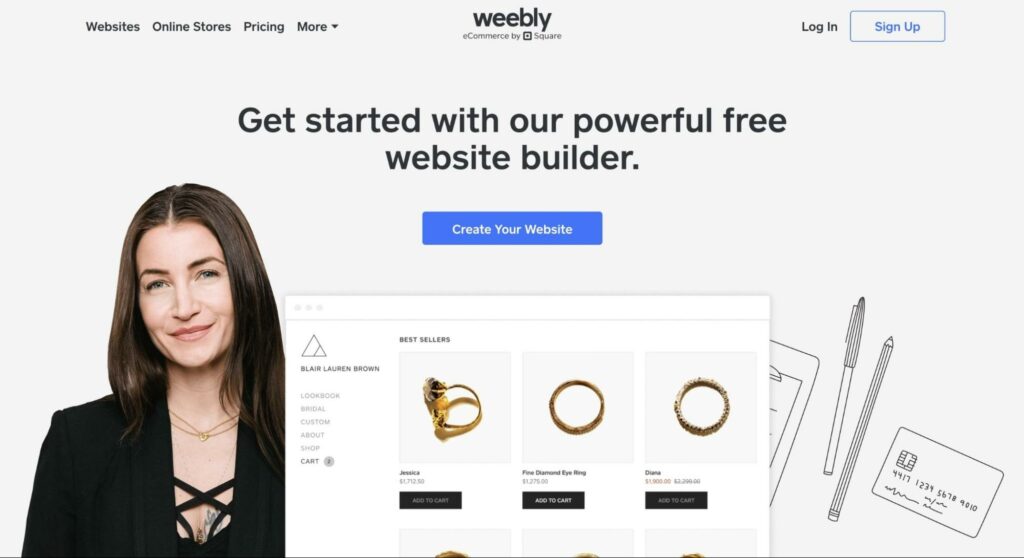
When you need a fast, easy way to create an online presence, consider using Weebly. This affordable website builder provides many simple templates for online stores, portfolios, or personal blogs. Plus, these designs are ready to launch even before you make any edits:
Key Features:
- Drag-and-drop editor
- Free website templates
- Advanced Theme Editor with HTML and CSS control
- SEO-optimized with HTML formatting, responsive design, and meta descriptions
- Form Builder
Weebly can be another effective option for beginners. It provides free plans with built-in hosting, SSL security, and SEO tools. As a business owner, you can even access inventory management, gift cards, shopping carts, and coupons at no additional cost.
Pricing: Weebly provides a free plan, but this won’t connect to a custom domain. However, Weebly subscriptions are affordable, starting at only $6 per month.
9. Webflow
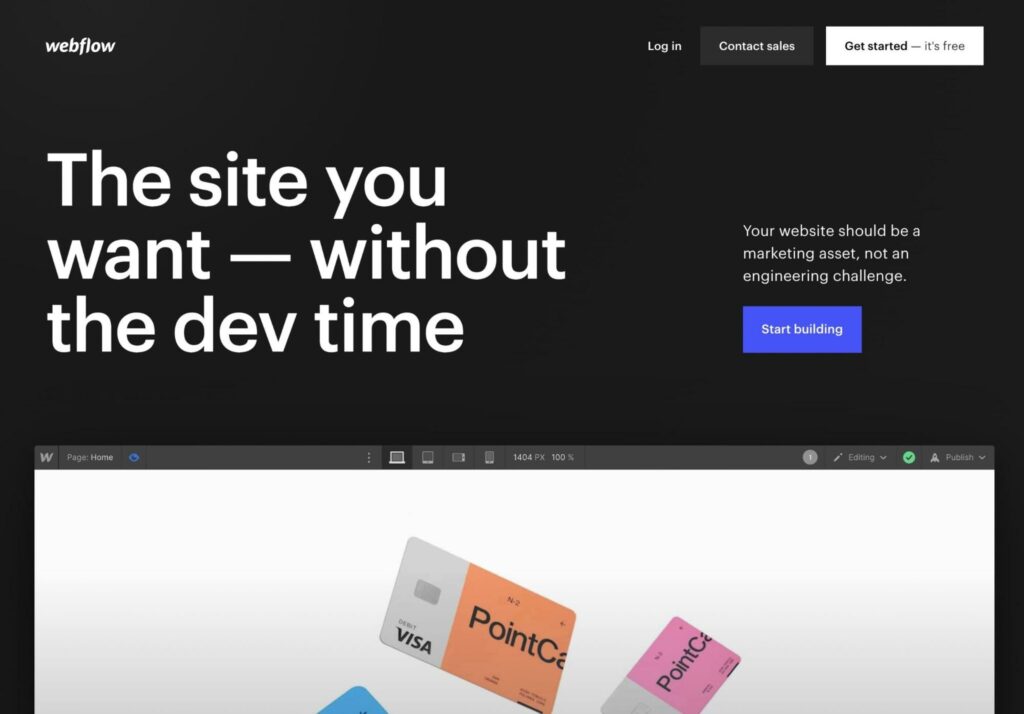
Unlike the other website builders on this list, Webflow is used by designers and agencies. This tool enables you to host, design, and launch a website on one platform, which makes it a powerful Content Management System (CMS):
Key Features:
- Drag-and-drop visual editor
- 1,000+ website templates
- Supports collaboration
- SEO settings for adding schema markup, indexing rules, and more
- Integrates with a variety of tools for analytics, marketing, and task automation
In Webflow, you can create teams for your design projects. Using the Webflow Designer, you can work alongside other collaborators to edit the same page. This can be a helpful feature for managing your team’s progress in one place.
Pricing: You can start using Webflow for free. If you need a custom domain, you’ll need to purchase a Site plan, which starts at $12 per month.
10. Jimdo
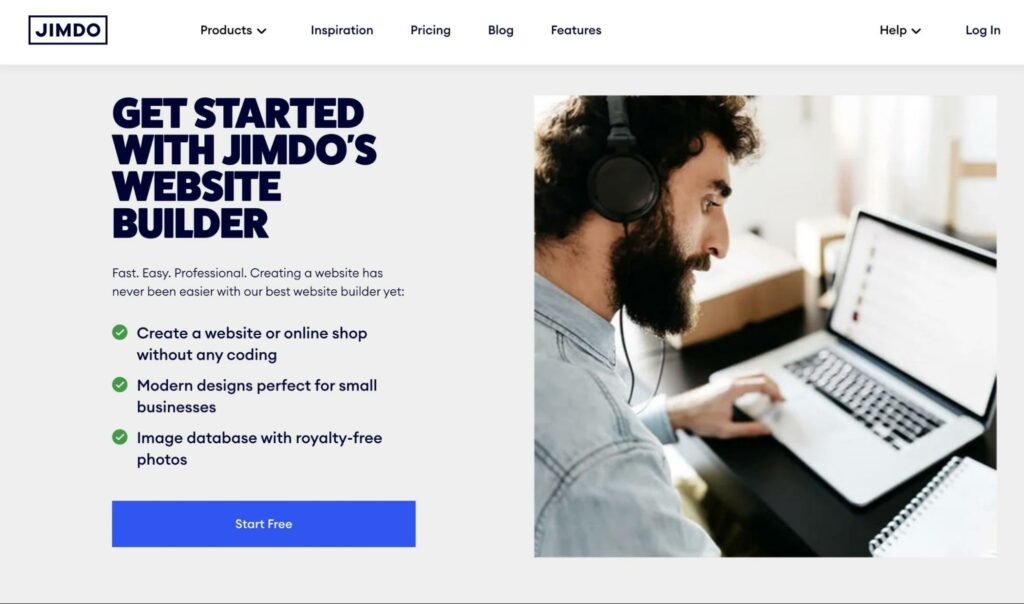
Jimdo is a platform that was specifically designed for self-employed creators. This makes sense when you consider how easy Jimdo is to use. All you need to do to get started is answer some basic questions in the AI set-up wizard:
Key Features:
- AI set-up wizard
- Click-to-edit website builder
- Automatic SEO
- Free logo creator
- Supports social selling
If you need to create a well-designed website quickly, you can use the Jimdo website builder. Its AI web design called ‘Dophin’ can use information about your goals and instantly generate a website that works for you. This is a quick way to get a personalized site that is instantly ready to use.
Pricing: You can create a Jimdo website for free, but you’ll have a .jimdosite.com subdomain. To access a custom domain and remove ads, you can purchase a plan starting at $9 per month.
The Future of Web Design
In the past, it was necessary to hire professional developers and designers to create a functioning, user-friendly site. However, website builders have changed the future of web design, enabling anyone to have an online presence without much/any coding experience.
This new age of code-free web design makes website-building incredibly accessible. You can now create stunning pages with pre-designed templates and drag-and-drop editors. Ultimately, website builders are bridging the gap between beginners and developers!
Looking to the future, we will see the advent of cross platform blocks and components, new content management systems intuitively separating content from layout, themes that act as a layer over designs instead of “being the design.”
Easily Build Your Dream Website
Don't know code? No problem. Our DIY Website Builder makes building a website as easy as sending an email.

The post The Current State of Website Builders (Overview & Comparisons) appeared first on Website Guides, Tips & Knowledge.
source
https://www.dreamhost.com/blog/state-of-website-builders/