Tuesday, 4 April 2023

Say Goodbye to Spam! A Complete Guide to reCAPTCHA

In 2013, Target now infamously compromised the data of tens of millions of shoppers in an event that slashed sales, brought lawsuits, and even caused the CEO to resign.

What happened?

Hackers gained access to Target through a third-party vendor that lacked a CAPTCHA or any kind of authentication to ensure there was a human — not a malicious bot — entering their system.

From there, it didn’t take long for the bot to infiltrate this third-party vendor’s organization and work its way into the major retailer’s payment network.

What’s the lesson here?

If bad actors want a way into your website, a CAPTCHA can be a powerful first line of defense, and even convince them to move on to an easier target (pun *highly* intended).

Intrigued by this CAPTCHA concept?

Then read on to learn:

  • The difference between CAPTCHA and reCAPTCHA (and what all those letters mean!)
  • The core types of CAPTCHAs in use today
  • How CAPTCHAs can help website owners avoid spam and abuse
  • A few downsides to consider with CAPTCHAs
  • Two ways to add a Google reCAPTCHA to your WordPress site

Get Content Delivered Straight to Your Inbox

Subscribe to our blog and receive great content just like this delivered straight to your inbox.

What is reCAPTCHA?

Get ready folks, because this one’s got layers.

Let’s start with a basic definition: “reCAPTCHA is a service from Google that helps protect websites from spam and abuse.”

reCAPTCHA from Google is a popular, branded version of CAPTCHA. The original idea of CAPTCHA was envisioned at Carnegie Mellon University around 2000. reCAPTCHA was also created by developers at the same university, then purchased by Google around 2009.

Now for the next layer: What do all the letters in “CAPTCHA” actually mean?

The phrase CAPTCHA is short(ish) for “completely automated public Turing Test to tell computers and humans apart.”

And that explanation brings us to a final, logical layer to peel back: What’s a Turing Test?

If you’re like us, your primary exposure to the Turing Test comes from the 2014 movie The Imitation Game, featuring mathematician and computer scientist Alan Turing.

Alan Turing developed the Turing Test (which he originally dubbed the imitation game — humble) to answer the question, “Can machines think?”

Today, Turing Tests are primarily used to tell humans and bots apart by testing a bot’s capacity to display the same intelligent behavior a human would. Bots, in this case, refer to automated software programs, often powered by artificial intelligence (AI).

DreamHost Glossary

Bot

A bot is a program designed to automate specific tasks. For example, search engines use bots to crawl the web following links to map and index new pages. Bots are also common in malware.

Read More

CAPTCHAs help prevent spam and abuse on websites by blocking bots with challenges that are relatively easy for us humans to figure out and accomplish, but often expose bots for the programs they are.

Now that you know enough to definitely write a novel on the background of the CAPTCHA, let’s talk about all the different ways we see this concept appear in everyday life.

Different Types of CAPTCHAs

CAPTCHAs have developed in various directions over the years in an attempt to make the distinction between humans and bots. Today, there are several common types of CAPTCHAs which require different forms of reasoning and input.

Text-Based CAPTCHAs

Text-based CAPTCHAs show characters in odd arrangements, using unusual fonts, and on colorful backgrounds.

These CAPTCHAs require reasoning and translation to sort out what each letter and number is meant to be — an intelligent task that many pre-programmed bots can’t do.
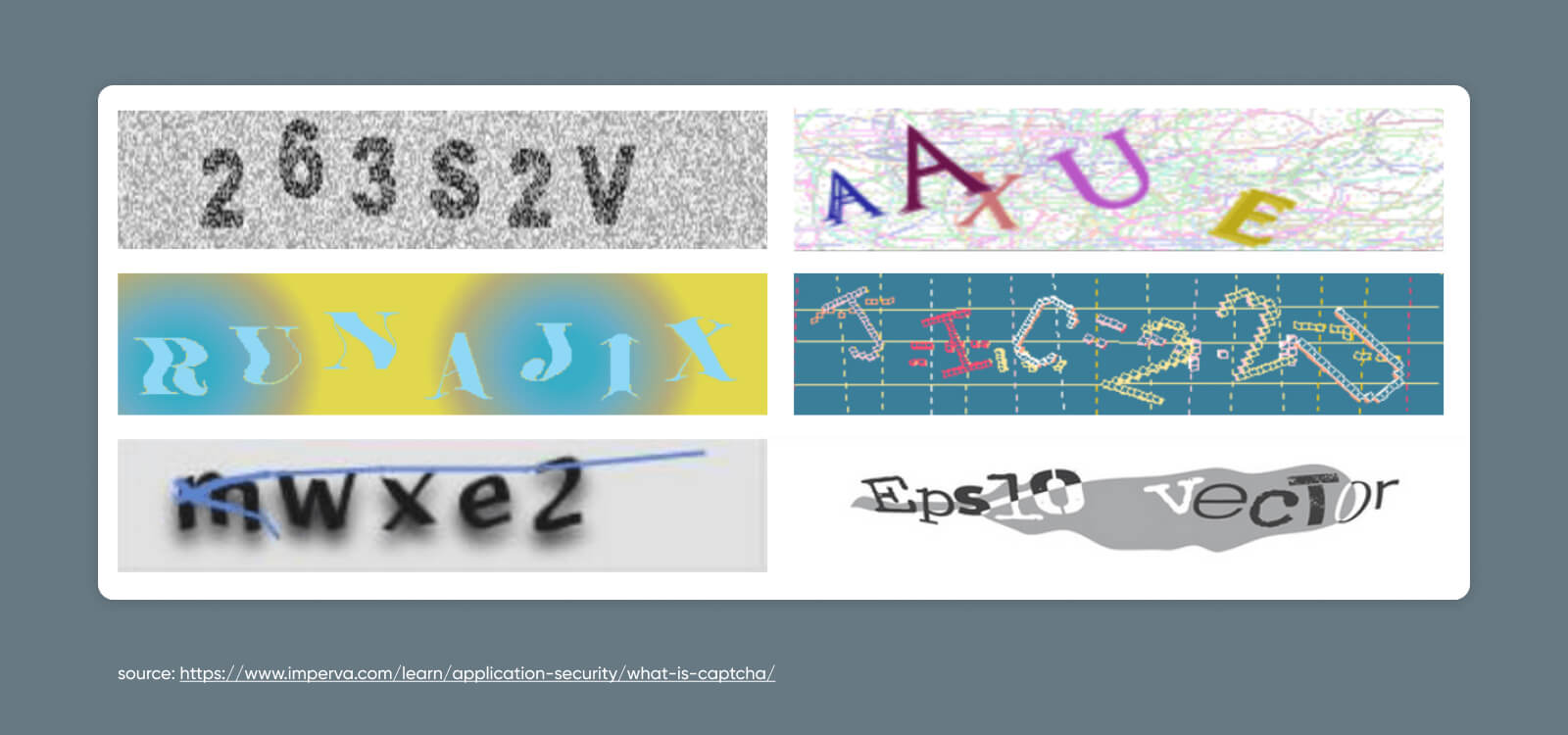
Example of text-based CAPTCHAs

Image-Based CAPTCHAs

With an image-based CAPTCHA, the website user must identify which displayed photos match the provided prompt. By using similar-looking photos that require a level of logic to distinguish, this option can also outsmart bots.

Google’s reCAPTCHA tests use this method quite often — which makes sense considering its vast source of photos from Google Street View.
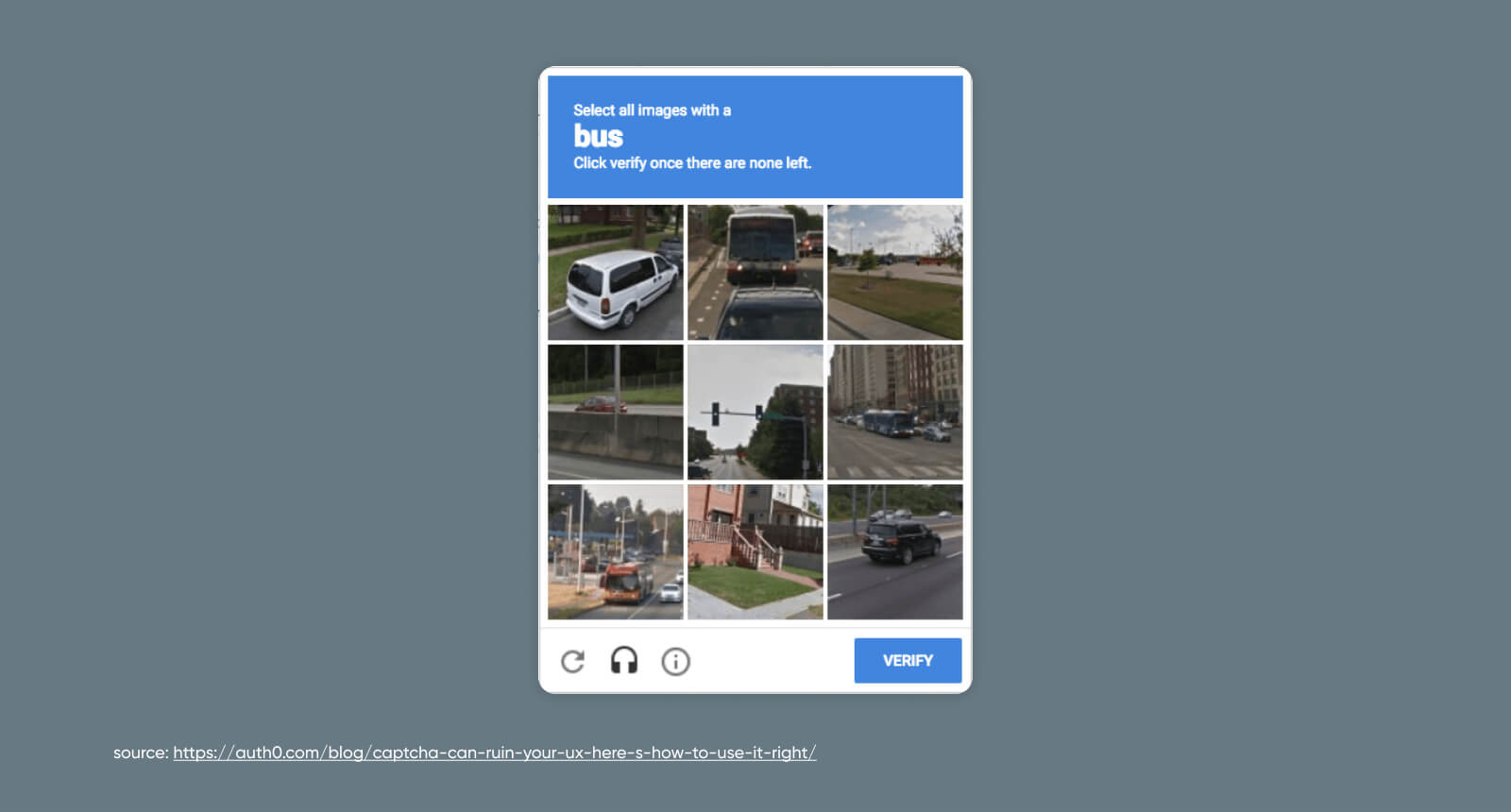
Example of image-based CAPTCHAs

Audio-Based CAPTCHAs

With audio-based CAPTCHAs, sound is the medium. This method is often paired with others, like text and visual CAPTCHAs.

Audio CAPTCHAs are not only more accessible to people with vision impairment – they are also a powerful bot-blocker as they rely on how tricky it can be to distinguish actual words from background noise.
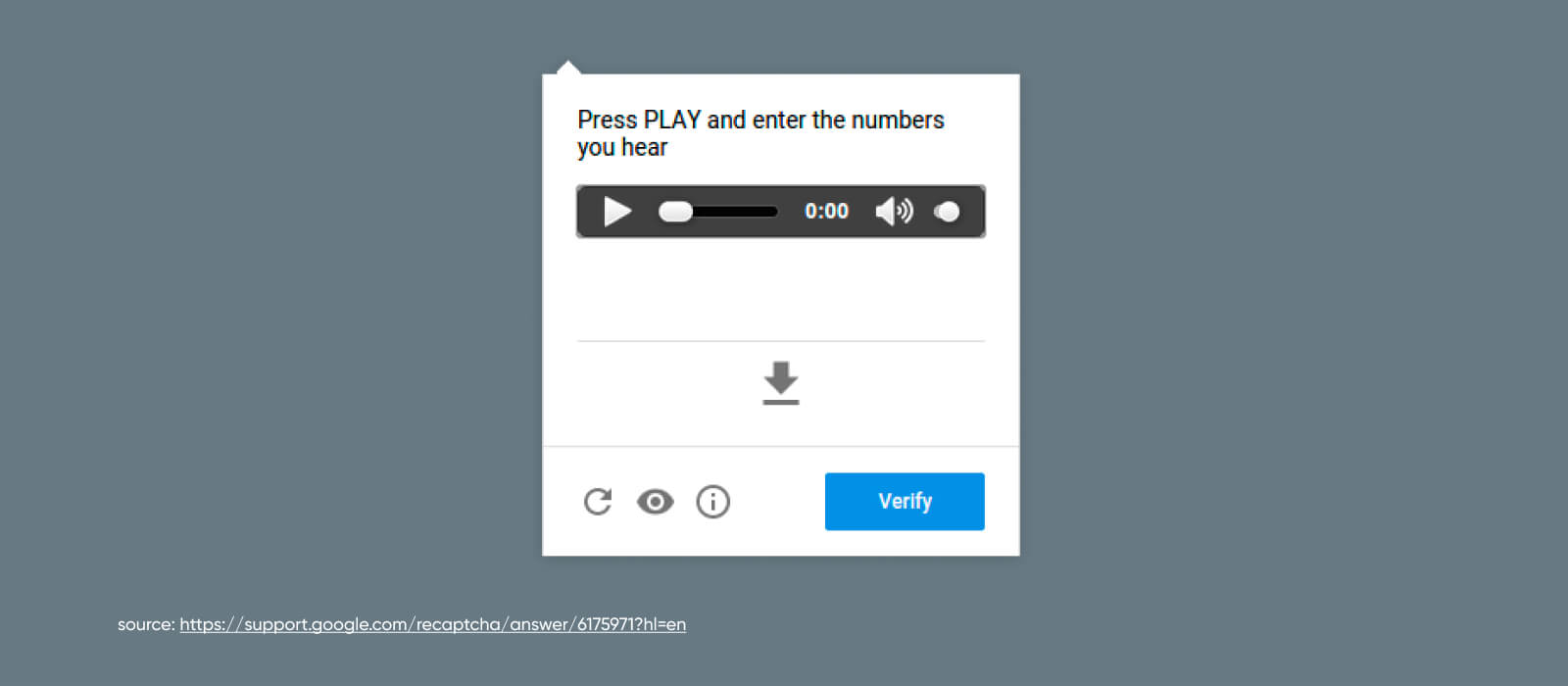
Example of audio-based CAPTCHAs

Checkbox-Based CAPTCHAs

While these CAPTCHAs may seem simple on the surface, they’re actually assessing how website users interact with the checkbox itself.

Bots fill out forms and complete checkboxes instantly, whereas humans navigate through this process more slowly.

This method may be combined with other CAPTCHAs if you want even more assurance that a user isn’t secretly a software program cleverly disguised as a human wearing sweatpants and drinking Starbucks.
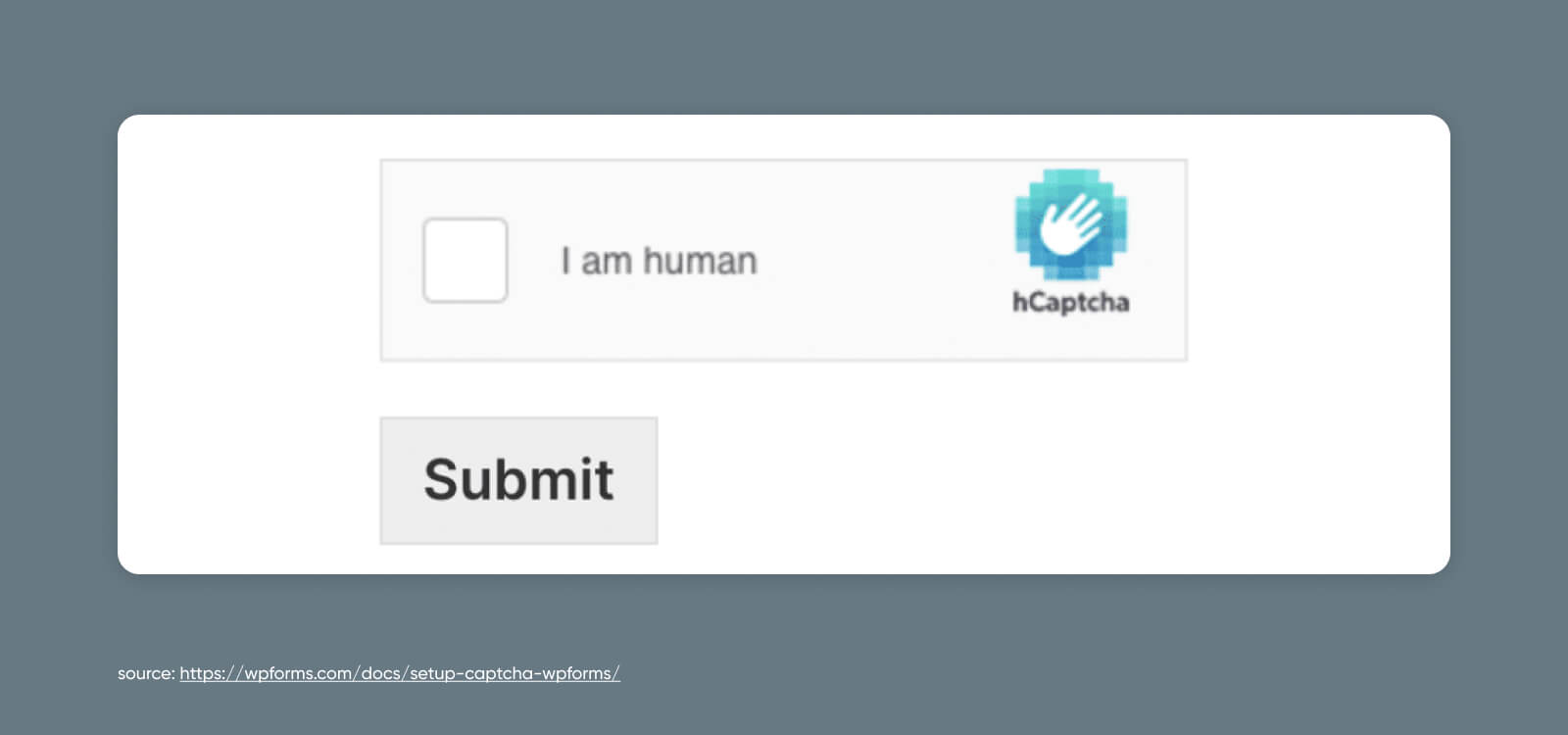
Example of checkbox-based CAPTCHAs

Behavior-Based CAPTCHAs

The thing is, software has gotten so smart that a lot of the above CAPTCHAs can be bypassed these days.

That’s why the newest version of reCAPTCHA — Google’s reCAPTCHA v3 — changed the game with a CAPTCHA method that runs in the background.

reCAPTCHA v3 is a mostly invisible reCAPTCHA, which uses a JavaScript API and machine learning-powered, adaptive risk analysis engine to score users based on their behavior as they interact with your web pages.

Behind the scenes, reCAPTCHA v3 gives each user a score that attempts to determine whether they’re human or bot. Of course, in some cases, this monitoring may not be enough to stop the really intelligent bots.

In addition, in an age when the pendulum is swinging back toward privacy on the internet, this method can be controversial as it monitors your on-site activity, with the only warning often being the small reCAPTCHA badge.
Example of behavior-based CAPTCHAs

What we’ve talked about here are just the most common CAPTCHAs. Other types of programs do things like ask the website user to drag objects to a specific point on the screen, play a “microgame,” and so on. Check out more CAPTCHA examples here.

Use Cases: Where to Apply CAPTCHAs to Prevent Spam

AI-powered automated software has a lot of extraordinary applications, such as helping businesses complete mundane, repetitive tasks to save workers time.

However, hostile actors have certainly found ways to use this technology to attack websites.

DreamHost Glossary

DDoS Attack

DDoS means Distributed Denial of Service. It’s an attack that tries to make a system or network unavailable by flooding it with traffic from multiple sources.

Read More

Here are some of the best use cases, where applying CAPTCHAs can protect your site from spam and abuse.

Polls and Questionnaires

Businesses use polls and questionnaires for all kinds of reasons.

Externally, they can help you gather feedback and new ideas for products, services, marketing, branding, content, and everything else user-facing.

Internally, polls and questionnaires can help ensure employee happiness and collect insights on new policies and offerings.

You wouldn’t want to skew those results with an overwhelming number of automated, false responses, now would you?

Well, bots certainly might.

User Logins

Bots are often deployed to help hackers access websites through existing accounts that users have already set up.

Typically, they do this via brute force attacks that use software to automatically guess hundreds of passwords in seconds.

Why would they want to access these accounts? Sometimes it’s so they can steal information from accounts and use it to hack into other online properties. Hacking often happens in sequential events.

Other times, it’s so they can use the account to post promotional material or other information they know they’ll get quickly blocked for.

Comment Sections

You’ve probably seen plenty of spam popping up in comment sections across websites and social media.

Bots are used to leave comments en masse to spread advertising, a particular point of view (such as a political one around election time), or links to nefarious sources where hackers are waiting to steal visitor information.

Forms

Just like comment sections, forms that aren’t protected using CAPTCHAs can be overrun with false submissions from bots programmed to try to sell you something, spread a specific narrative, or even phish for sensitive data.

Checkouts

There are several reasons hackers would want to sic their bots on a website’s checkout page.

The first is obvious: buying out tickets or other inventory at a rate humans can’t keep up with. And then, probably, reselling them elsewhere for higher prices. (We’re not bitter about missing out on Taylor Swift tickets at all…)

Secondarily, bots can use unprotected checkout flows to do something called card testing. This is when they run automated scripts in your checkout system to test whether stolen credit card numbers are usable or not.

By requiring CAPTCHAs to be solved before the above actions are completed — your website should be able to identify and shut down most automated abuse carried out by bots.

DreamHost Glossary

Brute Force Attack

A brute-force attack is a cyber assault where the attacker uses trial-and-error to break into an online account. It is typically carried out by malicious bots that attempt to guess passwords, general login credentials, or digital keys.

Read More

Potential Downsides of Using CAPTCHAs

While CAPTCHAs clearly have their benefits, there are some downsides to consider when you’re setting up this system on your website:

  • CAPTCHAs can make your website less accessible for people with hearing and/or vision impairment, or those who don’t know the language your CAPTCHA features.
  • CAPTCHAs may interrupt the user experience, and if they’re too difficult, they may prevent engagement even from human users.
  • CAPTCHAs are not completely foolproof, so website owners shouldn’t be lulled into a false sense of security — we still need to remain watchful for signs of spam and attacks.

In addition, there are some elements of Google’s reCAPTCHA in particular that website owners should know about:

  • reCAPTCHA v3 can feel invasive to users because it monitors site-wide behavior in order to work, which may cause privacy-minded individuals to avoid using your site.
  • Google’s business model is using or selling data for advertising, which can put off website owners (and users) who don’t want their behavior or data monetized.
  • reCAPTCHA capitalizes on user labor by harvesting data from user interactions to train Google’s visual identification systems, with which some people may be uncomfortable.
  • Google is sometimes blocked in countries such as China, so installing Google technology can severely limit a website’s global reach.

How to Add reCAPTCHA to WordPress via Plugin (6 Steps)

Preface: CAPTCHAs of all varieties can be added to websites of all kinds.

However, since WordPress is one of the most popular website platforms and reCAPTCHA from Google is powerful, free (up to a million assessments), and very popular — integrating these two is what we’re going to focus on today.

Now, let’s get to protecting your site.

Step 1: Register Your Site

First things first, register your WordPress site in Google’s reCAPTCHA admin panel. To complete this step, you must sign into or create a Google account.

During registration, you’ll fill out information like what you want to call your website, which type of reCAPTCHA verification you want to use, etc.
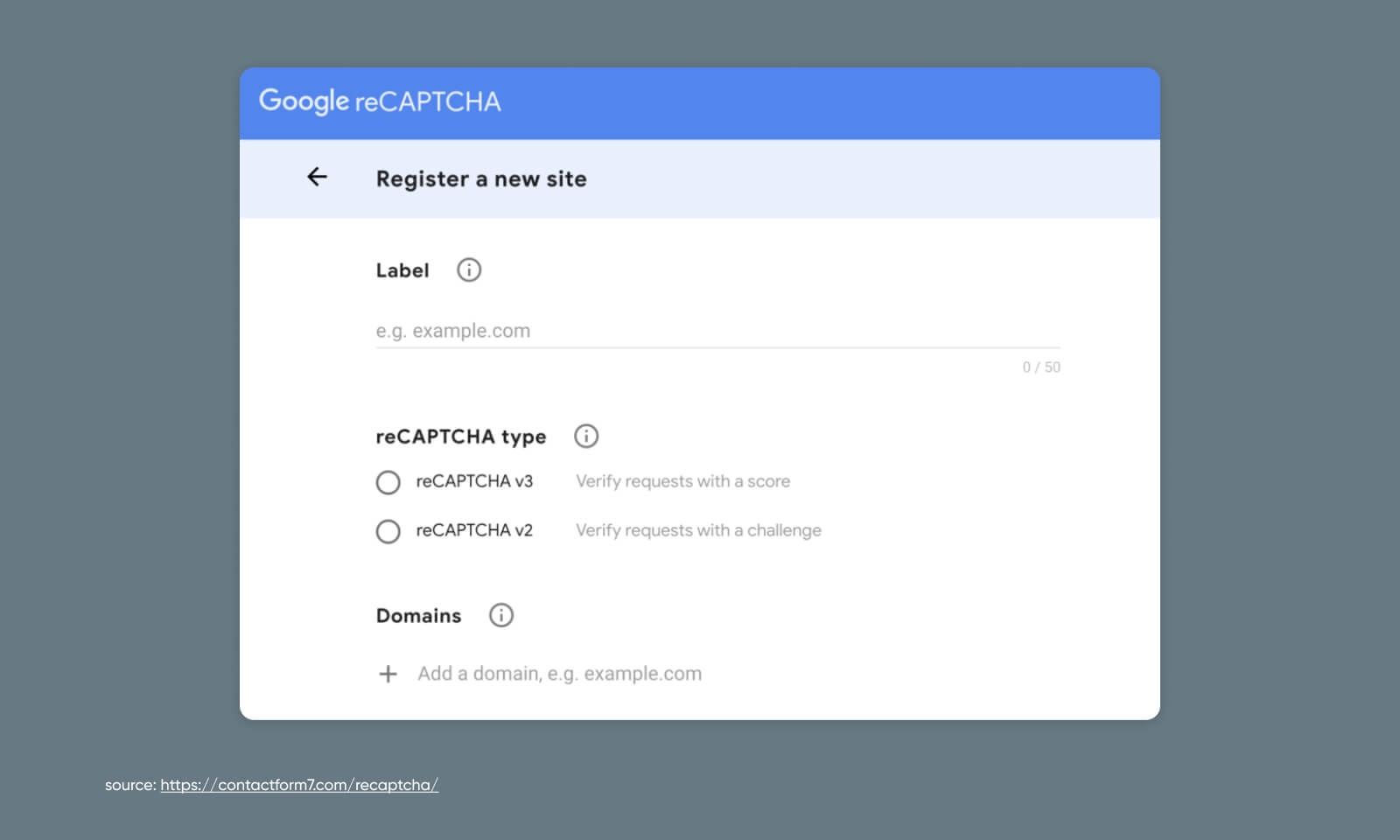
Screenshot of registration on Google reCAPTCHA

Step 2: Grab Your Keys

With registration submitted, Google will provide both a site key, and a secret key. These are how you’ll get your Google reCAPTCHA to talk to your WordPress website.

Copy them, because we’re going to put them to use soon.

Step 3: Install WordPress Plugin

Now, log into WordPress.

If you don’t already have a reCAPTCHA plugin installed, head to Dashboard > Plugins > Add New and search for “reCAPTCHA.” reCaptcha by BestWebSoft, CAPTCHA 4WP, and Contact Form 7 are all popular options.

Once installed, most of these plugins will walk you through connecting your website to your Google reCAPTCHA. We’ll carry on the rest of this tutorial using Contact Form 7 as an example of how approachable it can be.

Step 4: Turn on reCAPTCHA

With Contact Form 7 installed, head to Contact > Integration in WordPress. Locate the reCAPTCHA integration box and begin the setup process.

You will be asked to paste in the site and secret keys you just got from Google. Once those are added and changes saved, reCAPTCHA will be up and running on your site.
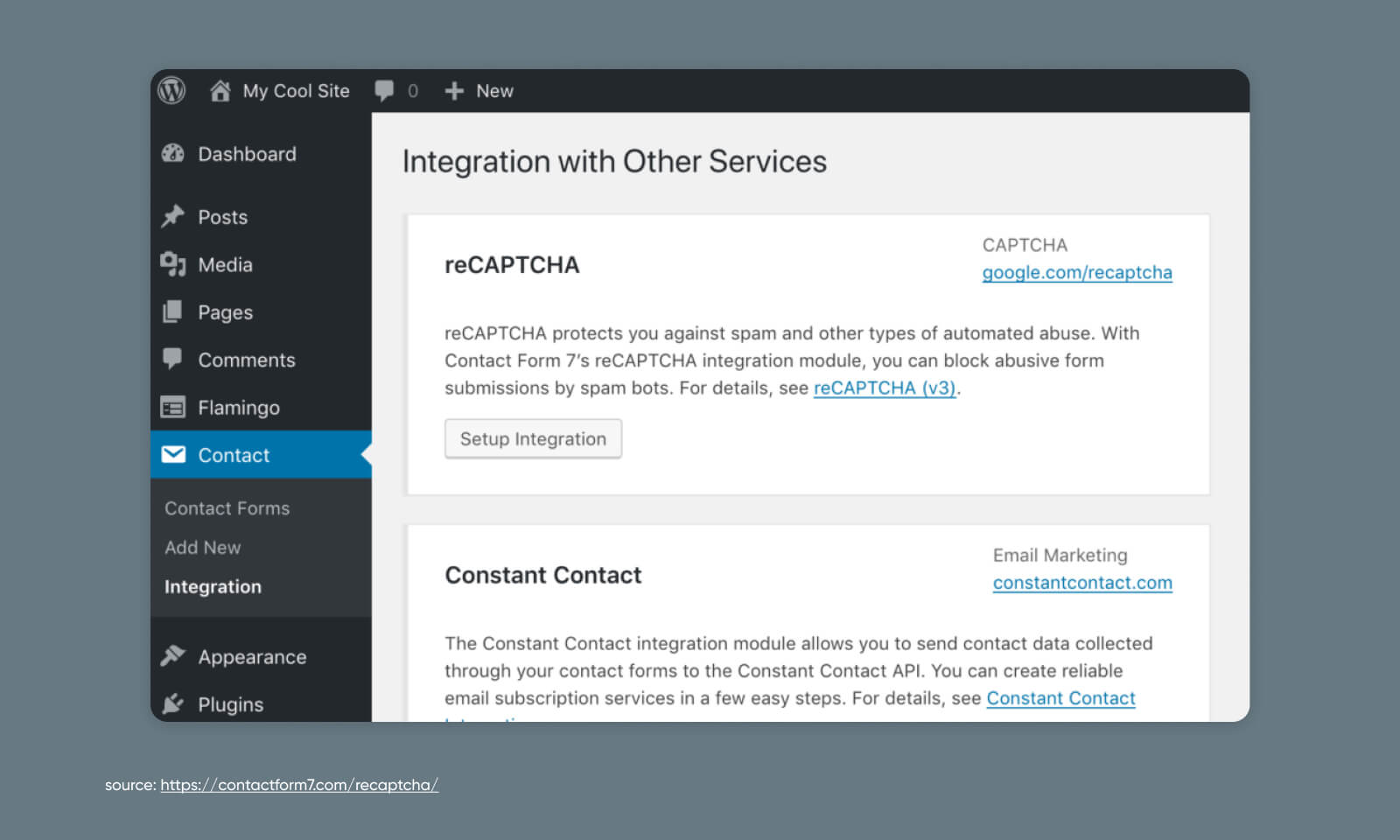
Screenshot of turn on reCAPTCHA on WordPress

For a walkthrough of setting up Contact Form 7, check out our Knowledge Base article on Troubleshooting WordPress contact forms.

Step 5: Add reCAPTCHA to a Form

Now that your reCAPTCHA functionality is turned on, you’ll need to add it to any forms you want to protect from bot submissions.

To do so, go to Contact > Dashboard in WordPress and add a new form.

Here, you’re going to lightly edit the code of the form template to inject a reCAPTCHA.

Add “[recaptcha]” right before the “[submit “Submit”]” line. Once you save, you should see a shortcode appear under the form title.
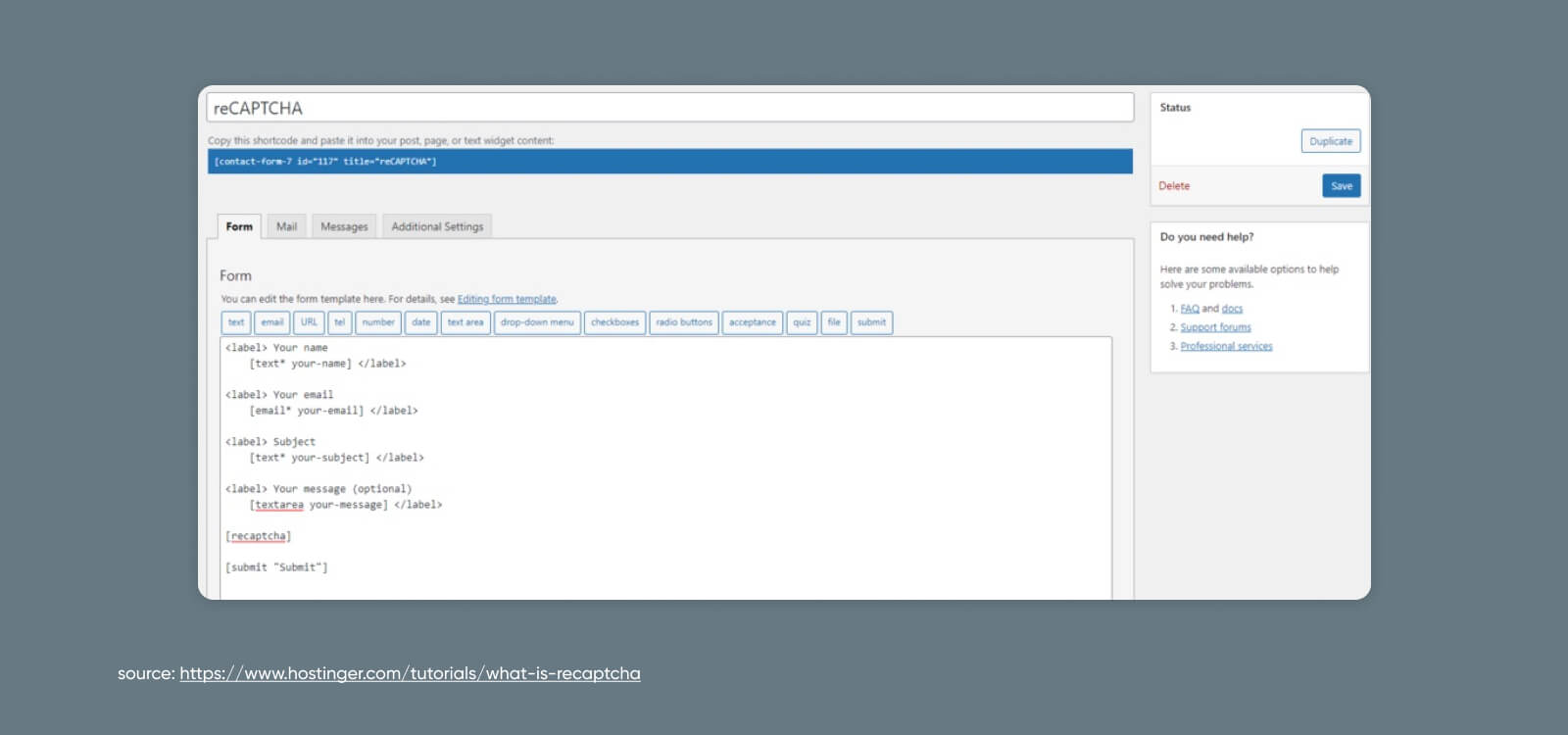
Screenshot of how to add reCAPTCHA to a form

Step 6: Publish Your reCAPTCHA Form to Your Website

Copy that shortcode you just created.

Now, go forth and paste that code into posts, pages, or text widgets to install a new form complete with a reCAPTCHA!

How to Add reCAPTCHA to WordPress Manually (4 Steps)

As an alternative to the plugin route, you can add a reCAPTCHA manually to any form on your website.

This will take a bit of code tinkering. If you’re squeamish with things like head tags and JavaScript snippets, then you may feel most comfortable sticking with an out-of-the-box option.

But if you’re ready to roll up your sleeves, getting things set up is pretty easy on a scale from super easy (launching a new website with DreamHost) to super difficult (solving the three-body problem).

Let’s get into it.

Step 1: Register Your Site and Grab Your Keys

Just like with the plugin route, you’ll need to start by signing up for reCAPTCHA from the Google website.

You can do that in two quick steps:

  1. Register your WordPress site in Google’s reCAPTCHA admin panel and select the reCAPTCHA type.
  2. Copy both your site key and secret key for future use.

Now, let’s get back to the website at hand. There are three core pieces that make reCAPTCHA work:

  • The JavaScript library (reCAPTCHA API)
  • The HTML form element
  • The response verification code

We’ll kick things off with the reCAPTCHA JavaScript library.

Step 2: Add the reCAPTCHA JavaScript Library

To get started, we need to add the JavaScript library to your website. This is a small snippet of code that needs to be added to every page that will use reCAPTCHA:

“<script src="https://www.google.com/recaptcha/api.js" async defer></script>”

The easiest way to make sure this is accessible on all of the necessary pages is to add it to your universal header before the closing “</head>” tag.

You can do this one of two ways:

  1. Manually, by accessing the header.php directly within the WordPress admin, or the file manager inside your hosting dashboard
  2. By using a plugin to add the code to your header

Adding the Code Manually

If you choose the first route, you’ll need to use either the theme file editor inside WordPress or your file manager to access the header.php directly.

Important Note: Editing your theme files directly could break your website, and your changes could be overwritten whenever you update your theme. If you’re not experienced with editing the theme files directly, skip ahead to “Using a Plugin to Add the Code” for a less risky solution.

Your file manager will look different depending on your host, but if you’re using DreamHost, navigate to WordPress > Managed WordPress in the sidebar. Find the domain to which you want to add a reCAPTCHA and select Manage.
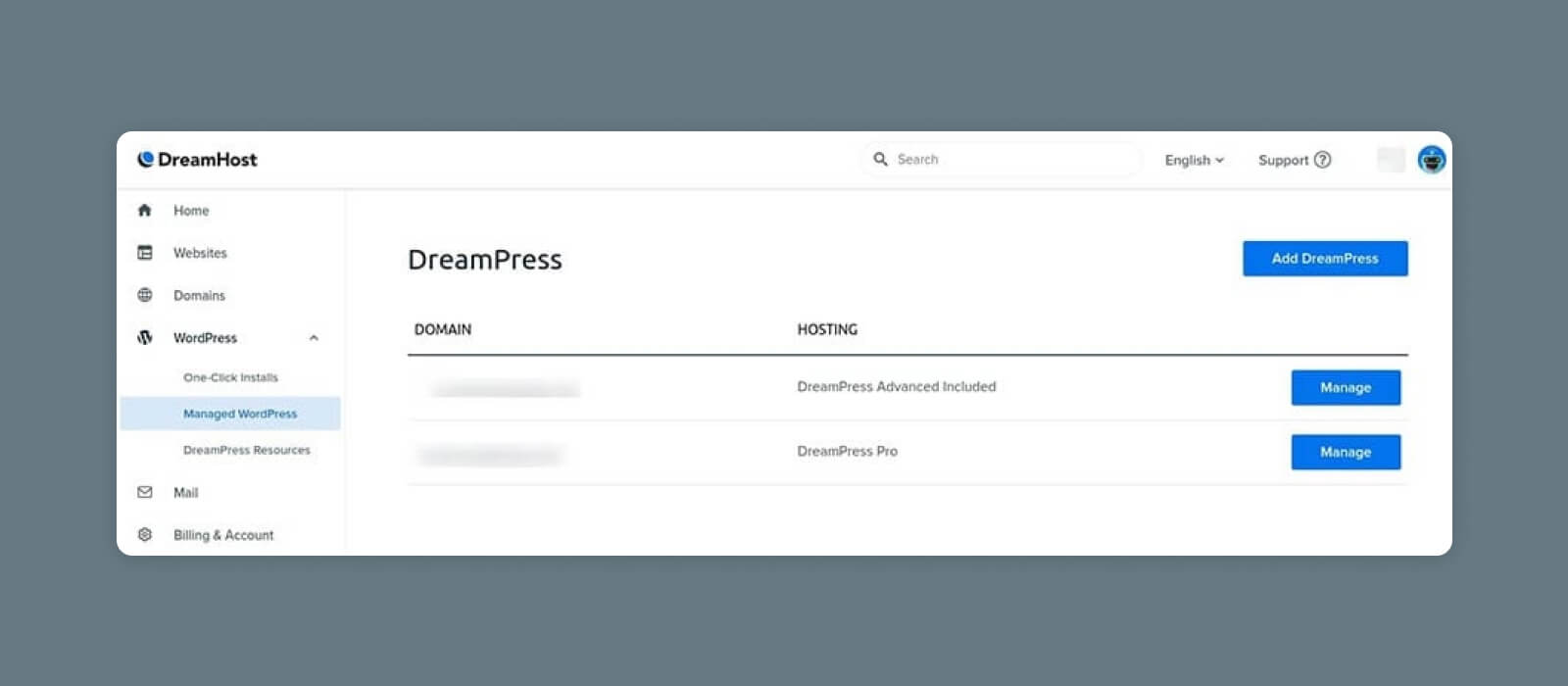
If you want to add code manually you’ll need to use either the theme file editor inside WordPress or your file manager to access the header.php directly. If you’re using DreamHost, navigate to WordPress > Managed WordPress in the sidebar. Find the domain to which you want to add a reCAPTCHA and select Manage.

Then, click on the Manage Files button in the Details section.

Open the folder that has your domain name on it. From there, you’ll navigate to wp-content > themes and find the folder for your current WordPress theme.

Find the file called header.php, open it up, and find the closing <code>“&lt;/head&gt;”</code> tag within the code.

Copy and paste the reCAPTCHA JavaScript snippet right before that line.
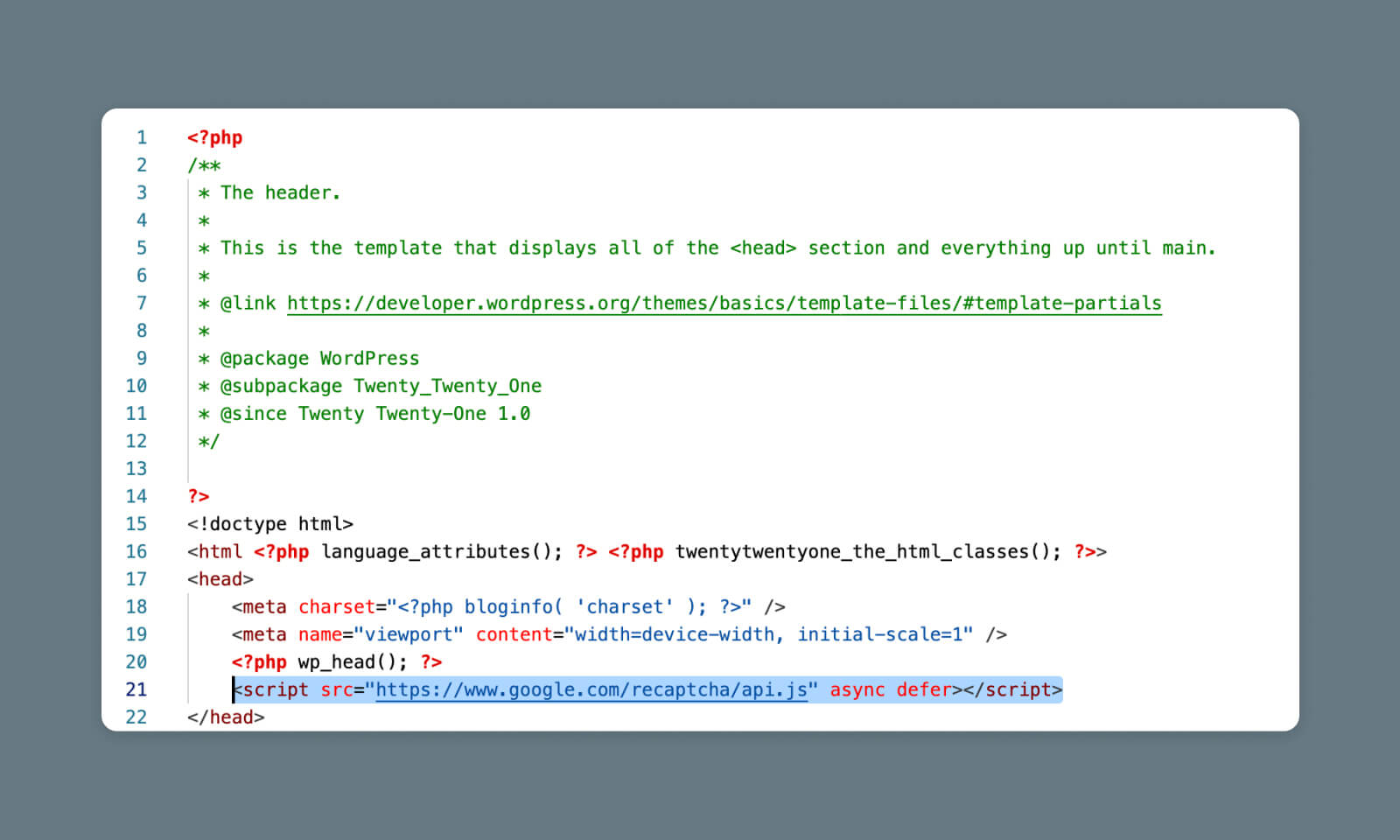
Copy and paste the reCAPTCHA JavaScript snippet on header.php file

Using a Plugin to Add the Code

If the above seems like too much, don’t worry. We’ve got you covered.

Instead, you can install a WordPress plugin that will automatically add code directly to your header with no hacking required.

Using a plugin like WPCode, you can easily add relevant code snippets to key parts of your WordPress theme.

From your WordPress admin panel, go to Plugins > Add New and search for WPCode.

Click Install, then Activate.

Once WPCode is activated, you should see a new section in your left-side menu called Code Snippets.

Go to Code Snippets > Header & Footer.
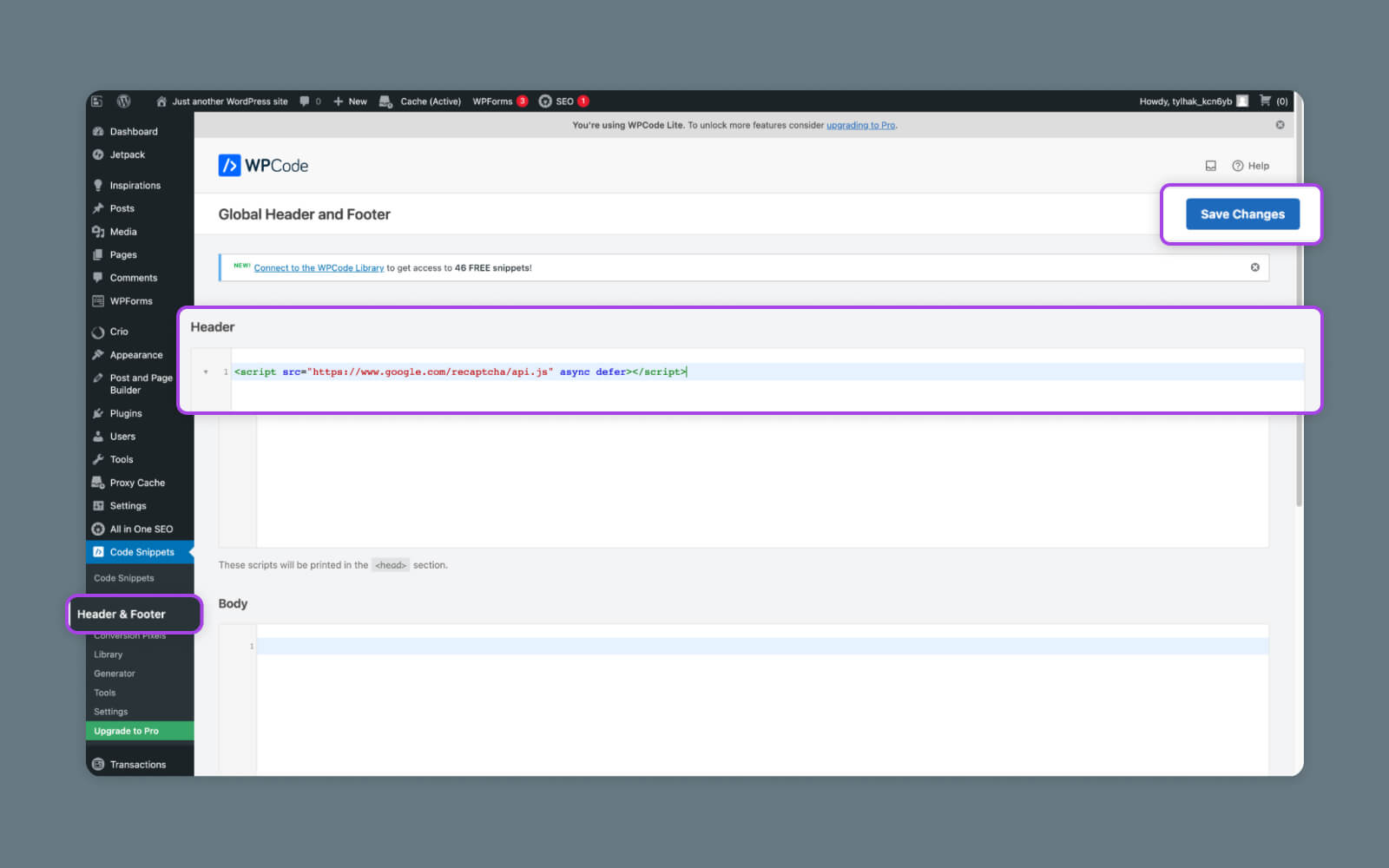
Using a plugin like WPCode, you can easily add relevant code snippets to key parts of your WordPress theme

Inside the Header & Footer page, paste the JavaScript code into the Header section and save your changes.

Boom — code added!

Step 3: Add reCAPTCHA to Your Form

Now, we’re going to adjust the code on the actual form where you want to see your reCAPTCHA.

Again, you can use a file manager, the WordPress editor, or even FTP.  It should live inside the wp-content folder, which houses all your plugins, themes, and media.

In the form code, paste the following code before the submit line to add the reCAPTCHA:

“<div class="g-recaptcha" data-sitekey="your_site_key"></div>”

Here’s an example of how it might look:
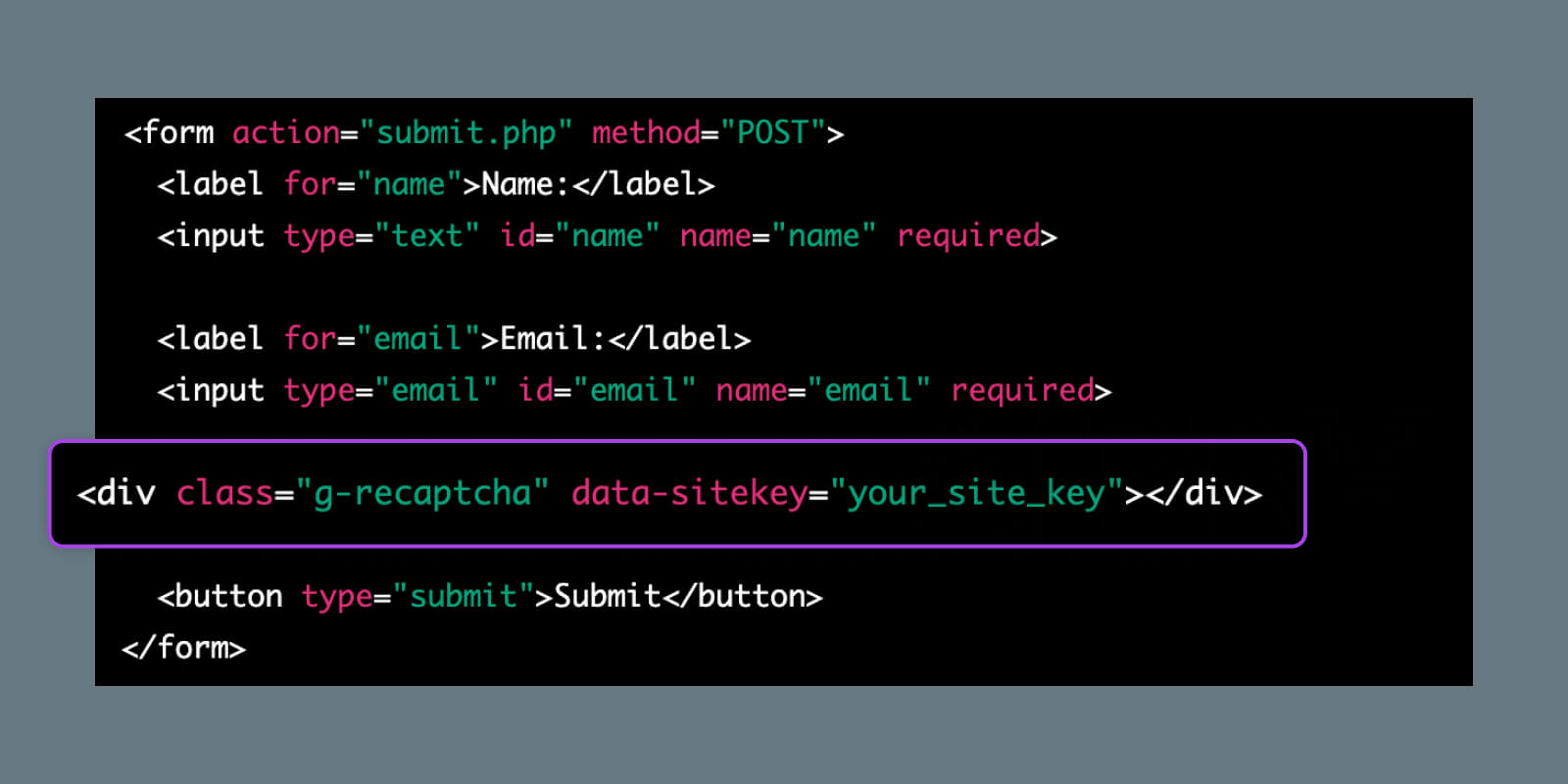
Example of how to add reCAPTCHA to your form

Replace “your_site_key” with the site key you received from Google.

Step 4: Handle the Response

Perhaps the trickiest part of the process is adding code to handle the response from reCAPTCHA. This basically tells your site whether to process the form or block it.

To configure this, you’ll need to add another snippet of code to the form (the callback function):

$secretKey = "your_secret_key";
$response = $_POST['g-recaptcha-response'];
$remoteIp = $_SERVER['REMOTE_ADDR'];

$url = "https://www.google.com/recaptcha/api/siteverify?secret=".$secretKey."&response=".$response."&remoteip=".$remoteIp;
$response = file_get_contents($url);
$responseKeys = json_decode($response,true);

if(intval($responseKeys["success"]) !== 1) {
    // Handle reCAPTCHA validation failure
} else {
    // Process form submission
}”

In this code, you’d need to replace “your_secret_key” with the secret key provided by Google.

This is just one example of an implementation that would allow you to customize how the submission is handled. There are many other methods for handling the server-side validation and callback functions.

For more info on how to handle this part of the process, refer to the official documentation from Google.

Goodbye Spam, Hello Security

While we must reiterate that reCAPTCHA and CAPTCHAs are not the be-all and end-all when it comes to website security, they’re a crucial step in helping you fend off automated bots and hackers with ill intent.

For more tips on securing your WordPress website and beyond, stay tuned to the DreamHost blog. We’re always posting resources to help you keep your website safe, fast, and online so you can impress site visitors and search engines alike.

You Dream It, We Code It

Tap into 20+ years of coding expertise when you opt for our Web Development service. Just let us know what you want for your site — we take it from there.

website tech support

The post Say Goodbye to Spam! A Complete Guide to reCAPTCHA appeared first on Website Guides, Tips & Knowledge.


source https://www.dreamhost.com/blog/complete-guide-to-recaptcha/

Thursday, 30 March 2023

How to Take a Screenshot on a Mac (+20 More Time-Saving Shortcuts)

Picture this: You’re in a Zoom meeting, and your coworker joins — but he’s accidentally added a filter that makes him look like an adorable puppy and he doesn’t know how to remove it. It’s a viral video in the making, but no one is recording the call. You have to at least take a screenshot to share in the Watercooler Slack channel so everyone at the company can get a kick out of this, but there’s just one problem: You don’t know how to take a screenshot on a Mac.

Taking a screen grab on a Mac computer is essential for more than just capturing hilarious Zoom faux pas. You can take screenshots to share information with colleagues, show examples of bugs — you can even mark up your screenshots to make visual instructions. And MacOS makes screenshots easy with keyboard shortcuts you can learn in minutes.

DreamHost Glossary

Mockup

A mockup is a static design used to showcase how a website or an application might look. People use mockups to help evaluate potential designs without coding the actual application or site.

Read More

So here’s your chance to never miss another hilarious moment without documenting it — read on to learn how to take a screenshot on a Mac (plus some other time-saving shortcuts all Mac users should know.

4 Ways to Take a Screenshot on a Mac

There are actually many different ways to take screenshots on a Mac, depending on the type of screenshot you need. All of these use Apple’s built-in screenshot tool, so there’s no need for third-party apps or tools.

For each type of screenshot, you’ll press command. Then, while still holding it down, press shift and a number.

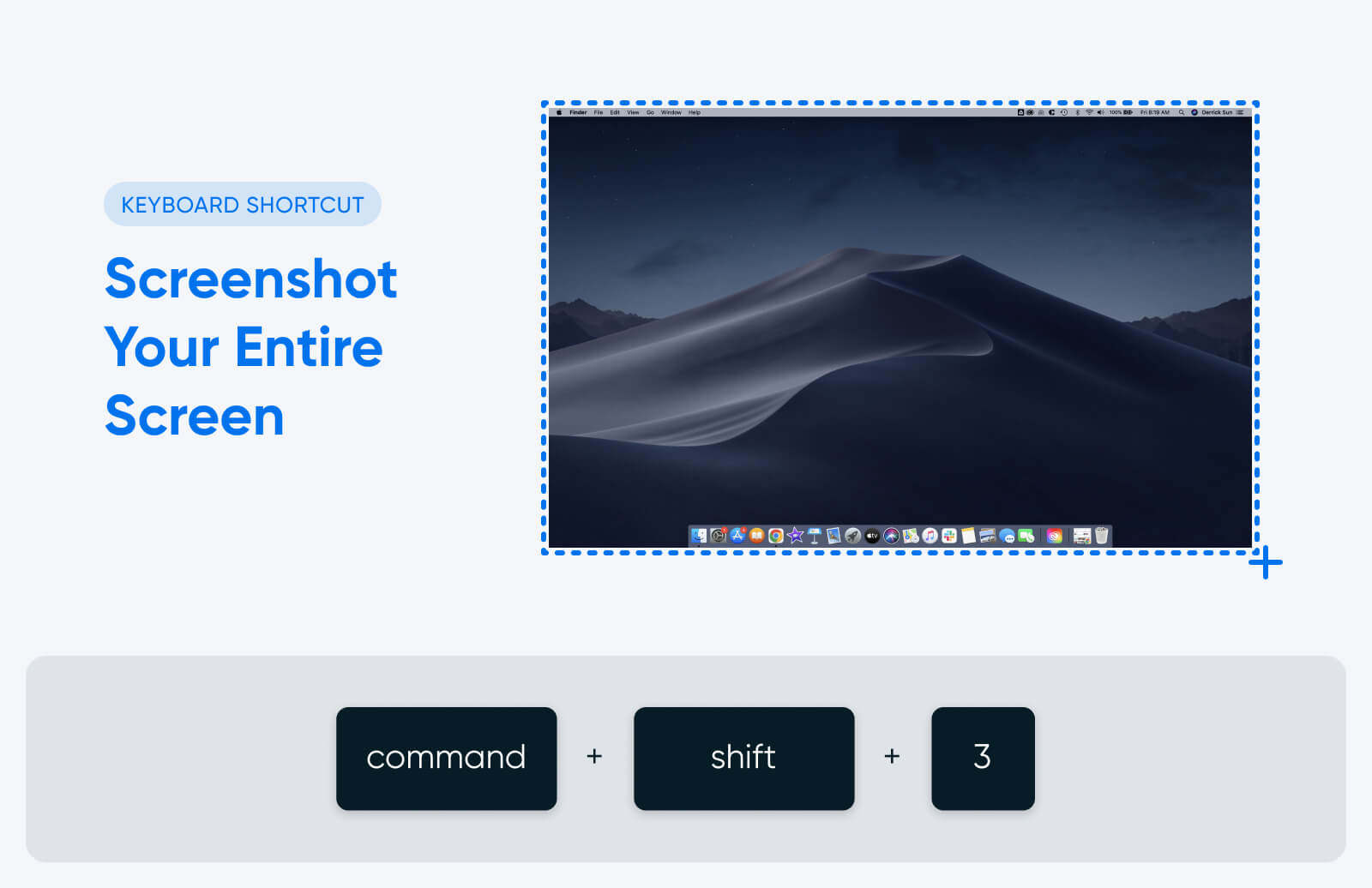
Command + Shift + 3 Screenshot your entire screen
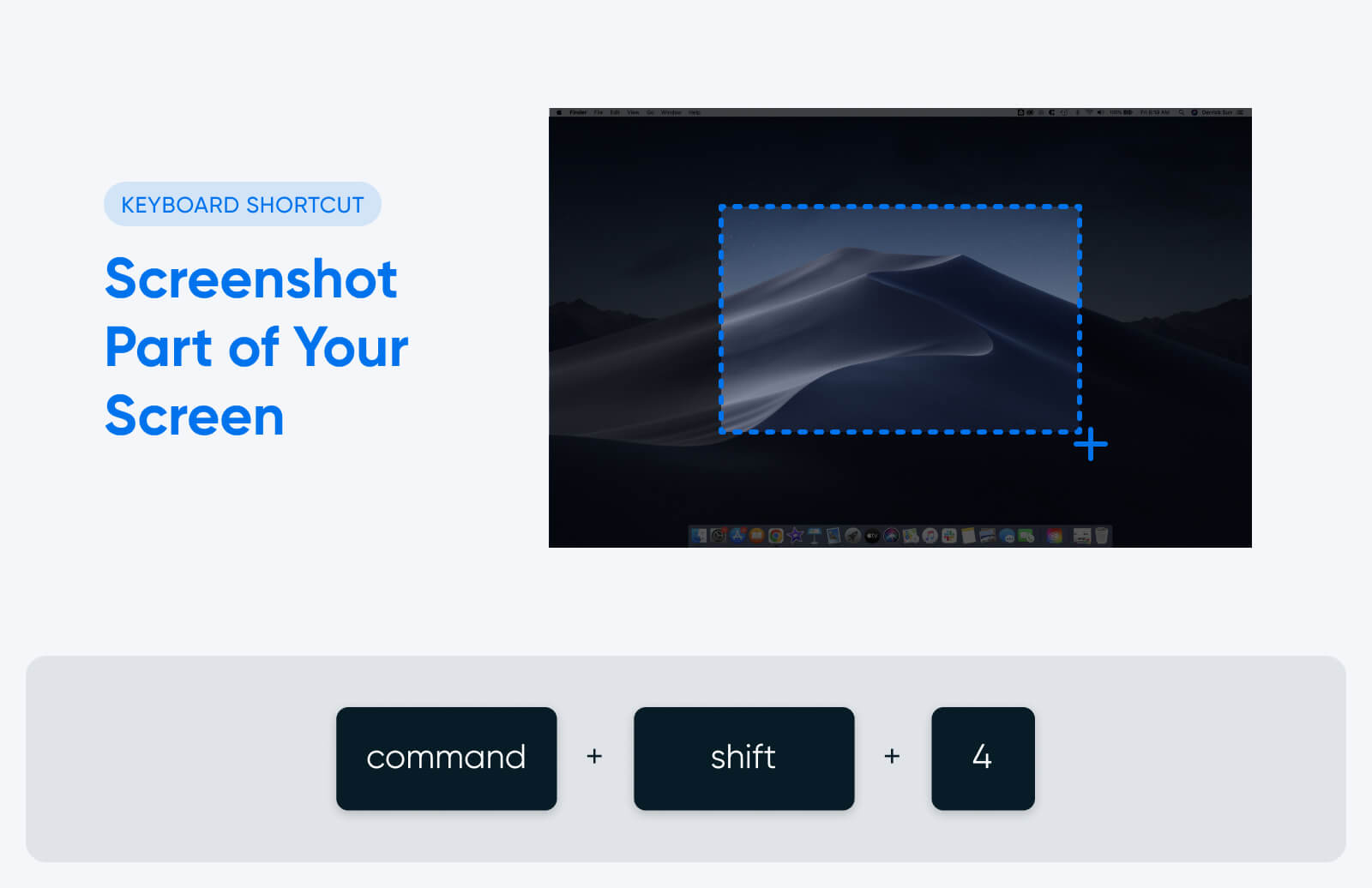
Command + Shift + 4 Screenshot a selected portion of the screen
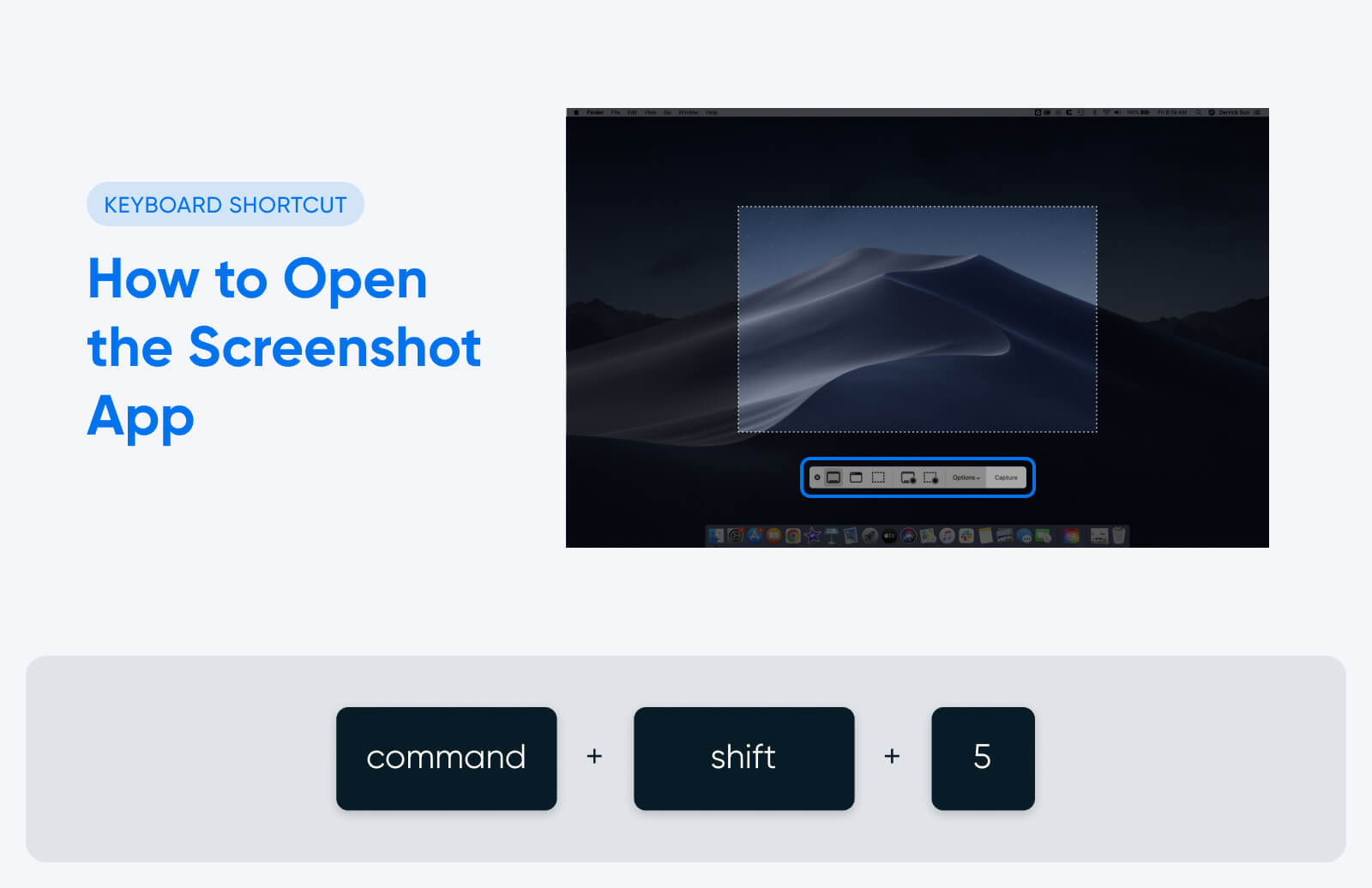
Command + Shift + 5 Open the screenshot menu
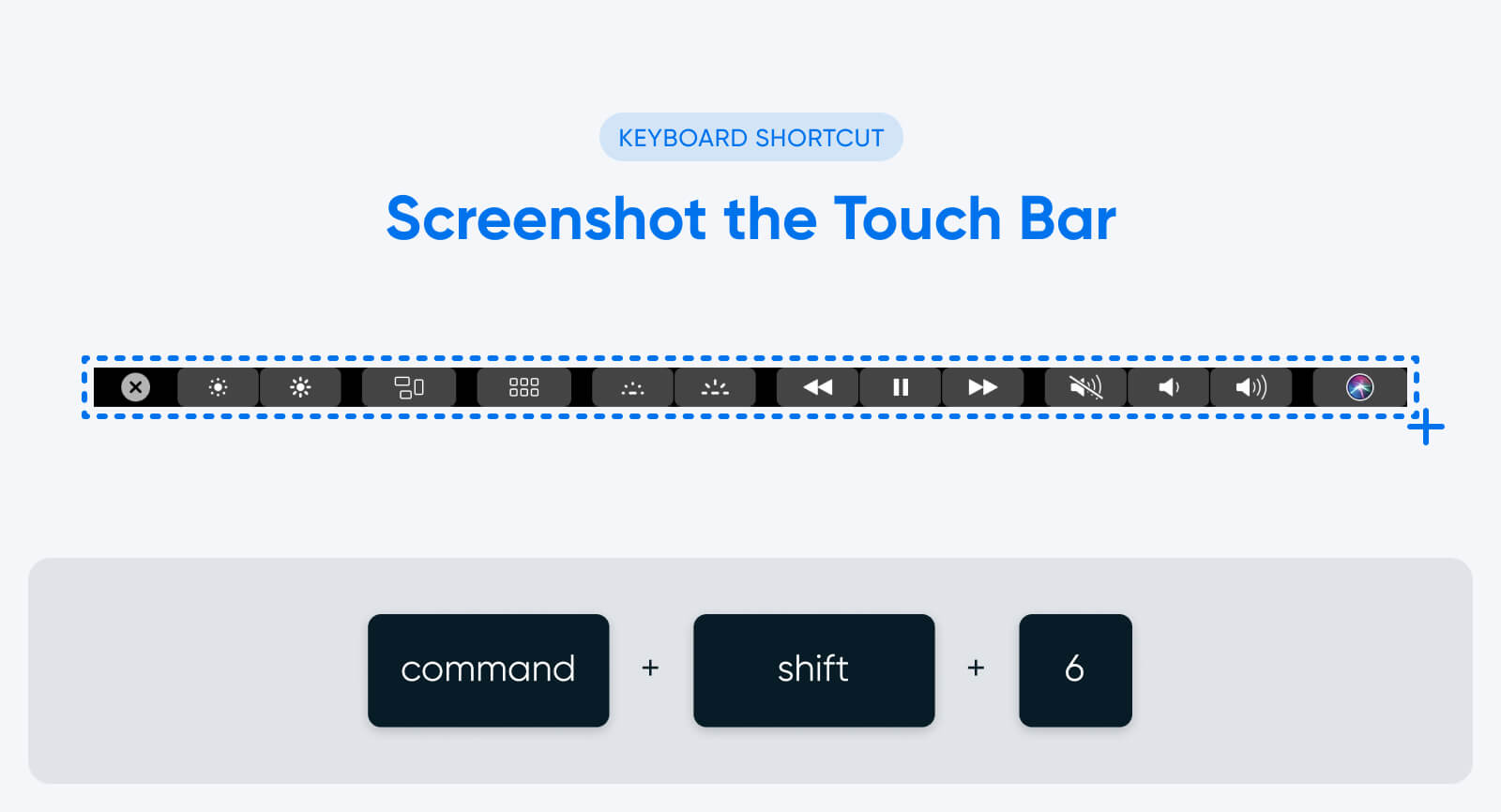
Command + Shift + 6 Screenshot the Touch Bar, if your Mac has one

Check out the different types of screenshots below for the keyboard shortcuts and some more information about each.

How to Screenshot Your Entire Screen

How to screenshot your entire screen on Mac

If you need a screenshot of your whole screen, use this shortcut:

Command + shift + 3

This shortcut will work whether you’re in full-screen mode or have multiple windows visible on your screen. Note that if you’re using multiple monitors, this shortcut will take and save a screenshot of each one simultaneously.

How to Screenshot Part of Your Screen

How to screenshot part of your screen on Mac

If you don’t need a screenshot of the entire screen, but rather a selected area or part of the screen, use this shortcut:

Command + shift + 4

Once you use the shortcut, your cursor will turn into a crosshair. Use your mouse button or trackpad to click and drag the crosshair to select the part of the screen you want to capture. Let go when you have the total area you want inside the screenshot box, or press the Esc key to cancel the screenshot.

There are a few more ways you can use this shortcut:

  • Press Command + shift + 4 and then hit the spacebar. This will turn your mouse pointer into a camera icon, and instead of clicking and dragging to select an area for your screenshot, you can click on a specific window to capture it.
  • After clicking and dragging to create your screenshot area, press and hold the spacebar. This will lock the size and shape of the box. You can then drag it anywhere on the screen, and release the spacebar to take your screenshot.
  • After clicking and dragging to create your screenshot area, press and hold the Shift key to adjust the height and width of the selected area. Press Shift to toggle between height and width. Let go of the mouse button or trackpad to take the screenshot.

How to Screenshot the Touch Bar

How to screenshot the Touch Bar on Mac

Not every Mac computer has a Touch Bar, but some models of the Macbook Pro come with this backlit toolbar built into the keyboard. It replaces the function keys and serves as a menu bar for volume, brightness, video playback controls, and more.

On a Mac that has a Touch Bar, you can screenshot it by using this shortcut:

Command + shift + 6

This will capture everything showing in the Touch Bar at the time you took the screenshot.

How to Open the Screenshot App

How to open the screenshot app on Mac

Certain Mac operating systems (including MacOS Mojave, Catalina, Big Sur, Monterey, and Ventura) have a built-in screenshot app that offers even more screen capture features and options.

To open the screenshot app, use this shortcut:

Command + shift + 5

The icons on the left side of the menu allow you to take a screenshot. From left to right, clicking the icons will allow you to:

  • Screenshot your entire screen
  • Screenshot a selected window
  • Screenshot a selected portion of your screen

Once you’ve chosen the option you want, click the “Capture” button on the far right of the menu to take and automatically save the screenshot.

The screenshot app also has an “Options” menu that allows you to customize how your Mac takes and saves screenshots. For example, if you click “Options,” then “Show Floating Thumbnail,” you can customize whether a thumbnail preview of your screenshot appears in the corner of your screen right after taking it. You can also customize how and where your screenshots are saved (but more on that in a minute).

How to Take a Screen Recording on a Mac

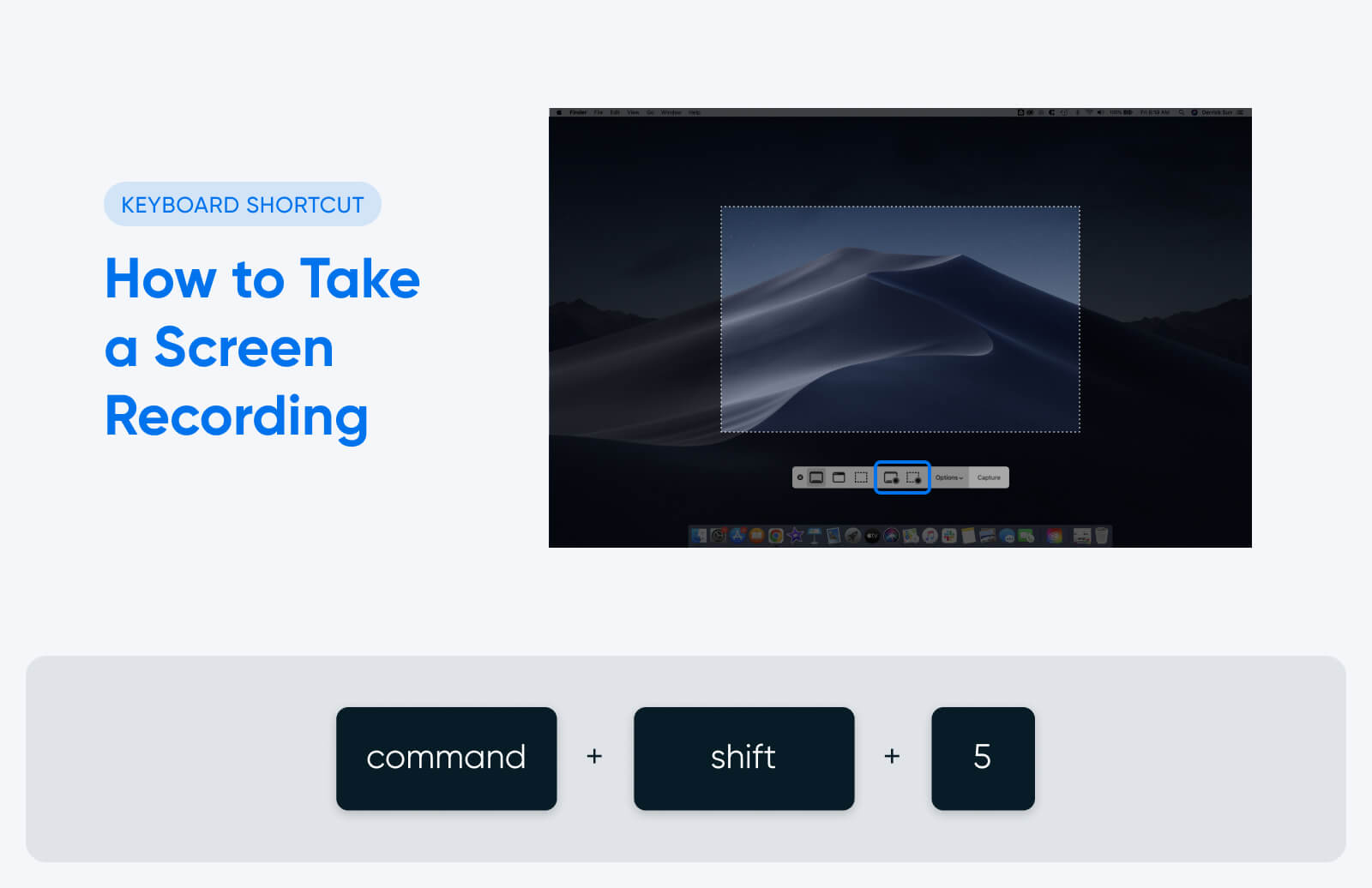
How to take a screen recording on Mac

Screenshots are static images of a single moment in time on your screen. Screen recordings are videos that show everything happening on your screen over several seconds or minutes — great for giving someone visual instructions on how to do something cool on their Mac, for example.

To take a screen recording without a third-party tool, you’ll need a Mac with an operating system installed that supports the built-in screenshot app. Open it with this shortcut:

Command + shift + 5

Then, use one of the two buttons immediately to the left of the options menu. The left button will record your entire screen, while the right button will record just a portion of the screen you select.

After you select the type of screen recording you want to take, click on the screen to begin recording. A black circle icon with a white square in the center will appear in the menu bar at the top, right side of your screen. Click this icon when you want to stop recording, and your video will automatically save to your desktop (or wherever you’ve chosen, if you’ve customized your screenshot saving options).

How to Screenshot on an iPhone

To take a screenshot on an older iPhone, press the Home button and the Power button (on the right side of the iPhone) simultaneously.

If you have an iPhone X or newer (without a Home button), press the Side and Volume Up buttons instead.

You’ll see a flash on the screen and hear the sound of the camera shutter if your phone is not on silent. The screenshot will be saved in your Photos app under the “Screenshots” album.

If you take a screenshot on an iPhone and need to share it with a Mac, you can do so wirelessly using Airdrop. Here’s how:

  1. Open the screenshot in your Photos app.
  2. Tap the “Share” button (the square with an upward arrow).
  3. Scroll down and tap on “AirDrop.”
  4. Make sure your Mac is nearby and has AirDrop enabled.
  5. Your Mac should appear as an icon in the AirDrop section. Tap on it to send the screenshot.
  6. On your Mac, a window will appear asking you to accept the AirDrop transfer. Click “Accept” to save the screenshot on your Mac.

Where to Find Your Mac Screenshots After You Take Them

Right after you take a screenshot, it will appear as a preview in the bottom right corner of your screen. You can click the preview to open the screenshot, change the size or crop, add annotation, or make other edits.

By default, screenshots save to your desktop. You can also find them by going to the “Desktop” tab in Finder.

In the screenshot app, you can find an options menu that allows you to change and customize how your screenshots are saved. For example, if you want them to save to a specific screenshots folder you create (instead of your desktop), you can set that up in the options menu. Older Macs that still need to upgrade their operating systems to include the screenshot app will not have this option.

20 Other Mac Shortcuts You Should Know

You can use keyboard shortcuts on your Mac to do much more than just capture screenshots.

Developer Bruno Michels documented an experiment where he found that he could save up to five seconds every single time he did a basic action (like copying and pasting some text) with a keyboard shortcut instead of with his mouse.

After experimenting and measuring, Michels developed a formula to determine how much time he could save over the course of an entire year by utilizing keyboard shortcuts. According to his math, the average person wastes 134 hours per year using their mouse instead of their keyboard to perform most basic computer tasks. That’s a total of 17 work days — almost a full month of work.

With that in mind, these are the time-saving Mac shortcuts that everyone should know:

Shortcut Function
Command + c Copy highlighted text or images
Command + v Paste
Command + shift + v Paste without formatting
Command + a Select all
Command + z Undo
Command + x Cut
Command + w Close the window you are active in
Command + option + w Close all open app windows
Command + , (comma) Open Preferences for the app you are active in
Command + m Minimize the front app window to the dock
Command + option + m Minimize all open windows to the dock
Command + tab Tab through all open apps
Command + ` Tab through all windows in the app you are active in
Command + space Open Spotlight to search your Mac
Command + L  Navigate to the URL bar in an active web browser
Command + option + d Show or hide the dock
Command + control + q Instantly lock your Mac
Option + shift + volume Adjust your Mac’s volume in small increments
Control + command + space Open the Character Viewer to insert emojis 👍
Option + command + esc Force quit an app that’s stopped responding

Bonus: How to Customize Your Mac Shortcuts

One of the best things about Apple products is that they’re designed to be intuitive, user-friendly, and customizable. That goes for your keyboard shortcuts, too.

If you don’t love Apple’s pre-set keyboard shortcuts, did you know you can create your own?

Just open up System Preferences, then click “Keyboard,” then “Shortcuts.” From there, you can view all your Mac’s built-in shortcuts — and customize them if you want to.

Now, not only do you know how to take a screenshot on a Mac, but you’re also armed with all the knowledge you need to become an Apple power user. Good luck shortcutting, and enjoy all the time you’ll save using your Mac.

Get Content Delivered Straight to Your Inbox

Subscribe to our blog and receive great content just like this delivered straight to your inbox.

The post How to Take a Screenshot on a Mac (+20 More Time-Saving Shortcuts) appeared first on Website Guides, Tips & Knowledge.


source https://www.dreamhost.com/blog/how-to-take-a-screenshot-on-a-mac/

Tuesday, 28 March 2023

401 Unauthorized Error: What It Is & How to Fix It

401 – Unauthorized is the internet equivalent of a “Restricted Entry” sign at a posh nightclub. Sure, it may help you keep away some unsavory visitors. But it can also turn away legitimate customers while making you look like a snob.

Worse still, 401 errors are often caused by reasons that have nothing to do with the visitor, making them extra frustrating to encounter. But not to worry! Here are a few simple steps you can take as a website owner to troubleshoot the 401 error before it starts impacting your website’s trust.

What is the 401 Unauthorized Error?

The 401 Unauthorized error is an HTTP status code indicating that the client is not authorized access to the requested resource.

What that actually means: 401 – Unauthorized is an authentication error, which means that the web page you are trying to visit is password-protected, and you don’t have the correct permissions to access it. This can happen when the user enters a wrong password or when there’s a restriction on accessing the web page from the user’s geographic location.

Of course, 401 errors can also be false positives, meaning that the error can occur even when the visitor has the right credentials to log into a website. It may even occur when the web page isn’t supposed to be password-protected at all. For example, it can be caused by a jittery firewall, a troublesome plugin, or an uncooperative extension added to your website.

You may notice the 401 error as one of these messages popping up in your browser window:

  • 401 Authorization Required
  • 401 Unauthorized
  • HTTP 401 Error – Unauthorized
  • Access Denied
  • HTTP Error 401
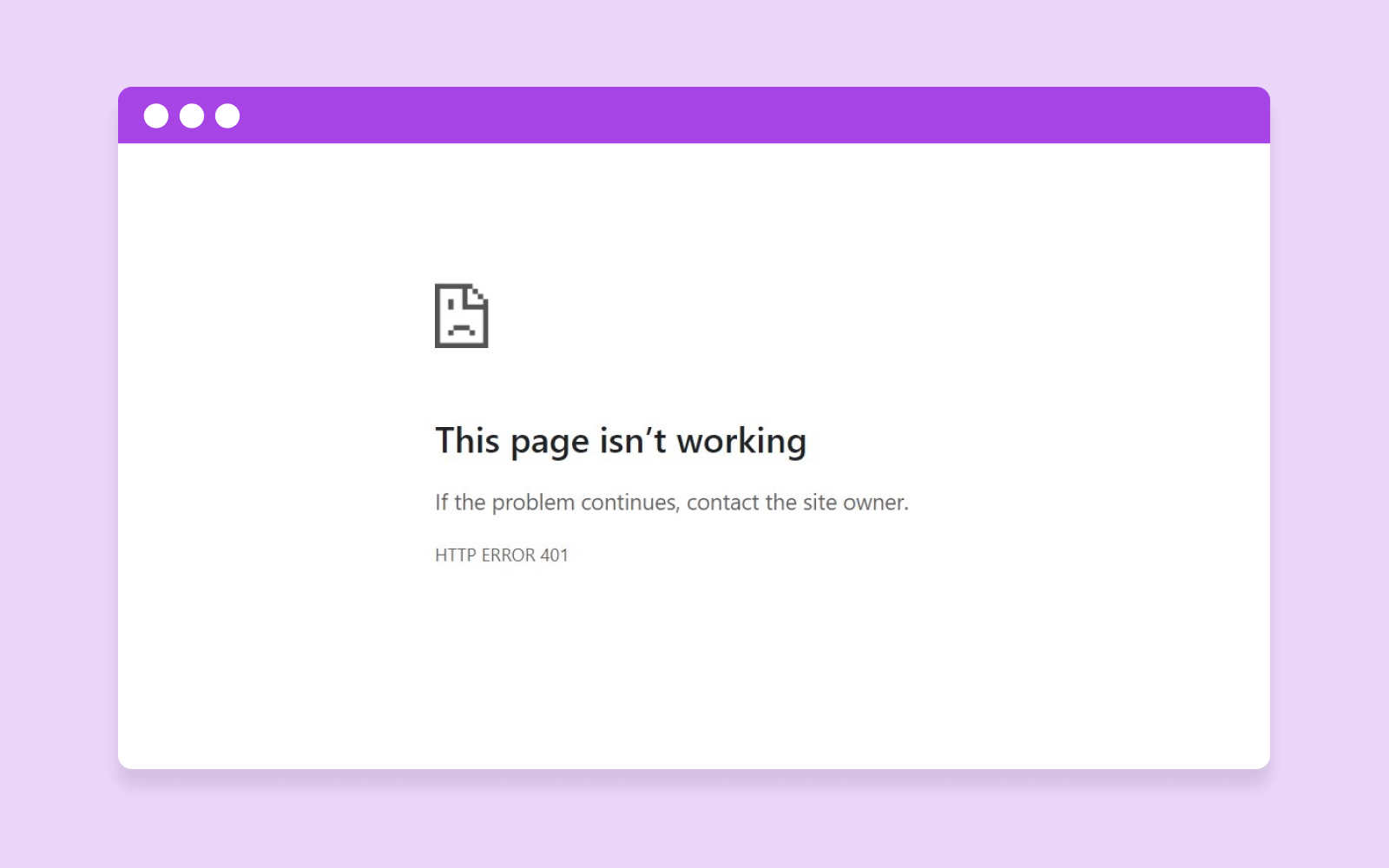
Example of 401 Unauthorized Error page

401 Unauthorized: Potential Causes of the HTTP Error Code

401 errors occur when a web browser has trouble authenticating the visitor’s login credentials with the website’s server. Here are a few common causes why that might happen:

  • Error or typo in the website’s URL.
  • Outdated cookies or browser cache.
  • IP address restrictions on-site access.
  • Errors in server configuration.
  • Incompatible plugin or website theme.
  • Incorrect login attempts by the user.

401 errors are normally client-side errors, meaning they can often be fixed by clearing your browser’s cookies or inputting the correct password. However, server-side issues like plugins and firewalls can also cause these errors, making it very important for site admins to be aware of potential conflicts.

But these are all surface-level explanations. If you want to know what causes a 401 error, you must understand how authentication works in web development.

When a client (i.e., a web browser) requests access to a protected resource on a website, the website will need the client to provide some form of valid authentication. These credentials could be in the form of API keys, a username and password, digital certificates, or something else — depending on the authentication scheme used by the site.

The website then processes the authentication credentials to verify their validity. This could involve checking the credentials against a stored database of users and passwords, contacting an external authentication provider, or performing some other form of validation.

If the authentication is successful, it returns a 200 status code, and the website will generate a session token for the client. This identifies the authenticated client and tracks the client’s interactions within the website. The session token is often stored in a cookie in the client’s browser or as a header in any subsequent requests.

However, if the authentication is unsuccessful, the website will return an HTTP error message, such as the 401 error code. The 401 error message typically includes a WWW-Authenticate header, which explains how to authenticate with the server in the user’s browser. This header can include more context about the 401 error, such as the type of authentication required (e.g. Basic, Digest, or OAuth).

How to Diagnose the 401 Error as a User or Administrator

401 access control errors are pretty common when logging into a membership site or accessing a protected web page. Luckily, they are also very easy to fix most of the time. Here are a few things you can do to address this error, both as a website visitor and a web administrator:

Client-Side Solutions

401 error pages are sometimes caused by client-side issues like login credentials or even the web browser used to access your website’s password protection system. These can be fixed with a few simple steps from the visitor’s end:

  • Check User Credentials: Make sure you entered the correct username and password combination. Double-check your authentication credentials for the slightest typo. Remember, usernames and passwords are case-sensitive.
  • Clear Browser Cookies: If the website uses cookies for authentication, the error may be because of invalid or expired cookies. Normally, cookies have an expiration date or just expire when the browser is closed. If you’re having trouble accessing a website, clear browsing data by following the instructions for your specific web browser to help solve the issue.
DreamHost Glossary

Cookies

Cookies are pieces of data sent to a user’s computer or mobile device by a web server. They are then stored on the user’s device. Cookies can be used for authentication, identification of a user session, personalization of web content, or collecting information about the use of a website.

Read More
  • Verify URL: Make sure the URL you’re trying to access is correct and up-to-date. Otherwise, the DNS server may not be able to find the website and instead return the 401 error. If you’re following a link from another website, it’s quite possible that the link is using the wrong URL.
  • Rate Limiting: If the website server is rate limiting requests from the same IP address, this can lead to a 401 Unauthorized Error. Make sure that you don’t exceed the number of login requests allowed by the server. The limit is often indicated in the login form.
Flush your DNS on Windows 10/11 Flush your DNS cache on Mac using Terminal

DNS Flushing

DreamHost Glossary

DNS

The Domain Name System (DNS) protocol keeps records of which domain names correspond to specific IP addresses. This system enables you to browse the web by typing in regular URLs instead of IP addresses.

Read More

DNS Caches help improve loading speed and website performance when browsing the internet, but they can sometimes become corrupted and result in an authorization error when accessing specific web pages. Fixing this is as easy as flushing (clearing) your DNS server, which can be done a few different ways:

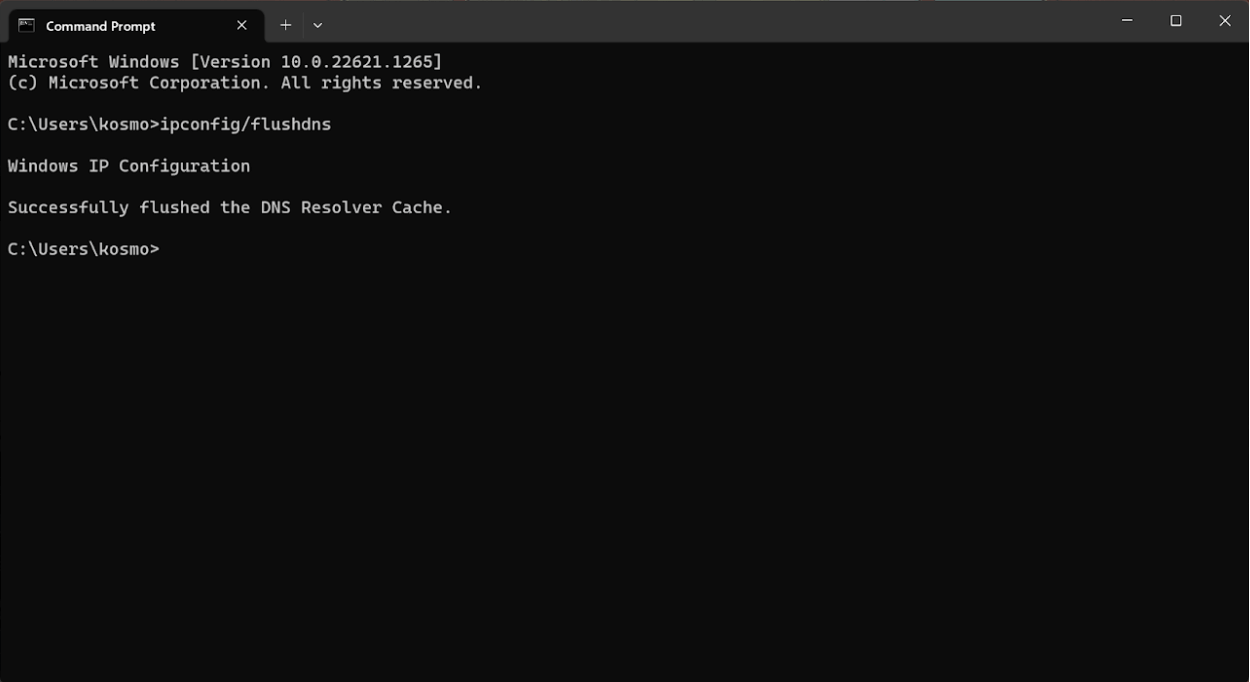
Windows: To flush your DNS on Windows 10/11, follow these steps:

  • Open the Command Prompt by pressing Windows+R and typing “̌cmd” (without quotes) into the Run dialog box.
  • Now type in the command “ipconfig/flushdns” inside Command Prompt.
  • If you are a Windows PowerShell user, you can do this by opening PowerShell and typing in “Clear-DnsClientCache” (without quotes).
  • This will flush the DNS and clear all the records from the local DNS cache.

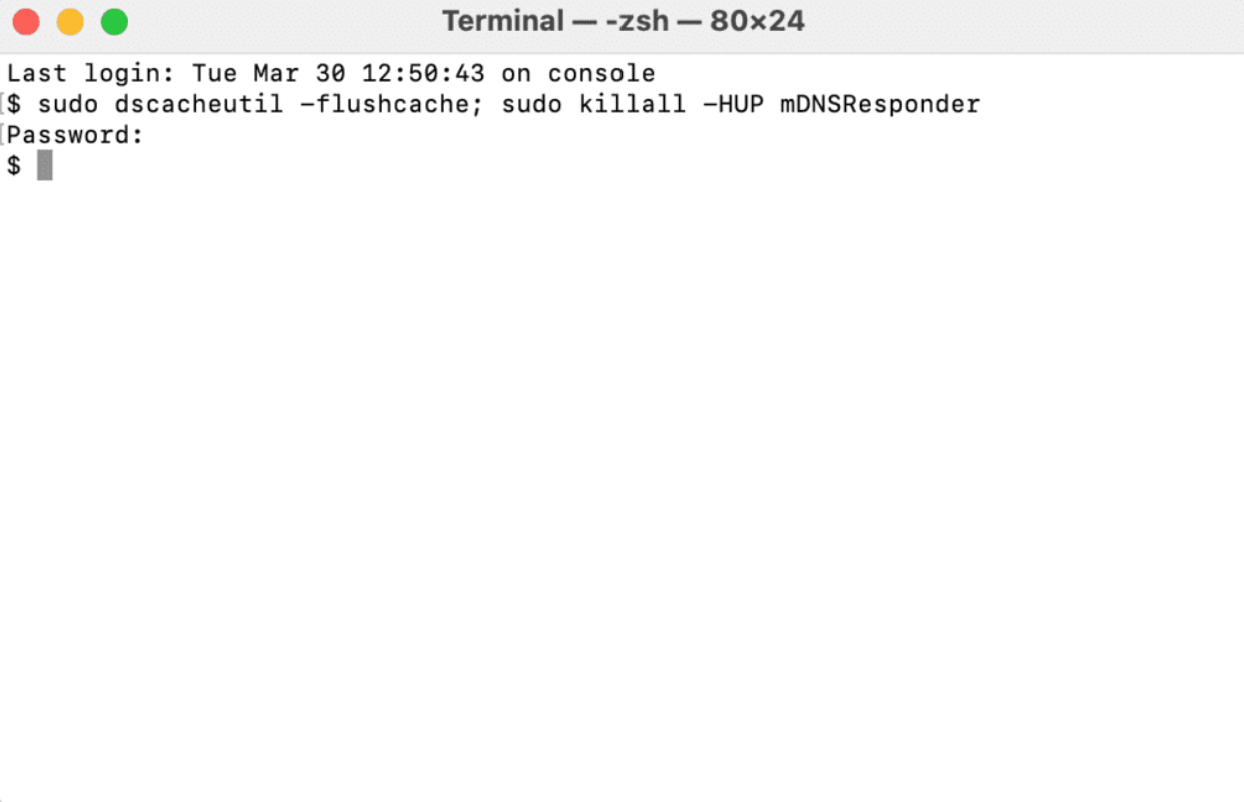
MacOS: If you’re using a Macbook or iMac, you can flush your DNS cache using Terminal.

  • Open Terminal on your Mac by using Spotlight Search or pressing Command+Space and typing Terminal into the search box.
  • Inside Terminal, type in “sudo dscacheutil -flushcache;sudo killall -HUP mDNSResponder” (without quotes).
  • Your DNS cache has now been flushed on your Apple computer.

Google Chrome: If you’re using Google Chrome, the browser has its own DNS cache that’s independent of the Operating System (Windows or Mac). To clear Chrome’s DNS cache:

  • Type “chrome://net-internals/#dns” into the address bar.
  • Now, click on the “Clear host cache” button to clear your DNS records.
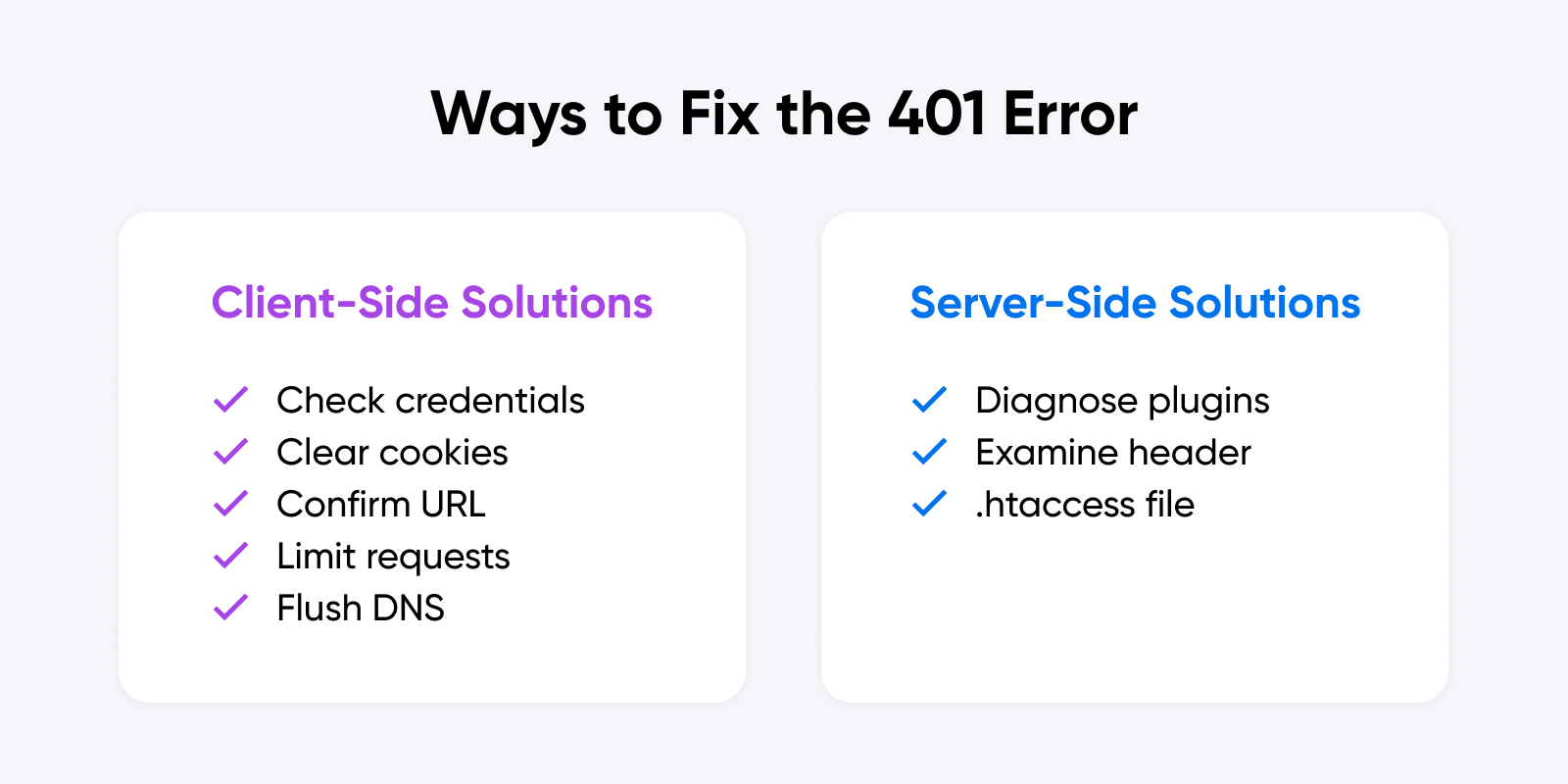
Ways to fix the 401 error. On client-side solution, the client can start to check credentials, clear cookies. confirm URL, limit requests, and flush DNS. On server-side solutions, check diagnose plugins, examine header, and .htaccess file

WordPress Plugins

Plugins are a staple for WordPress websites, but they can sometimes also cause errors if configured improperly. This can happen when the plugin contains code that creates a website security issue or conflicts with the platform’s core functionality.

So, what can a site admin do to fix this issue? Well, the first step is to identify which plugin or plugins are causing the issue. Usually, this can be done by disabling each plugin one-by-one and checking if the error still appears. Once the plugin causing the issue is identified, you can either update, reconfigure, or permanently remove it. Common culprits may include:

  • CDN services like Cloudflare and KeyCDN.
  • Web firewalls like Sucuri and Wordfence.
  • Poorly built WordPress themes.

Follow these simple steps to enable or disable plugins on your WordPress site:

  • First, log in to your WordPress dashboard.
  • Click on the “Plugins” option in the left-hand menu.
  • Find the plugin you want to enable or disable and click on the “Activate” or “Deactivate” button below the plugin name.
  • If you want to disable multiple plugins at once, check the box next to each plugin and select “Deactivate” from the “Bulk Actions” drop-down menu.
  • If you want to enable multiple plugins at once, check the box next to each plugin and select “Activate” from the “Bulk Actions” drop-down menu.

In some cases, it is also possible to fix the issue by disabling or reconfiguring specific settings within a plugin. For example, if your website uses a caching plugin, it’s worth trying to clear the cache and check if the error still appears.

WWW-Authenticate Header

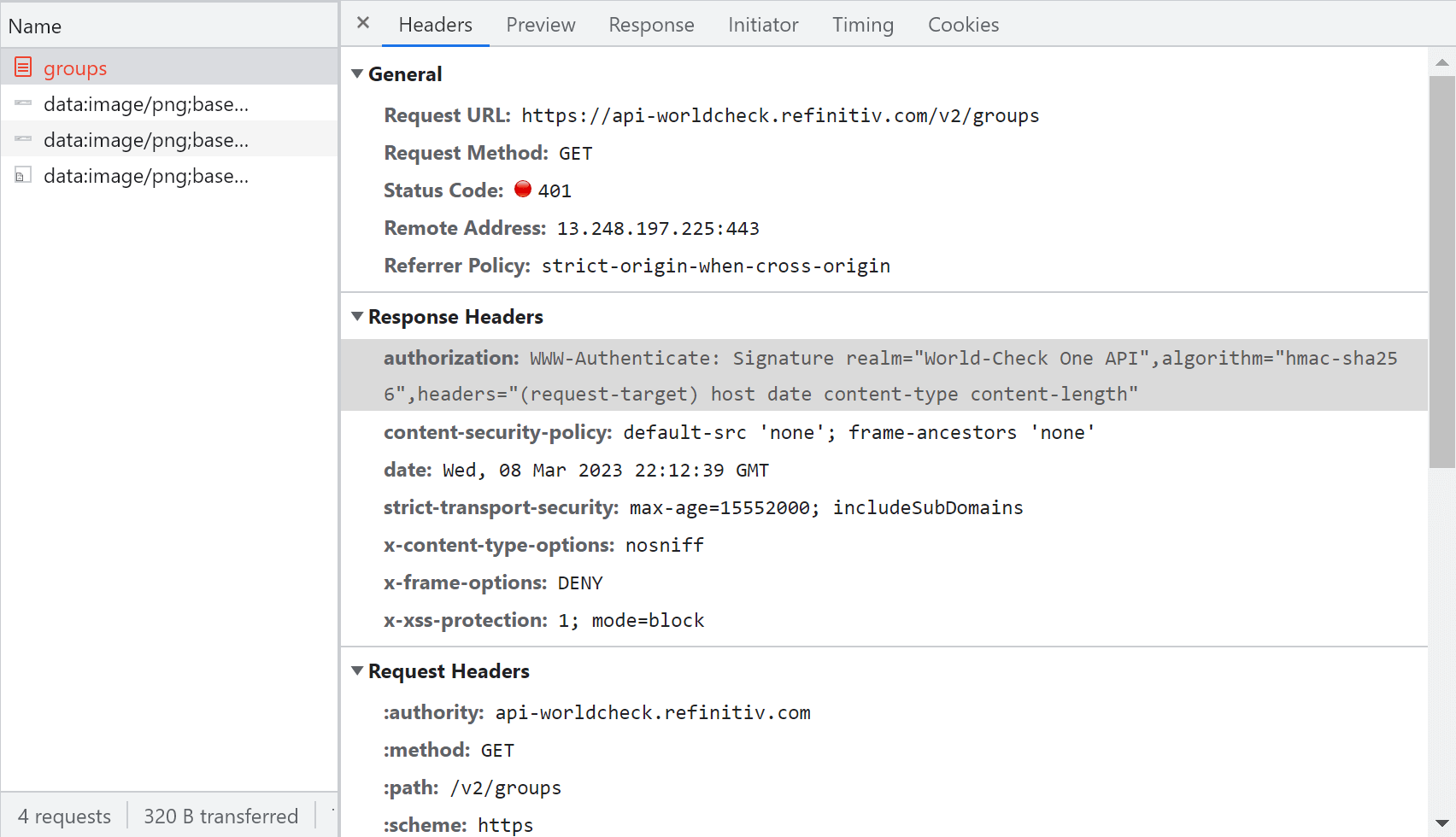
In a few rare cases, 401 errors can result from a server error. You can find out more about this by looking at your WWW-Authenticate Header.

The WWW-Authenticate Header is a response header sent by the server that contains information on the authentication methods supported by the site. This header helps the user’s browser decide which authentication protocol to use when requesting data from the server.

The header is also used to send additional information about the authentication process. This may include the domain being protected by the authentication scheme, or the algorithm used by the server.

To check the WWW-Authenticate Header, open Chrome, navigate to the URL causing the 401 error, and right-click anywhere on the page. From the drop-down menu, select ‘Inspect’. This will bring up the Developer Tools window.

Select the Network tab once inside the Developer Tools window. Here, you’ll see all the requests the browser sends when loading the page. If the response from the server contains a WWW-Authenticate header, it will be visible in this tab.

By inspecting the WWW-Authenticate header, you can get a better understanding of the authentication process used by the server. Next, check that the response was sent and identify what authentication scheme was used to send it. That’ll help you narrow down the problem before looking for a specific solution. Here are a few authentication schemes found in the WWW-Authenticate Header, along with descriptions of how they work, for reference:

  • Basic: This scheme uses a base64-encoded username and password separated by a colon. This is considered the least secure authentication method and should only be used over HTTPS.
  • Digest: This scheme uses a challenge-response protocol to authenticate clients. The server sends a nonce value to the client, which the client uses to create a response based on the username, password, and request information.
  • Bearer: This scheme is used for OAuth 2.0 authentication. The client receives a token from the server, which it uses to authenticate subsequent requests.
  • Negotiate: This scheme is used for Kerberos authentication.
  • AWS4-HMAC-SHA256: This authentication scheme is used to authenticate requests to Amazon Web Services (AWS) using an AWS access key and a secret access key.
  • Token: This scheme is used to authenticate with a token-based system.
401 errors can result from a server error. You can find out more about this by looking at your WWW-Authenticate Header. The WWW-Authenticate Header is a response header sent by the server that contains information on the authentication methods supported by the site.

.htaccess File

If you’re experiencing a 401 error on your website, one possible cause could be an issue with your .htaccess file. The .htaccess file is a configuration file used by Apache web servers to control access to your website’s directories and files. Here’s how to check your .htaccess file for causes of a 401 error:

  • Connect to your website’s server using an FTP client or file manager.
  • Navigate to the directory where your .htaccess file is located. This is usually the root directory of your website.
  • Download a copy of your .htaccess file to your computer.
  • Open the .htaccess file in a text editor (like Notepad++) and look for any lines that specify access controls or authentication requirements. Specifically, you’ll want to look for the following parameters: AuthUserFile, AuthName, AuthType, and Require.
  • Check that the access controls or authentication requirements specified in the .htaccess file match the settings you intend to use for your website. For example, if you have recently updated your website’s authentication mechanism (AuthType), you may need to update the corresponding settings in your .htaccess file as well.
  • Save the changes to your .htaccess file and upload it back to your website’s server.
  • Test your website to see if the 401 error has been resolved.

If You’re Still Having Trouble, It’s Time to Contact an Expert

HTTP response codes offer little context on their own, which makes them troublesome to navigate without the proper technical assistance. It’s part of the reason why DreamHost offers 24/7 support to help you troubleshoot downtime on your website and domain.

If you’re having trouble diagnosing or fixing a 401 error on your website, you can try contacting your hosting provider for support. It’s also possible to contract a technical expert, such as a web developer, for help with the issue.

401 errors can be jarring for the end user, but they are often an easy fix. If you’re contacted by someone unable to access your website due to this error, walk them through the common client-side solutions before looking into any potential server issues, such as WordPress plugins or the WWW-Authenticate header. If you’re still having trouble, you can always bring in some technical help to diagnose the issue.

Get Content Delivered Straight to Your Inbox

Subscribe to our blog and receive great content just like this delivered straight to your inbox.

The post 401 Unauthorized Error: What It Is & How to Fix It appeared first on Website Guides, Tips & Knowledge.


source https://www.dreamhost.com/blog/401-unauthorized-error/

Monday, 20 March 2023

Marketer’s Guide to Creating Events and Measuring Conversions in GA4

As a marketing person or website owner, you knew the day would come when you really needed to understand GA4.

And today is that day.

Luckily, your search for knowledge has led you here. So rather than wading through complex tutorials written by analytics nerds, you can wade through this simple tutorial written by analytics nerds! 🤓

If you’re trying to figure out how to set up events or track conversions, stay with us for the next few minutes, and we’ll make it as clear as day.

How Does GA4 Track User Behavior?

As you probably know, GA4 is the latest edition of Google Analytics. It was initially launched in the latter half of 2020 and has now replaced UA (Universal Analytics) as the primary version of the suite.

GA4 represents a significant change in the way we track user behavior. Instead of recording each request to your website server individually, Google now tracks every user interaction across your website or app, along with the context around it.

Every interaction is categorized as an “event”. This means instead of pageviews being their own measurement, they’re just one event of many that you may want to track.

Difference between Universal Analytics and Google Analytics 4. Universal Analytics is based on sessions and pageviews. Google Analytics 4 tracks events across multiple platforms

This “event-based model” allows us to build a picture of the entire user journey, from that first click-through to making a purchase.

What Is an Event in GA4?

In Google Analytics 4, an event allows you to track a specific user interaction or occurrence on your website or app.

Examples would include:

  • Visiting a specific page
  • Clicking a button
  • Completing a purchase
  • Sharing specific content
  • Submitting a form
  • Your app crashing

You can analyze each event individually, and multiple events can be bundled into event categories for a higher-level overview.

For anyone familiar with Universal Analytics, events essentially replace pageviews. The main difference is that every user interaction is treated the same way — No predetermined Category, Action, or Label is associated with any event.

What Type of Event Does GA4 Track?

Once you have installed the code snippet, Google Analytics can track an impressive variety of events right out of the box:

  • Pageviews – Including navigation around your site or app.
  • Scroll – Vertical and horizontal, and the percentage of the page.
  • Click – Links, buttons, videos, or any specific position on the screen.
  • Session start – Including returning to a session after inactivity.
  • User engagement – Such as submitting a form or completing an interactive quiz.
  • Video engagement – Play, pause, and completion.

In addition to these metrics, you can build your own custom events for more detailed data collection. You can add up to 500 events to each account.

How to Create Events in Google Analytics 4

Okay, that’s enough for theory — It’s time to make some Google Analytics events for your site.

There are several ways to add events within GA4. Let’s go through each of them in order from the easiest to the most challenging:

Automatic Events

When you first set up a property in Google Analytics, the platform automatically creates some basic events.

Many of these relate to Google products in some way, such as clicks on Google Ads, views of embedded YouTube videos, and app purchases made through Google Play.

However, there are some very beneficial events here:

  • first_visit – This triggers when someone visits your site or launches an instant app on Android for the first time.
  • session_start – Records when a user first engages with your website or app.
  • user_engagement – This event fires whenever a specific page or app is in the foreground for one or more seconds.
  • first_open – Records when someone opens your app for the first time.
  • app_remove – If you’re tracking an Android app, this event records when people delete it from their device.

You don’t need to do anything to start collecting information here; it’s completely hands-free. Any data that is collected will appear in your event reports automatically.

Default Parameters

Along with the specific data collection mentioned above, GA4 sets several additional parameters for every event:

  • language – The preferred language of the user.
  • page_location – The URL of the page.
  • page_referrer – Where the user came from.
  • page_title – The HTML title of the page.
  • screen_resolution – The display resolution of the device being used.

These parameters are designed to provide extra contact for each event, allowing you to better understand how various users interact with your website or app.

Enhanced Measurement Events

Want to dive deeper? You can enable Enhanced Measurement.

This feature introduces a wider selection of events that record common user interactions. In some cases, they extend the tracking of automatic events.

Here’s a quick look at all the events covered by Enhanced Measurement:

  • page_view – Records when a page is loaded, or an active site changes browser history.
  • scroll – Records when a user scrolls down to the bottom of a page.
  • click – This records all outbound click events (i.e., towards another domain).
  • view_search_results – This event will track it whenever someone uses your site search.
  • video_start – Google creates an event that tracks when users start any video.
  • video_progress – This measures how far a user has watched a video.
  • video_complete – Triggered when a user watches a video to the end.
  • file_download – Records when someone grabs any file from your website or app.
  • form_start – If someone starts interacting with a form on your site, this event will record it.
  • form_submit – Triggers when someone completes and sends a form.

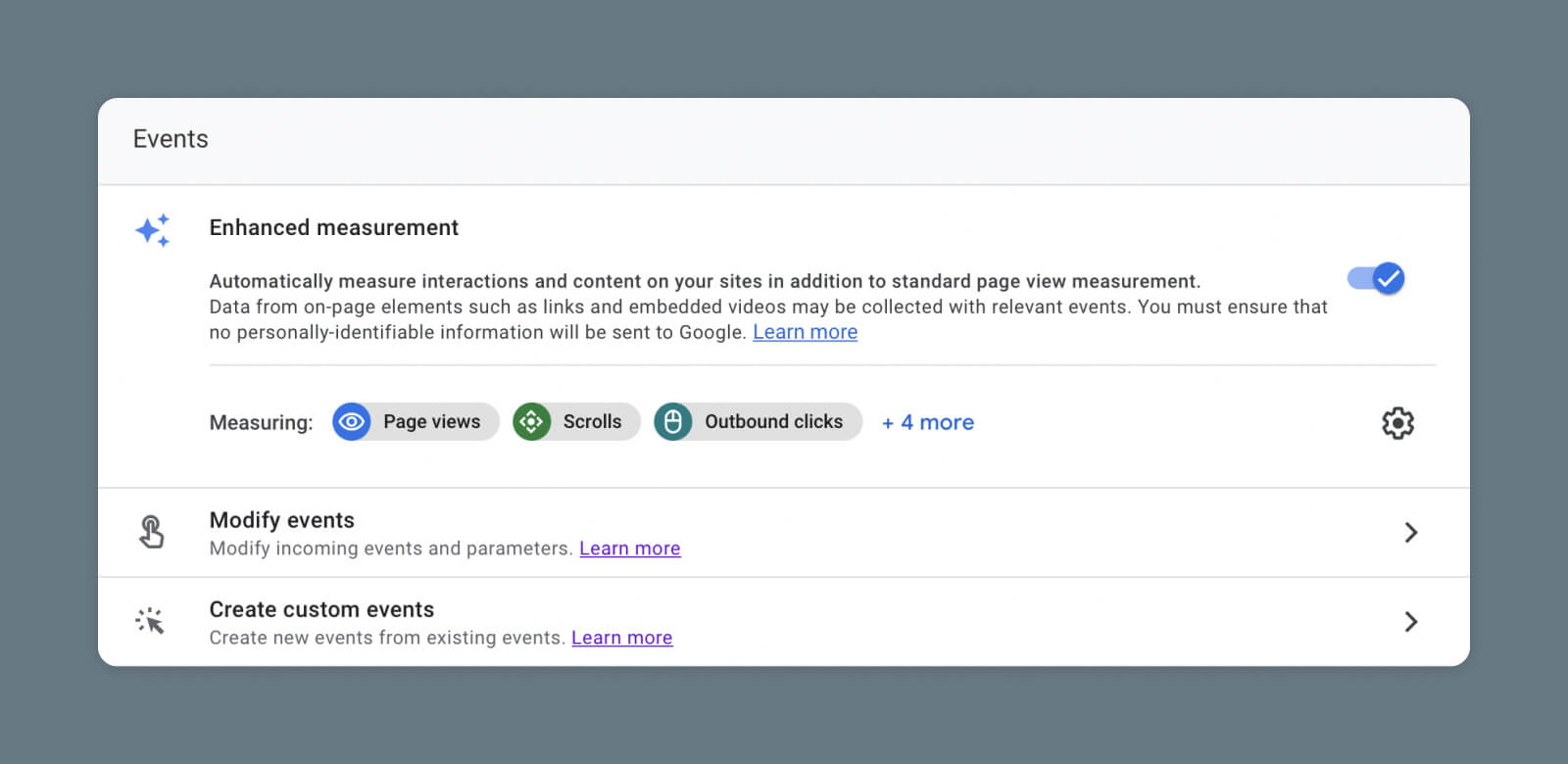
As with automatic events, you don’t have to manually set up Enhanced Measurement events. Instead, you only need to add a data stream within GA4 and enable Enhanced Measurement under Admin > Data Streams > [Your Data Stream].

Screenshot of Google Analytics 4 Enhanced Measurement

If you want to edit any of these events or switch them off individually, click the cog icon on the right of the Enhanced Measurement section.

Use Cases for Enhanced Measurement

You may have thought about how you could use the various events mentioned above to gain insights about your website or app.

If you’re still looking for inspiration, here are a few examples of how you can utilize automatic events and Enhanced Measurement in the real world:

  • Use click events to understand how users exit your site or app and where those outbound links take them.
  • Compare form_start with form_submit to see how many people abandon your forms halfway through.
  • Check out scroll to monitor how many people read to the bottom of your blog posts.
  • Use video_progress to see how long visitors are staying engaged with your videos.

Create New Events in GA4

Once you have set up automatically collected events and Enhanced Measurement, you’ll be rolling in data!

But if you’re greedy for more, GA4 can help you scrutinize your website or app in greater detail. Of course, to make this happen, you will need to create some new events.

Creating an Event

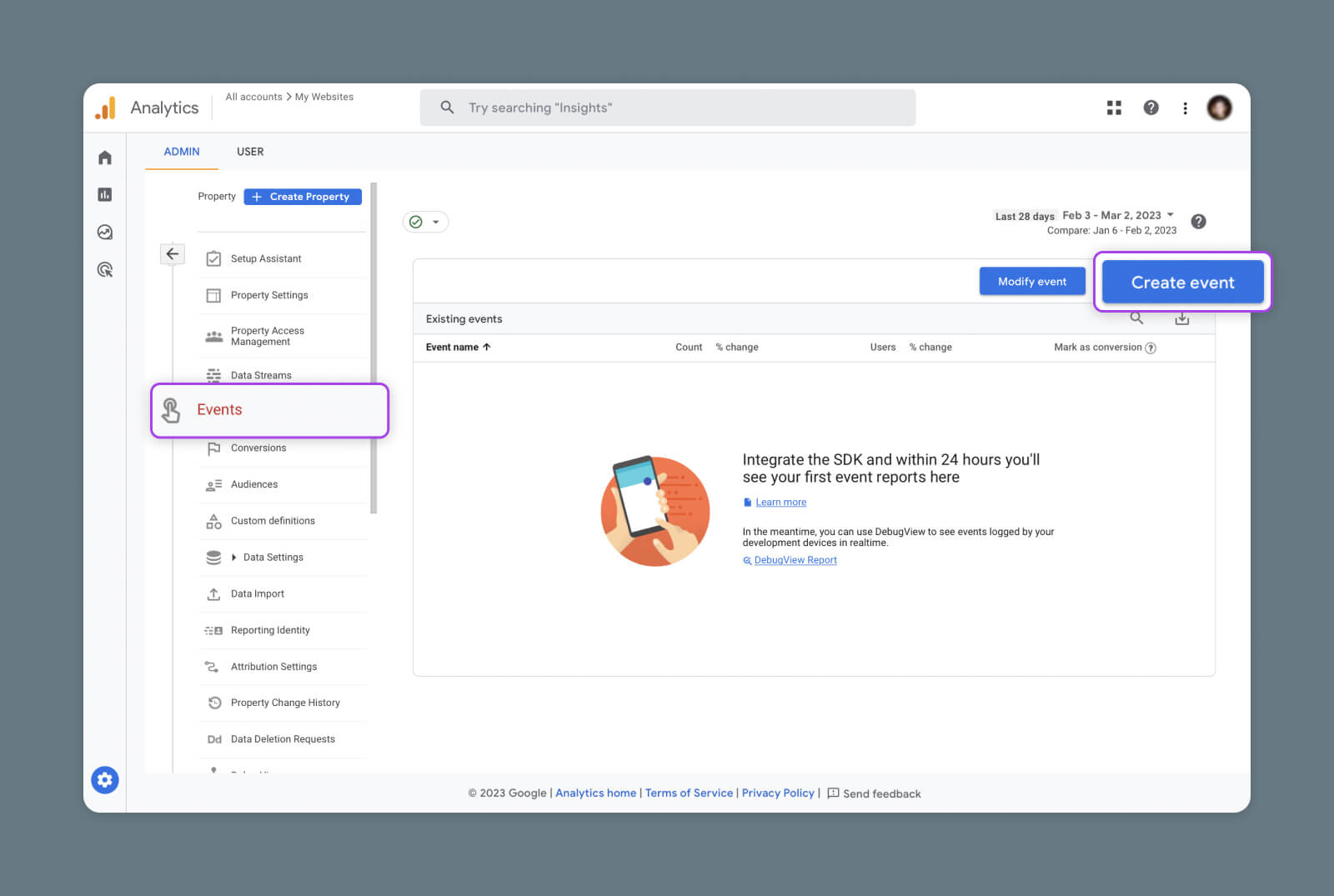
Visit the Admin section of Google Analytics, and select Events under the property you’re working on.

Next, tap the big blue Create Event button in the top right corner, followed by Create in the pop-out menu.

Screenshot of Google Analytics 4 Create Event

Name Your Custom Event

You should now have the GA4 event creation form in front of you.

There are several fields to fill out here, but we can start with an easy one — your event name.

You can call your event pretty much anything (as long as the event label is unique), but there are a few principles to bear in mind:

  • Be descriptive – Choose a name that clearly identifies what the event is tracking, and the original event that you’re tweaking.
  • But don’t be too wordy – Long names mean more reading.
  • Create your own naming conventions – This will make it easier to organize your data.
  • Replace spaces with underscores – Google Analytics only supports letters, numbers, and underscores in event names.
  • Consider using a hierarchy – For more complex projects, it’s worth building a hierarchy of events that mirrors the structure of your site or app.

Set Your Matching Conditions

Here’s where things get interesting.

When you create a new event within GA4, the platform makes a copy of an existing event. You can then add your own conditional logic to the original event to target specific data.

For instance, you could copy the page_view event and create a new event focusing on a particular URL.

These rules are called Matching Conditions.

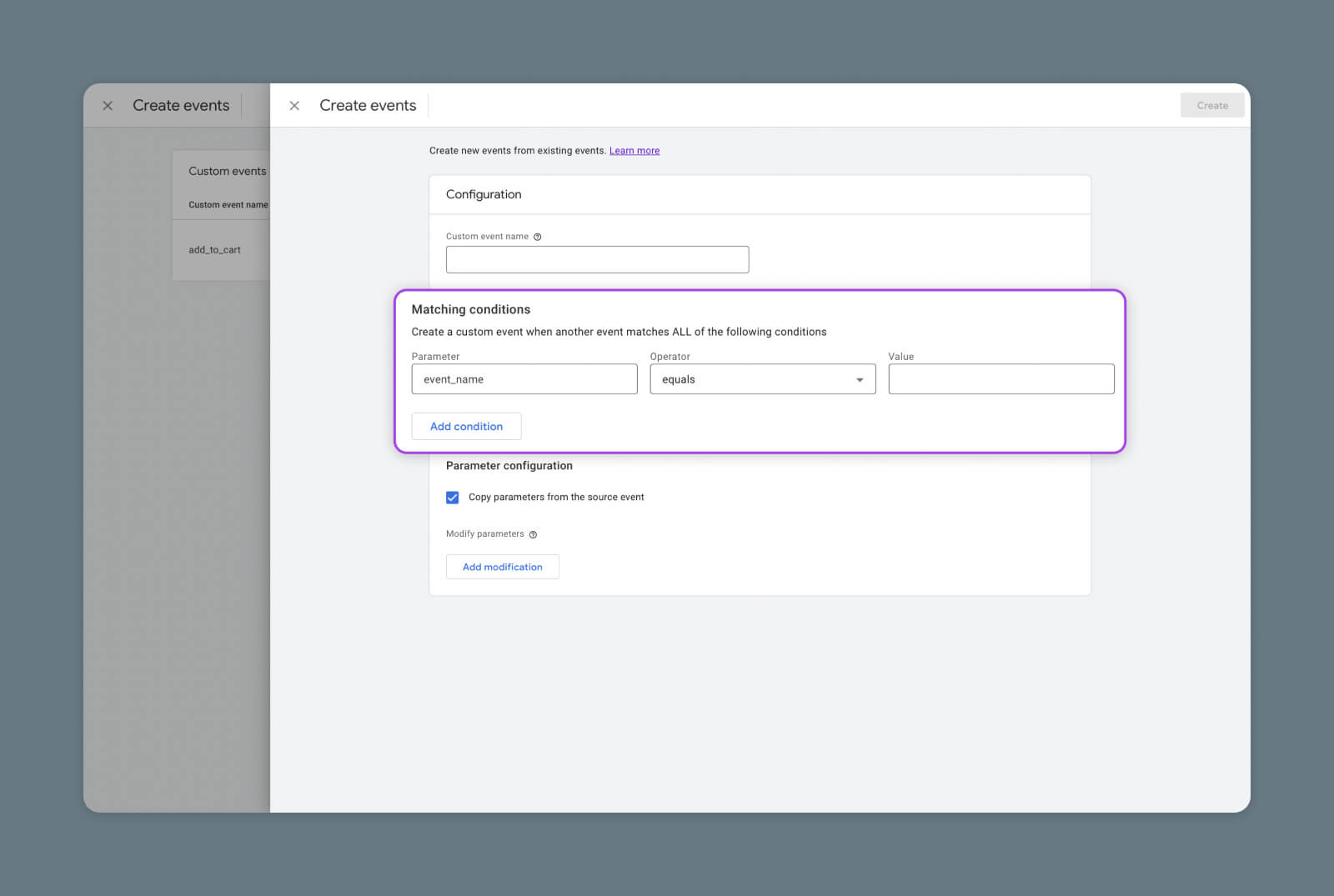
When you set up your new event, GA4 will first ask you to choose the existing event you want to copy. You can make this selection in the first Matching Conditions field.

Screenshot of Google Analytics 4 Matching Conditions

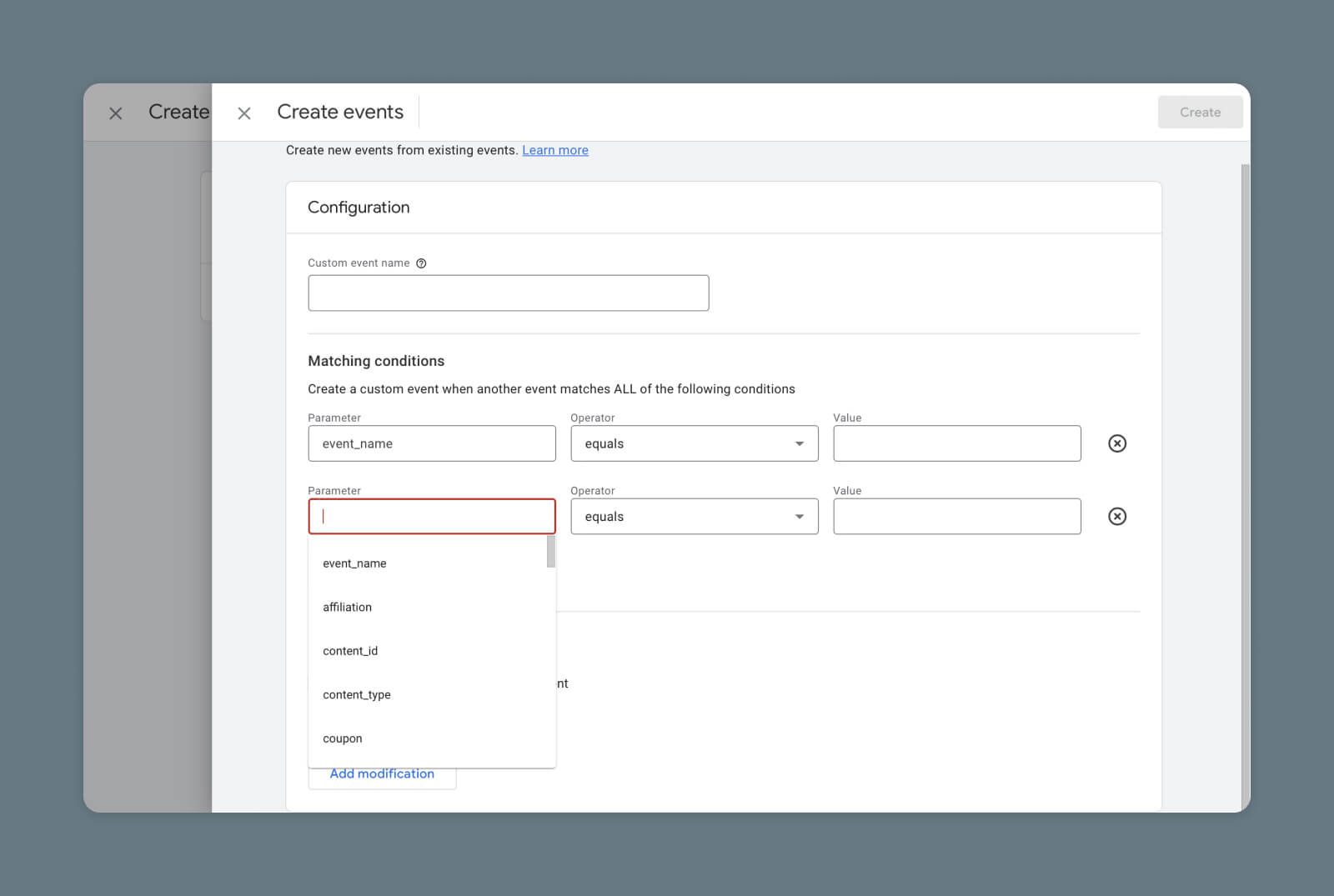
Then, you can choose your new rules for data sorting. Google Analytics provides a generous selection of parameters and operators, and you can input anything in the “Value” field on the right.

In most cases, you won’t need to add many parameters. Just make sure to select the checkbox at the bottom of the form, marked Copy parameters from the source event.

Get Content Delivered Straight to Your Inbox

Subscribe to our blog and receive great content just like this delivered straight to your inbox.

Real-World Example of Matching Conditions

To understand how Matching Conditions work in practice, let’s look at a simple example.

Say you operate an e-commerce store, and want to see when someone registers for an account.

To detect when users sign up, you could create a new event with the following Matching Conditions:

Parameter: event_name
Operator: equals
Value: page_view

Parameter: page_location
Operator: equals
Value: [URL of confirmation page]

This combination will record every time someone views the confirmation page for your signup form.

Test Your New Event

After you choose your Matching Conditions and hit Submit, your new event should appear in the events list for your chosen property.

Job done? Not quite. As Dr. Frankenstein discovered the hard way, it’s a good idea to test your creations before letting them loose.

The simplest way to test new events is by opening up your real-time report and testing the interaction yourself. You can access this option at Reports > Realtime.

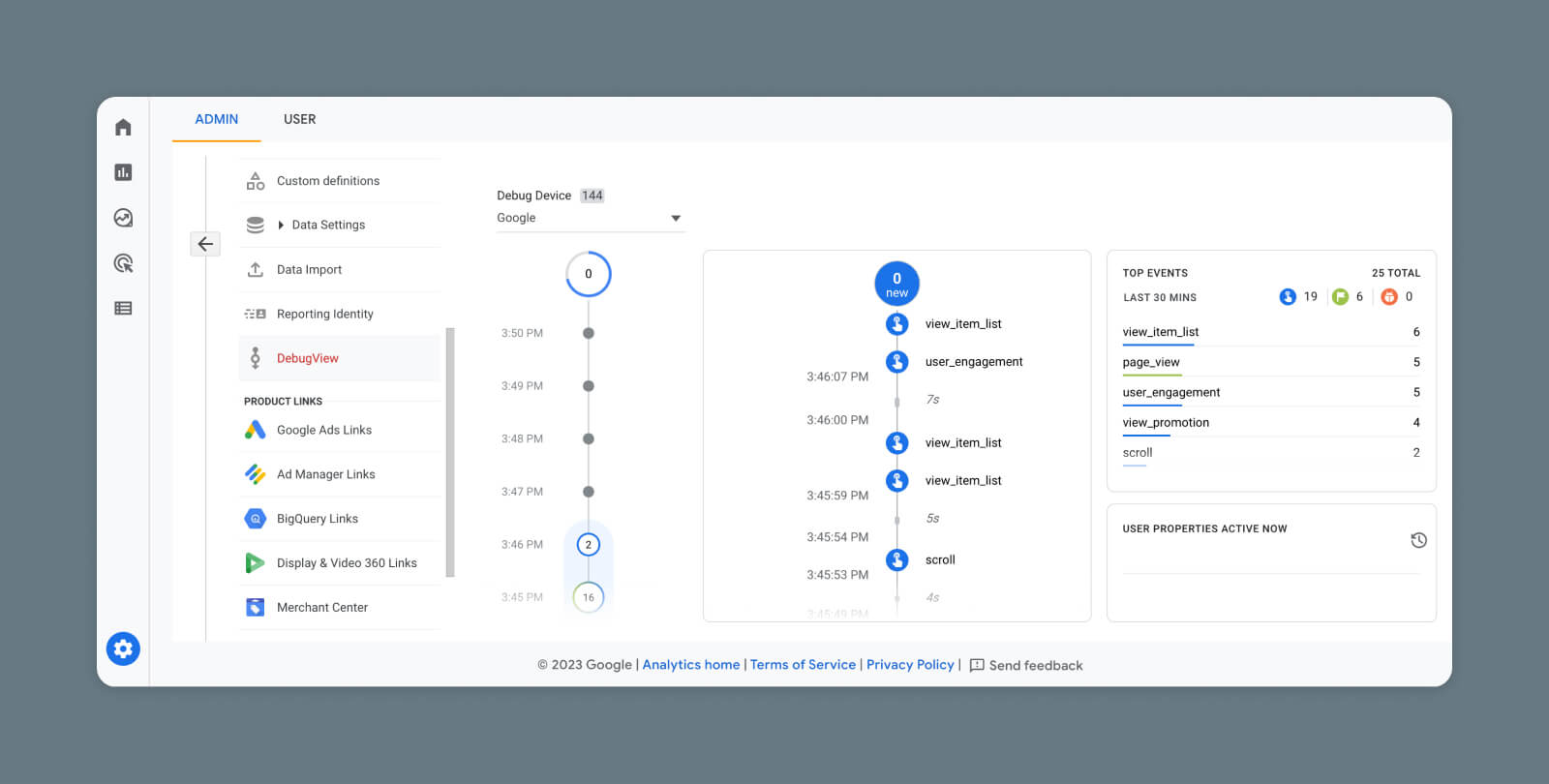
Alternatively, if the event action isn’t easy to test, you can head to Admin > DebugView for a more in-depth view of live interactions.

Screenshot of Google Analytics 4 DebugView

Adding Recommended Events With Google Tag Manager

If you’re not a technical type, it’s perfectly fine to use the methods above for setting up events in Google Analytics.

However, it’s possible to fill up Google Analytics with more specific data if you’re willing to take a detour via Google Tags Manager (GTM).

Here, you can point Google towards particular elements of your website or app, and track them individually.

Recommended Events

To make this process faster, Google provides a long list of Recommended Events. These are designed to track the interactive elements you can find in most websites or apps.

We won’t list them all here, but some examples include:

  • add_to_cart
  • login
  • share
  • unlock_achievement

To add recommended events to your GA4 property, create a tag and trigger for your new event in GTM.

Before you begin, make sure you have set up a data stream and created a Configuration Tag.

Then, to create a new event tag:

  • Select Tags > New
  • Click in the Tag Configuration box, and select Google Analytics: GA4 Event
  • Choose your Configuration Tag
  • In the Event Name field, enter one of Google’s Recommended Events

By default, your new tag will track multiple elements on your site. If you want to be more specific, open Event Parameters  (scroll down to the “Custom Dimensions” section in this guide to learn how).

Screenshot of Google Analytics 4 Event Parameters

Check the Recommended Events list, and input one of the parameters that work with the type of event you want to create. Make sure it matches the parameter name exactly.

As the event value, choose a unique identifier for the element you want to track, such as an HTML class or id.

We also need to tell Google which trigger it should be tracking. To do this:

  • Click the Triggering box on the new event screen
  • Tap the + in the top-right
  • Click the Trigger Configuration box
  • Choose an appropriate trigger type from the menu
  • Add a Trigger Name that matches your event

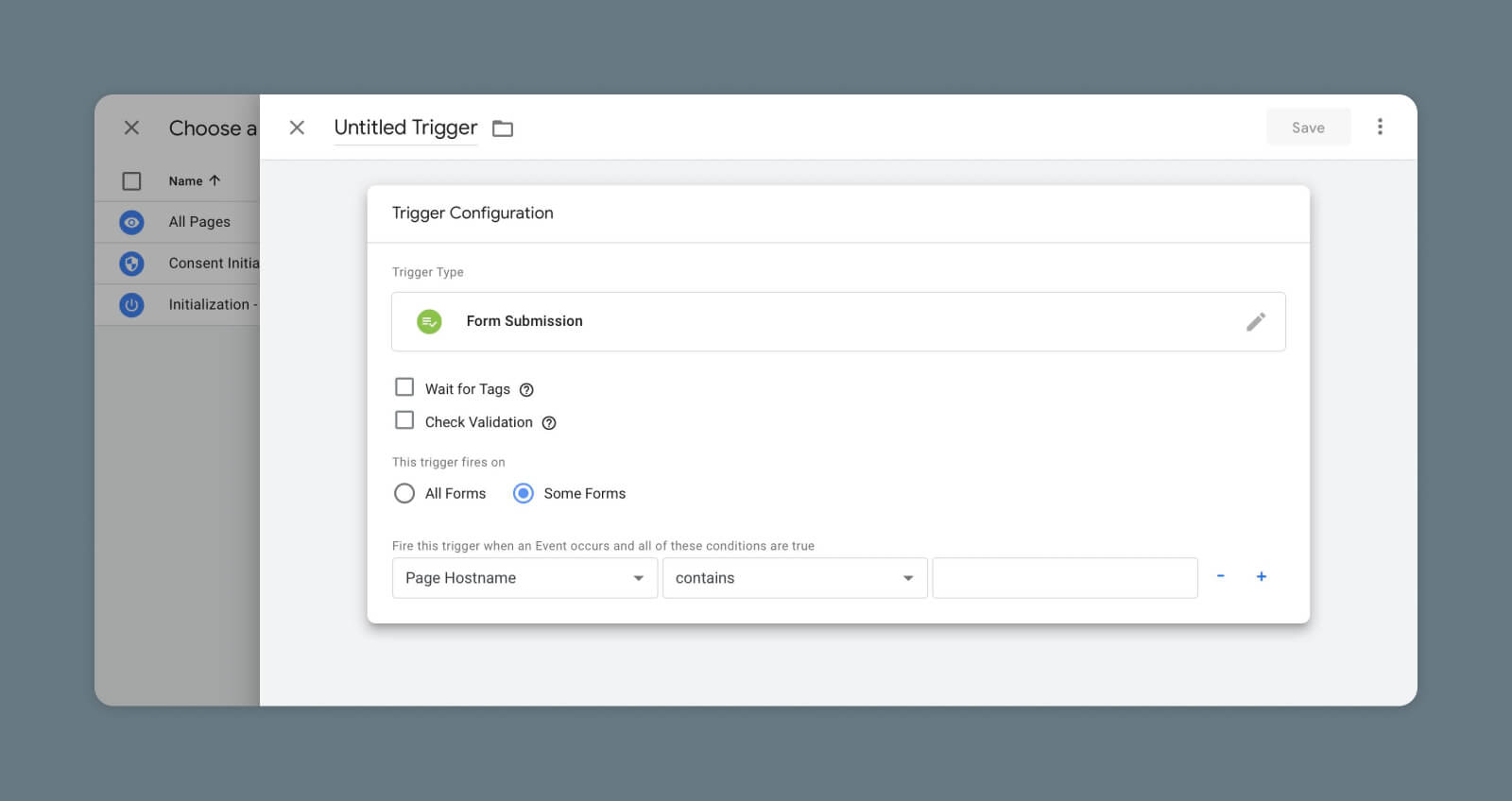
To be specific with triggers, tap Some <trigger type> and use the built-in parameters to identify the exact interaction you want to track.

Screenshot of Google Analytics 4 Trigger Type

It’s also possible to add completely custom events via Google Tag (gtag.js) or Google Tag Manager. But as this requires developer-level expertise, we will leave that to another post!

Custom Dimensions

An easier way to spice up your analytics is by creating new ways to categorize incoming data.

To make this happen, you will need to set up some custom dimensions in Google Tag Manager.

A dimension is essentially an attribute of an event or user. GA4 captures five default dimensions as soon as you set up tracking (see “Default Parameters” earlier in this guide).

However, you can also create your own custom dimensions to track more specific details about events and user properties. Let’s work through an example.

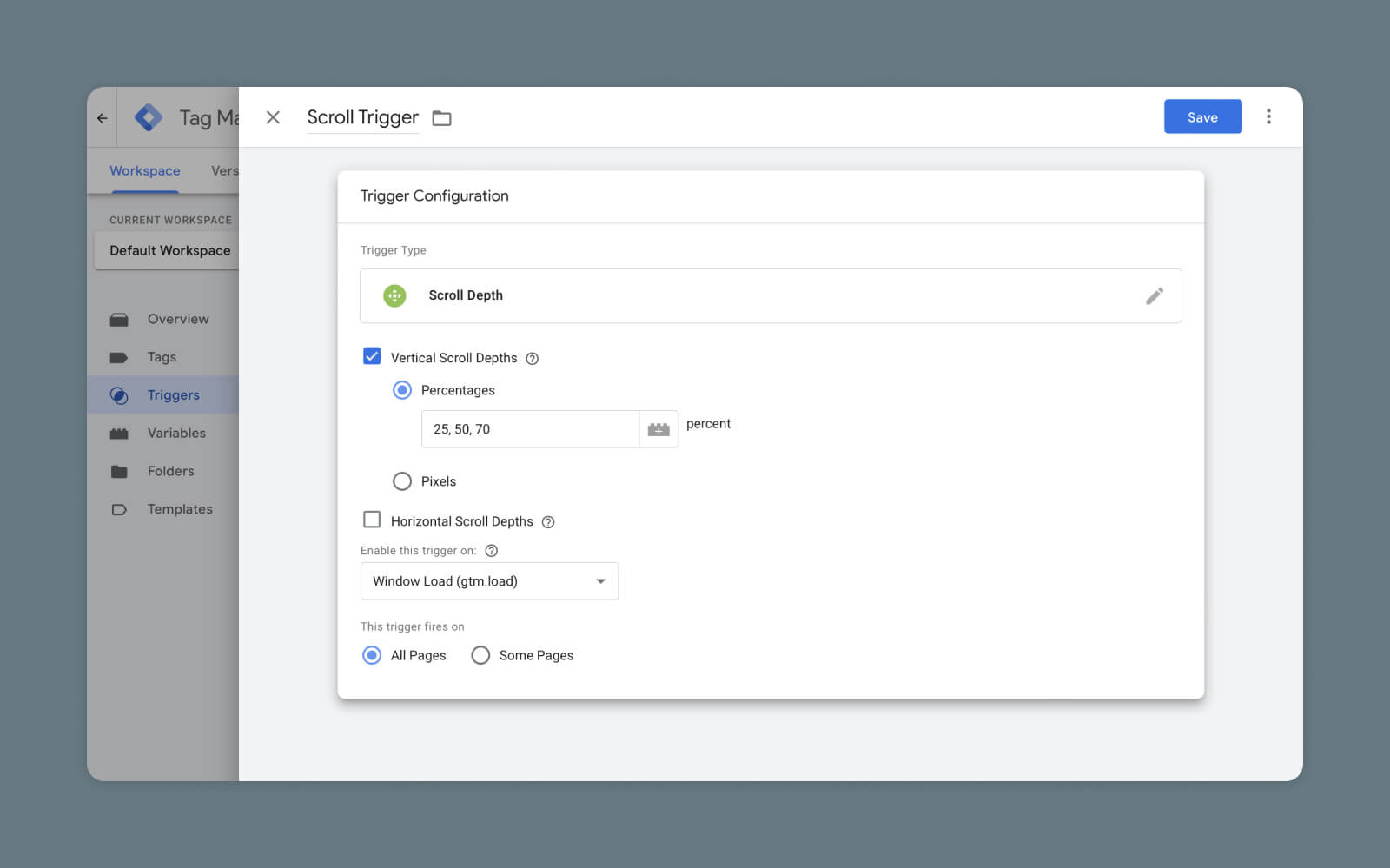
Say you want to measure when a user scrolls 25%, 50%, or 75% down any given page. You’re going to need a new event with custom dimensions.

First, you need to build the trigger. In GTM, select Triggers in the left-hand menu and then hit the New button.

Give the new trigger a name, then tap the Trigger Configuration box. Google lets you choose from a generous array of options here. In this example, you would need to select Scroll Depth.

Screenshot of Google Analytics 4 Scroll Trigger

Next, create a new GA4 event tag by following the process we went through earlier, but this time open the Event parameters section and hit Add row.

Under Parameter name, add the name you want to give to your new dimension. In the Value box, you need to choose a suitable variable for measurement. In this case, you need .

(Can’t see the variable you need? Navigate to Variables > Configure and make sure all the boxes are checked.)

Finally, click the Triggering box and choose the trigger you made earlier. You can now save your new event tag. It’s a good idea to test it, as well.

Your new event should show up in GA4 under the Events section within about 48 hours, and you can click on the name to see all the data collected within the past half an hour.

To see further into the past, you’ll need to register the new event parameter as a custom dimension in GA4.

On the Admin screen, head to Custom definitions under your chosen property and tap the blue Create custom dimensions on the right-hand side.

Fill in the following fields:

  • Dimension name – This is how your dimension will appear in reports.
  • Scope – Does this dimension relate to an event or a user?
  • Description – A place for comments or extra info.
  • Event parameter/User Property – Input the exact name of the parameter you just created in your new event.

In a standard account, you can add up to 50 custom event dimensions and 25 user dimensions.

Custom Metrics

Of course, raw data is only useful to a certain extent. To understand exactly how your website or app is performing, it’s a good idea to create some custom metrics that track your custom dimensions.

Don’t worry; this part is a lot easier!

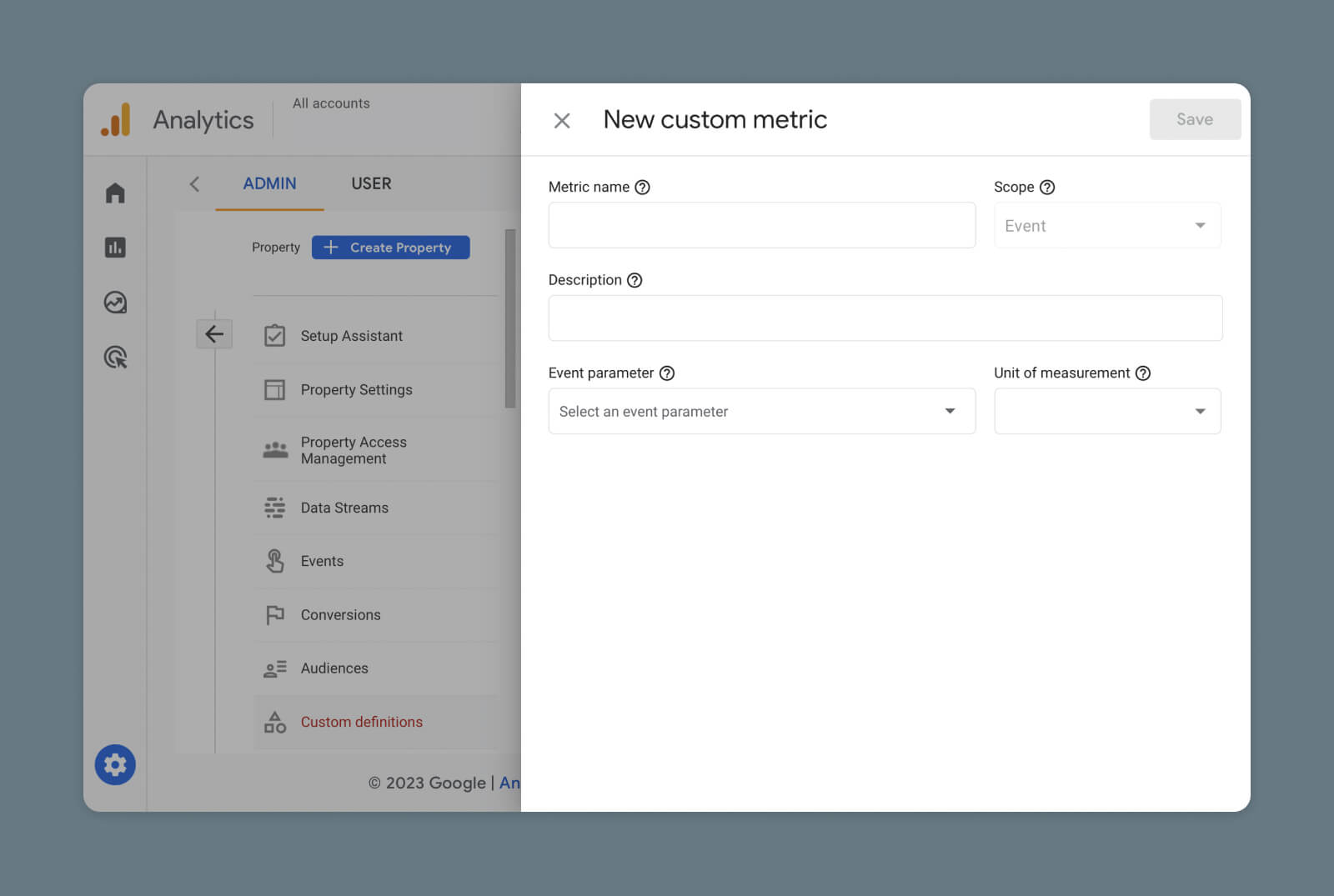
In your Google Analytics Admin area, choose your property and visit Custom Definitions. Next, tap the menu tab labeled Custom Metrics and then tap the blue Create custom metrics button on the right.

Screenshot of Google Analytics 4 Create Custom Metrics

Then, fill out these fields:

  • Event name – How your metric will be listed.
  • Scope – Event or user.
  • Description – Add a comment.
  • Event parameter – The parameter/dimensions this metric is tracking.
  • Unit of measurement – Choose how you want the incoming data to be measured (integer, time, distance).

Make sure to select the Active checkbox, then hit Save. Within 48 hours, your custom metric should start populating in GA4.

How to Measure Conversions in GA4

While measuring clicks and scroll events can be useful, there is only one thing that ultimately matters to your business or brand: conversions.

DreamHost Glossary

Conversion

A website conversion is any action a user takes on a site that moves them further into the sales funnel. Examples include filling out a web form, clicking a call to action, or purchasing a product.

Read More

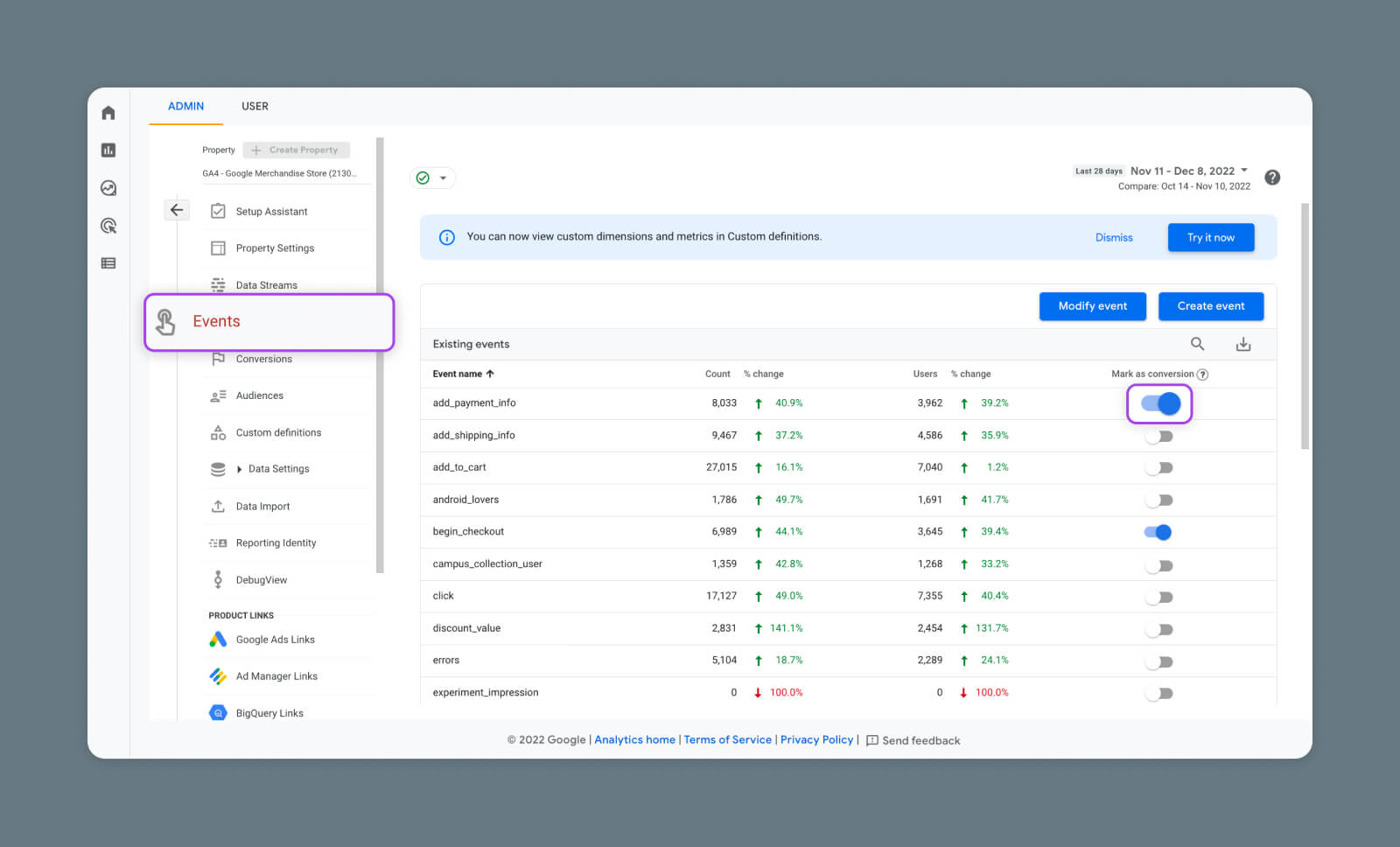
In Google Analytics 4, tracking conversions is pretty straightforward. All you need to do is identify which existing events count as some form of conversion.

If a particular event has been triggered at least once, you will see the option to Mark as conversion on the right-hand side of the main Events list.

Screenshot of Google Analytics 4 Mark As Conversion

Remember that only events that track pageviews for a specific URL will work properly here. If you don’t already have an event for your confirmation page, be sure to make one using the steps mentioned above.

There is another way to set up conversion tracking for events that have not yet been triggered or haven’t appeared in your events list.

Under the property menu, head to Conversions > New conversion event. Give your new Conversion exactly the same name as the event you want to link. Once your new event goes live, Google Analytics will recognize it as a conversion event.

Testing New Conversion Events

As with any new event, it’s a good idea to verify your conversion events before relying on them.

Simply visit the URL that is your designated confirmation page, and then open up the Realtime view in Google Analytics. If your conversion event shows up, you’re good to go.

Be aware that it might take a while after configuring your event before Google Analytics starts tracking it. Be patient.

Conversion Reports

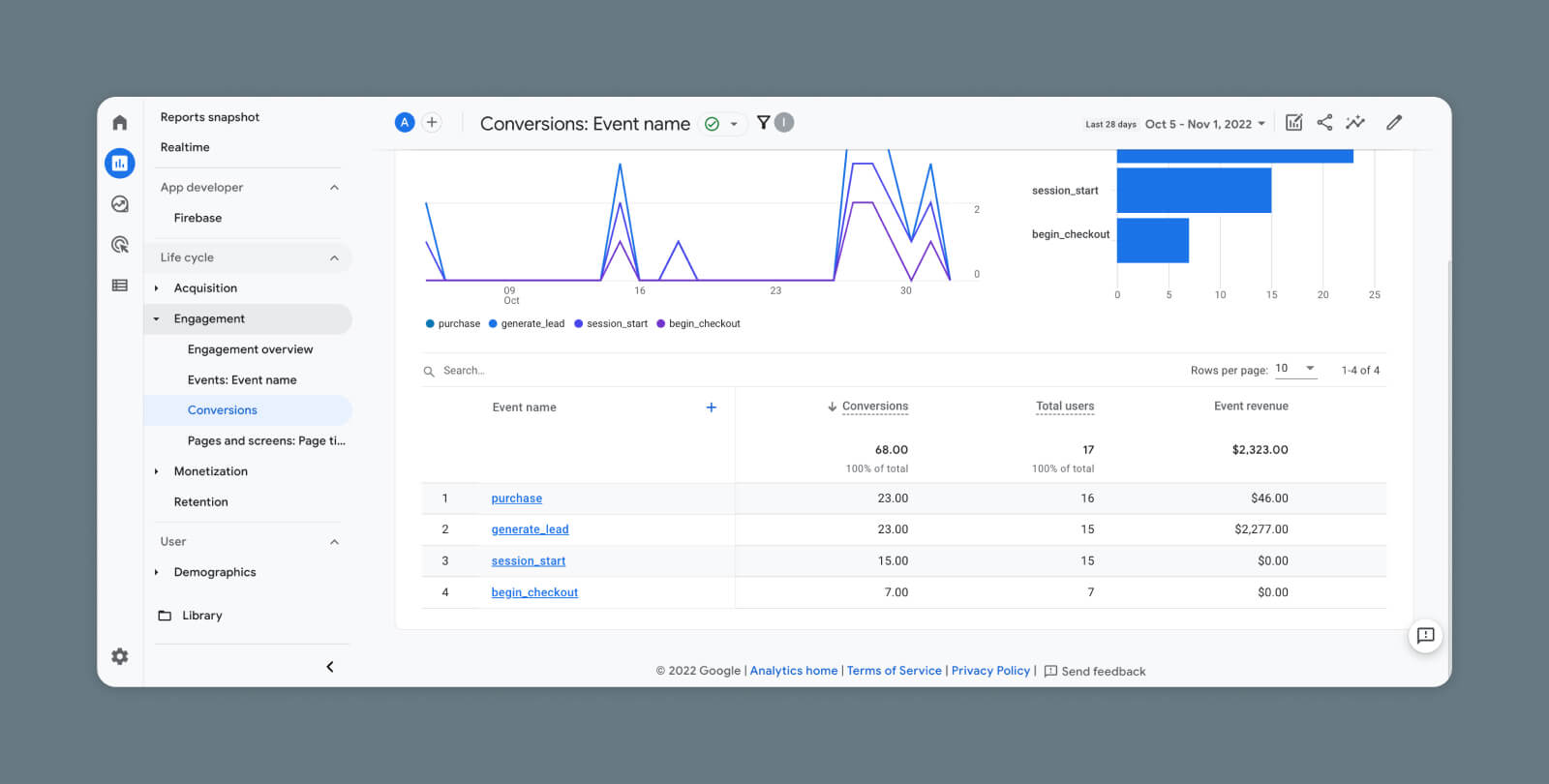
Whenever you want to check on how many conversions you’re making, just visit the Conversions page in GA4.

Screenshot of Google Analytics 4 Conversions

Here, you can see which conversions are happening most often, how many users converted through each event, and how much money you’ve made.

You can view a full breakdown of these stats for any conversion in the list by clicking on the name of the event you want to study.

This detailed view also reveals the number of times the event has been triggered in total, and how many times it’s been triggered in the past 30 minutes.

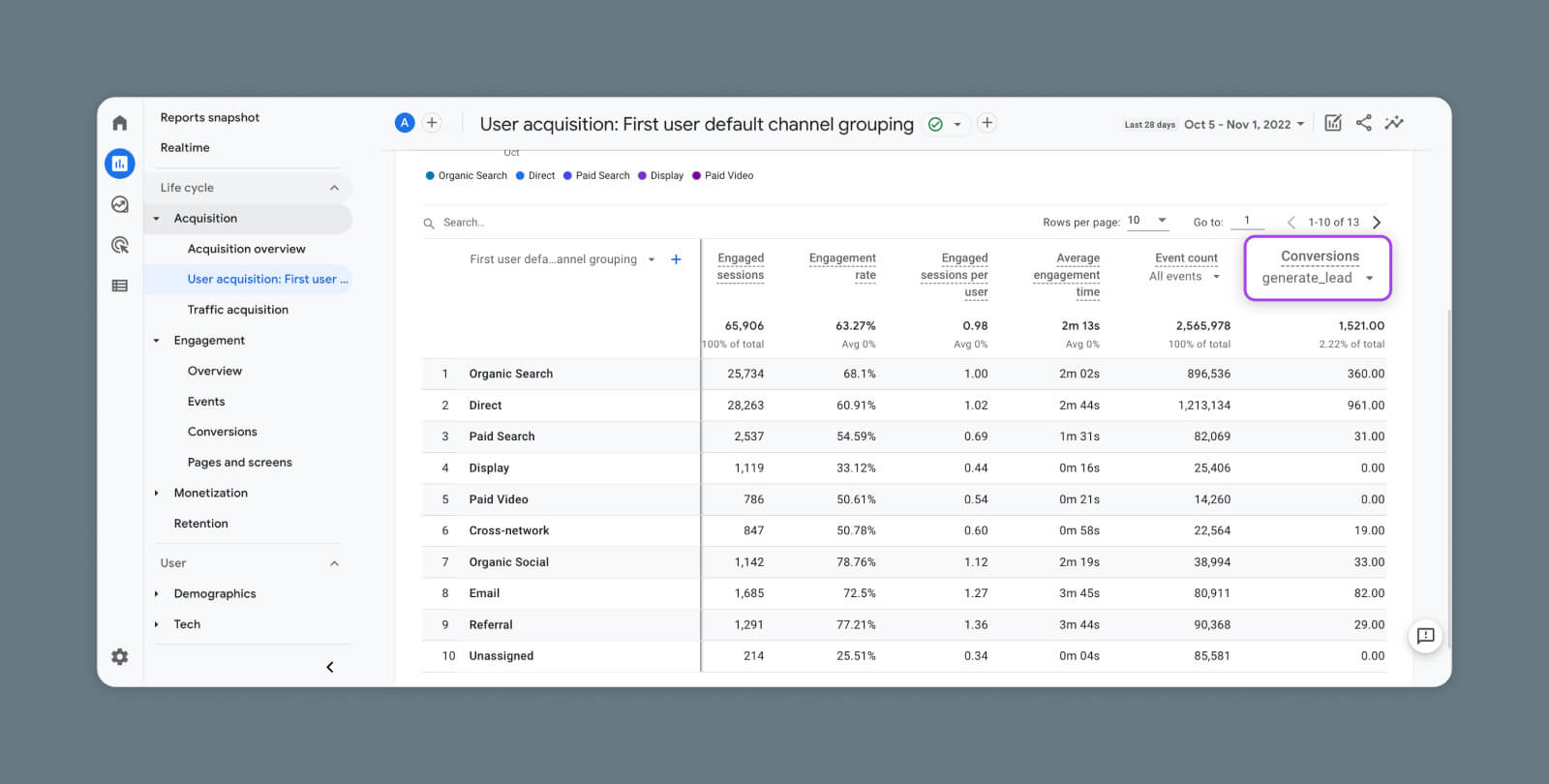
If you want to understand how users make their way to your conversion page, head over to User acquisition and select any conversion event. Google Analytics will then show you which channels are delivering users to your site, and then to that specific conversion.

Screenshot of Google Analytics 4 User Acquisition

To trace the exact steps your users are taking, visit Advertising > Conversion paths.

The reporting dashboard here shows you which channels are popular with users at different touchpoints, on their way toward a specific conversion.

Why You Should Set Up GA4 Events

As we have discovered, GA4 makes it possible to track user interactions across every detail of your website or app.

Obviously, setting up all the various events and conversions requires some effort. The bigger your site, the longer the task will take.

But if you want to build an audience or make more e-commerce sales, configuring GA4 event tracking is time well spent. The more you understand your users, the better you can optimize your content.

Get More Visitors, Grow Your Business

Our marketing experts will help you earn more traffic and convert more website visitors so you can focus on running your business.

DreamCare website tech support

The post Marketer’s Guide to Creating Events and Measuring Conversions in GA4 appeared first on Website Guides, Tips & Knowledge.


source https://www.dreamhost.com/blog/ga4-events/

Creating and Mastering GA4 Explorations

In the switch from Universal Analytics (UA) to Google Analytics 4 (GA4) — which will go fully into effect July 2023 — a lot of things have...