Monday, 7 November 2022

What Is the WordPress CLI (And How Can You Use It)?

As you get more comfortable developing WordPress, you’ll want some tools that will help you complete your tasks quickly and efficiently. The WordPress admin dashboard is intuitive and comprehensive, but it can also be time-consuming to navigate.

What if you want to manage your site more directly, with just a few easy commands? This is where the WordPress Command Line Interface (WP-CLI) comes in handy.

The WP-CLI is a tool that enables you to interact with your WordPress site directly by using commands in a text-based interface. It’s also very comprehensive, with a wide variety of potential commands. Almost anything you can do on the back end of your site, you can do much faster using the WP-CLI.

An Introduction to the WordPress Command Line Interface (WP-CLI)

Like most WordPress users, you’re probably very familiar with the WordPress admin area. It works well, but it’s not the only option for managing your site. In fact, it’s not even the most direct or efficient way of doing so. Having a graphical interface is certainly preferable for some users. However, it does mean you’ll spend a lot of time navigating through menus or waiting for pages to load.

Enter the WordPress Command Line Interface (WP-CLI).
WordPress CLI

As the name suggests, this tool enables you to perform administrative tasks on your WordPress site using a command line. With this method, you can complete a task by simply typing in a line of code and hitting Enter.

The beauty of the WP-CLI is that it gives you direct control over your site. Anything you can do in the WordPress admin dashboard, you can do using the WP-CLI instead. It’s not nearly as complicated as you may fear, and there are plenty of resources available if you want to learn more about it.

To use the WP-CLI, you’ll need to install it on your WordPress site. Let’s look at this process in more detail now.

How to Install the WP-CLI on Your WordPress Website

If your site is hosted with DreamHost, it will already have the WP-CLI installed. If you need to, however, you can also install this tool manually.

You’ll first need to make sure that your environment is compatible, meaning that it conforms to the following specifications:

  • A UNIX-like environment (OS X, Linux, FreeBSD, Cygwin)
  • PHP 5.6 or later
  • WordPress 3.7 or later

That first point might be a problem for some users. The WP-CLI is made with UNIX-like environments in mind and has limited support for Windows. It is still possible to install it on Windows, but beware that it may require some additional tinkering.

To install the WP-CLI in one of the environments on the above list, you’ll need to use Secure Shell (SSH) to download and configure the necessary files. First, you need to download the wp-cli.phar file to your root directory, using the following command:

curl -O https://raw.githubusercontent.com/wp-cli/builds/gh-pages/phar/wp-cli.phar

You should then check to make sure that the file is working, using another command:

php wp-cli.phar --info

Next, you’ll want to make the file executable, which will enable you to use the wp command. You’ll also want to move it to another directory. This final command will perform both tasks:

chmod +x wp-cli.phar

sudo mv wp-cli.phar /usr/local/bin/wp

With that, the WP-CLI should now be successfully installed. You can test it by running the command wp –info. If everything works, you’ll see information about your version of the WP-CLI displayed.

That’s it! You’re now ready to use this tool to manage your site more efficiently. Before we move on, however, let’s run through some alternative methods of installation.

Get Content Delivered Straight to Your Inbox

Subscribe to our blog and receive great content just like this delivered straight to your inbox.

Alternative Ways to Install the WP-CLI

As we alluded to earlier, there are actually several methods to install the WP-CLI. We won’t detail all of them in this article. However, we’ll list them out briefly and link to more information on each, so you can choose the technique that best suits your needs.

You can use the following tools to install the WP-CLI on your site:

Finally, you may want to get involved in developing the WP-CLI yourself. You can easily get involved with its development by using the Git installation instructions.

5 Ways to Use the WP-CLI to Manage Your WordPress Site

The WP-CLI provides total access to your site — right at your fingertips. There are dozens of commands you can use to manage nearly everything from comments to core updates. Plus, you can even create custom commands.

We’re now going to look at just a few of the standard commands available to you. This is to give you an idea of how you can use WP-CLI to manage your site before you dig deeper into the rabbit hole of possibilities.

1. Install and Update WordPress

The most fundamental task you can accomplish with the WP-CLI is to download and install WordPress on your site. The command for downloading WordPress is simply:

wp core download

This will download and extract WordPress in the current directory. You can also add additional parameters to refine the download further. For example, the locale parameter determines which translation of WordPress will be used. This command will download the Brazilian Portuguese version of WordPress:

wp core download --locale=pt_BR

Once downloaded, you can install WordPress using the install command. This command contains a number of parameters that configure the setup. Let’s take a look at an example:

wp core install --url=example.com --title=Example --admin_user=supervisor --admin_password=strongpassword --admin_email=info@example.com

As you can see, this is all fairly self-explanatory. Simply replace the example data in each parameter with your own values. To ensure that everything has worked as expected, you can use the following command to test the installation:

wp core version

This will return the version number of your installation, proving that WordPress has been successfully installed! Now you can make sure it’s updated with the following command:

wp core update

If a newer version of WordPress is available, it will be downloaded and installed automatically after you run this command.

2. Manage Themes and Plugins

There are many ways you can manage themes and plugins using the WP-CLI, so let’s look at some of the basic options now. First, you can use the list command to view a list of your themes or plugins. Using parameters, you can filter the display by items with a specific status (such as inactive) or a particular output format.

For example, if you want to list all inactive themes as a CSV list, you can use the following command:

wp theme list --status=inactive --format=csv

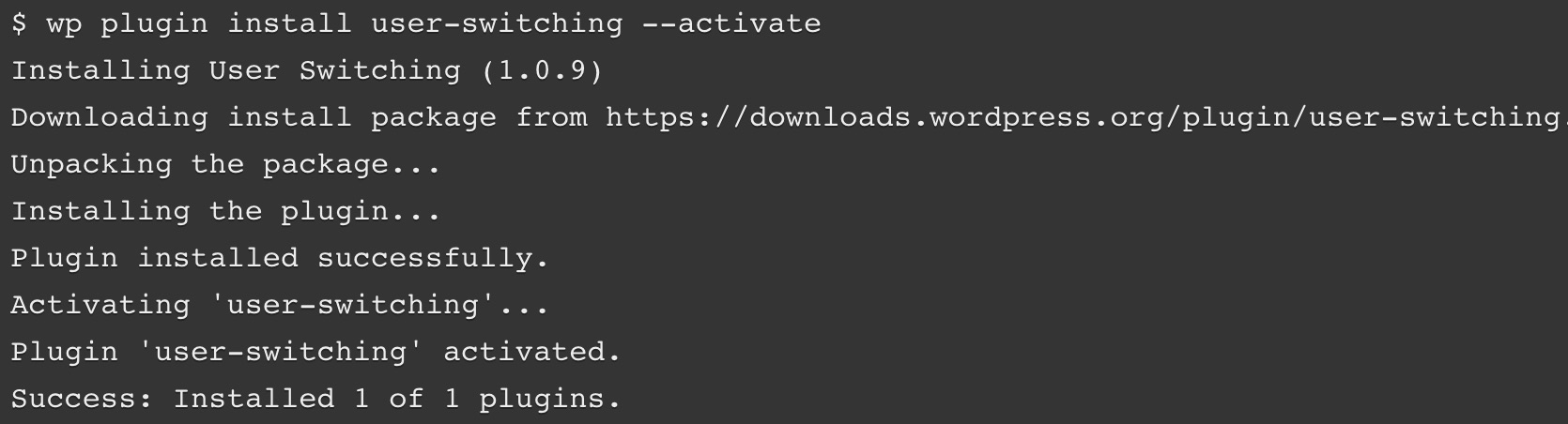
You can also install a plugin by specifying its slug in the plugin directory, providing the path to a local file, or entering the URL for an external file. In this example, we’re also going to activate the plugin at the same time:

wp plugin install ../my-plugin.zip --activate

It’s also easy to change the status of a plugin or theme. This command can be used to enable a theme, which in this example is Twenty Twenty:

wp theme enable twentytwenty

There’s also a command for deactivating a plugin. In our example, we’ll use this command to disable the Hello Dolly plugin. We’ll also uninstall the plugin at the same time:

wp plugin deactivate hello –uninstall

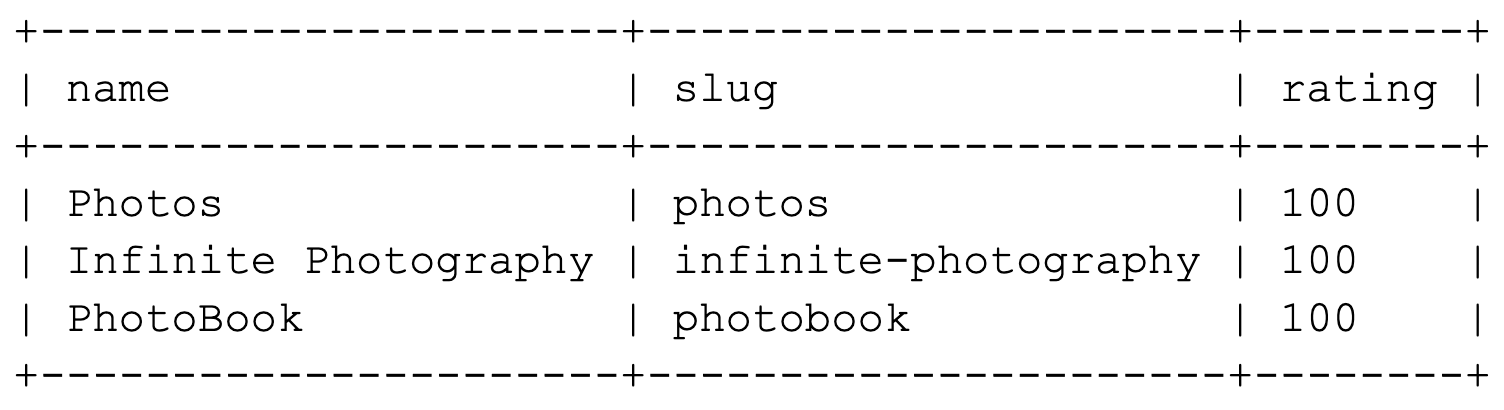
Finally, you can search the respective directories looking for a specific plugin or theme. For instance, let’s search for a theme containing the string “photo”. We’re also setting it to return three results instead of the default ten:

wp theme search photo --per-page=3

This will display the following table:
WordPress CLI query table

As we mentioned, this is only a small taste of how you can manage themes and plugins using the WP-CLI. Hopefully, you’re getting a sense of how useful this tool can be.

3. Create a Child Theme

By using the scaffold command, you can generate a child theme that includes the functions.php and style.css files. We recommend that you do this if you want to make changes to an existing theme. When you use a child theme, any customizations won’t be lost after new software updates.

To do this, you’ll simply need to specify the slug for the new child theme, and for the theme you’re using as the ‘parent.’ In this example, we’re creating a child based on the Twenty Twenty theme, and we’re giving it the slug twentytwenty-child:

wp scaffold child-theme twentytwenty-child --parent_theme=twentytwenty

If the process is successful, you’ll see a message that the child theme has been created. This will also include the path to its directory:

Success: Created '/var/www/example.com/public_html/wp-content/themes/twentytwenty-theme'.

You’ll now find the child theme in the specified template, ready to be edited!

4. Moderate Comments

Moderating and managing comments is made a lot easier in the WP-CLI, which enables you to quickly create, delete, and edit them. There are many comment subcommands you can use, but let’s look at some of the most basic options.

First, you can add a new comment. The following command will add a comment to a post with the post ID of 20, and specifies the contents and author:

wp comment create --comment_post_ID=20 --comment_content="This is my comment" --comment_author="author-name"

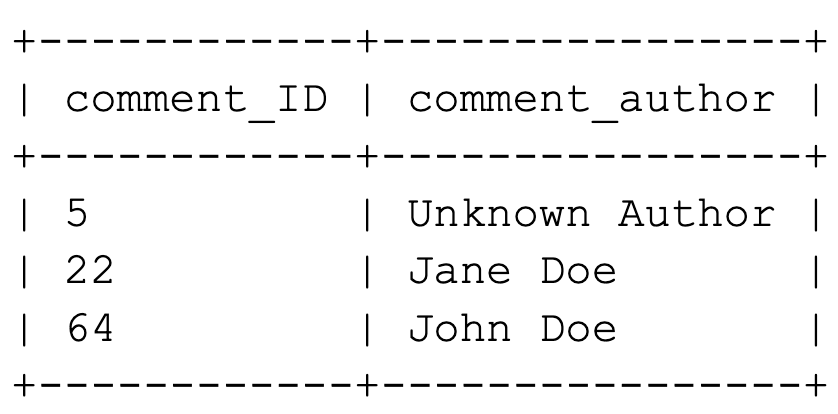
Before you manage existing comments, it can be helpful to get a current list. You can do this with the list command, and the results can be filtered in multiple ways. For example, using this command will return a table containing the comment ID and author name for all approved comments on the post with an ID of 3:

wp comment list --number=3 --status=approve --fields=ID,comment_author

This is what the resulting table will look like:
WordPress CLI query table

If you want to delete comments, you can do that by specifying the comment IDs individually, like this:

wp comment delete 64

You can also delete multiple comments by separating each ID with a space. In this example, we’re also using the force parameter, which permanently deletes comments instead of adding them to the trash bin:

wp comment delete 5 22 64 64 --force

With a little practice, you can work through your site’s comments very quickly using WP-CLI commands.

5. Update the WP-CLI

As with every aspect of WordPress, you should always make sure that the WP-CLI is up-to-date. Fortunately, this is very simple. All you need to do is run the following command:

wp cli update

If your version is the most recent available, you will get a message confirming this. However, if a new version can be downloaded, you’ll be prompted to accept the installation. If you select yes, the WP-CLI will be updated, and you’ll see a confirmation message:

Success: Updated WP-CLI to 0.23.1

With that, you’ve updated your installation of the WP-CLI.

By now, you’re beginning to see what you accomplish using this simple interface. There’s more to learn, but you should be proud of how far you’ve come already!

Work More Efficiently with the WordPress CLI

Speed, accessibility, and efficiency are all traits that any smart developer looks for in their tools. The WP-CLI offers all of these and more while enabling you to manage your WordPress site remotely. Using the WP-CLI, you can perform any action that’s possible in the WordPress admin — just much more quickly (once you’ve had a bit of practice).

Do More with DreamPress

DreamPress Plus and Pro users get access to Jetpack Professional (and 200+ premium themes) at no added cost!
managed WordPress hosting provider

The post What Is the WordPress CLI (And How Can You Use It)? appeared first on Website Guides, Tips & Knowledge.


source https://www.dreamhost.com/blog/guide-to-wp-cli/

Friday, 4 November 2022

Mind Those URLs: How to Create an SEO-Friendly Website Structure

This might seem like a no-brainer, but it’s important to ensure that your web pages are logically organized. Doing this does more than simply help your website’s users navigate around more easily — it does the same for search engines. In short, the way you organize your site’s pages can help you rank higher in search engines and drive more traffic to your website.

Fortunately, structuring (or restructuring) your website’s architecture doesn’t have to be a chore. In this post, we’ll take a closer look at website structure and discuss why it’s important for Search Engine Optimization (SEO). Then, we’ll guide you through how to create an SEO-friendly website structure. Let’s get started!

An Introduction to Website Architecture 

Website structure (also known as website architecture) refers to the way your content is categorized and linked together. Essentially, it concerns your site’s framework and the organization of your pages.

For instance, most websites group their pages by subject or topic. In the example below, you can see that pages are organized under appropriate headings:

Organization of site content on the Puma website

These headings often branch off into more specific subcategories. As you can see, the Sports page contains links to other lower-tier pages such as Explore Football and Modest Activewear:

The Sports section on the Puma website

A good website structure enables users to navigate your site intuitively, guiding them toward an intended goal. Additionally, it helps search engines understand your website better and enables them to differentiate between your pages.

Why Website Structure is Important for SEO

One of the main reasons why web structure is important for SEO is because it helps search engines find and index your pages. If you have pages that are several clicks away from your home page, it’s hard for search engines to access them.

Not only that, but it also enables users to easily navigate your content. With good site structure, your target audience can quickly find what they need:

An example of good website structure

This can help keep users on your site for longer, reducing your bounce rate. Google will see this as a sign that your website provides value, and in turn, it can improve your visibility in search results.

Additionally, good web structure prevents cannibalization. When you organize your site, your content has distinct goals and topics that are instantly identifiable to search engines. Therefore, even if you cover similar topics across multiple pages, your structure makes it so that your pages aren’t ranking for the same keywords.

How to Create an SEO-Friendly Website Structure

Now that you know a bit more about web structure and why it’s important, let’s take a look at some specific ways to create an SEO-friendly structure for your website.

Establish a Simple Hierarchy

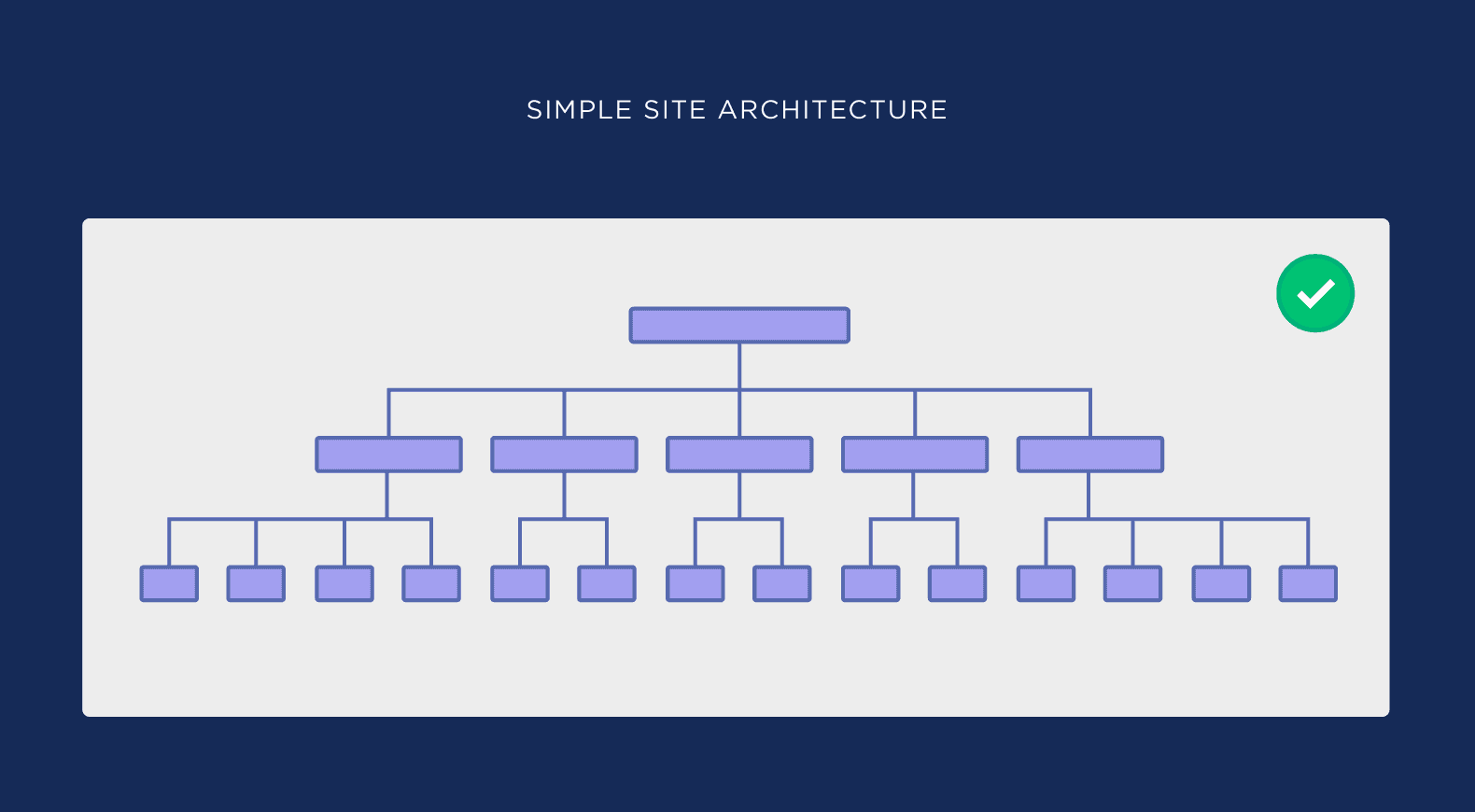
It’s a good idea to design a site with multiple categories that also branch off into organized subpages. This makes it easy for users (and search engines) to navigate your content. It also enables them to engage with your top-tier pages first (which are often your most important ones).

With a complicated site structure, it’s hard for users to find what they need. Therefore, consider designing your site so that visitors can quickly find what they’re looking for, no matter where they land on your site.

Creating a simple hierarchy is also important for SEO. Clear categories and internal links make your content easier to crawl.

An example of a well-organized architecture 

Image Credit: Backlinko

Organize Subpages into Logical Categories

As we’ve mentioned earlier, categories add organization and structure to your pages. Without them, your content can be difficult to navigate.

Better yet, categories don’t have to be set in stone. For instance, you might add a new page to an existing category. Or, if you design new pages that don’t fit into your categories, you can easily create new ones for them.

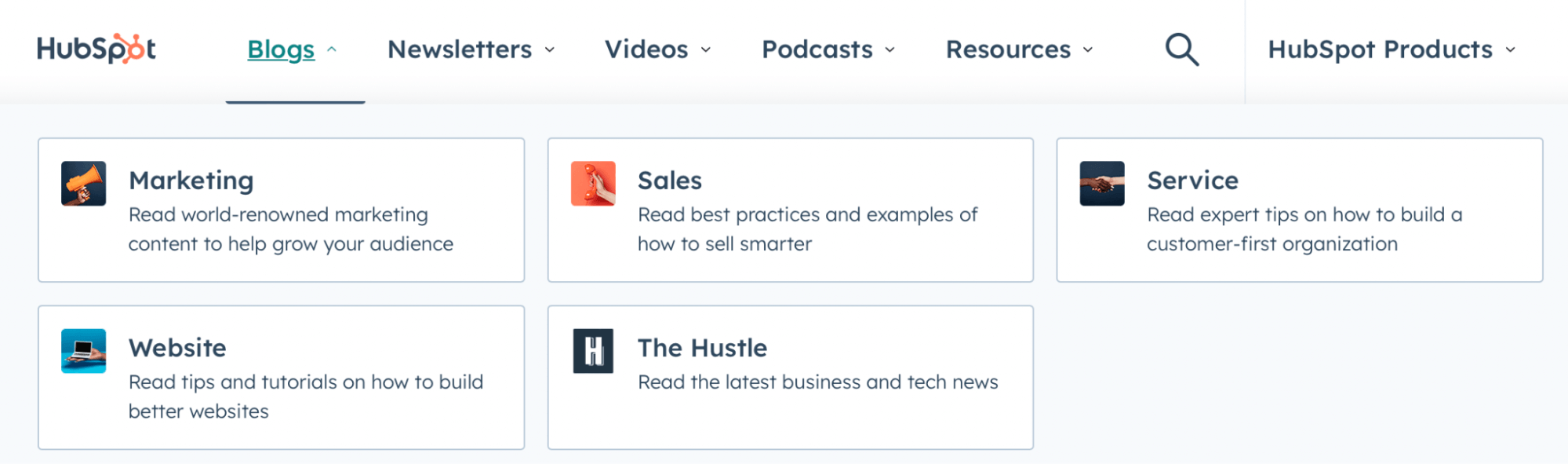
If you manage an e-commerce store, you might consider using product categories. If you run a blog, you might organize content according to topics:

An example of pages organized into categories

A poorly organized site that lacks defined places for different types of content can also be prone to keyword overlaps. Then, you’re more at risk of facing duplication and keyword cannibalization issues.

Get Content Delivered Straight to Your Inbox

Subscribe to our blog and receive great content just like this delivered straight to your inbox.

Use Internal Links to Your Advantage

Since your site structure is heavily determined by the way your pages are grouped together, your navigation menu becomes very important. Here, you can show users where to find your main content and subcategories.

However, you can also use internal links on your posts, directing visitors to other relevant articles. For instance, you might present users with similar travel guides, using descriptive anchor text:

An example of internal linking with descriptive anchor text

By linking several pieces of content that cover different aspects of the same topic, you can help search engines recognize your site as an industry expert. This authority can be hard to achieve if your pages are scattered randomly with no obvious relationship to one another.

Include Relevant Keywords 

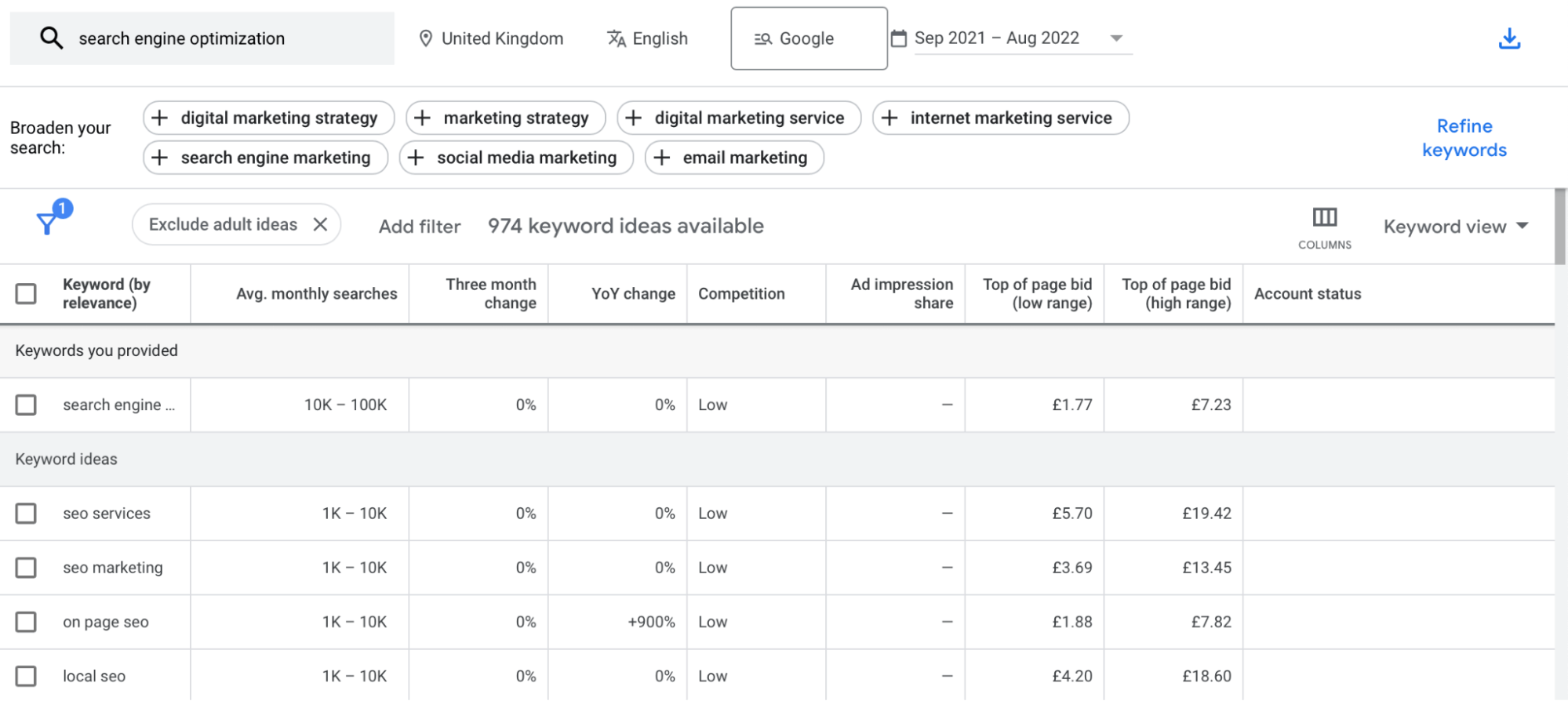
When choosing keywords for your content, you’ll need to consider search volume and traffic potential. Google Keyword Planner, Semrush, and Ahrefs are excellent tools that enables you to find relevant keywords and judge how easy/difficult it is to rank for them:

Google Keyword Planner

It’s important to pay attention to how competitive keywords are. Your chances of outranking high-traffic websites are slim. Therefore, you might want to opt for long-tail keywords. These have a lower search volume but are easier to rank for since they’re more specific.

Once you’ve chosen your keywords, you can place them in optimal spots like your URLs, titles, and meta descriptions:

Meta description and title shown in the search results page

You can also incorporate these search terms into your content. However, you’ll want to avoid keyword stuffing, since this can make your content seem unnatural.

Create “Pillar” Pages

Think of pillar pages like really comprehensive, important pieces of content. You can create pillar pages that cover broader subject areas. Then, you can use these pages to link to more in-depth, specific content. That way, you can highlight your most important content and position your pillar pages to rank for high-volume keywords.

However, you can also pull visitors further into your site by using long-tail keywords for your lower-level pages:

An example of a pillar page

This way, users searching for more specific content can easily bypass pillar pages to access what they need. Meanwhile, your hub pages can cater to those looking for general information.

Optimize URL Structure

Search engines also use your URL to comprehend your page content. In fact, they consider many factors including on-page and off-page elements.

And when we discuss simple hierarchy and organizing content using categories above, this is what we’re talking about! URL structure is the primary means in which we organize content.

Permalink best practices suggest that you keep URLs short and make use of your targeted keywords. Additionally, consider using lowercase letters and joining words together with hyphens.

A well-executed site structure will typically have SEO-friendly URLs that show subpages organized and nested within logical parent “categories,” or subfolders.

An example of SEO-friendly URL structure

This enables you to describe how your subtopics relate to your general pages. Plus, it shows visitors where they are within your site.

Boost Your Site Speed

Website speed is a crucial indicator of a user-friendly website. In fact, as page load time goes from 1 to 3 seconds, the bounce rate increases by 32%. However, site speed also affects how search engines read your website. The longer they take to crawl your pages, the lower you’re likely to rank.

With a fast website, Google can crawl multiple pages at once. Therefore, it’s important to test your site speed with a free tool like Pingdom:

Pingdom speed test

There are many factors that can affect your web performance, such as user location, browser type, and your hosting server. As such, making the switch to managed WordPress hosting can be a good decision:

DreamHost managed WordPress hosting

At DreamHost, you can expect top-of-the-range speeds with built-in caching, available with all plans. However, with our Plus and Pro plans, you’ll also get access to a free Content Delivery Network (CDN) to speed up page delivery across the globe.

There are other ways that you can improve your site speed. For instance, you can optimize your images and reduce image and text sizes. You can also minimize resources like JavaScript and CSS, and delete outdated or unused plugins.

Provide Clear Navigation Design

It’s important that your navigation menu design is simple and intuitive to help users find what they’re looking for. With this in mind, you can make your top-level items accessible from every web page.

Typically, these items then expand into dropdown menus. However, you’ll want to avoid filling dropdown menus with too many pages. Instead, your menus should be scannable to help users navigate your site quickly.

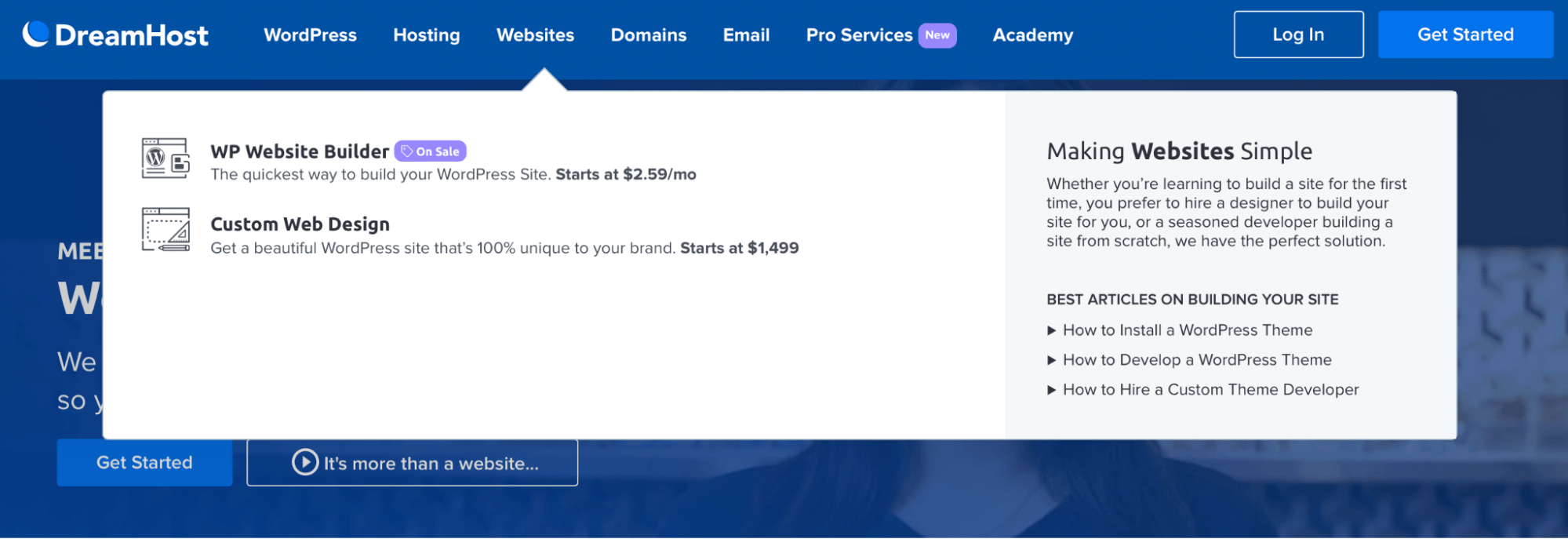
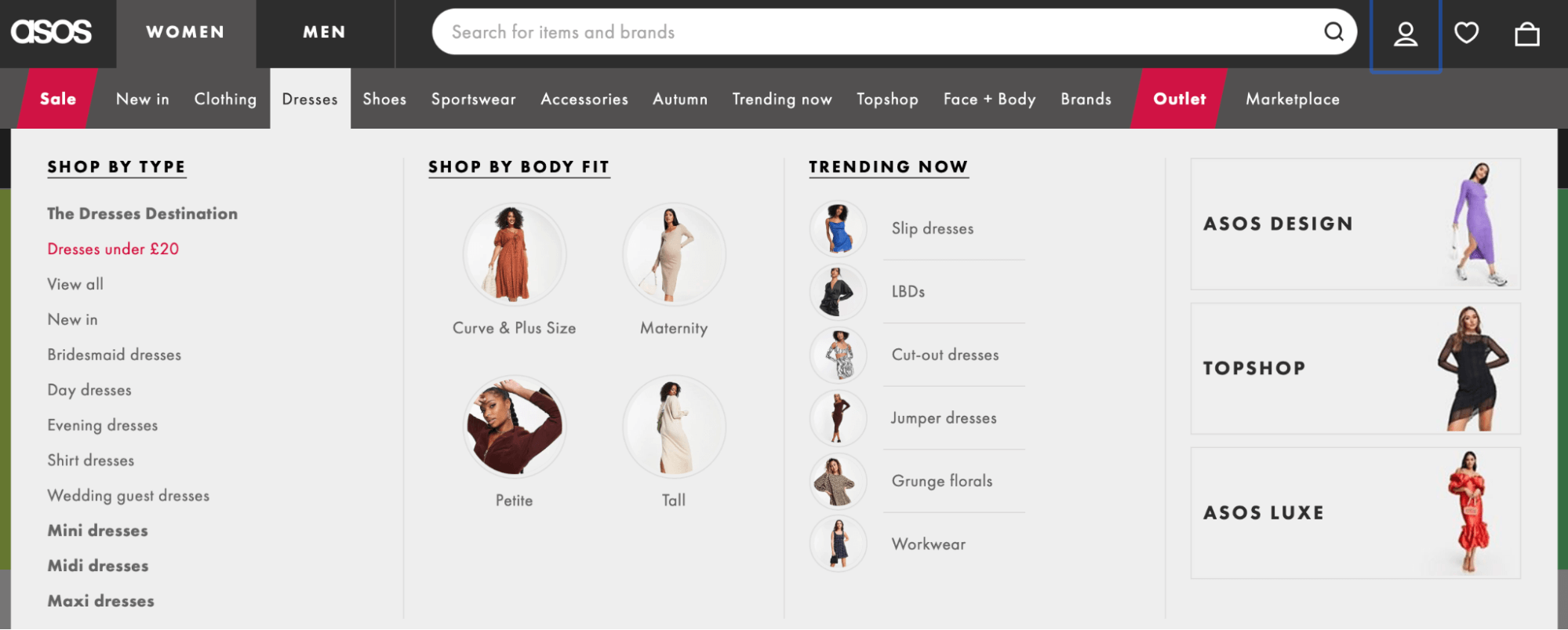
Mega menus are an excellent option if you’ve got lots of pages on your website:

An example of a mega menu

As a result, you can make all your pages visible and accessible from one place. This can help boost your User Experience (UX) and improve user engagement.

And since search engines also use your navigation menu to help understand and ranking your content, clarity and organization matter quite a bit here!

Delete Old Pages

What, delete pages?!

While this may seem counterintuitive, having older, outdated pages on your site still get indexed by Google and wastes what is called your “crawl budget.”

Crawl budget refers to the maximum number of pages a search engine can crawl. This number is determined by several factors including site speed. You can maximize crawlability by cleaning up your website. For instance, you can update existing content or delete pages that are no longer relevant.

This shouldn’t affect your search engine rankings, as long as you target pages that don’t attract much traffic. Also, you can afford to lose pages that contain duplicate content or those with poor link equity. Additionally, it’s a good idea to check that there aren’t any backlinks directing visitors to your deleted pages since this will return a 404 error.

Create an SEO-Friendly Website Structure

As a website owner, one of your main goals is to get more visitors. An excellent way to do this is to improve your search ranking. However, with so much competition, it can be difficult to do.

Fortunately, you can create an SEO-friendly website structure to make your web pages more visible. For example, you can create a simple hierarchy, consisting of pillar pages and subcategories. You can also implement an internal linking strategy, get rid of old content, and optimize your URLs.

At DreamHost, we provide a powerful SEO marketing service to help you rank higher in search engines. You’ll get access to a dedicated team of experts, monthly reports, and excellent optimization strategies including market targeting and PR backlinking. Schedule a free consultation to get started today!

Search Engine Optimization Made Easy

We take the guesswork (and actual work) out of growing your website traffic with SEO.

DreamCare website tech support

The post Mind Those URLs: How to Create an SEO-Friendly Website Structure appeared first on Website Guides, Tips & Knowledge.


source https://www.dreamhost.com/blog/seo-friendly-website-structure/

Thursday, 3 November 2022

How to Create a WooCommerce Child Theme

Let’s say you have a WooCommerce store up and running.

If you’re using the official Storefront theme, it might even look quite professional. However, you may still want to customize the appearance of your WooCommerce store to match your vision.

The best solution is often to create a WooCommerce child theme. That’s because a child theme enables you to make changes to your original theme without editing it directly. It simplifies the process of customizing your store’s appearance and eliminates potential risks to your theme and store.

In this article, we’ll look at how you can style your WooCommerce store using themes. Then, we’ll show you how to create your own child theme in just five steps. Let’s get started!

A Quick Look at WooCommerce Themes

With the launch of the WooCommerce plugin in 2011, WordPress became the most popular e-commerce platform. WooCommerce is currently used to power 25% of all online stores, making it 6% more popular than its closest competitor.


One of the elements that has made WooCommerce so successful is how easy it is to create a unique store with minimal effort. However, this alone doesn’t explain the platform’s popularity.

Another huge factor in WooCommerce’s success is the nearly infinite customization possibilities it offers. When combined with the right theme, you have access to a lot of design flexibility.

WooCommerce is compatible with almost all WordPress themes. However, most of them will not be optimized to handle the unique features of the plugin.

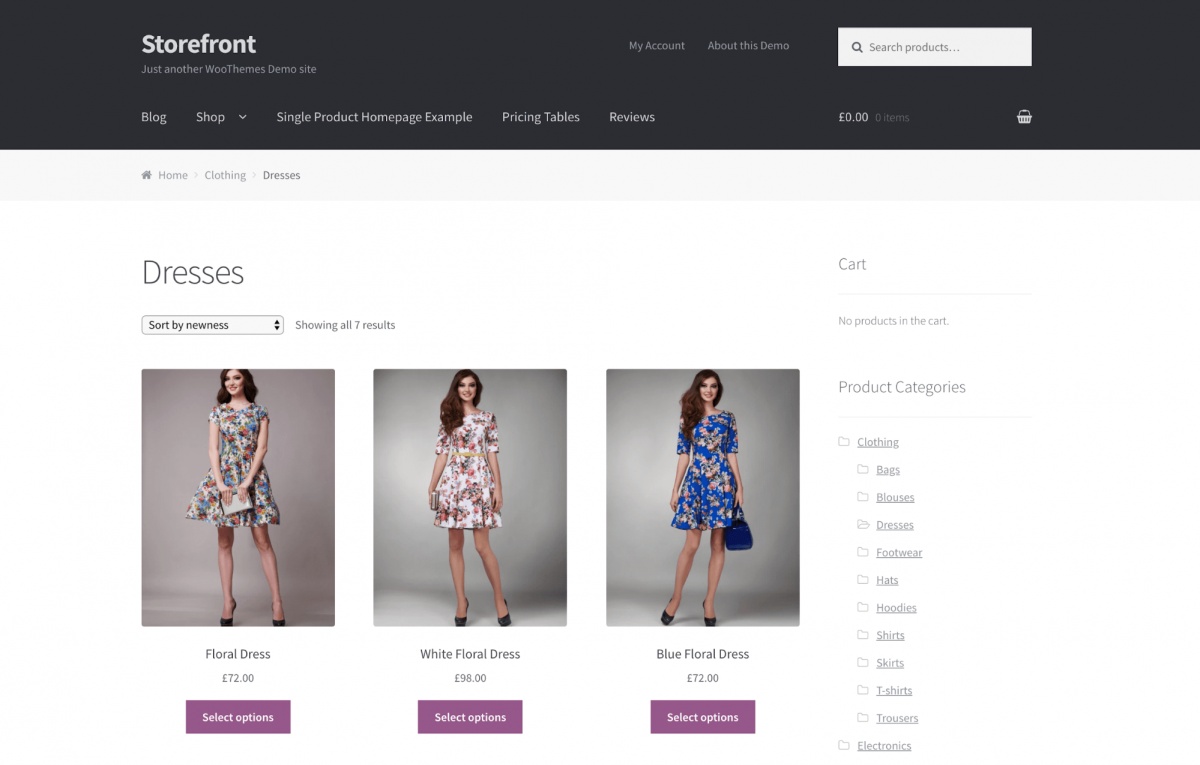
Fortunately, the Storefront theme is an excellent option. This is the official WooCommerce theme, built specifically to integrate with the plugin. It looks compelling right out of the box, with a simple and clean design that puts the focus on your products:

the WooCommerce Storefront theme

This bare-bones design also makes Storefront an ideal base for customization. This is where child themes come in handy, which we’ll look at next.

Why You Might Want to Create a WooCommerce Child Theme

If you’ve spent much time reading up on WordPress, you’ve probably come across child themes before.

In short, a child theme starts life as a copy of another theme, which is known as the ‘parent theme’. You can then make changes to the child theme and test them out without editing the parent theme directly. This is important because altering the original theme can result in irreversible errors and even damage to your website.

You might create a child theme because you want to use another theme as a basis, rather than having to build a new theme entirely from scratch. Alternatively, you may only want to make some minor changes to a theme’s branding or overall aesthetic. The sky really is the limit, depending on how much time you’re willing to devote to the project.

When it comes to WooCommerce, most child themes are based on Storefront:

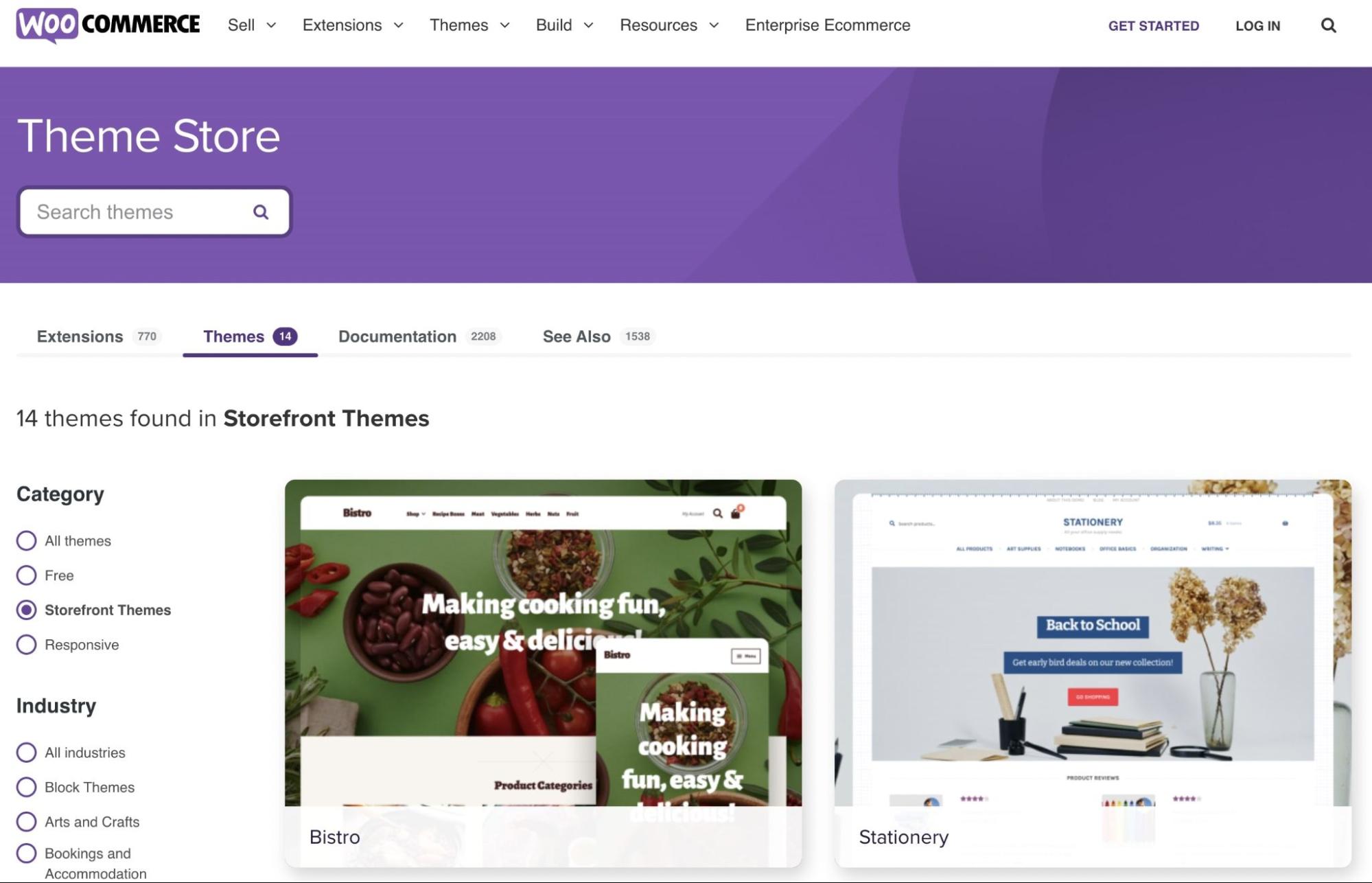
Storefront child theme options in the official WooCommerce store

You can download several child theme options from the official WooCommerce store or from other sites like ThemeForest. However, it’s possible that none of the existing child themes offered match your needs, or you may simply want to create a unique look. What’s more, you might not want to spend money on a premium theme if you feel you could do better yourself.

In a post on the official WooCommerce blog, the plugin’s developers discuss the most common motivation behind using a child theme for your online store:

“The aim with our own Storefront child themes is to deliver a store experience perfect for your own niche. After installing Galleria, and not touching any settings, you instantly have a store fit to sell high-end fashion items. With ProShop, you can rapidly set up a stylish sports store.”

The actual process of creating a child theme is the same whether you’re making one specifically for WooCommerce or for a more general WordPress site. However, you will need to keep your store’s purpose in mind as you customize your child theme. An e-commerce site requires a different design philosophy than a blog, after all. Let’s see what this process looks like in practice!

How to Create a WooCommerce Child Theme (In 5 Steps)

Now, we’re going to walk you through how to create a WooCommerce child theme. In this example, we’ll create a basic theme that uses Storefront as its parent, although you can use any theme as a base.

We’ll show you how the process works when starting from scratch. However, if you want to skip some of these steps and get straight to customizing your site, you can also download and install a sample Storefront child theme.

Finally, we highly recommend creating a backup of your site before you proceed any further. This will keep your store safe if something breaks during the development process.

It’s also smart to use a staging environment for creating and tweaking your child theme. Once you’ve taken these security precautions, you can proceed to the first step!

Step 1: Make a Folder for Your WooCommerce Child Theme

The first thing you’ll need to do is to create the folder that will contain your theme. If you’re adding the child theme directly to an existing site, the best way to do this is via SFTP. You can do this using a free application like FileZilla.

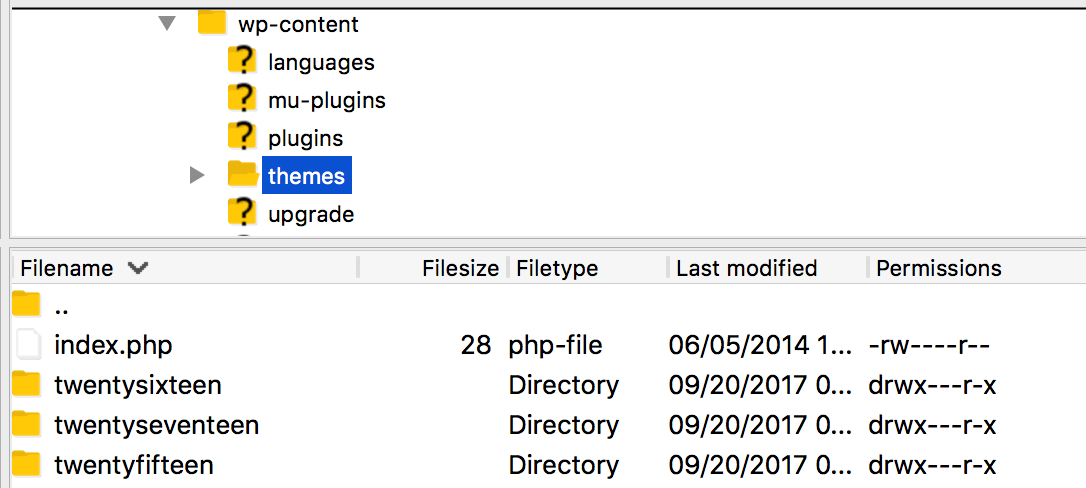
Once you have the program up and running, log in to your site with your hosting credentials. Then, you’ll need to navigate to the wp-content/themes/ folder. This is where your site’s themes are installed.

All you need to do is create a new folder within this one:

the WordPress themes folder in FTP client

When creating a child theme, it’s best to give it a name that reflects the parent. For example, we’re making a child theme for Storefront, so we’ll name our folder “storefront-child.”

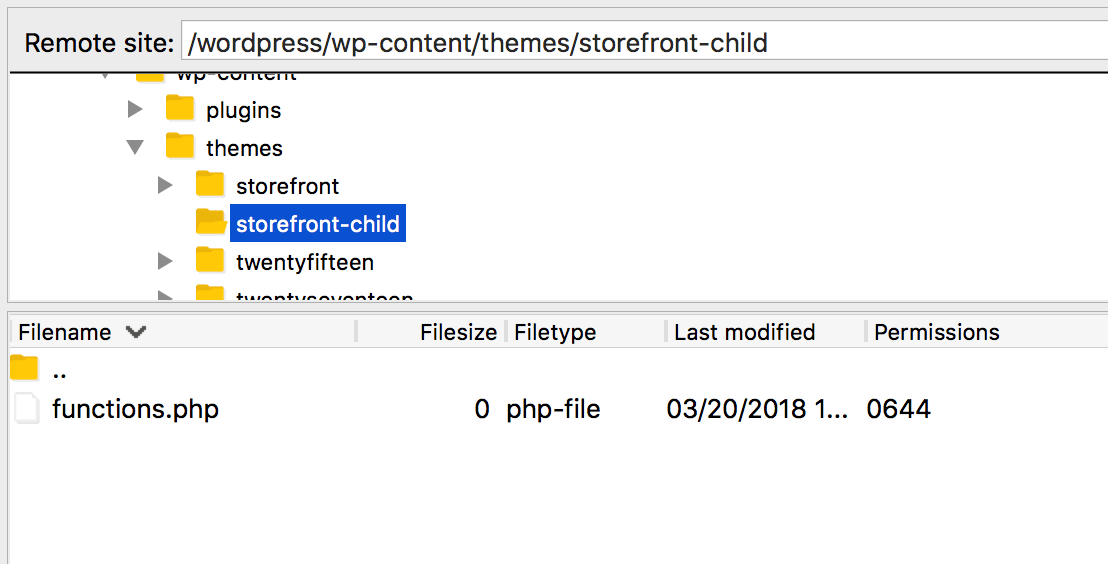
The first thing you’ll need to create and place in this folder is a simple text file called functions.php. This is an important core file that helps to dictate how your site looks and acts. However, most child themes can use the functions contained in the parent theme’s file and don’t need their own.

For that reason, this file can be left blank for now. Simply create a text file with the name functions.php, and save it in your child theme’s folder:

WordPress child theme location in FTP client

Your theme is now almost ready to be activated and used. First, however, it will need a stylesheet.

Step 2: Create Your Child Theme’s Stylesheet

The next file you need to create is your theme’s Cascading Style Sheet (CSS). This file defines the styles that will be applied to your site’s pages and content. In other words, it enables you to specify the look of individual elements on your website. When people talk about updating styles, they’re usually referring to updating a site’s CSS file.

Your parent theme will already contain a stylesheet, but a child theme’s CSS can be used to override those styles. We’ll look at how exactly this works later on.

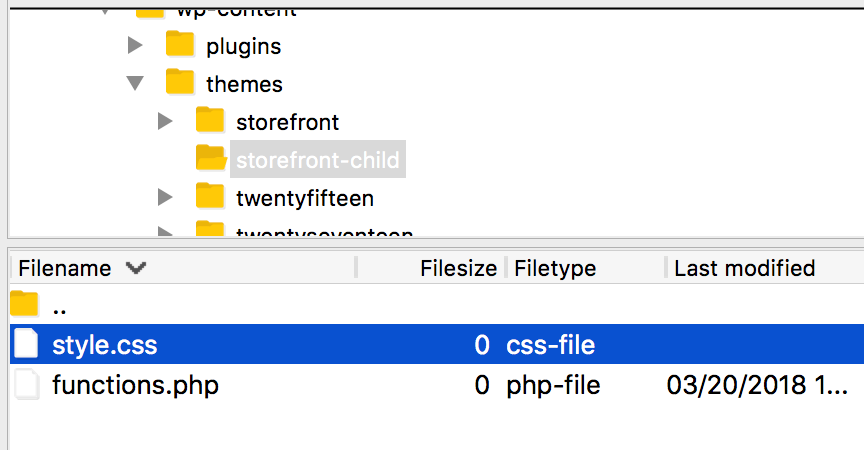
For now, you’ll just need to create the CSS file. To do this, once again add a text file to your wp-content/themes/storefront-child folder (or whatever name you used for your own child theme). This one should be called style.css:

WordPress child theme location in FTP client

You’ll also need to add some basic information. Copy and paste the following snippet into your new style.css file:

/*
Theme Name: Storefront Child
Theme URI: http://example.com/storefront-child/
Description: My first WooCommerce child theme
Author: Your Name
Author URI: http://example.com
Version: 1.0.0
License: GNU General Public License v2 or later
License URI: http://www.gnu.org/licenses/gpl-2.0.html
*/

These are the details about your theme that you’ll see when viewing it in a theme directory or in your WordPress dashboard. Feel free to replace the placeholder data with information more specific to you and your theme.

Step 3: Configure the Child Theme to Inherit the Parent Theme’s Styles

As we’ve already mentioned, you’ll want your child theme to use the parent theme’s default styles. However, you’ll also need to override the styles you want to change. This might sound complex — and CSS can indeed get tricky —  but at its core, the child will always use the parent theme’s styles unless it specifically contains a replacement.

For example, let’s say your parent theme defines the style for h1 header elements as 20px and red. If the child’s style.css file does not contain an entry for H1 headers, then the parent style will be applied to all H1 content. However, if we were to add an H1 style to the child’s stylesheet that defined these headings as 18px and blue, it would override the parent’s directions.

Adding this functionality to your child theme is actually very simple. All you need to do is to reference your parent theme in your child’s stylesheet.

Simply add the following snippet after the information you pasted into the style.css file earlier:

Template: storefront

This code defines the parent theme and will ensure your child theme uses Storefront’s styles wherever you have not specified a replacement. If you’re creating a child for a different theme, you can simply use its folder’s name instead.

Get Content Delivered Straight to Your Inbox

Subscribe to our blog and receive great content just like this delivered straight to your inbox.

Step 4: Activate the Child Theme

At this point, your child theme is now technically ready. It’s configured to work on your site, so let’s activate it and see how it looks.

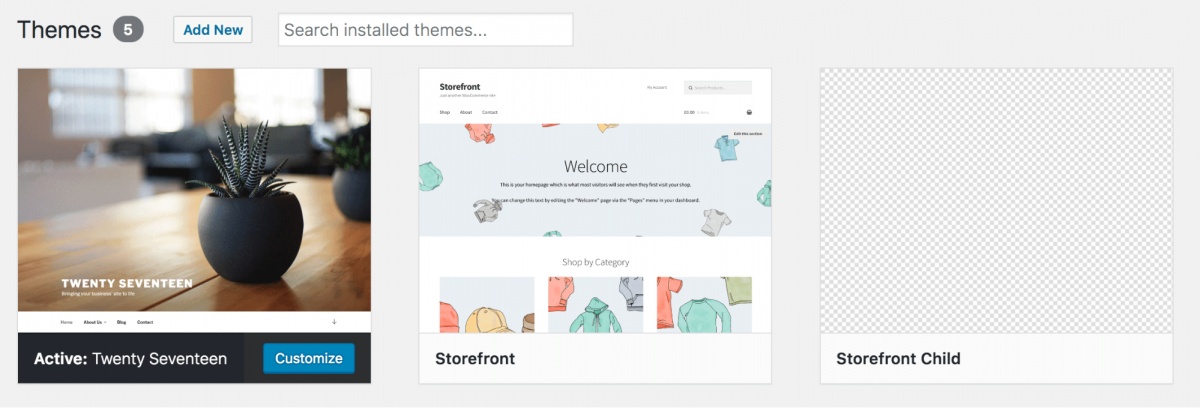
Go to Appearance > Themes in your WordPress dashboard, and you’ll see your child theme already installed:

activating your WooCommerce child theme in WordPress

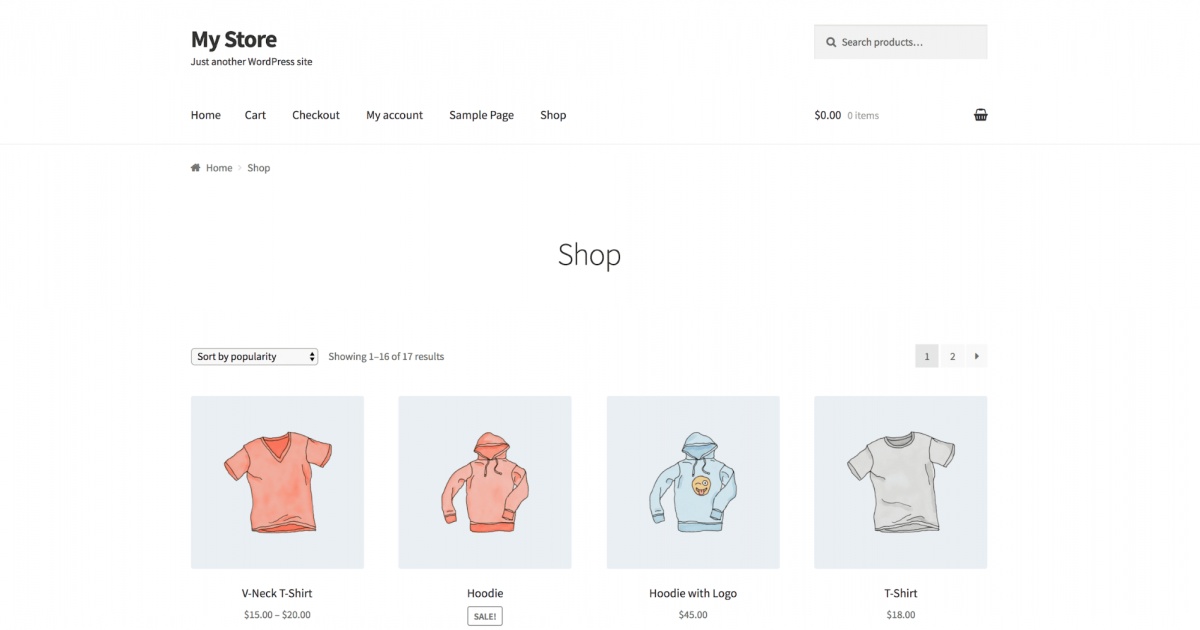
Select Activate to make it your site’s current theme. You can now preview it from the front end:

editing your WooCommerce child theme

As you can see, it looks exactly the same as the original theme right now. While the child theme is active, all it’s doing is pulling in the styles from your parent theme. To customize its appearance, you’ll need to get creative with your child theme’s stylesheet.

Step 5: Add Styles to the Child Theme

Finally, it’s time to start styling your child theme. Exactly how you do this is up to you, your creativity, and what you want your store to look like. However, let’s walk through an example of what you can do.

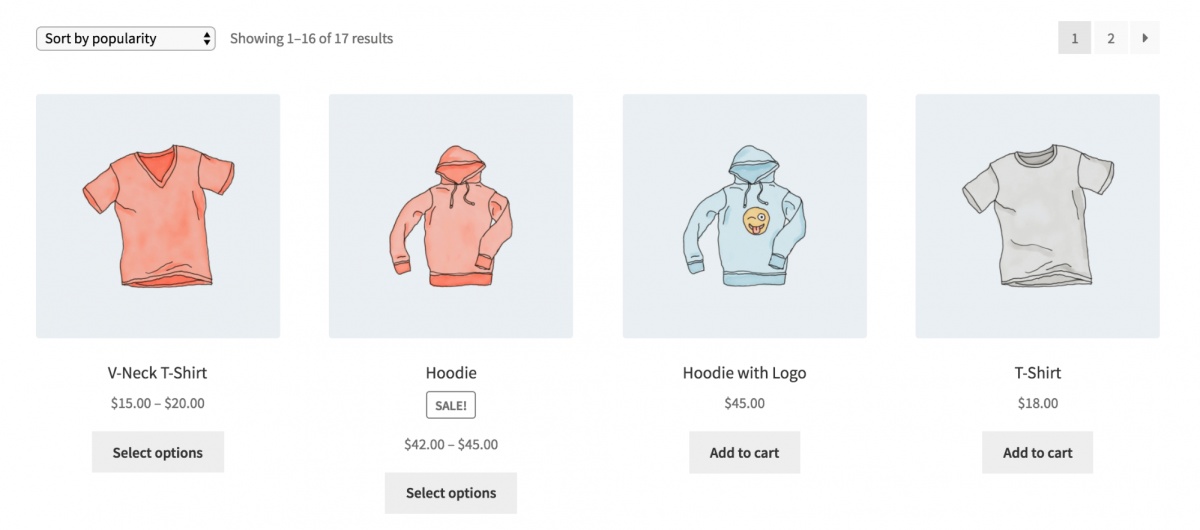
To illustrate how editing your child theme works, we’ll change the look of our store’s buttons. At the moment, they appear gray with black text, but we could update this styling to make them stand out more:

editing your WooCommerce child theme

Open your child theme’s style.css file again, and add the following code after the last */ in the file’s header:

a.button,
button.button,
input.button,
#review_form #submit {
background: pink;
color: red;
}

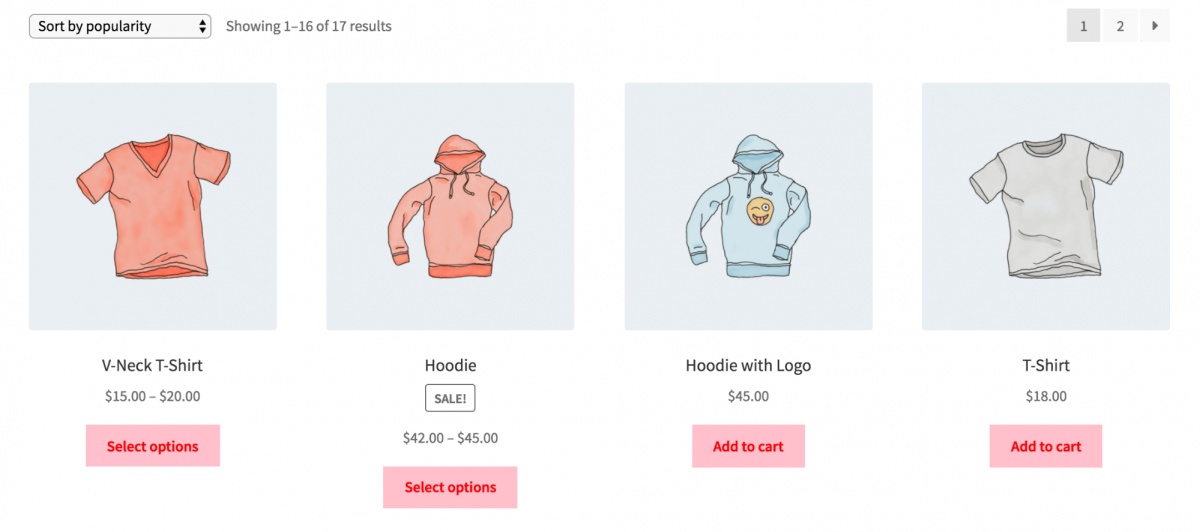
If you save your file and view it on the front end now, you’ll see the change in action. The buttons will now be a vibrant pink with red text:

editing your WooCommerce child theme

You can also make changes to your theme’s template files. You’ll just need to copy the template file you want to alter, such as header.php, from your parent to your child theme folder.

However, you’ll also need to make some changes to specify which function WordPress uses to reference the template files. This requires using the get_stylesheet_directory(); function instead of get_template_directory() to reference your templates.

To learn more about how to do this, you can read about all the templates that WooCommerce uses.

At this point, you have created a WooCommerce child theme! Of course, there’s plenty more you can do, but you now know how to start tinkering. We recommend you brush up on CSS to get the most out of your styling!

Create a WooCommerce Child Theme

WooCommerce makes it easy to create an online store, and you can even change its look using the Storefront theme or one of many custom themes.

However, you don’t have to rely on the creativity of others. Creating your own WooCommerce child theme is not as difficult as you might think, and it gives you nearly total control over the look and functionality of your store.

Happy selling!

Your Store Deserves WooCommerce Hosting

Sell anything, anywhere, anytime on the world's biggest eCommerce platform.

shared hosting

The post How to Create a WooCommerce Child Theme appeared first on Website Guides, Tips & Knowledge.


source https://www.dreamhost.com/blog/create-woocommerce-child-theme/

Wednesday, 2 November 2022

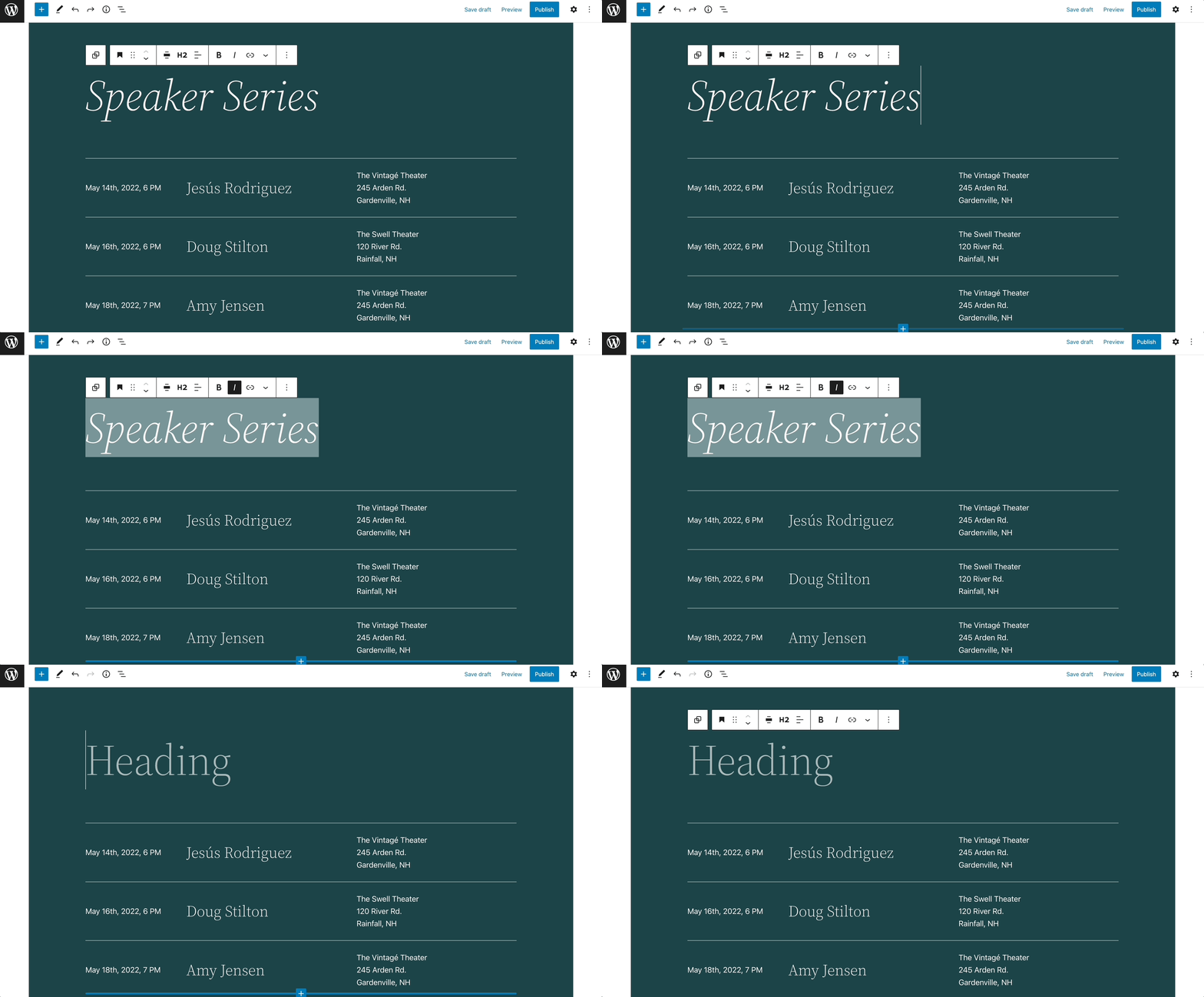
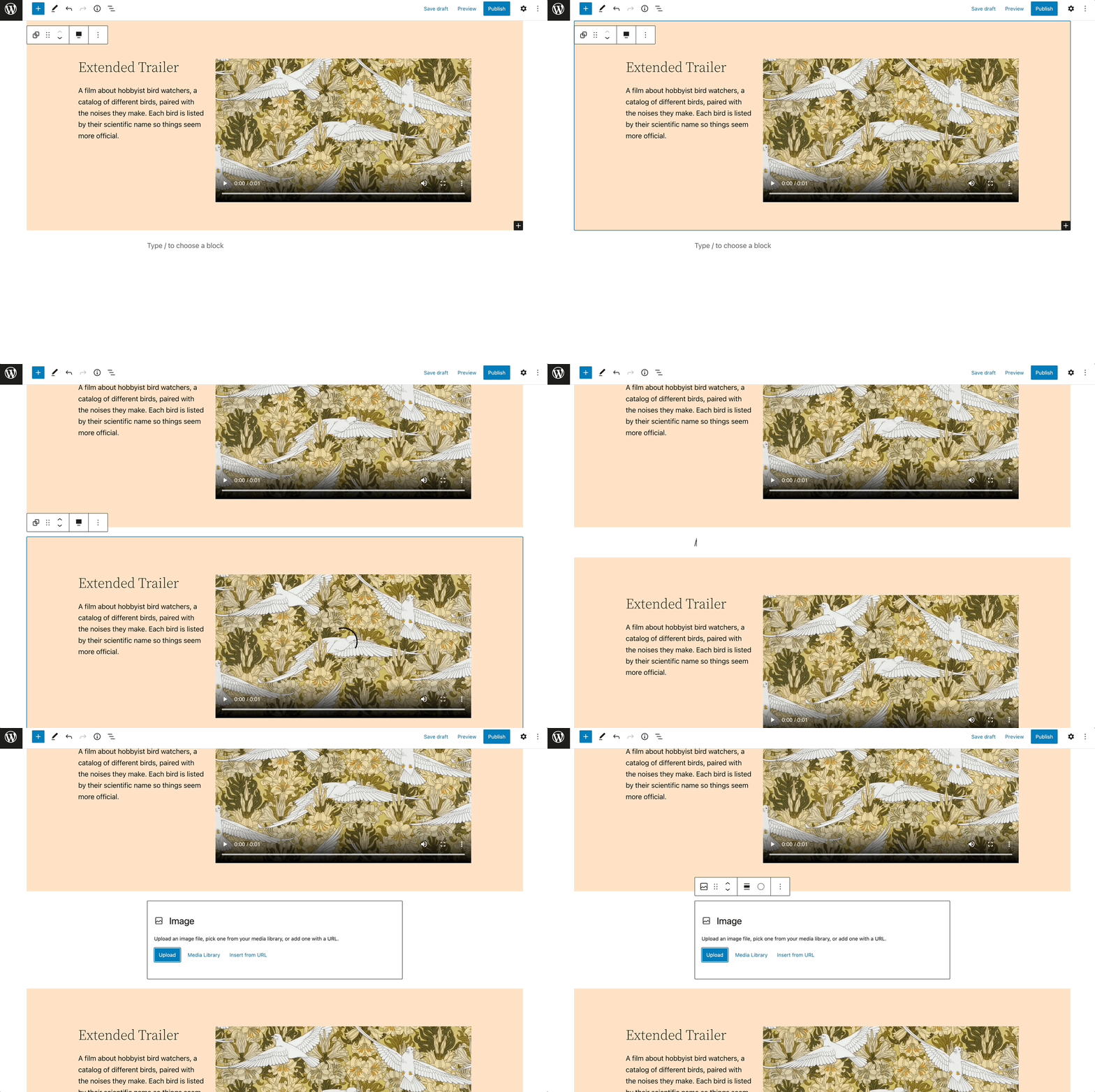
WordPress 6.1 is Released! Here’s What’s New

Recent releases of WordPress have been preludes to updates designed to fine-tune the content management system’s user experience, stability, and efficiency. In early June 2022, Matías Ventura from the WordPress core development team released an early WordPress 6.1 roadmap covering the main areas of work anticipated for 6.1’s official release, which happened today, November 1, 2022.

“The tune of the release will be to refine the experiences introduced in 5.9 and 6.0, weave the various flows into more coherent and fulfilling experiences for users, maintainers, and extenders, and close some gaps in functionality as we start to look towards Phase 3 of the Gutenberg roadmap,” Ventura said at the time.

Development Focus Areas for WordPress 6.1

WordPress 6.1 has released

Ventura’s initial roadmap highlighted five key areas that were expected to be developed.

1. Template Editor

Thanks to modifications to the template editor, users had been able to browse, visualize, and edit the structure of their sites with little to no knowledge of underlying code. The planned revisions to the editor would also provide more clarity between global elements like templates, template parts, and styles, the goal of which will be unifying the template editor and post editor user experience.

2. Building With Patterns

The development team was also keen to fully unlock the potential of block patterns that it highlighted in “Building with Patterns,” which came along a bit late in the WordPress 6.0 development cycle. This element of the WordPress 6.1 update would allow patterns to be central to the creative experience for day-to-day users. Patterns would be able to be tailored for custom post types, and block types. Work on improving the block locking experience, and managing saved patterns was also expected.

3. Global Styles

The WordPress core development team’s ongoing global styles roadmap includes updates to the styles engine, main interface and user experience, styles variations panel, web font and typography customization, cross-block elements, per-block styles and supports, and block style variations.

4. Blocks and Design Tools

Progress would continue on the global styles interface while improving support for restrictions, privileges, and curated presets. The 6.1 release would hopefully allow users to manage webfonts, implement responsive typography, and expand the blocks toolset — all to improve consistency, reliability, and user satisfaction.

5. Themes and Wider Adoption

The team would address issues concerning the ability to adopt features like template parts gradually on existing legacy themes. It would also look towards whether it would be possible to get broader access to theme.json editing, as well as look towards theme switching flows and how to best make use of new style and template possibilities.

Development Coming Into Further Focus

The first Beta, a version of the WordPress 6.1 software under development, was released on September 21, and the last one was released on October 4. During the Beta phase, core contributors’ focus was on testing and fixing bugs. Some features from Beta weren’t guaranteed to be included in the final release, however.

Then WordPress 6.1 headed into the home stretch with three release candidates on October 11, 18, and 25. Release candidates are the final stages in the version release cycle, signaling the potential to be a final release to the public.

Building Upon WordPress 5.9 and 6.0

Because the WordPress core team is continually discussing and developing new features and bug fixes, and testing them in beta releases, it is able to put out new major versions of WordPress quite quickly. WordPress 5.9, which introduced the hotly-anticipated Full Site Editing, was released on January 25, 2022. And WordPress 6.0, dubbed “Arturo,” went live on May 24, 2022.

Version 6.0 was a massive release that was a huge leap forward in what it offered to users in terms of features, functionality, and fixes. It included:

  • Accessibility. The WordPress open-source software itself has received upgrades so that it’s easier to use overall.
  • Block editor
    • Bundle multiple style variations for block themes.
    • Create page content patterns that you can choose from to create your pages.
    • New ancestor property in block.json. This will allow you to restrict where blocks may be placed.
    • A new user interface will allow you to set a lock attribute for every block in the editor.
    • Registration of blocks from within themes
    • Unrecognized content in the content can now be preserved thanks to upgraded support.
    • The block theme export feature in the Site Editor has been given a very robust upgrade as well.
    • Block markup updates for image, quote, list, and group blocks
    • A new set of Post Comments blocks, No Results block, and more
  • Bootstrap/load. Skip unneeded queries by applying a do_parse_request filter.
  • Cache API improvements. wp_cache_*_multiple is now full CRUD.
  • Media. New filters and user interface additions.
  • More dynamic hooks for custom post types
    • Taxonomy improvements. Query caching, taxonomy query limits, navigation menu items, terminology changes, and more.
    • Themes. Streamlined patterns functionality for theme authors, support for multiple theme.json files, better export themes with Site Editor, and more.
    • Users. Sites with particularly high traffic will now be able to query and count users.
  • Updates for developers

New Features in WordPress 6.1

Let’s dive into the features that are officially here in WordPress 6.1.

Release Candidate 1 was available on October 11. It marked the culmination of a lot of collaboration since Beta 3:  approximately 100 items had been addressed, and the number of updates and bug fixes since the release of WordPress 6.0 in May 2022 was more than 2,000. It was followed by Release Candidate 2 on October 18 and Release Candidate 3 on October 25, Release Candidate 4 on October 27, and Release Candidate 5 on October 28.

WordPress 6.1 is the third and final major WordPress release of the year. Here’s what’s new:

WordPress 6.1 New Features for End-Users

  • A new default theme powered by 10 unique style variations (learn more)
  • More design tools across more blocks (learn more)
  • Expanded and refined template experience and template options
  • More intuitive document settings experience
  • Improved quote and list blocks with inner block support
  • More robust placeholders for various blocks
  • Refined modal interfaces and preferences improvements
  • Automatic navigation block selection with fallbacks and easier menu management
  • Apply locking settings to all inner blocks in one click
  • Improvements to the block theme discovery experience
  • Accessibility updates, with more than 60 resolved tickets
  • Performance updates, with more than 25 resolved tickets

WordPress 6.1 New Features for Developers

  • The ability to opt into appearance tools to make any theme more powerful
  • New iteration on the style system
  • Add starter patterns to any post type (learn more)
  • Evolution of layout options including a new constrained option and the ability to disable layout options
  • Content lock patterns for more curation options
  • Expanded support for query loop blocks
  • Allow for the use of block-based template parts in classic themes
  • Filter theme.json data (learn more)
  • Fluid typography allows for improved responsiveness support
  • Ability to style elements inside blocks like buttons, headings, or captions in theme.json

Stay Tuned for More Updates

You can depend on DreamHost to keep you up-to-date on new information about WordPress as it becomes available. Subscribe now to receive updates via email.

Get Content Delivered Straight to Your Inbox

Subscribe to our blog and receive great content just like this delivered straight to your inbox.

The post WordPress 6.1 is Released! Here’s What’s New appeared first on Website Guides, Tips & Knowledge.


source https://www.dreamhost.com/blog/wordpress-6-1/

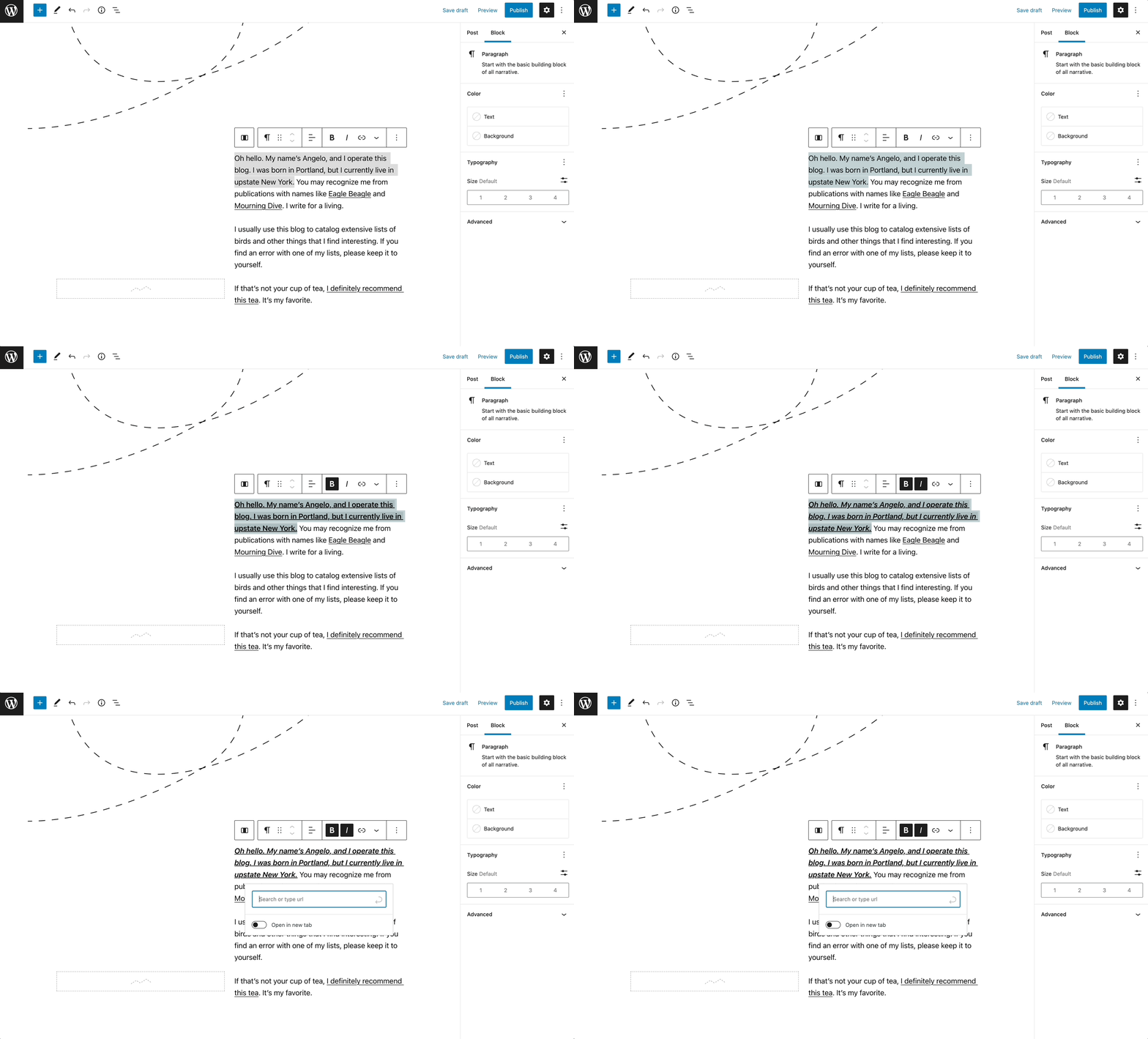
99 Time-Saving WordPress Keyboard Shortcuts You Should Know

It can take a lot of work to design, write, and edit new content for your website. In the process, you may not realize that you’re wasting time by needlessly moving your hand to and from your mouse. By not optimizing the way you use your computer, you likely won’t be as productive as you want to be.

Fortunately, WordPress supports many keyboard shortcuts. These are specific key combinations that simplify many essential tasks. By learning these shortcuts, you can edit text, adjust formatting, and even moderate comments much more quickly.

In this post, we’ll discuss why you might consider using WordPress keyboard shortcuts. Then, we’ll list some of the best ways to improve efficiency in your workflow. Let’s get started!

Why You Should Consider Using WordPress Keyboard Shortcuts

Whether you’re a beginner or a seasoned developer, working in a WordPress dashboard can be time-intensive. After writing blog posts or designing new pages, you may not have a lot of time to complete other important tasks.

To help you boost productivity in your workflow, you can start using keyboard shortcuts. Essentially, this involves using key combinations to quickly perform certain actions.

With keyboard shortcuts, you can avoid moving your hands back and forth from your mouse. Instead, you can simply rest your hands on your keyboard.

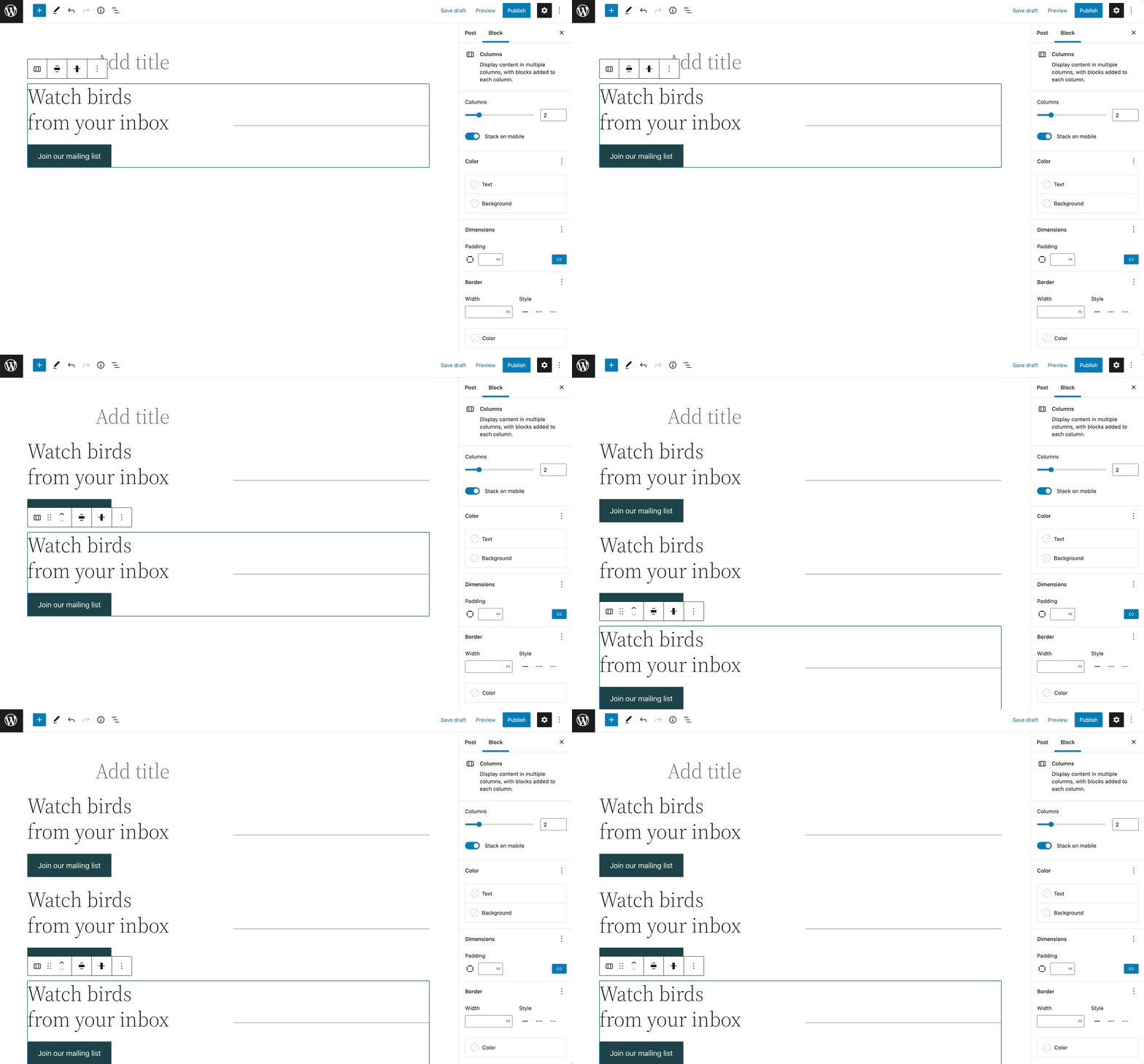
For example, you can use Ctrl + Shift + D in the Block Editor. This combination will quickly and easily duplicate a block:

WordPress keyboard shortcut

You might think that learning new shortcuts may be a waste of time. However, it can ultimately help you publish more content in less time.

The Best Time-Saving WordPress Keyboard Shortcuts

Now that you know how keyboard shortcuts can benefit your workflow, it’s time to learn some of them! Since there are many options to choose from, you may easily become overwhelmed. However, you can simply pick a few that will best suit the tasks you’re working on.

WordPress Keyboard Shortcuts for Editing

As a blogger, one of the most important areas of your WordPress dashboard is the post or page editor. Fortunately, WordPress supports many keyboard shortcuts for the editing process. Whether you’re using the old Classic Editor or the Block Editor, you can use these shortcuts to improve your efficiency.

Keep in mind that your button combinations will vary depending on your computer’s operating system. For Mac users, you’ll enter Command (⌘) + letter’, while Windows and Linux will use ‘Ctrl + letter’.

Here are some editing shortcuts for Mac users:

  • Command (⌘) + C = Copy
  • Command (⌘) + V = Paste
  • Command (⌘) + A = Select all
  • Command (⌘) + X = Cut
  • Command (⌘) + Z = Undo
  • Command (⌘) + Y = Redo
  • Command (⌘) + B = Bold
  • Command (⌘) + I = Italic
  • Command (⌘) + U = Underline
  • Command (⌘) + K = Insert/edit link
  • Ctrl + Option (alt ⌥) + L = Align left
  • Ctrl + Option (alt ⌥) + M = Insert image
  • Ctrl + Option (alt ⌥) + O = 1. List

If you want to do these tasks with a Windows computer, here are the shortcuts you could use:

  • Ctrl + C = Copy
  • Ctrl + V = Paste
  • Ctrl + A = Select all
  • Ctrl + X = Cut
  • Ctrl + Z = Undo
  • Ctrl + Y = Redo
  • Ctrl + B = Bold
  • Ctrl + I = Italic
  • Ctrl + U = Underline
  • Ctrl + K = Insert/edit link
  • Alt + Shift (⇧) + L = Align left
  • Alt + Shift (⇧) + M = Insert image
  • Alt + Shift (⇧) + O = 1. List

Using any of these shortcuts, you can improve your editing skills and become more efficient:

Classic editor keyboard shortcuts

Although we’ve listed some of the best editing shortcuts, they’re by no means the only ones. Make sure to check out the full list in WordPress’s documentation!

WordPress Keyboard Shortcuts for Managing Comments

If you accept user comments on your site, you’ll want to find easy ways to navigate them. While you can use keyboard shortcuts to manage comments, this feature won’t be automatically enabled in the default WordPress settings.

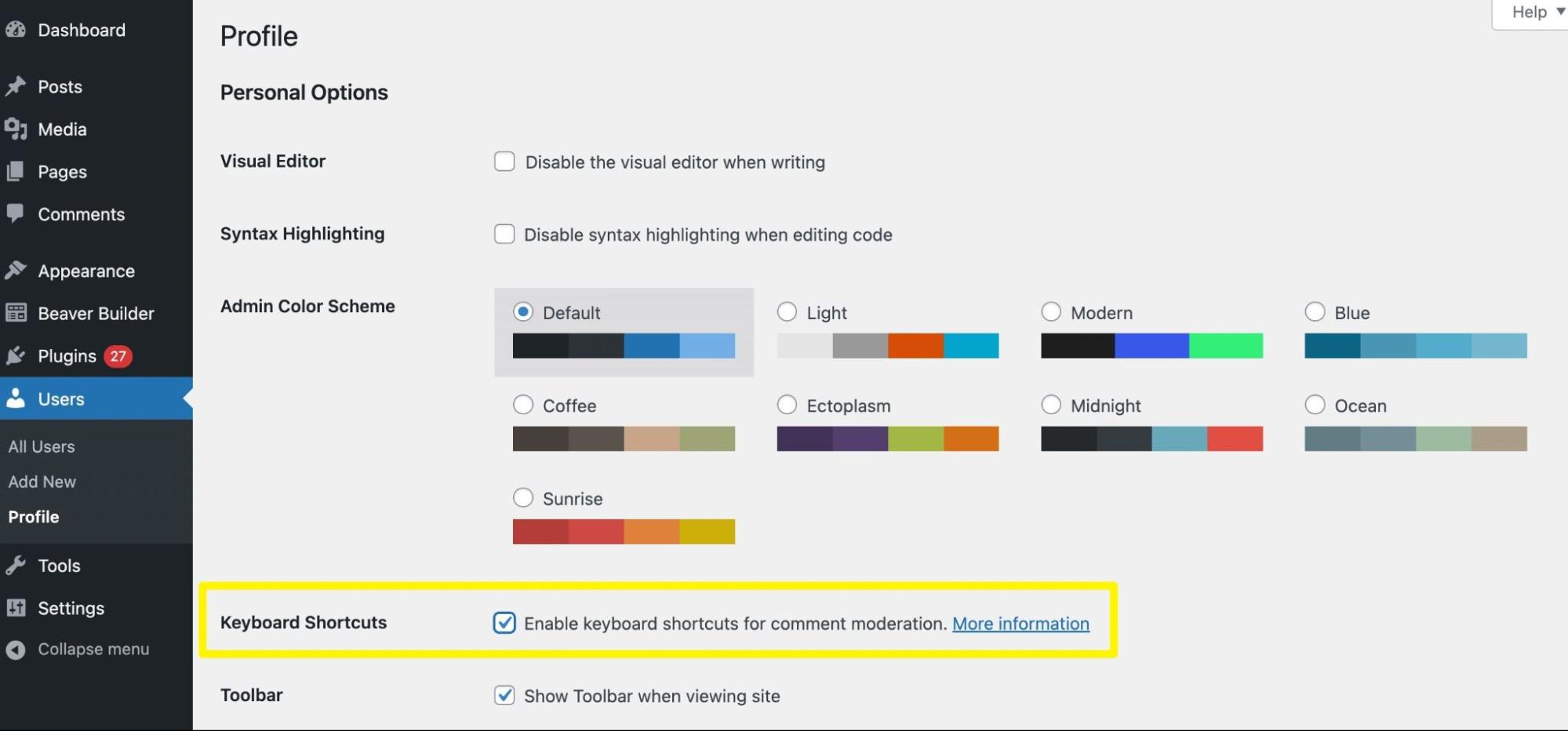
Therefore, you’ll need to go to Users > Profile and check the box next to Enable keyboard shortcuts for comment moderation:

Enable comment keyboard shortcuts

After you update these profile settings, you can visit the Comments page. Here, you can press J or K to select the first comment.

Here’s how you can navigate through your comments:

  • J = Move selection down
  • K = Move selection upwards
  • X = Add a checkmark to a comment

If you need to perform certain actions, here are some additional comment shortcuts:

  • A = Approve a comment
  • S = Mark as spam
  • D = Move to trash
  • Z = Restore a comment from the trash
  • U = Unapprove a comment
  • R = Reply to comment
  • Q = Quick edit
  • E = Open comment editing screen

After you select multiple comments, you can use keyboard shortcuts for bulk actions:

  • Shift + X = Add or remove checkmark for all comments
  • Shift + A = Approve checked comments
  • Shift + S = Mark checked comments as spam
  • Shift + D = Delete checked comments
  • Shift + U = Unapprove checked comments
  • Shift + T = Move checked comments to trash
  • Shift + Z = Restore checked comments from trash

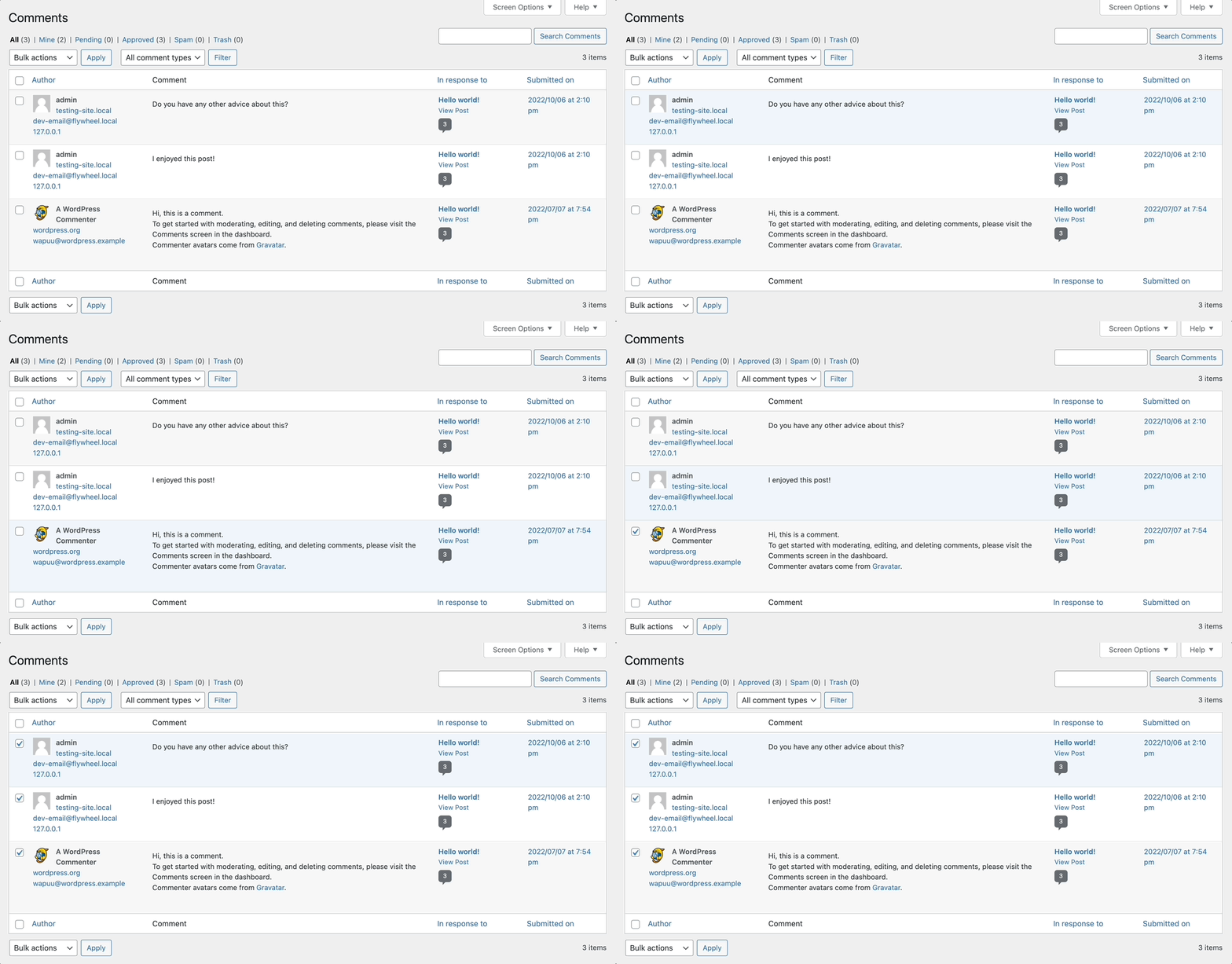
Here’s how some of these shortcuts work in action:

Comment keyboard shortcuts

By learning these simple shortcuts, you can more easily manage your website’s comments section. This can benefit sites with a large audience since you’ll have to moderate a large number of replies.

Get Content Delivered Straight to Your Inbox

Subscribe to our blog and receive great content just like this delivered straight to your inbox.

The Best WordPress Keyboard Shortcuts for the Block Editor

WordPress still supports keyboard shortcuts for its Classic Editor, but chances are you’ve upgraded to the Block Editor. Otherwise known as Gutenberg, this tool enables you to create posts and pages using feature-packed content blocks. With this latest update, WordPress has also created new keyboard shortcuts.

Global WordPress Keyboard Shortcuts

It’s important to note that many of the previously mentioned keyboard shortcuts will still work in the Block Editor. However, you can learn Gutenberg-specific shortcuts to easily navigate the new editing interface.

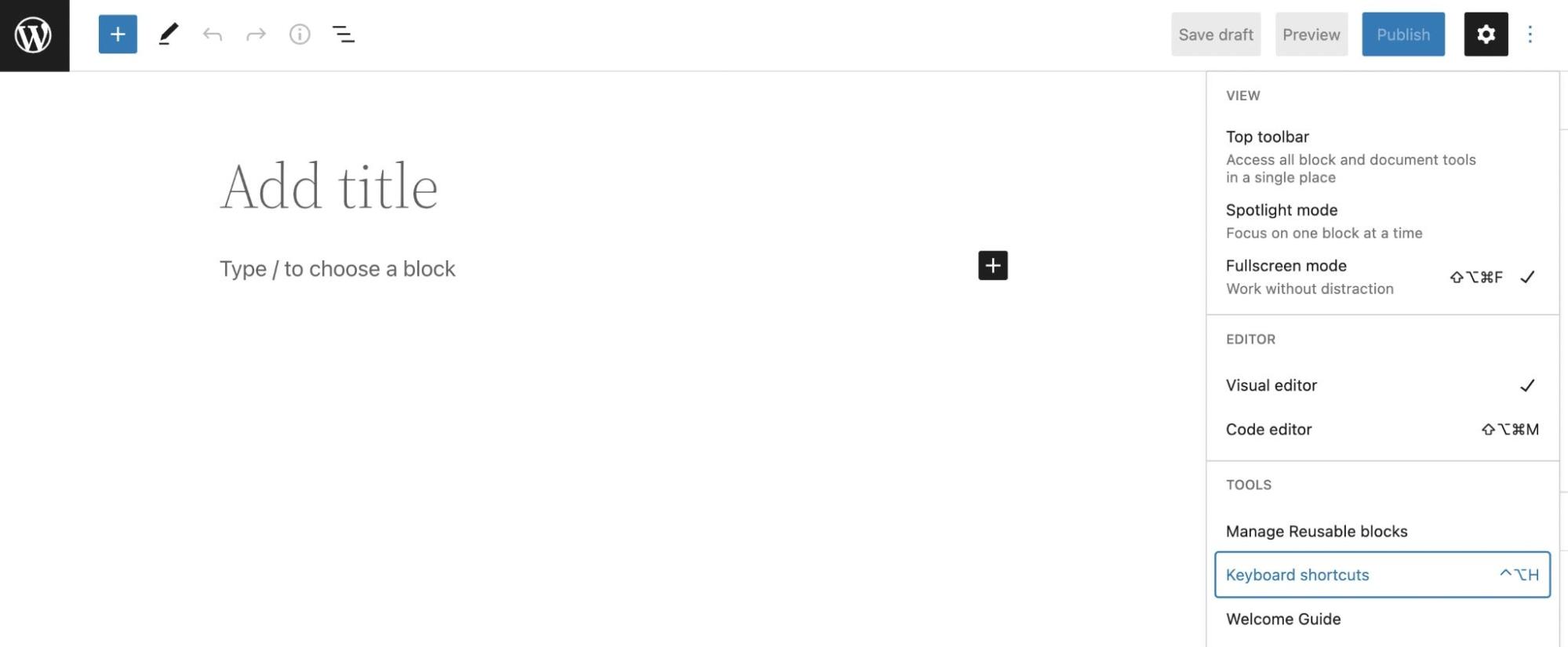
To make this learning process easier, WordPress has included a list of these shortcuts in the Block Editor. Once you add a new post or page, click on the three-dot icon and select Keyboard Shortcuts:

Open keyboard shortcuts

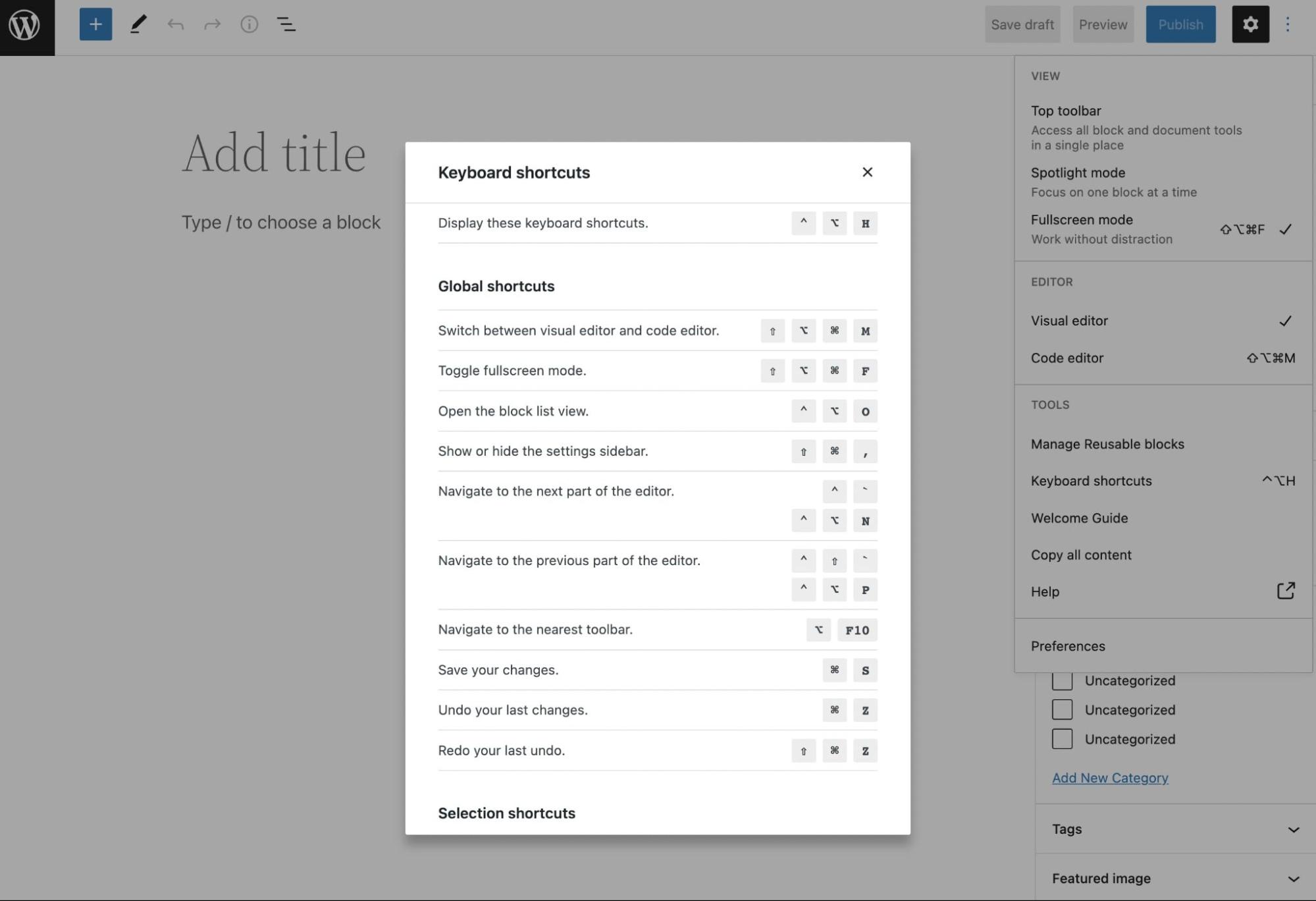
This will display a pop-up window with all the Block Editor shortcuts for your operating system. You can refer to them at any time:

Gutenberg keyboard shortcuts

Let’s go over the general options for Gutenberg. If you’re a Windows user, here are some Global shortcuts you can use:

  • Ctrl + Shift + Alt + M = Switch back and forth between the Classic and Block Editors
  • Ctrl + Shift + Alt + F = Toggle fullscreen mode
  • Shift + Alt + O = Open block list view
  • Ctrl + Shift + , = Display or hide settings sidebar
  • Ctrl + ` + Shift + Alt + N = Go to the next part of the editor
  • Ctrl + Shift + ` or Shift + Alt + P = Go to the previous part of the editor
  • Alt + F10 = Go to the nearest toolbar
  • Ctrl + S = Save changes
  • Ctrl + Z = Undo changes
  • Ctrl + Shift + Z = Redo an undo

Here are the Mac versions of these Gutenberg shortcuts:

  • ⇧ + ⌥ + ⌘ + M = Switch back and forth between the Classic and Block Editors
  • ⇧ + ⌥ + ⌘ + F = Toggle fullscreen mode
  • ⌃ + ⌥ + O = Open block list view
  • ⇧ + ⌘ + , = Display or hide settings sidebar
  • ⌃ + ` or ⌃ + ⌥ + N = Go to the next part of the editor
  • ⌃ + ⇧ + ` or ⌃ + ⌥ + P = Go to the previous part of the editor
  • ⌥ + F10 = Go to the nearest toolbar
  • ⌘ + S = Save changes
  • ⌘ + Z = Undo changes
  • ⇧ + ⌘ + Z = Redo an undo

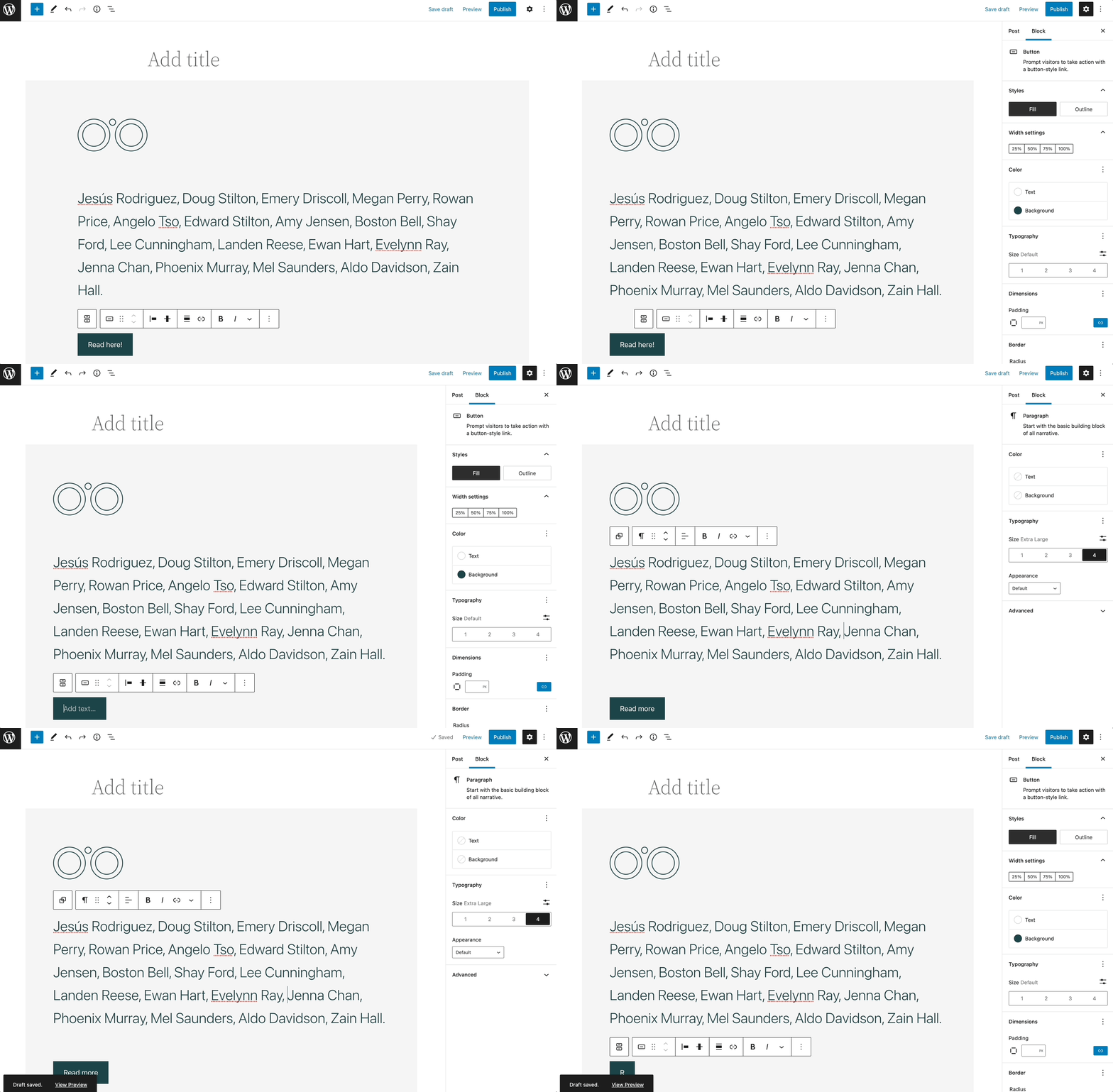
For example, we used some Global shortcuts to open the sidebar, undo changes, and save the article draft:

Global keyboard shortcuts

As you can see, keyboard shortcuts can speed up your workflow if you use them properly!

WordPress Keyboard Shortcuts for Selection

In the Block Editor, you can also use shortcuts to select specific text or blocks. This way, you won’t have to use your trackpad or mouse to highlight the right content.

With a Windows or Linux operating system, you can use these selection shortcuts:

  • Ctrl + A = Select all text or blocks
  • Escape = Clear selection
  • Double escape = Unselect the selected blocks

Alternatively, Mac users will have these options:

  • ⌘ + A = Select all text or blocks
  • Escape = Clear selection

These may not seem like the most useful shortcuts, but they can play an important role in the editing process. Without needing to move your hands away from the keyboard, you can select the text, then proceed to delete it or edit its formatting:

Selection keyboard shortcuts

Once you’ve memorized these simple selection shortcuts, you can start learning more complex ones!

WordPress Keyboard Shortcuts to Manage Blocks

Next, let’s discuss some different ways you can manage blocks with keyboard shortcuts. These enable you to easily duplicate blocks, move them, or remove them altogether.

Here are all the block shortcuts for Windows:

  • Ctrl + Shift + D = Duplicate selected block
  • Double escape = Unselect selected blocks
  • Shift + Alt + Z = Remove selected blocks
  • Ctrl + Alt + T = Insert new block before selected block
  • Ctrl + Alt + Y = Insert new block after selected block
  • Del / backspace = Delete multiple selected blocks
  • Ctrl + Shift + Alt + T = Move selected block up
  • Ctrl + Shift + Alt + Y = Move selected block down
  • / = Change block type after adding a new paragraph

For Mac users, here’s what you would use instead:

  • ⇧ + ⌘ + D = Duplicate selected block
  • Double escape = Unselect selected blocks
  • ⌃ + ⌥ + Z = Remove selected blocks
  • ⌥ + ⌘ + T = Insert new block before selected block
  • ⌥ + ⌘ + Y = Insert new block after selected block
  • Del / backspace = Delete multiple selected blocks
  • ⇧ + ⌥ + ⌘ + T = Move selected block up
  • ⇧ + ⌥ + ⌘ + Y = Move selected block down
  • / = Change block type after adding a new paragraph

These shortcuts may seem complicated, but over time they’ll become muscle memory. Eventually, you’ll be able to edit blocks very quickly:

Block editor shortcuts

If you’ve ever been frustrated with having to scroll through all the available blocks before you find the right one, you should consider using block keyboard shortcuts. These can help you add the right layout without sacrificing valuable time!

WordPress Keyboard Shortcuts to Edit Text Formatting

You can also use keyboard shortcuts to edit text. For instance, you might bold, italicize, or underline certain words. You can also use them to add or remove links.

Here are all the text formatting shortcuts for Windows users:

  • Ctrl + B = Bold text
  • Ctrl + I = Italicize text
  • Ctrl + U = Underline text
  • Ctrl + K = Convert text into a link
  • [[ = Add a link
  • Ctrl + Shift + K = Remove a link

If you have a Mac, you’ll need to use these keyboard shortcuts:

  • ⌘ + B = Bold text
  • ⌘ + I = Italicize text
  • ⌘ + U = Underline text
  • ⌘ + K = Convert text into a link
  • [[ = Add a link
  • ⇧ + ⌘ + K = Remove a link

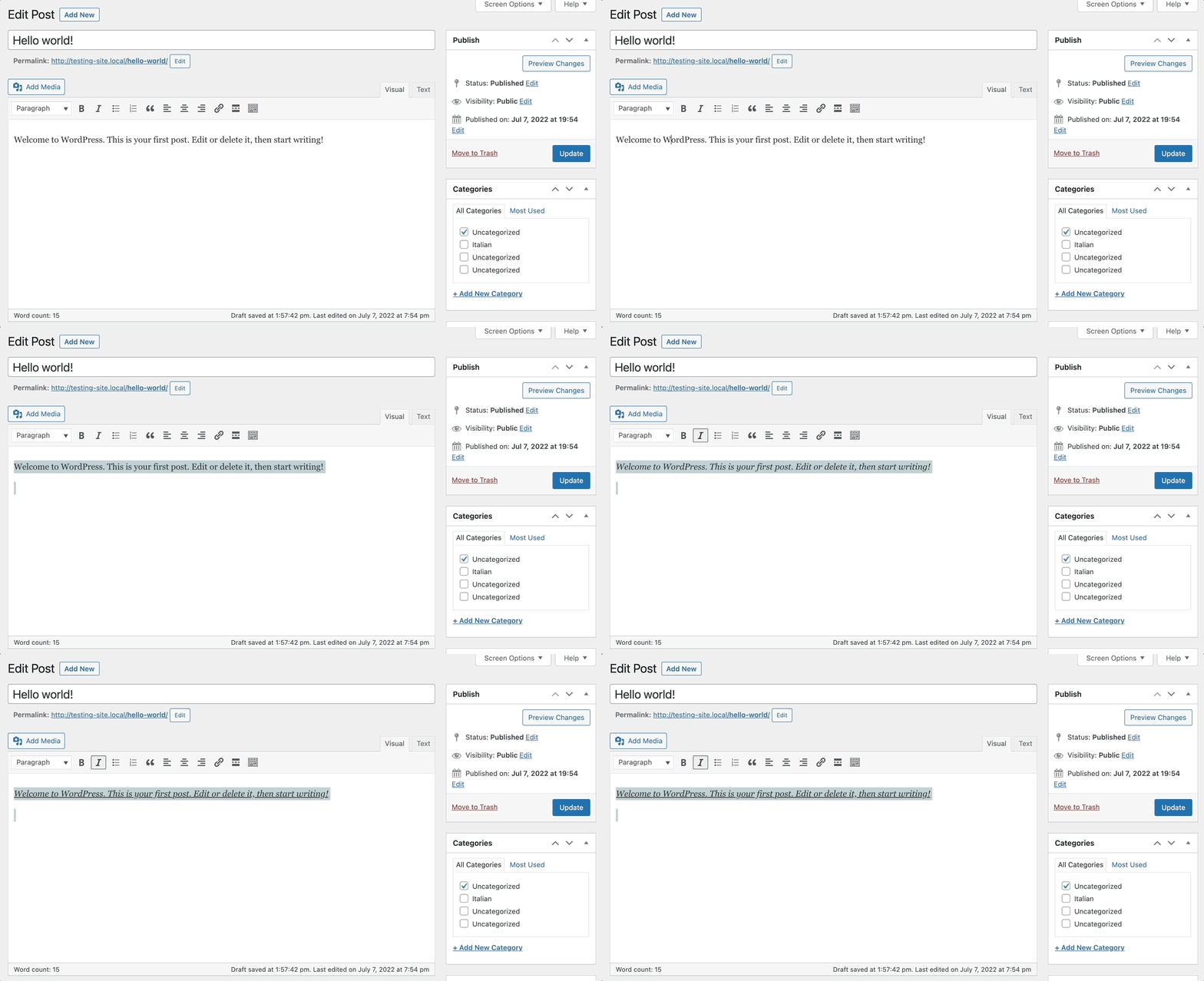
To use these shortcuts, you’ll simply need to have some text already selected. Then, you can make your edits:

Text keyboard shortcuts

Although it’s already fairly easy to stylize text in WordPress, learning these keyboard shortcuts can speed up your workflow!

Maximize WordPress Productivity

At first, you may find it difficult to memorize keyboard shortcuts in WordPress. However, shortcuts can simplify your workflow and boost productivity once you start using them frequently.

Whether you’re using a Windows or macOS operating system, you can learn specific keyboard shortcuts to make your WordPress dashboard easier to use. For example, you can use them to duplicate blocks, format text, manage comments, and more.

Since WordPress offers many easy-to-use keyboard shortcuts, you may want to consider migrating your website to this platform. Fortunately, our DreamPress managed hosting plans include free automatic migrations to ease this transition!

Do More with DreamPress

DreamPress Plus and Pro users get access to Jetpack Professional (and 200+ premium themes) at no added cost!

managed WordPress hosting provider

The post 99 Time-Saving WordPress Keyboard Shortcuts You Should Know appeared first on Website Guides, Tips & Knowledge.


source https://www.dreamhost.com/blog/wordpress-keyboard-shortcuts/

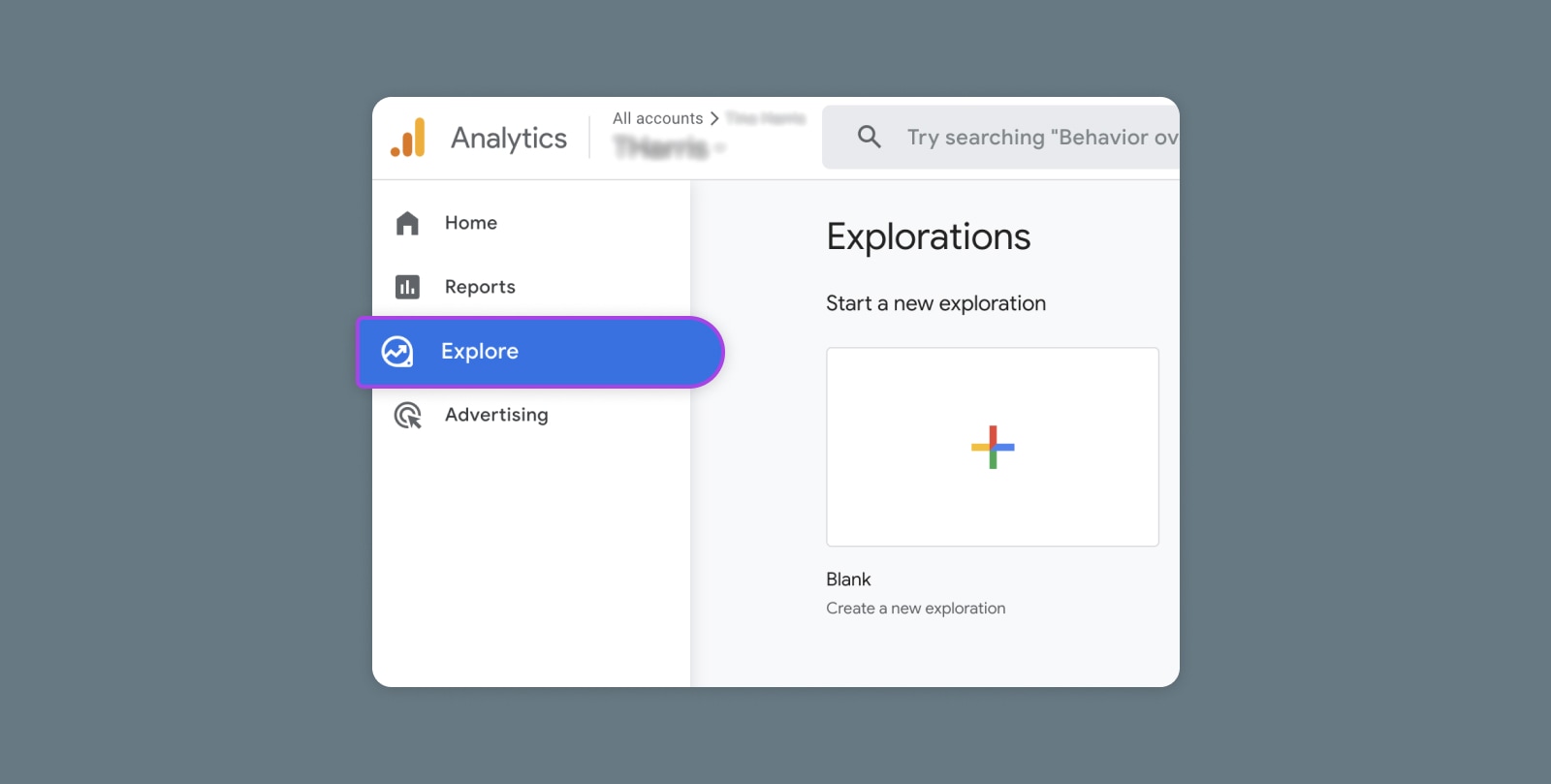
Creating and Mastering GA4 Explorations

In the switch from Universal Analytics (UA) to Google Analytics 4 (GA4) — which will go fully into effect July 2023 — a lot of things have...